

Coding sessions
The Coding sessions tab decides where your workspace's coding sessions run: on the Productmind cloud, or only on the Productmind agent each person runs on their own machine.
This page also covers the tabs beside Coding sessions in the Coding group of Settings:
- Git workflow sets which branch is production, which branch new work starts from and goes back to, how the branches that coding sessions create are named, whether a session's changes are pushed by your workspace's Git connection or by the Git account of the person who created the session, and whether a session pushes its work in progress while it works.
- Live previews sets how long a cloud live preview keeps running after the session's last message, and whether people can share a session's live preview with anyone through a public link.
The places your applications deploy to have a page of their own, Environments, under Engineering.
To connect your Git provider, use Integrations instead.
Key concepts
Productmind cloud. Productmind's own servers. A session that builds there runs on a runner that serves only that session.
Productmind agent. The pm agent command of the
Productmind CLI, running on someone's own computer. It builds
sessions there, with that person's own Claude Code or Codex account.
Productmind cloud sessions. Whether the workspace's sessions may run on the Productmind cloud. It is on in every workspace until an Owner or Admin turns it off.
Workspace connection. The Git connection your workspace set up in Integrations: the Productmind GitHub App, or your workspace's GitLab or Bitbucket connection. Unless you choose otherwise, it pushes every session's changes.
Session creator's account. The GitHub, GitLab or Bitbucket account that the person who created a session connected to Productmind as GitHub (User), GitLab (User) or Bitbucket (User). The session's pull requests open as that account wherever it can push.
Pusher. The account your Git provider shows as the one that pushed a change, and that the CI the push starts runs as.
Live preview lifetime. How many minutes a live preview on the Productmind cloud keeps running after the session's last message. A preview on someone's own machine has no time limit.
Public preview links. Whether people who can edit a session may share its live preview through a public link, which anyone can open without a Productmind account. It is on in every workspace until an Owner or Admin turns it off. Each session's link is still off until someone turns it on. See Sharing a live preview publicly.
Production branch. The branch that holds what is live, for example main. Releases compare
the development branch against it.
Development branch. The branch new work starts from, for example development. A repository
you add to a session by hand starts from it, and releases merge it into the production branch.
Trunk-based development. If your team works on a single branch, set the production branch and
the development branch to the same name, such as main.
Branch prefix. The start of every branch name a coding session creates, for example session/.
Work in progress. The steps of a build the agent has finished while the session is still working. With Push work in progress on, each one is committed and pushed to the session's branch as it finishes, not only at the end.
Draft pull request. A pull request your Git provider marks as not ready for review. Many CI setups skip drafts.
Environment. A place your applications deploy to, such as Development, Production or Staging. See Environments.
The Coding sessions tab at a glance
In the sidebar, choose Settings, then Coding sessions.
The tab has one switch, Run coding sessions on the Productmind cloud. The steps that install and connect the Productmind agent are on the Productmind CLI tab of Agents, not in Settings. See Installing the CLI.
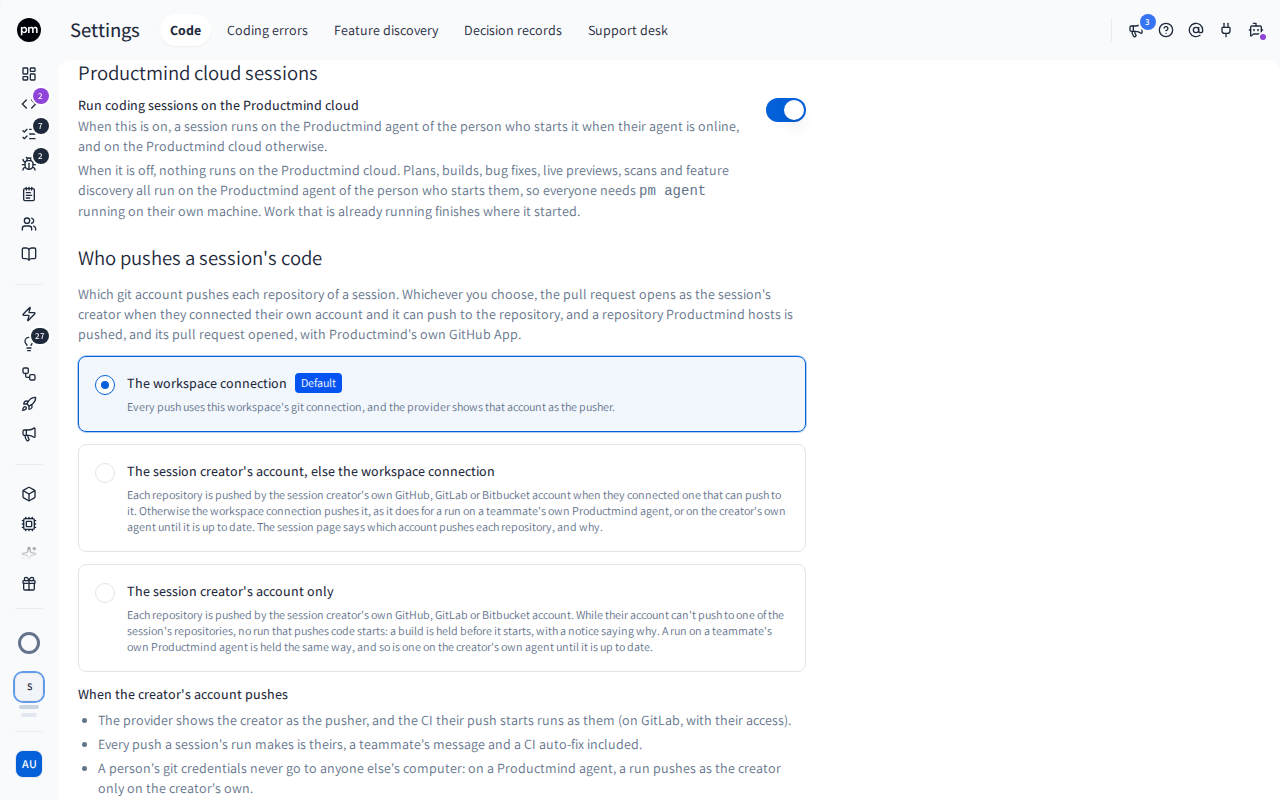
| Switch | Where sessions run |
|---|---|
| On, the default | On the Productmind agent of the person who starts the session when their agent is online, and on the Productmind cloud otherwise |
| Off | Only on the Productmind agent of the person who starts the work: plans, builds, bug fixes, live previews, scans and feature discovery. Nothing runs on the Productmind cloud, so everyone needs pm agent running on their own machine |
Turning Productmind cloud sessions off
To turn off Productmind cloud sessions
- In the sidebar, choose Settings, then Coding sessions.
- Turn Run coding sessions on the Productmind cloud off.
- Productmind asks Turn off Productmind cloud sessions?. Choose Turn off.
Saved appears next to the switch's label. From then on, the work anyone starts in the workspace runs on their own Productmind agent. Work that is already running finishes where it started. To leave the switch on, choose Cancel instead.
Before you turn it off, make sure everyone who starts sessions, previews or scans in the workspace
has the Productmind CLI installed and can run pm agent. See
Productmind CLI.
To turn Productmind cloud sessions back on
- In the sidebar, choose Settings, then Coding sessions.
- Turn Run coding sessions on the Productmind cloud on.
It is saved at once, with no question, and Saved appears next to the switch's label. The next run of each session can go to the Productmind cloud again.
How Productmind cloud sessions behave
On, a session goes to your own machine first. A session runs on the Productmind agent of the person who starts it when their agent is online, and on the Productmind cloud otherwise. You can still choose where a session builds. See Starting a session.
Off, everything runs on the agent of the person who acts. Drafting a plan, building, answering the agent, requesting changes, Retry, applying code revisions to a pull request, a live preview and every change you send it, every scan and feature discovery: each runs on the Productmind agent of the person who starts it. It is your own agent that counts, not a teammate's: if a teammate retries your session, their agent has to be online.
Without your agent, nothing starts. Productmind tells you before you click. While none of your agents is online, the Code page and a session's choice of where to build show "Cloud sessions are turned off for this workspace. Connect your Productmind agent to start sessions, live previews, scans and feature discovery." A button that would start a run is held. Draft a plan and Build show "Cloud sessions are turned off for this workspace. Connect your Productmind agent to run it here.", and Start preview gives its reason when you point at it. Choose Connect your Productmind agent in either message: it opens a dialog of the same name, which shows how to install, sign in and start the agent. See Productmind CLI.
A refused run says why. If something starts a run while no agent of yours is online, it is
refused with "Productmind cloud sessions are turned off for this workspace, and no Productmind
agent of yours is online. Start it on your machine with pm agent, then try again.", and
Connect your Productmind agent opens. When it is a session's run, the session shows Failed
with that reason and Retry: start your agent, then choose Retry.
The cloud can't be chosen. Where you choose where a session builds, Build on the cloud is grayed out with Cloud sessions are turned off for this workspace. So is Productmind cloud under Move this session, on the chip that says where a session runs.
A session that starts nothing can still be created. New session, Launch a coding session and Launch a bug fix session create a session as before: nothing runs until someone drafts its plan. A session that would start work at once is refused before it is created, so none is left behind: a session the PM agent hands a conversation over to, and a Live session started from a first message. The PM agent checks first: instead of proposing the session, it tells you to start your Productmind agent, with Connect your Productmind agent.
Scans and feature discovery need your agent too. A scan is refused before anything starts. Scan applications, an application's Scan application, Scan N repositories in the Add an application dialog, Run feature discovery and Read the code with AI open Connect your Productmind agent instead of starting. A scan's estimate shows what it costs on your own machine. An architecture map or a feature catalog that starts on its own after applications are detected fails, rather than waiting, when no agent of yours is online: scan again once it is. Resume on a scan that paused for funding needs the agent of the person who started the scan: while that agent isn't online, the scan stays paused and Productmind says why.
Work that is already running finishes. Turning the switch off stops nothing. A run already running on the cloud finishes there, even if its runner stops and Productmind starts a new one for it, and a run already waiting for its cloud runner still starts. Only the next run of each session goes to a Productmind agent.
An open cloud preview keeps serving, but takes no new work. A live preview running on the cloud when the switch is turned off keeps running until it stops, its live preview lifetime after the last message. It takes no new change: stop it, and start it again on your Productmind agent. See Live preview.
Fixing failing checks waits for an agent too. When a pull request's checks fail, the attempt to fix them runs on the Productmind agent of the session's person: the person whose machine runs the session, else its assignee, else whoever created it. If that agent is offline, the attempt doesn't start and isn't counted, and the session notes "CI auto-fix could not start: cloud sessions are off and Alice Example's Productmind agent is offline." The failures are still posted as review comments: start the agent, then choose Apply code revisions. See Pull requests and reviews.
The PM agent tab shows whether you have an agent. While cloud sessions are off and none of your agents is online, a gray No local agent chip shows next to the PM agent title. Choose it to connect one. See Productmind CLI.
A reset turns it back on. Resetting the workspace's data deletes its settings, this one included, so Productmind cloud sessions are on again afterwards. See Workspace settings.
The Git workflow tab
In the sidebar, choose Settings, then Git workflow. It is the tab after Coding sessions, and holds your branch policy, who pushes a session's code, and whether a session pushes its work in progress.
The tab starts with five fields:
| Field | Used for | If nobody has changed it |
|---|---|---|
| Production branch | Releases, and the coding agent's instructions | main |
| Development branch | New work: the base branch of a repository you add to a session by hand, and releases | development |
| Session branch prefix | The branch of a session you start yourself: the prefix, the session's name, then the date and time, such as session/checkout-redesign-2026-10-06-101530 | session/ |
| Task branch prefix | The branch of a session launched from tasks: the prefix, the task's title, then the date and time | task/ |
| Bug-fix branch prefix | The branch of a bug-fix session: the prefix, the bug report's title, then the date and time | bugfix/ |
Below the fields, Who pushes a session's code has three choices, with the one your workspace uses selected:
| Choice | Who pushes each repository of a session |
|---|---|
| The workspace connection, the default | Your workspace connection, always |
| The session creator's account, else the workspace connection | The session creator's own account where it can push, and your workspace connection elsewhere |
| The session creator's account only | The session creator's own account. While it can't push to one of the session's repositories, no run that pushes code starts |
Under the choices, When the creator's account pushes lists what changes when it does.
Last is one switch, Push work in progress, on unless an Owner or Admin turned it off:
| Switch | What a session pushes while it works |
|---|---|
| On, the default | Each step the agent finishes, to the session's branch. An open pull request is a draft while the agent works and is marked ready when it finishes |
| Off | Nothing until the agent finishes; then everything at once, as before |
Changing the branch policy
To change a branch or prefix
- In the sidebar, choose Settings, then Git workflow.
- Change the field.
- Move out of the field, for example by pressing Tab.
Saved appears next to the field's label.
Production branch, Development branch and Session branch prefix can't be empty. If you
clear Task branch prefix, sessions launched from tasks use task/. If you clear Bug-fix
branch prefix, bug-fix branches start with the bug report's title.
A prefix may use upper case letters, for example chore/ABC-0/. It can't contain spaces, .. or
//, or any of : ? * [ \ ^ ~, and it can't start with - or /.
How the Git settings behave
New sessions only. A session gets its branch name when it is created. Changing a prefix or a branch doesn't rename the branches of existing sessions. To rename one session's branch, see A branch name your Git provider refused.
The coding agent follows them. A coding session is told your production branch, development branch and session branch prefix. It creates its working branch from each repository's base branch, and opens its pull requests against that base branch.
Merges into them record deployments. When a session's pull request is merged into the production branch or the development branch, its Deployments panel records a deployment to that environment. So does a merge into a branch an application maps to one of your own environments. A merge into any other branch records none, and still completes the session once all its pull requests are merged.
Your Git provider's rules still apply. If your provider restricts branch names, for example
with a GitLab push rule or a GitHub ruleset, choose prefixes that match them, all three of them.
For a rule such as (feature|bugfix|chore)/<ticket key>-<number>/..., use prefixes like
chore/ABC-0/ and bugfix/ABC-0/. Otherwise the provider refuses a session's push, and the
session shows Branch name refused with the provider's reason.
Per application. An application sets its own Base branch, and can override the development and production branches for its repository. See Applications.
Choosing who pushes a session's code
Who pushes a session's code is on the Git workflow tab, below the branch fields.
To choose who pushes a session's code
- In the sidebar, choose Settings, then Git workflow.
- In Who pushes a session's code, select The workspace connection, The session creator's account, else the workspace connection or The session creator's account only.
Saved appears beside its description. Each session's next run follows your choice, and a run in progress keeps the account it started with.
Before you choose one of the session creator's options, ask the people who create sessions to connect their own Git account. See To open your session's pull requests as yourself.
How who pushes behaves
The pull request opens as the creator either way. Whichever you choose, a session's pull requests open as the person who created it, when they connected their own account and it can push to the repository. This setting decides who pushes the changes. See Who opens the pull requests.
Each run decides once. When a run that pushes code starts, Productmind decides which account pushes each of the session's repositories, and keeps that account for the whole run. With The workspace connection, that is your workspace connection for every repository.
The session page says which account pushes. With either of the creator's options, a line under the session's buttons names the account for each repository, for example "acme/web: pushes and opens the merge request as your GitLab account (alessio)." Anyone but the creator reads "the session creator's GitLab account", without the name. When your workspace connection pushes a repository instead, the line says why, for example that the creator's account has the Reporter role there. Repositories that would read the same share one line, for example "All 5 repositories push and open their pull requests as your GitHub account (alessio)."
"Else the workspace connection" holds nothing. A repository the creator's account can't push to is pushed by your workspace connection, and so is every repository of a run on a teammate's own Productmind agent.
"Only" waits for the creator's account. While the creator's account can't push to one of the session's repositories, Approve & build and Build are grayed out under The build can't start until Productmind can push, and the notice says why and what to do, for example "Productmind can't push to acme/web: this workspace pushes a session's code only as its creator's own account, and the session creator hasn't connected their own GitLab account." Any other run that would push code, such as Apply code revisions or a fix for failing checks, doesn't start either, and says why. The creator can connect their account, someone can run the session on the Productmind cloud or on the creator's own Productmind agent, or you can choose another option here.
A person's Git account is used on their own computer only. On a Productmind agent, a run
pushes as the session's creator only on the creator's own agent, once its Productmind CLI is up to
date (run pm update on it). A run on a teammate's agent is pushed by your workspace connection,
or, with "only", waits. A run on the Productmind cloud pushes as the creator wherever their account
can push.
Every push of the session is the creator's. Where the creator's account pushes, a teammate's message, Apply code revisions and a fix for failing checks that Productmind starts by itself are all pushed with it, as if the creator had pushed them.
Your Git provider sees the creator. It shows them as the pusher, and the CI their push starts runs as them: GitHub Actions, GitLab pipelines and Bitbucket Pipelines. On GitLab the pipeline has their access, and the commits name them as the committer, so push rules that check the committer, such as Reject unverified users, accept them.
On GitLab, a personal access token pushes too. If your workspace connected GitLab with an access token, each creator's own personal access token pushes their sessions' changes.
GitHub, GitLab and Bitbucket alike. On GitHub, the creator's account pushes with a token that can change only that one repository's code, never its CI workflows.
A repository Productmind hosts for one of your applications is always pushed, and its pull request opened, with Productmind's own GitHub App.
If the creator's account stops working, nothing is pushed with another account. When the creator disconnected their account, its sign-in expired or it lost access to a repository during a run, that repository isn't pushed. The session keeps its changes, and the repository shows Creator's account couldn't push. Once the creator reconnects their account in Integrations, choose Retry.
The person who pushed merges without approving. Productmind's Merge approves the pull request with your workspace connection, then merges it. When the creator's own account pushed the latest changes, their Merge doesn't approve: it only merges. So a rule such as a required review, GitHub's "Require approval of the most recent reviewable push" or GitLab's "Prevent approvals by users who add commits" still means someone else approved. Where your repository requires none, the creator merges as anyone else does; where it requires one, someone else approves the pull request on your Git provider first. See To merge a pull request.
Pushing work in progress
To turn off pushing work in progress
- In the sidebar, choose Settings, then Git workflow.
- Turn off Push work in progress.
Saved appears next to the switch. Turn it back on the same way.
How work in progress behaves
Nothing is done twice. A long build can move to another machine before it ends: after you change the sandbox's size, after a Stop and a new message, or when the runner it was on is replaced. With Push work in progress on, the agent picks up from the steps already on the session's branch instead of doing them again.
The agent saves after each step. When the agent finishes an item of its to-do list, Productmind commits the changes with that item as the message and pushes them to the session's branch. The session's timeline shows each one, for example "Work in progress saved to acme/web's working branch (2 commits)". The agent never pushes anything itself.
A first pull request still opens at the end. Work in progress goes to the session's branch only. The pull request opens when the agent finishes, as before.
An open pull request becomes a draft while the agent works. On a later turn of a session whose pull request is already open, Productmind marks it as a draft before the first push and marks it ready again when the agent finishes. A draft you made yourself stays a draft. If your Git provider can't hold a draft for that repository (a private repository on GitHub Free, for example), nothing is pushed to it until the agent finishes.
Your CI and work in progress. Each push can start your CI. If your CI skips draft pull requests and branches without a pull request, it runs once, when the pull request is ready. If it runs on every push to any branch, turn Push work in progress off: the work is then pushed when the agent finishes, as before.
Changes to CI workflows wait. A step that changes your CI workflow files is committed but not pushed until the agent finishes, where the usual approval for CI changes applies.
Who pushes. Work in progress is pushed by your workspace connection. If your workspace pushes as the session's creator, the steps are committed and pushed when the agent finishes, as that account.
The Live previews tab
In the sidebar, choose Settings, then Live previews. The tab has one field and one switch:
- Live preview lifetime: 30 minutes unless an Owner or Admin changed it.
- Public preview links: on unless an Owner or Admin turned it off.
Live preview lifetime
A live preview on the Productmind cloud stops when nobody has sent the session a message for a while: 30 minutes, unless you change it here. Each message starts the time again. Five minutes before the preview stops, the session says so, and before it stops, the preview's changes are pushed: a Live session with no pull request yet opens one. See Live preview.
To change the live preview lifetime
- In the sidebar, choose Settings, then Live previews.
- Enter the minutes in Live preview lifetime, from 10 to 240. Clear the field to go back to 30.
The value is saved when you leave the field, and Saved appears beside its label. It applies to previews started after you change it; a preview already running keeps the time it started with. However often messages are sent, a preview runs for 8 hours at most.
Public preview links
When Public preview links is on, people who can edit a session can share its live preview through a public link. Anyone with the link can see the application's pages, its API and the files its development server serves, and comment on them, but not the session, the agent or any workspace data. See Sharing a live preview publicly.
To turn off public preview links
- In the sidebar, choose Settings, then Live previews.
- Turn off Public preview links.
- Read Turn off public preview links?, and choose Turn off.
Saved appears beside the label. Every public preview link in the workspace stops working within seconds, and sharing is turned off on every session. On each session, Share this preview says "Public preview links are turned off for this workspace (Settings > Live previews)."
To turn public preview links back on
- In the sidebar, choose Settings, then Live previews.
- Turn on Public preview links.
Saved appears beside the label. No old link works again: each session's link stays off until someone who can edit the session turns it on, which issues a new link.
How public preview links behave
Turning them off is immediate. Every check of a public link reads the switch as it is now, so a link stops for the pages already open on it too, within seconds. Each session whose link was on has it turned off, and the audit log records each one as your change.
AI conversations end. The AI conversations about comments left through the links end, and Productmind summarizes them as interviews. See Agentic interviews.
Comments stay. The comments outside viewers left stay on their sessions, in Review mode.
Only from the app. The switch changes only from Productmind, signed in as yourself: an AI assistant, a coding session or an API key can't change it.
Environments
The environments your applications deploy to moved out of Settings. See Environments.
Permissions
| To | You need |
|---|---|
| See and change the Coding sessions, Git workflow and Live previews tabs | The Owner or Admin role |
While Productmind cloud sessions are off, starting a session, a preview or a scan also needs your own Productmind agent online, as well as the permission to start it.
Troubleshooting
"Productmind cloud sessions are turned off for this workspace, and no Productmind agent of yours is online"
Your workspace runs sessions only on Productmind agents, and yours isn't running. Start it on your
machine with pm agent, then try again. Choose Connect your Productmind agent for the steps. See
Productmind CLI.
When the message names someone else, such as "Alice Example's Productmind agent is not online", the work runs on that person's agent: ask them to start it.
"Your Productmind agent is signed in to another organization"
The message reads, for example, "Productmind cloud sessions are turned off for this workspace, and
your Productmind agent "laptop" is signed in to another organization." Your agent is running, but
signed in to another of your organizations, so it can't take this workspace's work. Run the
pm login --org command the message gives on that machine, then restart the agent and try again.
"Productmind cloud sessions are turned off for this workspace, so its sessions run on a Productmind agent"
You chose the Productmind cloud while the switch is off. Choose your own agent instead, and start
it with pm agent if it isn't running.
"Productmind cloud sessions are turned off for this workspace, so this cloud preview cannot continue live editing"
The preview was started on the cloud before the switch was turned off. Stop the preview, then start it again: it starts on your Productmind agent. See Live preview.
"Productmind can't push to acme/web: this workspace pushes a session's code only as its creator's own account"
Your workspace has The session creator's account only, and the creator's account can't push
to that repository, so the session's build, and every run that would push code, waits. The rest of
the message says why. Do what it says: for example, the creator connects their own account, or the
session runs on the Productmind cloud or on the creator's own Productmind agent, after pm update
on it. Or choose The session creator's account, else the workspace connection on the Git
workflow tab, so your workspace connection pushes where the creator's account can't. Then choose
Check again on the session.
"Production branch is required"
A branch can't be empty. Enter a branch name, and move out of the field again.
"A branch prefix can't contain spaces"
Git can't use that prefix in a branch name: it contains a space, .. or //, or one of :, ?,
*, [, \, ^ and ~, or it starts with - or /. Remove it, and move out of the field
again.
Save failed
The change wasn't saved. Productmind shows why. Enter the value again.
Related topics
- Productmind CLI
- Starting a session
- Live preview
- Pull requests and reviews
- Releases
- Applications
- Environments
- Integrations