

Support center
The Support center tab in the activity panel is where you get help with Productmind: ask the assistant, which answers from this User Guide and the API reference, or open a support request for the Productmind team to answer. It's also where you follow your requests, including the reviews your team asked a Productmind Architect to do on a coding session, of its code, its architecture or its product. For tasks related to your workspace, chat with the PM agent instead.
Key concepts
Assistant. Productmind's support assistant, at the bottom of the tab. It answers questions about using Productmind and about its API, including the MCP tools that AI assistants use. It answers only from this User Guide and the API reference, and links the pages it used. It has no access to your workspace data and can't change anything in it, so when you ask about something in your workspace, such as a link to one of your features, it offers your question to the PM agent, which can look it up.
Assistant conversation. What you and the assistant wrote to each other. It's shared with the Productmind team, and your teammates can't open it. It belongs to your organization, not to a workspace.
Support request. One request to Productmind, numbered per organization, such as SUP-3. It has one of four types:
| Type | What it's for |
|---|---|
| Question | Asking how to do something in Productmind or with its API. |
| Bug report | Telling Productmind about something that doesn't work as it should. |
| Feature request | Suggesting something Productmind could do for you. |
| Review | Asking a Productmind Architect to review one coding session, of the kind you choose: a Code review, an Architecture review or a Product review. Only where reviews are available to your organization. |
Each request has its own Conversation: the messages between your team and Productmind. Unlike an assistant conversation, everyone who can see the request can read it.
Productmind answers questions, bug reports and feature requests at no charge. A review is billed by the hour, at the same rate whatever its kind, from your organization's Pay-as-you-go balance.
Productmind support. The Productmind team that answers questions, bug reports and feature requests. Its messages carry the Productmind support badge.
Productmind Architect. The Productmind engineer who works on a review. Shown as PM Architect.
Screenshot. An image you add to a conversation, a new request or a reply: a PNG, JPEG, GIF or WebP file, up to 10 MB. Reviews don't take screenshots.
Productmind backlog. Productmind's own list of planned work. Productmind support can add a bug report or a feature request to it, and your request then says so.
Quote. What the architect sends when a review needs more hours than you've approved. It shows the hours cap, the hourly rate and the most it can cost, and waits for an Owner or Admin to approve it. When the hours reach a lower rate your plan offers for a larger review, the quote says so under the rate, for example Volume rate for 8 h or more. There are two kinds:
- an estimate, before the review starts, when it needs more hours than you approved up front;
- an extension, while the review is in progress, when the architect asks for more hours. The review keeps going while an extension waits.
Access. While the architect evaluates and carries out a review, they get temporary access to that one session and the work linked to it. See Support access.
Status.
| Status | Means |
|---|---|
| Open | Waiting for Productmind to pick it up. |
| Assigned | Someone at Productmind has it. For a review, the architect is looking at the session to estimate the review. |
| In progress | A review is under way. It stays In progress while an extension waits for approval. |
| Awaiting you | Waiting for your team. The status adds why: reply needed means Productmind asked you something in the request's conversation, and quote approval means a review's estimate is waiting for an Owner or Admin to approve it. |
| Resolved | Productmind has finished with it. |
| Cancelled | Your team, Productmind, or an event such as the session ending, cancelled it. |
| Expired | It ran out of time, for example because nobody picked it up in time. |
A resolved, cancelled or expired request shows why, for example Completed or The session ended for a review. A question, bug report or feature request shows one of these:
| Shown | Means |
|---|---|
| Answered | Productmind answered your question. |
| Fixed | Productmind fixed the bug. |
| Added to the Productmind backlog | Productmind plans the work with the rest of its backlog. |
| Productmind couldn't reproduce it | Productmind couldn't make the bug happen. |
| Won't be fixed | Productmind decided not to change it. |
| Not planned | Productmind decided not to build the feature. |
| Already reported in another request | The same thing is followed in another request. |
| Cancelled by the requester or Cancelled by Productmind | Someone cancelled it. |
| Nobody picked it up in time | Productmind didn't pick it up within 30 days. |
| No reply to a question in time | Productmind asked you something, and nobody replied within 14 days. |
Support center at a glance
Choose Support center (the question mark icon) at the top-right of any page. The tab opens on its home.
While you set up a new workspace, choose Help at the bottom of the list of steps, or the question mark icon at the top of the screen on a phone. The Support center opens over the setup with the same home, and Guide for this page opens the guide's section on setting up your workspace. Each Contact support in the setup opens a new support request there, with what went wrong filled in. So does Contact us on Usage limit reached when no plan you can switch to raises the limit, and on a plan change that isn't confirmed yet on Billing & Payments › Subscription plan: check the request, and send it.
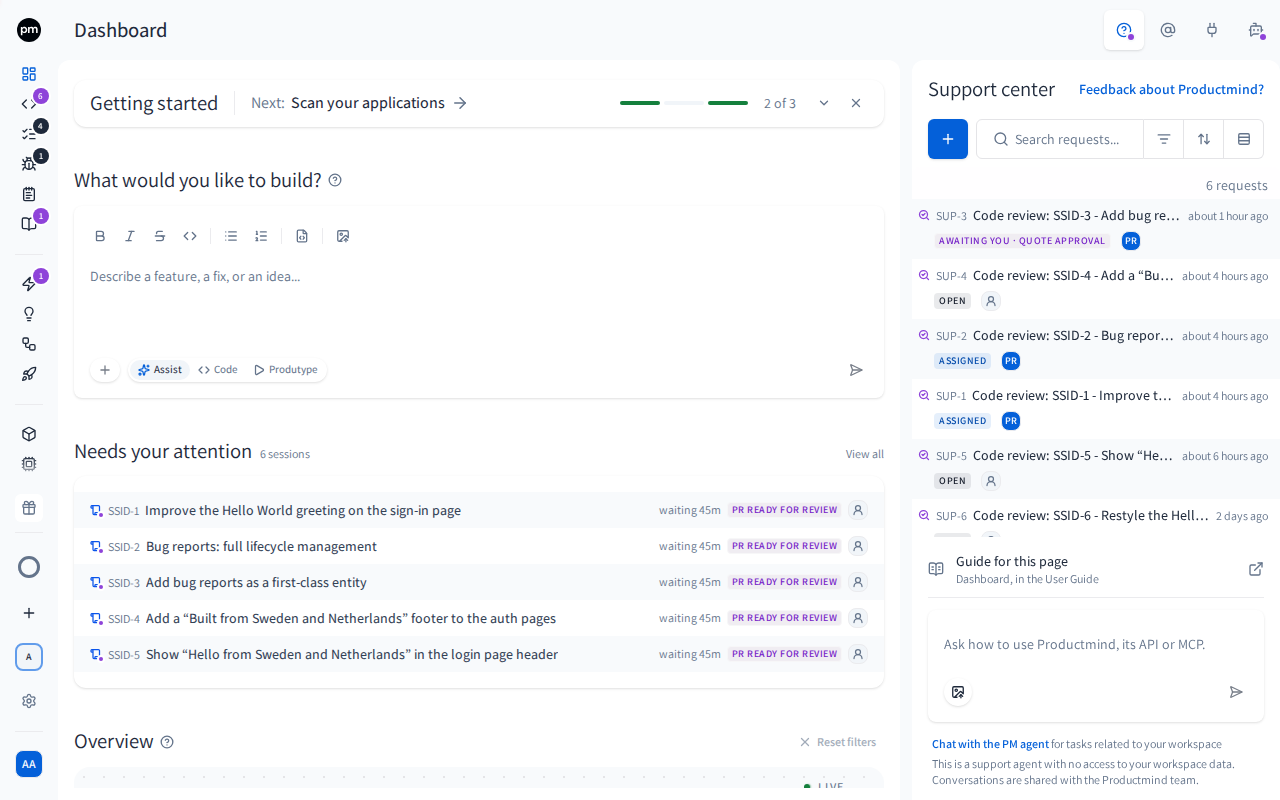
From top to bottom:
- The header holds Feedback about Productmind?, which starts a conversation that sends your feedback to the Productmind team. You can add up to 5 screenshots to each message there, the same way as with the assistant: paste them, drop them on the box, or choose Upload image.
- Support requests, if your role can see them: the support requests you can see in your organization, across every workspace. Above the list, if your role can open support requests, is New support request (the + button), next to the search. While you have a draft, the + reads Continue your support request. If your role can open requests but not see them, the tab shows Ask the Productmind team with New support request instead, and if it can do neither, How can we help?.
- Recent conversations: your last three conversations with the assistant, each with Continue. The PM agent tab lists them too, under Support.
- Guide for this page: the page of this User Guide that explains the page you're on.
- The message box at the bottom, where you ask the assistant. It reads Ask how to use Productmind, its API or MCP. Directly under it: "Chat with the PM agent for tasks related to your workspace". Choose Chat with the PM agent to switch to the PM agent tab. Under that: "This is a support agent with no access to your workspace data. Conversations are shared with the Productmind team."
The support requests list has a search box, which matches a request's number and title, and Filters, Sort and Group by:
| Control | Options |
|---|---|
| Filters | Status, Type, Workspace, and Requester: Everyone's requests or Created by me |
| Sort | Last activity (the default: the most recent activity first) or Created |
| Group by | Status, Type, Workspace or Assignee |
Each row shows the request's number, its title, its last activity, its status and who at Productmind has it. A review's title is its kind, such as Architecture review:, then the session's ID and name. A request with news you haven't read has a bold title.
On a coding session's page, the list opens filtered to that session. Remove the session's chip to see every request.
If the assistant isn't available and your role can neither see nor open support requests, the tab shows only links: under Help for this page, the page of this guide for the page you're on, and under Productmind docs, the User Guide and the API reference.
A support request at a glance
Choose a request to open it in the tab. The back arrow, Back to Support center, returns to the home.
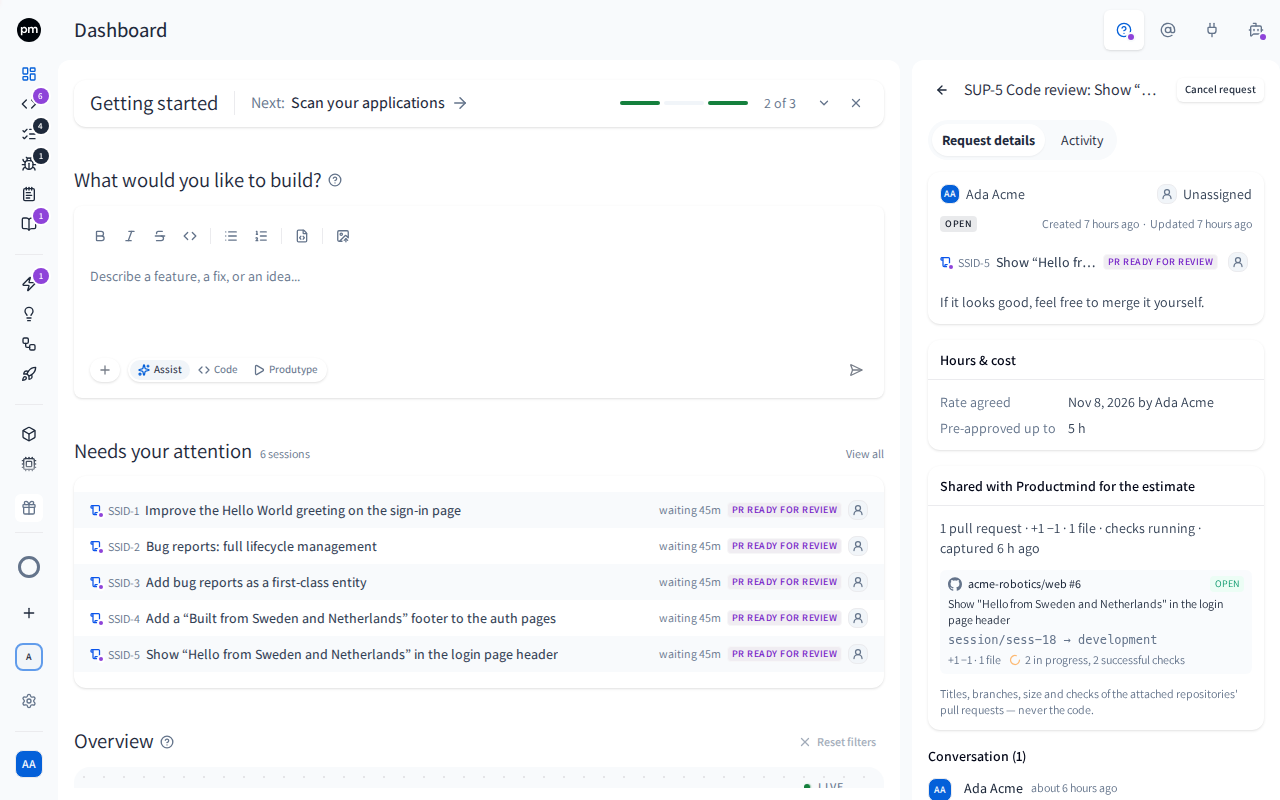
A request opens on its Request details tab. From top to bottom:
- Who reported the request and, on the right, who at Productmind has it, or Unassigned: point at a name for Reported by or Assigned to. Under them, the status, and when the request was created and last updated (point at a time for the date). Then what the request is about (a review's session, or the assistant conversation it was drafted in) and what your team wrote.
- For a question, bug report or feature request, What you told us, or What was reported when a teammate opened it: its Source, either Opened from the Support center or From an assistant conversation; the fields of its type; the Page it was opened from; for a bug report, the Productmind version and Browser; and its screenshots. Once Productmind adds it to its backlog, a note above says so.
- For a review:
- Estimate awaiting approval or Extension awaiting approval, while a quote waits: the PM Architect, Hours cap, Rate, At most and Expires, with Approve and Reject.
- Session access, once the architect has had access: Read-only evaluation or Review, whether they may merge, and Revoke access.
- Hours & cost: the hourly rate the review is billed at, when the rate was agreed, the estimate, the hours approved, the hours logged and what was charged. A volume rate is named under the rate.
- Shared with Productmind for the estimate: the titles, branches, size and checks of the session's pull requests. Never the code.
- Conversation: your messages with Productmind, with their screenshots, and the box to reply.
- Shared entities, for a review: the session, and the features, tasks and bug reports the architect can read.
The Activity tab lists every step the request went through, including how it ended, such as Resolved with Fixed.
Cancel request sits at the top while the request can still be cancelled.
Asking the assistant
To ask the assistant
- At the top-right of any page, choose Support center (the question mark icon).
- In the box at the bottom of the tab, enter your question.
- To show the assistant what you see, add up to 5 screenshots: paste them, drop them on the box, or choose Upload image (the picture icon).
- Press Enter.
The tab opens the conversation, and the assistant answers there, with links to the pages of this User Guide and the API reference it used. To ask a follow-up, enter it in the box under the answer, which reads Ask a follow-up....
A conversation with no message yet shows How can we help?, with the same box, the same line with Chat with the PM agent, and the same note as the home.
Ask it how to do something in Productmind, what a setting, plan or role allows, or anything about the API: which operation does something, with its method and path, whether it's available as an MCP tool and under which name, and how to sign a script or an AI assistant in.
To continue a conversation
- Choose Support center.
- Under Recent conversations, choose Continue on the conversation.
The conversation opens, and you can pick up where you left off. To find one that isn't among the last three, open the PM agent tab, filter its conversations by Support, then choose the conversation. It opens in the Support center.
Each conversation is named after your first question. A conversation you start with screenshots alone is named after the start of the assistant's answer until you write something in it. Then it's named after the first thing you wrote.
To switch to the PM agent
The assistant has no access to your workspace data. For tasks related to your workspace, such as finding a feature, changing a task or starting a coding session, use the PM agent.
- Choose Support center.
- Under the message box, choose Chat with the PM agent.
The PM agent tab opens as you left it: a PM agent conversation you had open stays open. If the tab was showing a Feedback about Productmind conversation, it leaves it. On a phone, the Support center closes first.
You see Chat with the PM agent only in a workspace, and not while you set up a new workspace. Writing to the PM agent needs Chat: Enabled in your role: the Viewer and Customer roles can read conversations there, but not write.
To ask the PM agent about your workspace
The assistant can't look inside your workspace, but the PM agent can. When you ask the assistant about something in your workspace, such as a link to your Talent development domain, to open FEAT-12, or which domains you have, it says so and offers your question to the PM agent.
- Ask the assistant about something in your workspace.
- Under its answer, check the question on The PM agent can look this up in your workspace.
- Choose Ask the PM agent.
The PM agent tab opens a new conversation and sends your question there. The PM agent looks it up in your workspace and links what it finds: choose Open to go to a page it found. To leave the question, choose Dismiss instead.
Nothing is sent to the PM agent until you choose Ask the PM agent. Its answer is like any PM agent conversation of yours: it sees only what your role can see in the workspace, and it uses AI credits.
You see this only in a workspace, and only if your role has Chat: Enabled, which the PM agent needs. Without it, the assistant tells you where to find what you asked for in Productmind instead, and that a teammate who can use the PM agent can look it up for you. The offer is gone once you reload the page, but the assistant's answer still quotes the question.
Opening a support request
To reach a person at Productmind, open a support request: the assistant drafts one from your conversation, or you write it yourself. Either way, nothing reaches Productmind until you choose Open request.
To open a request from a conversation
The assistant offers a support request when the documentation doesn't answer your question, something looks like a bug, or you ask for something Productmind doesn't do.
- When the assistant offers a support request, tell it you want one. It prepares the draft in its reply, or first asks for anything a request of that type needs.
- In the conversation, check the Support request draft: the type, the Title and the fields it filled in. Add anything it missed.
- Under Screenshots, the conversation's screenshots are selected, newest first, up to 10. Clear the checkbox on any you don't want to send, and add more if there's room.
- Choose Open request.
Productmind confirms SUP-8 opened, with your request's number. If your role can see support requests, the request appears in the Support center with the status Open, and under the conversation, as Support request opened from this conversation. Its Request details show the conversation, which only you can open.
The draft stays with the conversation until a request is opened from it. If you reload the page, or continue the conversation later or on another device, the assistant's latest draft is there again. Discard removes it from this browser. If you can't find the draft, tell the assistant, and it prepares it again.
To open a request by hand
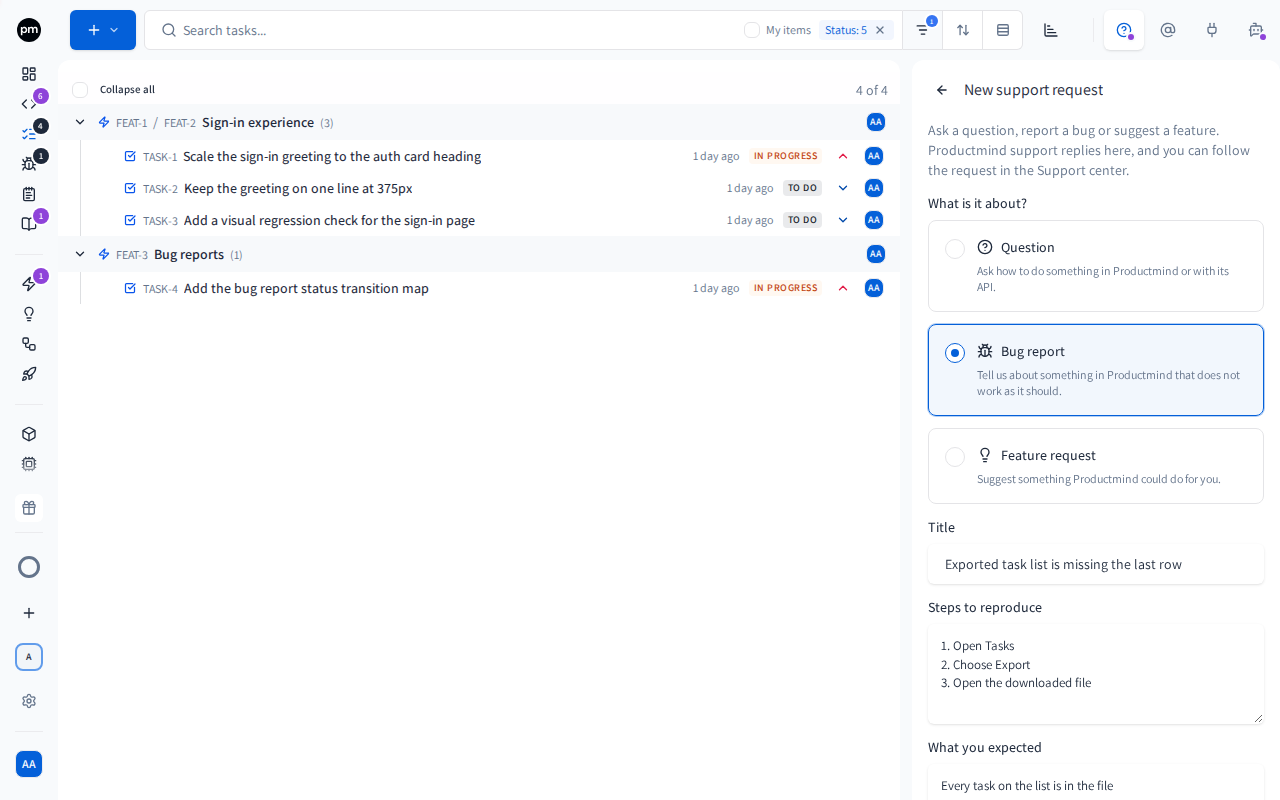
-
At the top-right of any page, choose Support center.
-
At the top of the tab, choose New support request (the + button).
-
Under What is it about?, choose Question, Bug report or Feature request.
-
Enter a Title.
-
Fill in the fields of the type:
Type Fields Question Your question Bug report Steps to reproduce, What you expected and What happened instead, and optionally Anything else Feature request The problem, and optionally What would help and Anything else -
Check the Page: the address of the page you were on when you started. To leave it out, choose Leave the page out (the x beside it). To send the page you're on now instead, choose Use this page, or Include this page once you've left it out.
-
To add screenshots, paste them into the form, drop them on Screenshots, or choose Add a screenshot. You can add up to 10.
-
Choose Open request.
Productmind confirms SUP-8 opened, and the tab shows the new request with the status Open. If your role can't see support requests, the tab returns to its home instead.
A bug report also includes your browser and Productmind version, so you don't need to type them. Pressing Enter doesn't send the request: only Open request does.
Your draft is kept in this browser for up to 30 days, one for each workspace, and only you see it. Close the Support center, and the + reads Continue your support request when you come back. Screenshots you added are kept until you reload the page or switch workspace or organization. To throw a draft away, choose Discard.
To pass a draft to a teammate
If your role can't open support requests, the assistant's draft is read-only, with Copy details.
- Under the draft, choose Copy details. It copies the type, the title, the details and the page you were on.
- Send the details to a teammate who can open support requests, such as an Owner or Admin.
- To pass a screenshot on, open it in the draft, download it, and send it along.
Your teammate can then open the request by hand, with your details and screenshots.
Asking for a review
To ask Productmind for a review
The session must have an open pull request, and must not be completed or cancelled.
- Open the coding session.
- Under its pull requests, choose Ask for human review.
- Choose PM Architects. Check the Rate and the Allowance, for example Up to 5 hours without a quote. What Productmind will see lists the session and the work linked to it.
- Choose Select.
- Write a note for the architect: what to focus on, and anything they should know.
- Under What should Productmind review?, choose Code review, Architecture review or Product review. Code review is selected to start with.
- To let the architect merge the pull requests, select Allow PM Architects to merge.
- Select Allow PM Architects to read this session's plan, related pull requests, feature specifications, and related documentation. (Required) Its hint repeats how many hours are billed at which rate.
- Choose Submit request for review.
Productmind confirms SUP-7 requested, with your request's number. The request appears under the session's pull requests and in the Support center, with the status Open. A Productmind Architect picks it up from there.
The same Ask for human review can instead ask teammates, as a task. See Pull requests and reviews.
Working with a request
To reply to Productmind
- Open the request.
- Under Conversation, enter your message in Reply to Productmind support, or in Write to the Productmind Architect on a review.
- On a question, bug report or feature request, you can add up to 5 screenshots: paste them, drop them on the box, or choose Upload image (the picture icon).
- Press Enter.
Your message is added to the conversation, and Productmind is notified. Messages are plain text, and on a question, bug report or feature request a message can be screenshots alone. For 15 minutes after sending, you can choose Edit message or Delete message on your own message. Editing changes the text only.
To approve or reject a quote
- Open the request. With an estimate, its status is Awaiting you, for quote approval. With an extension, it stays In progress.
- Under Estimate awaiting approval or Extension awaiting approval, check the Hours cap, the Rate and At most.
- Choose Approve, then Approve again to confirm. Or choose Reject, then Reject.
What happens next depends on the kind of quote:
| Estimate | Extension | |
|---|---|---|
| Approved | The review starts, and the status becomes In progress. | The review goes on with the new, higher hours cap. |
| Rejected | The request goes back to the architect without access to your session, and they can send a new estimate. | The review goes on within the hours cap you already approved. |
To share more work with the architect
- Open the review.
- Under Shared entities, choose Share more.
- Choose a feature, task or bug report.
The architect can now read it and its comments, marked Shared. To take it back, choose Stop sharing on its row. Work the session itself links is marked Session, and stays shared.
To revoke the architect's access
- Open the review.
- Under Session access, choose Revoke access.
- Confirm.
The architect loses access to the session within seconds. Revoking a review's access is final for that request. Revoking read-only access before the review starts can also cancel the request, and the confirmation says so. To see and revoke every access across your organization, see Support access.
To cancel a request
- Open the request.
- Choose Cancel request.
- Choose Cancel request to confirm, or Keep it.
Productmind stops working on it, nothing is billed, and its Conversation stays readable. You can cancel a question, bug report or feature request until it ends, and a review only before the review starts.
How support requests behave
The assistant answers from the documentation. It searches this User Guide and the API reference before it answers, and says plainly when they don't cover something. It knows which page you asked from, your role and your organization's plan, so it can tell you whether you can do what you're asking about. It answers in the language you write in.
The assistant never opens a request itself. It can only draft one. The request exists once you, or a teammate, choose Open request.
Screenshots. You can add screenshots to a message to the assistant, to a new question, bug report or feature request, to a reply on one, and to a message in Feedback about Productmind?. Before you send, choose a screenshot you added to see it full size, and use the arrows or the left and right arrow keys to step through several. The assistant, and the agent that takes your feedback, see the screenshots on your messages. Neither can look at one larger than 3.75 MB, which is still kept with your message. Screenshots on a request are visible to everyone who can see the request, and screenshots in your feedback to the Productmind team.
Productmind hears right away. Productmind support is notified as soon as a question, bug report or feature request is opened. When it needs more from you, it asks in the request's conversation, sometimes with screenshots, and the status becomes Awaiting you, for reply needed. You get one notification, with the question. Your reply sends the request back to Productmind, and the status becomes Assigned again.
Closing a request. When Productmind resolves a question, bug report or feature request, it can write a last message in the request's Conversation, and the notification that it was resolved includes that message. A question is resolved as Answered only once Productmind has answered it in its Conversation.
A question can become a bug report or a feature request. When your question turns out to be about a bug, or about something Productmind doesn't do yet, Productmind support can change its type: what you wrote stays as it is, and its Activity shows Changed to a bug report or Changed to a feature request.
The Productmind backlog. When Productmind support adds a bug report or feature request to its backlog, the request says Productmind added this to its backlog, so it is tracked with the rest of the planned work., and its Activity shows Added to the Productmind backlog. The request can stay open while the work is planned, or be resolved as Added to the Productmind backlog.
Billing. The assistant, questions, bug reports and feature requests are free. The assistant doesn't use your plan's AI credit allowances or your Pay-as-you-go balance: on Billing & Payments > Usage, its usage shows as Covered by Productmind - not billed.
A review is billed. You agree to your plan's hourly rate when you ask, and that covers up to 5 hours. If the architect estimates more, they send an estimate, and the review waits until an Owner or Admin approves it. During the review, they can ask for more hours with an extension. You're billed for the hours actually logged, never more than the approved cap, from your Pay-as-you-go balance when the review completes. Reading the session to estimate is never billed.
A lower rate for a larger review. Your plan can offer a lower hourly rate from a number of hours, for example from 8 hours. When the hours in an estimate or an extension reach it, the quote shows that rate, and once approved it applies to every hour of the review, not only the hours above 8. An extension that brings the review to 8 hours or more moves the whole review to that rate. The rate a quote shows is the rate you're billed: a later change to your plan doesn't change it.
One review at a time. A session can have only one open support request. Asking again shows A Productmind review is already open, with a link to it.
Time limits.
- A question, bug report or feature request nobody picks up within 30 days expires.
- A question, bug report or feature request that stays Assigned for 14 days is Open again, for someone else at Productmind to pick up.
- A question from Productmind that gets no reply within 14 days expires a question, bug report or feature request, and within 72 hours a review.
- A review nobody picks up within 7 days expires.
- An architect who hasn't estimated an assigned review within 24 hours hands it back, and it's Open again.
- A quote nobody decides on expires after 72 hours. An expired estimate sends the request back to the architect. After an expired extension, the review goes on within the hours cap you already approved.
The session decides too. If the session ends, or its pull request is closed without merging, reviews on it that haven't started are cancelled, and the architect's access ends.
Notifications. You're notified in the app when a request is created, assigned, gets a message, changes access, or ends, and by email when you don't have Productmind open. A quote to approve, a question for you, and access being granted or revoked are always emailed. Quotes go to the person who asked and to every Owner and Admin. Support request notifications never go to Slack. See Profile and notifications.
After the end. A resolved, cancelled or expired request can't be reopened. Its Conversation stays open for messages for 30 days.
Your data. Your conversations with the assistant, and the screenshots on your conversations and requests, are kept by Productmind and deleted with your organization. When Productmind adds a bug report or feature request to its backlog, the copy in its backlog is Productmind's own record, and it stays: the request's details and the screenshots your team added to it, your organization's name, and the name and email address of the person who opened the request, so Productmind knows who asked for it. Productmind also keeps the feedback sent through Feedback about Productmind? when your organization is deleted: it removes the name and email address of each person deleted with the organization, and keeps what they wrote as written, with the screenshots they sent with it.
Permissions
| To | You need |
|---|---|
| Ask the assistant | Nothing: everyone can, including the Viewer and Customer roles |
| Switch to the PM agent with Chat with the PM agent | Nothing: everyone can, in a workspace. Writing to the PM agent needs Chat: Enabled |
| Have the assistant offer a question about your workspace to the PM agent | Chat: Enabled, in a workspace |
| Open the guide for the page you're on | Nothing: everyone can |
| Open a question, bug report or feature request | Productmind support requests: Create |
| See questions, bug reports and feature requests | Productmind support requests: Read. You see the ones you opened. The Owner and Admin roles see everyone's. |
| See reviews | Productmind support requests: Read, and access to the request's workspace |
| Ask for a review | Productmind support requests: Create, and Sessions: Read and Sessions: Update |
| Reply, and edit or delete your own messages | Productmind support requests: Update |
| Open the assistant conversation a request was drafted in | To be the person who had it |
| Share more work, or stop sharing it | To be the person who asked, or Productmind support requests: Update. You also need read permission for the item, for example Tasks: Read to share a task. |
| Approve or reject a quote | The Owner or Admin role |
| Cancel a request | Productmind support requests: Update, and either to be the person who asked or Productmind support requests: Delete |
| Revoke the architect's access to a request | To be the person who asked, or the Owner or Admin role |
| Turn support access off for the organization | The Owner or Admin role |
The Viewer and Customer roles can't see or open support requests. They can ask the assistant, and pass its draft to a teammate who opens the request for them. They can't write to the PM agent, so the assistant doesn't offer it their questions about the workspace.
Limits
| Limit | Value |
|---|---|
| Support requests you open | 10 an hour, counting every type together, reviews included |
| Questions, bug reports and feature requests your organization opens | 30 an hour, from everyone together |
| Messages to the assistant | 30 an hour for each person, and 300 in any 24 hours for your organization |
| Screenshot size and format | Up to 10 MB each: PNG, JPEG, GIF or WebP |
| Screenshots on one message | 5, to the assistant or in a request's conversation |
| Screenshots on one message in Feedback about Productmind? | 5, and 50 in one conversation |
| Screenshots on a new request | 10 |
| Screenshots on one request, or in one conversation with the assistant | 50 in total |
| A request's title | 200 characters |
| Each field of a request | 4,000 characters |
| A message | 10,000 characters |
Troubleshooting
There is no + button in the Support center
Your role can't open support requests: that needs Productmind support requests: Create. You can still ask the assistant, and pass its draft to a teammate. See To pass a draft to a teammate.
"You can't open support requests in this organization"
Your role in this organization doesn't have Productmind support requests: Create, for example because it changed while you were writing. Your draft is kept. Pass it to a teammate who can open requests, or ask an Owner or Admin for the permission.
There is no box to ask the assistant
The assistant isn't available right now. You can still open a support request with New support request if your role allows it, and Guide for this page still links to this guide.
"The support assistant could not answer right now"
Your message is saved in the conversation. Try again in a few minutes: press the Up arrow in the message box to bring your message back. If it keeps happening, choose New support request.
"You have sent the support assistant a lot of messages in the last hour"
You've sent the assistant 30 messages in the last hour. Your message wasn't sent, and it's back in the message box. Try again later, or open a support request.
"Your organization has reached today's limit for the support assistant"
Everyone in your organization together has sent the assistant 300 messages in the last 24 hours. Try again later, or open a support request.
"You've created a lot of support requests in the last hour"
You've opened 10 support requests in the last hour. Questions, bug reports, feature requests and reviews all count. The message ends with Your draft is kept. Open the request later.
"Your organization has opened a lot of support requests in the last hour"
Your organization has opened 30 questions, bug reports and feature requests in the last hour. Your draft is kept. Open the request later.
"The request was not opened" because of a screenshot
The message names each screenshot Productmind refused: one larger than 10 MB, one that isn't a PNG, JPEG, GIF or WebP image, or one that expired before it was sent. Those screenshots are taken off the request, and the rest of your draft is kept. Choose Open request again, or attach a smaller or different image first.
"Could not upload" a screenshot
The screenshot didn't reach Productmind, and the message names the file. If it says to check your connection, check it and add the screenshot again. Otherwise, add it again, or try a smaller image or a PNG, JPEG, GIF or WebP file.
The assistant says it prepared a draft, but there is none
Tell the assistant you can't see the draft: it prepares it again. Once a request has been opened from the conversation, on any device, the assistant's earlier draft isn't shown again.
I can't open the assistant conversation a request came from
Only the person who had a conversation with the assistant can open it. Everyone else sees its title only.
There is no PM Architects section
Reviews aren't turned on for your organization. Ask Productmind support to turn them on.
"You can't request a Productmind review"
You need Productmind support requests: Create, and Sessions: Read and Sessions: Update. Ask an Owner or Admin of your organization.
"Not included in your plan"
Your plan doesn't offer Productmind reviews. See Plan.
"Productmind support access is turned off"
Your organization has turned off architect access. An Owner or Admin can turn it back on under Support access.
"Not enough credit"
Your Pay-as-you-go balance can't cover a 5-hour review on top of the reviews already committed. Top up your balance on Billing & Payments > Usage.
"This session can't be reviewed"
The session needs an open pull request, and must not be completed or cancelled.
"Too many requests in the last hour"
You've opened 10 support requests in the last hour, counting every type. Try again later.
If you reach that limit just as you submit, the message reads You've reached the hourly limit for support requests. Try again later.
There is no box to reply
Replying in a request's Conversation needs Productmind support requests: Update. With Read alone you can follow the request, but not reply. Once a request has ended, its Conversation stays open for 30 days, then closes.
Related topics
- AI assistants (MCP)
- API access
- API reference
- Support access
- Pull requests and reviews
- Billing & Payments
- Profile and notifications
- Finding your way around