

Knowledge base
The knowledge base holds your workspace's reference documents: product overviews, technical documentation, web pages and files. The documents you make available to agents are indexed, so Productmind's AI agents, such as the PM agent, can search them and use what they say.
Key concepts
Document. A page in the knowledge base, with an ID such as DOC-4. You edit it in Productmind, like a shared document, whatever its source.
Source. Where a document came from:
| Type | Comes from |
|---|---|
| System | Created with every workspace: Overview, User experience, Competitors and Personas. |
| Manual | Written in Productmind. |
| Generated | Written by Productmind's AI, for example from your code. |
| Uploads | A file you uploaded. |
| Websites | Pages scraped from a website. |
| Connector | A page imported from a connected tool, such as Google Docs, Notion or Confluence. |
Available to agents. A document's switch that decides whether the AI can use it. A document that is available is indexed: split into passages that can be searched by meaning and by keyword.
Status. Shown as a colored dot next to the document's title in the document, and as an icon at the right of its row in the list. Point at the dot to see what it means, or at the row to see its name.
| Status | Means |
|---|---|
| Draft | Has content, but isn't shared with agents. |
| Scraping | Pages are being scraped from the website. |
| Processing | Text is being extracted from the file. |
| Indexing | The content is being indexed. |
| Available | Available to agents, and up to date. |
| Needs reindexing | Available to agents, but edited since it was last indexed. |
| Not indexed | Saved and shared with agents, but not indexed yet, because your organization can't pay for indexing right now. Point at the dot to see why, such as Not indexed: out of AI credits. It's indexed automatically once it can. |
| Failed | The last indexing failed. |
| Deleting | Being deleted. |
Nested documents. A document can hold other documents beneath it, to build a tree. System documents always stay at the top level.
The Knowledge base page at a glance
In the sidebar, choose Knowledge base.
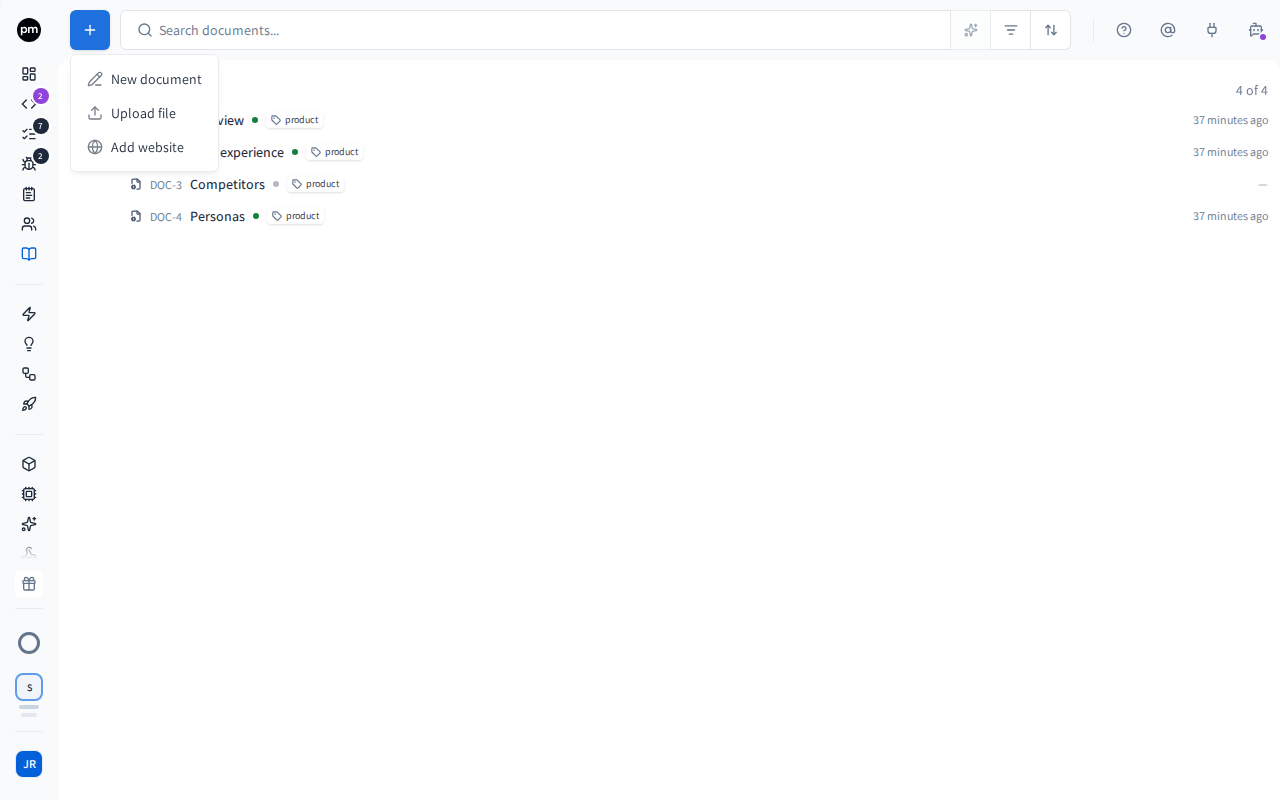
The toolbar holds:
- Add document (the +): New document, Upload file or Add website;
- the search box, which matches titles and addresses;
- Search knowledge base with AI, which searches the documents' content;
- Filters and Sort.
| Control | Options |
|---|---|
| Filters | Status, Type, Tags and Tag suggestions (Pending review) |
| Sort | Title, Status or Last processed |
Productmind remembers your filters, search and sort for this workspace in this browser, so they stay as you open documents and come back, until you clear them.
The list shows the documents as a tree, with the system documents first. When documents hold others, Expand all above the list opens every one of them, and Collapse all folds them again. Each row shows the document's ID and title, the Available to agents switch, its web address if it has one, its tags (in one chip you choose to add or remove tags, see Tags) and suggested tags, when it was last indexed (such as 3h, 4d or Nov 7; point at it to see the full date and time), and its status, as an icon at the right of the row. Point at a row to see the status's name, such as Available, Indexing or Needs reindexing. See Status icons. When you point at a row other than a system document's, Add child document (the +) appears. On a document that shows Failed, point at its red status icon and Retry takes its place. Right-click a row for Open in new tab and Delete.
Adding documents
To write a document
- In the sidebar, choose Knowledge base.
- Choose Add document (the +), then New document.
- Enter a Title, and optionally a Description (optional) and tags.
- Choose Create.
The document is created, empty and not shared with agents. Open it to write its content, then turn on Available to agents to index it.
To put a new document under another one, point at the parent's row and choose Add child document.
To upload a file
- Choose Add document (the +), then Upload file.
- Drop a file, or choose one. Supported formats: PDF, DOCX, PPTX, XLSX, TXT, HTML, Markdown and CSV.
- Choose the Chunking Strategy: Standard (recommended), or Contextual, which uses AI to add context to each passage for better search results.
- Leave Make available to agents on to index the file, or turn it off to only extract its text for now.
- Optionally, add tags.
- Choose Upload.
The document appears in the list as Processing, then Indexing, then Available. If a document with the same file name exists, Productmind asks first: choose Replace to replace it and index the new content.
If your organization can't pay for indexing right now (it is out of AI credits, its spending is paused, pay-as-you-go isn't activated yet, or a usage limit is reached), the file is still uploaded and its text extracted, but it isn't indexed yet: the dialog says so, with the action that fixes it, such as Top up, and the document shows Not indexed. It's indexed automatically once your organization can pay. See How the knowledge base behaves.
To add a website
- Choose Add document (the +), then Add website.
- Enter the URL.
- Set Max Pages (1 to 50, 10 by default) and Max Depth (1 to 5, 2 by default): how many pages to read, and how many links deep to follow.
- Choose the Chunking Strategy, and optionally add tags.
- Leave Summarize content selected to have AI clean up the pages and organize them into sections, without menus and other page furniture.
- Leave Make available to agents on, or turn it off.
- Choose Start Scraping.
The pages are combined into one document, which shows Scraping, then Indexing, then Available. If your organization can't pay for indexing right now, the pages are still scraped and saved, without the AI summary, and the document shows Not indexed until it can.
Working with a document
Choose a document to open it beside the list, where its row stays highlighted. Choose another row to switch documents. To go back to the full list, choose Close, or choose the open document's row again. To read with more room, choose Collapse list in the header; Expand list brings the list back.
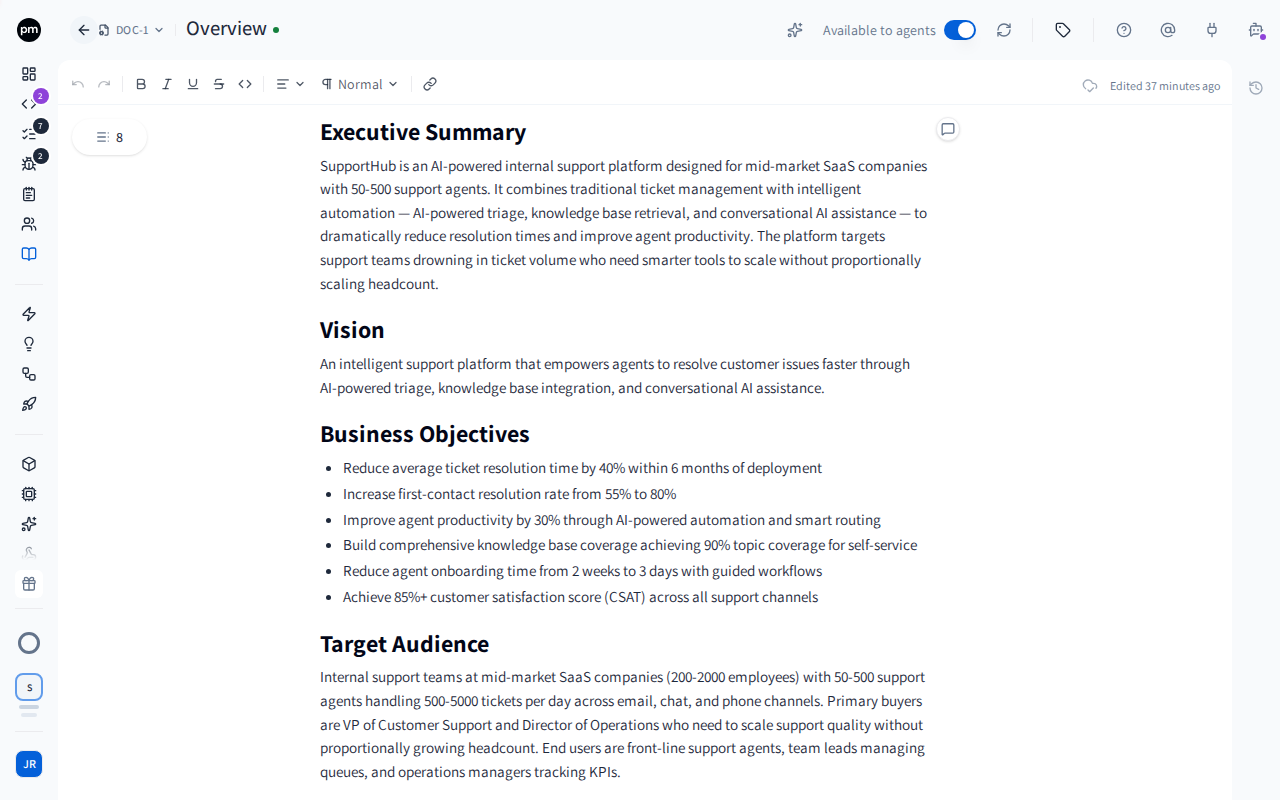
The header holds Collapse list, the document's ID and status, its title, and on the right:
- Generate, on the Overview, User experience and Personas system documents;
- the Available to agents switch;
- Reindex;
- for files and websites, Document info, with Download original or Open source;
- Tags;
- Delete document;
- Close.
The document is a rich-text editor. Several people can edit it at once, and if your role can add comments, you can select text to comment on it, or comment on the whole document in Add a general comment, at the top of the comments beside it. General comments stay at the top, newest first. Mention @pm in a comment and the PM agent answers in the thread: on a highlighted passage it makes the change you ask for, which you can undo, and on a general comment it suggests one you review. See Ask PM in comments. History in the rail keeps its earlier versions, starting with Created: the document as it was created, and who created it (a person, or Productmind agent for the person it worked for).
To open a link in the document, hold Ctrl (Cmd on a Mac) and choose it, or just choose it if you can only read the document. A link to a page in Productmind opens in the same tab, and a link to a website opens in a new tab.
To add an image, choose Insert image in the toolbar, paste one, or drag a file from your computer into the document (PNG, JPG, GIF or WebP, up to 10 MB). Drag an image to move it between paragraphs, or select it and choose Move up or Move down; select it to resize, align, wrap text around it, edit its alt text or remove it. Only people who can read the knowledge base see its images. A synced document's images come from its repository and can't be added here.
To share a document with agents
- In the list, turn on the document's Available to agents switch. Or open the document and turn on Available to agents in its header.
The document is indexed and becomes Available. If your organization can't pay for indexing right now, the document is shared anyway and shows Not indexed, and it's indexed automatically once your organization can pay. Turn the switch off to stop agents from using it.
To reindex a document after editing it
Edits to a document that is already indexed aren't picked up by the AI until you reindex it. The document shows Needs reindexing.
- Choose Reindex.
If you leave a document with edits that aren't indexed, Productmind asks: choose Reindex now, or Leave for later.
Reindex is something you ask for, so it is refused when your organization can't pay for it: Productmind says why, with the action that fixes it, such as Top up.
To retry a document that failed
A document whose indexing, file reading or website scraping failed shows Failed.
- In the list, point at the document's red status icon, and choose Retry. Or open the document and choose Reindex.
Productmind runs again whatever failed, on the same document, so its place in the tree, its tags and its links stay. A document with text is indexed again. An uploaded file whose text was never read is read again, and a website that was never scraped is scraped again, with the same Max Pages, Max Depth and Summarize content it was added with. The status changes to Processing, Scraping or Indexing, then to Available, or back to Failed if it fails again.
A website that can't be reached is refused straight away, with the reason, and stays Failed. A document with nothing to run again, such as an empty document you wrote, is refused with what to do instead.
To regenerate a system document
- Open Overview, User experience or Personas.
- Choose Generate, then Generate.
Productmind rewrites the document from what's in your workspace, building on what the document already says. This can take a couple of minutes, and you can keep working meanwhile. The version it replaces stays in History as Before regeneration, so you can restore it.
To review proposed changes
Productmind's AI can propose updates to your documents, for example when a coding session changes the code a document describes. A document with a proposal shows Review changes.
- Choose Review changes.
- Compare the current text with the proposed one, and apply or dismiss the proposal. You can edit it first.
A proposal from a coding session is applied when you merge the session's Documentation pull request, and shows Approved - applies on PR merge until then. See Pull requests and reviews.
To search the content with AI
- Type what you're looking for in the search box.
- Choose Search knowledge base with AI, or press Enter.
The PM agent opens and searches the content of your documents, citing the documents it found. If you filtered by Tags, it searches only those.
To rename a document
- Open the document and choose its title, or right-click its row in the list and choose Rename.
- Type the new name, then choose anywhere outside the title to save it. Press Escape to keep the old name.
The new name shows straight away in the list, the document, your browser tab, and the Documentation of the features and applications it's linked to. Search results show it too. Search matches what a document says, so to have it match the new name's wording as well, reindex the document.
A name can't be empty and can be up to 255 characters; spaces at either end are dropped. Each document's name must be its own: if another document in the workspace already has the name, the title says so and stays open for you to change it.
System documents keep their names, and a synced document's name comes from its repository. Their titles can't be edited here: point at one to see why. A document imported from Google Docs, Notion or Confluence keeps the name you give it until someone imports the page again, which replaces the document and gives it the page's own title.
To organize documents
- Drag a document onto another to nest it, or between two rows to reorder it.
The document moves to its new place in the tree. Choose Expand all above the list to open every document that holds others, and Collapse all to fold them. System documents can't be moved or hold other documents.
To suggest tags with AI
- Select documents in the list and choose Suggest tags.
- When suggestions arrive, a pill on the row shows how many. Choose it to accept or reject them.
Tag suggestions in Filters shows the documents with suggestions waiting.
To delete documents
- Open the document and choose Delete document, or right-click its row and choose Delete. To delete several, select them and choose Delete selected.
- Confirm.
Deleting a document also deletes its nested documents and their indexed content. It can't be undone. System documents can't be deleted.
Synced documents
An application can sync the Markdown docs of its repository into the knowledge base (early access; see Knowledge Base sync). Its documents sit under one document named after the application, with a Synced badge, and the repository is where they're edited: each push to the synced branch updates them.
A synced document is read-only here. The banner above it names the file and its repository, and Open in the repository opens the file to edit. You can still comment on it, tag it, link it to features and applications, and share it with agents. It can't be renamed, moved, deleted, or given documents of its own; the document named after the application can be moved anywhere. To edit the documents in Productmind instead, turn the sync off and keep the documents.
Diagrams written as Mermaid code blocks are drawn, in every document. Callouts such as notes, tips and warnings, tabs, collapsible sections and images in the repository's docs are shown as the knowledge base can show them. An image from a private repository shows as an Open image link.
How the knowledge base behaves
Indexing runs in the background. The statuses update as documents move through processing and indexing. You can keep working meanwhile.
Indexing waits when your organization can't pay for it. Indexing uses AI credits. When your organization is out of AI credits, its pay-as-you-go spending is paused, pay-as-you-go isn't activated yet, or a usage limit is reached, nothing you write is lost: documents are saved, uploaded, scraped, imported and shared as you ask, and edits to features, feature requests and bug reports are saved too. They just aren't indexed yet. A document's status then says why, such as Not indexed: out of AI credits: point at its row in the list, or at the status beside its title in the document. In the document, point at Reindex (or Document info, if you can't reindex) to see the same under Details, with the action that fixes it. The person who made the change sees a warning with that action: Top up, Activate or Open Usage. A usage limit says when it resets. Your Owners and Admins are notified too, at most once a day. See Billing notices.
What waited is indexed with no click. Right after a top-up is paid, and within a few minutes of spending being turned back on, pay-as-you-go being activated or a limit resetting, Productmind indexes everything that waited: the documents marked Not indexed, and every feature, feature request and bug report changed meanwhile.
Indexing your first sources starts more work on its own. When a source is indexed while the Overview was never generated, or was generated and nobody has edited it since, Productmind redrafts the Overview from it. In a workspace with no features yet, indexing that Overview then drafts starter features and writes a specification for each. This uses AI credits: about 60,000 for the whole chain, almost all of it the specifications. The Upload file, Add website and Generate dialogs say so, with the estimate, when it would happen. It happens once per workspace: once the workspace has features, or once someone edits the Overview, a new source starts nothing more.
A summarized website keeps every page. With Summarize content selected, Productmind summarizes a large website in parts and joins them back together in page order. A part that can't be summarized is kept as it was scraped, so no page is left out, and the rest of the site is still summarized.
Only shared documents reach the AI. A document that isn't available to agents stays in your workspace as reference, and the AI doesn't search it.
Some system documents keep themselves up to date. Edits to Overview, User experience and Personas are indexed each time, without Reindex.
Generate builds on what's there. Productmind gives the AI the document as it stands, and asks it to keep what your team wrote, such as the personas you named, to add what it finds in your workspace, and to replace placeholder text from the starting template, such as "Goal 1". For Personas and User experience, it also gives the AI your Overview, so bring the Overview up to date first.
Documents link to what they describe. A document can be linked to the applications and features it documents. You see those links on the application's and the feature's Documentation. See Applications.
Permissions
| To | You need |
|---|---|
| See documents and search their titles | Knowledge base: Read |
| Search the content with AI | Knowledge base: Read and Chat: Enabled |
| Write, upload or scrape documents | Knowledge base: Create |
| Edit or rename documents, share them with agents, reindex or retry, generate, tag, review proposals, reorder | Knowledge base: Update |
| Delete documents | Knowledge base: Delete |
Every built-in role can see the knowledge base. The Owner, Admin, Power User, Developer and Product Manager roles can also change it. See Roles and permissions.
Limits
Your plan decides whether you can add documents of your own, and may limit how many each workspace has. System documents don't count, and they keep working on every plan. See Plans and limits.
Troubleshooting
"You have reached your knowledge base source limit"
The workspace has as many documents as your plan allows. Delete documents you don't need, or upgrade your plan.
"Knowledge base is not available on your current plan"
Your plan doesn't include a knowledge base of your own. Uploading files, adding websites, sharing documents with agents and reindexing them are refused with this message, and writing a new document with the source limit message above. The system documents keep working. Move to a plan that includes the knowledge base.
A document shows Failed
Its last indexing, file reading or scraping failed. Point at its red status icon in the list and choose Retry, or open it and choose Reindex: Productmind reads the file again, scrapes the website again, or indexes the text again, whichever failed. See To retry a document that failed. For a website, check that the address is public and reachable. If an uploaded file keeps failing, upload it again.
A document shows Not indexed
Your organization couldn't pay for indexing when the document was added, shared or saved: it is out of AI credits, its spending is paused, pay-as-you-go isn't activated yet, or a usage limit is reached. Open the document and point at Reindex (or Document info, if you can't reindex) to see why under Details, with the action that fixes it, such as Top up. Take it, or ask an Owner or Admin to. You don't need to do anything else: the document is indexed automatically once your organization can pay.
Part of a website document isn't summarized
Productmind summarizes a large website in parts. When a part can't be summarized, it's kept as it was scraped, without the AI clean-up, so nothing is lost. Tidy it up in the document yourself. If the document is available to agents, choose Reindex afterwards.
The AI doesn't use a document
Check that Available to agents is on and the status is Available. If it says Needs reindexing, choose Reindex.
I can't rename a document
System documents keep their names, and a synced document is renamed in its repository: point at the title to see which. Otherwise, you need Knowledge base: Update. If the title says another document already has the name, choose a different one.
I can't delete a document
System documents can't be deleted. For other documents you need Knowledge base: Delete.