

Whole domains
A whole domain is the domain your company registered, such as example.com, rather than a name under
it, such as shop.example.com. An environment that deploys to a
cloud account can deploy under one on either
kind of account. Pointing a whole domain at the environment's DNS zone moves all of its DNS there, its
mail included, so every record the domain still needs goes into the zone before its name servers
change at its registrar.
Whole domains are part of Cloud accounts, which is in early access. A subdomain is easier, since the domain's other records stay where they are: see Domains.
Key concepts
A whole domain. The name a registrar holds for your company, such as example.com or
example.co.uk. You point it at the environment's zone at its registrar, by replacing its name servers
with the zone's four. From then on the zone answers for every name in the domain.
Its records first. Every record the domain still needs, such as its mail (MX), SPF and
verification TXT records, _dmarc, www, SRV and CAA records, must be in the zone before the
registrar points there, or it stops answering. Leave out the names your app uses (app, api, ws,
docs and mail, with the records under them), or give the app other host names first in its
stack settings.
On an account Productmind manages, you keep the domain's records in Productmind, under DNS records, and Productmind writes them into the zone. The zone's name servers show only once you have copied the records, checked them and confirmed them.
On your own AWS account, the zone is yours: you copy the records into it in the Route 53 console, and its name servers show at once.
The copy check. Productmind asks the DNS that answers for the domain now and the new zone the same questions, for each record you keep and for the names a domain usually carries, and shows the answers side by side. On an account Productmind manages it comes before your confirmation; on your own AWS account it is advice.
Attaching an environment under a whole domain
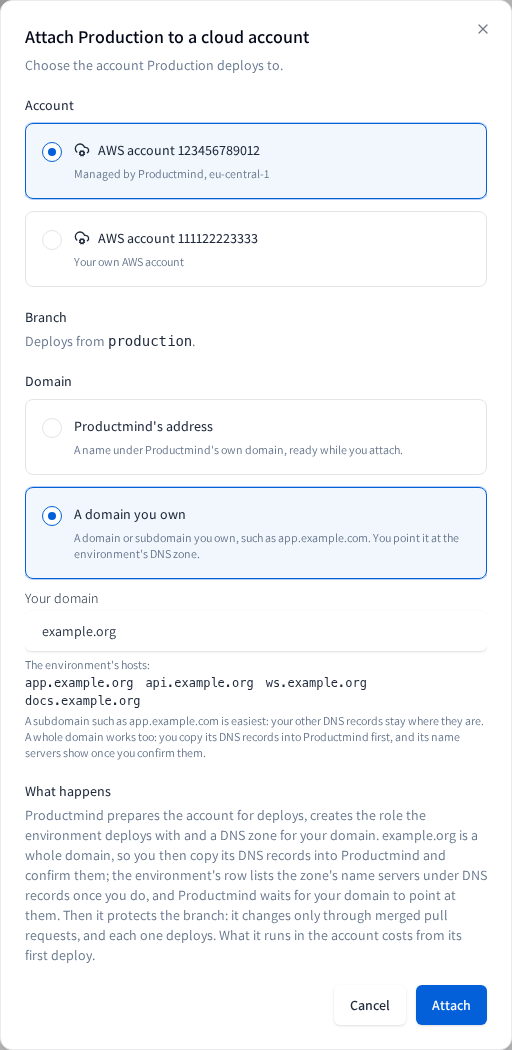
To attach an environment under a whole domain
- Open the application and choose Source code.
- Under Cloud accounts, choose Attach on the environment's row.
- Under Account, choose the account.
- Under Domain, choose A domain you own, and enter the domain, for example
example.com. On an account Productmind manages, the card says that a whole domain's DNS records are copied into Productmind first; for a name that is surely a whole domain, such asexample.com, What happens says it too, in its place. - Choose Attach.
On an account Productmind manages, the row shows Making its DNS zone, then Copy your DNS records. On your own AWS account, it shows Waiting for your DNS, as for a subdomain. Either way, point the domain at the zone as below.
To point a whole domain at the zone
On an account Productmind manages
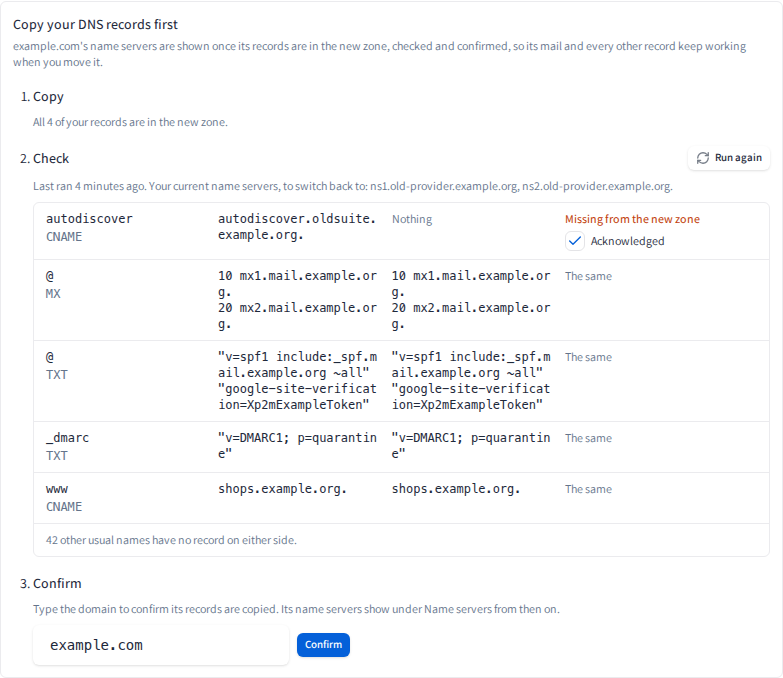
- On the environment's row, choose DNS records, then Manage records. The domain's page opens on Records, with Copy your DNS records first.
- Copy the domain's records in: import your DNS provider's list, choose Find records, or add them one by one, then choose Save changes. Wait until each reads In the zone. See DNS records.
- Read the copy check, which runs by itself once every record is in the zone. Fix each difference it finds, or tick Acknowledged beside it, such as a host the domain no longer needs. Note the name servers it lists as the domain's current ones: they are the ones to switch back to.
- Type the domain, then choose Confirm. The Name servers tab, and DNS records on the row, now show the zone's four name servers. Records keeps the check you confirmed with, under Copied and confirmed, with the name servers the domain used then.
- Lower the TTL of the domain's NS records at its current DNS provider, if it lets you, leaving their values as they are, and wait for the old TTL to pass, so resolvers move to the new name servers sooner. Keep the name servers the domain uses now, listed under Copied and confirmed on Records, to switch back to if you need to.
- If the domain uses DNSSEC, remove its DS record at the registrar (turn DNSSEC off for it), and wait for its TTL to pass: the zone is not signed.
- At the domain's registrar, replace its name servers with the zone's four. The registrar's name servers are what move the domain: changing the NS records in its current DNS zone moves nothing.
Leave the domain's records at its current DNS provider for two days after the change, and watch its mail meanwhile: resolvers keep using the old name servers until their records expire. Productmind checks public DNS from your confirmation on, as for any domain you own.
On your own AWS account
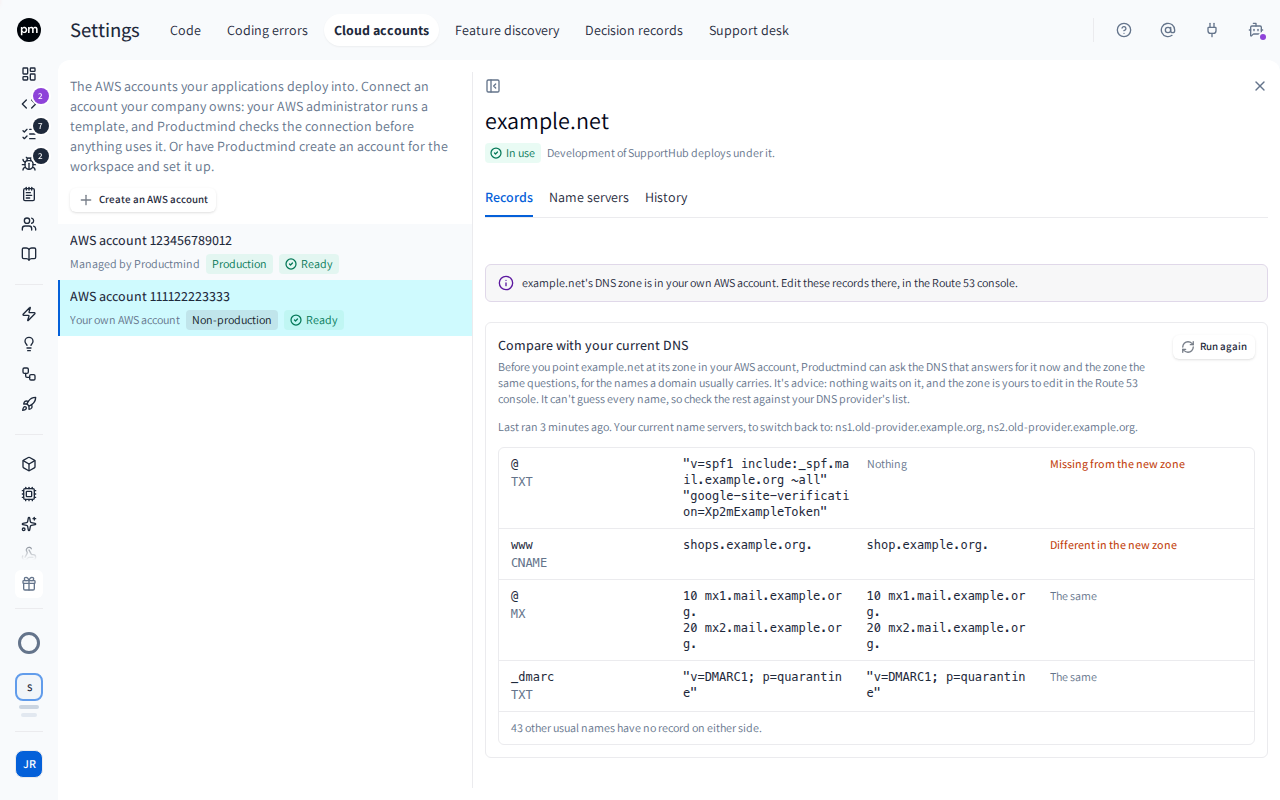
- Copy every record the domain still needs into its zone in your AWS account, in the Route 53 console, and leave out the names your app uses.
- Compare your copy with the domain's current DNS: on the environment's row, choose DNS records, then Compare with your current DNS, and on the domain's page choose Run the copy check. It is advice: nothing waits on it, and it can't guess every name, so check the rest against your DNS provider's list.
- If the domain uses DNSSEC, remove its DS record at the registrar (turn DNSSEC off for it), and wait for its TTL to pass: the zone in your AWS account is not signed.
- At the domain's registrar, replace its name servers with the four under DNS records. Changing the NS records in its current DNS zone instead moves nothing.
Leave the domain's records at its current DNS provider until the change has taken effect, which can take up to two days. If your account already had a zone for the domain, and the domain points at it, Productmind uses that zone and there is nothing to copy.
While its records wait
On an account Productmind manages, the environment waits for your confirmation before anything else:
- No check runs before it. The row and DNS records show the copy steps in place of the name servers, and Productmind's seven days of checking start at the first check after you confirm.
- You are reminded. The person who attached the environment gets an email a day and six days into the wait.
- The wait lasts 14 days. After that, the setup fails with "Your domain's DNS records weren't confirmed within 14 days". The zone and your records are kept: confirm them, then choose Try again on the row.
Changing to or from a whole domain
An environment can change its domain to a whole domain, or from one. On an account Productmind manages, a change to a whole domain waits for its records as an attach does: under Moving to, the row says Copy your DNS records, DNS records leads to the domain's page, and its name servers show once you confirm. The person who asked for the change gets the reminders, and after 14 days Productmind stops checking the change until you confirm. A whole domain the environment moves away from keeps its zone and its records, so its mail keeps working while it points there, until you remove it.
Mail and the end of the zone
On an account Productmind manages, the zone answers for the domain, its mail included, for as long as the domain points at it:
- Detaching the environment keeps the domain, its zone and its records, and you can still change them under DNS records.
- Removing the domain under Domains you own deletes its zone once the domain no longer points at it. Move its name servers first: export its records under DNS records, add them at another DNS provider, then point the domain at that provider's name servers at its registrar.
- Deleting the account names each whole domain in its confirmation: its mail and every other record stop working when the account closes, unless you move its name servers first, the same way. Your Owners and Admins get an email for each domain that may point at the zone, which carries its records as a zone file, and Productmind deletes the zone when it closes the account, never sooner than seven days after that email.
Once its zone is deleted, never point the domain at that zone's name servers again: see To remove a domain.
Certificates
A whole domain's zone carries no CAA records of Productmind's. If the domain has CAA records, they must
allow Amazon to issue your app's certificates: 0 issue "amazon.com", and also
0 issuewild "amazon.com" if any issuewild record is among them. On an account Productmind manages,
a save that would leave them out is refused, and the import offers them added. On your own AWS account,
check them in the zone yourself, or the deploy fails issuing the certificates.
Other domains under a whole domain
A host your company runs elsewhere under the domain, such as blog.example.com, is one of the records
you copy. Another environment's domain under it, such as shop.example.com, needs NS records in the
whole domain's zone:
- On an account Productmind manages, Productmind adds those NS records to the zone itself, as soon
as the other domain's zone is made: Records lists them under Productmind's records, and the
copy step lists them as nothing to copy. Confirm waits until they are in the new zone, so they
answer as soon as the domain points there. Until then, the other domain answers as your current DNS
provider answers for it: keep its NS records there, as its DNS records asks (see
Domains).
No host of the whole domain's app may land on such a domain, such as its API at
api.example.com. - On your own AWS account, you add those NS records to the zone yourself: see Domains.
A name under the domain that is delegated to another DNS provider with NS records, such as
dev.example.com, can't be kept in a zone of an account Productmind manages, and the copy check doesn't
ask for it: move that name's records into the zone first, or attach the whole domain to your own AWS
account, where you add its NS records yourself.
Permissions
| To | You need |
|---|---|
| Attach an environment under a whole domain, or change its domain to one | The Owner or Admin role, signed in to Productmind yourself |
| Copy a whole domain's records, run the copy check and confirm them | The Owner or Admin role, signed in to Productmind yourself |
| See a whole domain's records, the copy check and its name servers | The Owner or Admin role |
| See an environment's domain and whether it points there | Anyone who can open the application |
Limits
- The zone is not signed: a domain that must stay signed with DNSSEC can't move to it yet.
- On an account Productmind manages, the zone keeps no NS records of yours, only those Productmind adds for your other environments' domains, so a name under the domain delegated to another DNS provider stops resolving at the move, unless its records are in the zone.
- The copy check and Find records see only names they can guess, since public DNS can't list a whole zone. Check the rest against your DNS provider's list.
- The copy check runs at most once a minute when you ask for it.
- On an account Productmind manages, an environment waits 14 days for a whole domain's records to be confirmed, and the domain keeps up to 1,000 record sets: see DNS records.
Troubleshooting
"example.com's name servers show once its DNS records are copied and confirmed"
Productmind checks a whole domain on an account it manages only once its records are confirmed. Copy them under DNS records in Settings > Cloud accounts, confirm them, then check.
"Your domain's DNS records weren't confirmed within 14 days. Copy them under DNS records, confirm, then Try again."
The records waited 14 days. They are kept, with the zone: confirm them under DNS records, then choose Try again on the row.
"example.com's DNS records aren't confirmed yet"
A change to a whole domain waits for its records. Copy them under DNS records and confirm them: the change goes on once you do.
"DNS records are being set up after an update. Try again in a few minutes."
Productmind is finishing an update, and a whole domain on an account Productmind manages waits for it. Nothing was changed: try again in a few minutes.
"example.com's app would put the API at api.example.com, another of your organization's domains"
A host of the whole domain's app would land on another environment's domain. Move that environment to another domain first, or choose a name whose hosts don't meet it. See Other domains under a whole domain.
The domain's mail stops after the move
A record the domain needs isn't in the zone. Add it under DNS records, or in the Route 53 console on your own AWS account. If you need the mail back at once, point the domain at the name servers it used before at its registrar: on an account Productmind manages, its DNS records page lists them on Records, under Copied and confirmed.
The copy check's own refusals
See DNS records.