

Productmind CLI
The Productmind CLI is a command-line tool, run as pm, for your own computer. Its main job is
the Productmind agent, which people also call the local agent: once you install the CLI,
sign in and start it, Productmind can send
coding sessions to your machine instead of running them in the
cloud. The agent works on your repositories with the coding agent you already use, Claude Code or
Codex, and opens pull requests just as a cloud session
does. If your workspace has turned off Productmind cloud sessions, the agent is where everything
you start runs: sessions, live previews, scans and feature discovery. See
Settings > Coding sessions.
Key concepts
Productmind agent. The pm agent command. While it runs, your machine shows up in
Productmind as a place to build sessions, under the name you give it.
Coding agent. The AI coding tool the Productmind agent drives to do the work: Claude Code (the default) or Codex. It runs on your machine, with your own account for that tool.
Setup. pm init saves the CLI's settings on this machine, including the workspaces folder.
That is where the agent keeps each session's working copy: a folder on your computer, unrelated
to Productmind workspaces.
Login. pm login signs the CLI in to Productmind as you, in one organization. The agent
builds only that organization's sessions.
Installing the CLI
The CLI runs on macOS and Linux, and on Windows through WSL 2. There is no installer file to
download: each method below downloads the CLI and installs the pm command with a few commands
in a terminal. Choose the method for your system.
Productmind shows the same commands, one tab per system and each with a copy button, under Agents > Productmind CLI and in Connect your Productmind agent. See To connect your Productmind agent from Productmind.
To install on macOS
Code
Homebrew installs a cask only from a tap you trust, so brew trust comes before the install.
Without it, Homebrew stops with "Refusing to load cask productmind-code/tap/productmind from
untrusted tap". To trust only the Productmind cask instead of the whole tap, run
brew trust --cask productmind-code/tap/productmind in its place.
To install on Debian or Ubuntu
Code
To install on Fedora or RHEL
Code
To install on Windows (WSL 2)
On Windows, the CLI runs inside WSL 2, the Windows Subsystem for Linux, with Docker Desktop's engine. It doesn't run on Windows itself, and WSL 1 can't run Docker.
-
In PowerShell, install Ubuntu on WSL 2:
CodeRun
wsl -l -vto check that Ubuntu's version is 2. If it's 1, runwsl --set-version Ubuntu 2. -
Install Docker Desktop for Windows. In Docker Desktop, open Settings > Resources > WSL integration and turn it on for Ubuntu. In the Ubuntu terminal,
docker psshould answer. -
In the Ubuntu terminal, install the CLI with the install script, or with the Debian or Ubuntu packages:
Code -
Install Claude Code or Codex inside Ubuntu too: they run where the CLI runs.
-
When you set up the CLI, keep the workspaces folder in Ubuntu's own files, for example with
pm init --workspaces-root ~/productmind, never in a folder under/mnt/c. On a Windows drive, every install and git command is slow.
On WSL, pm doctor also reports WSL 1, says how to turn on Docker Desktop's WSL integration when
Docker doesn't answer, and warns about a workspaces folder on a Windows drive. pm login opens
your Windows browser, or prints the link to open yourself.
To install without a package manager
Code
The script works on any Linux or macOS. It checks the download's checksum, and its signature when
gpg is installed, then installs into /usr/local/bin if it can write there, or ~/.local/bin
otherwise.
Every method installs the pm command. Run pm version to check that it works.
What else you need
- Docker. Each session runs in its own container on your machine. Install it from Docker's website or your system's packages.
- git. The Debian, Ubuntu, Fedora and RHEL packages install it for you.
- A coding agent. The Claude Code CLI (
claude), signed in, or the Codex CLI (codex).
Once you've set up the CLI, run pm doctor to check all of this. It
reports anything that is missing.
Setting up the CLI
pm init sets up the CLI on this machine: it saves the CLI's settings, including the workspaces
folder. It is a required step. Run it once on each machine, right after you install the CLI and
before you use its other commands. Until you do, pm doctor, pm agents and pm sessions stop
with an error.
To set up the CLI
- Run
pm init. - At "Workspaces directory", press Enter to use the folder you're in as the workspaces folder, or enter another folder's full path.
- Run
pm doctor.
pm init prints the folder it saved, and pm doctor reports anything that is missing.
To skip the question, for example in a script, name the folder:
pm init --workspaces-root <folder>. Without a terminal, pm init doesn't ask: it uses the
folder it runs in.
If you run pm init again, it says the settings already exist and keeps them. The workspaces
folder stays the one you chose first, even with --workspaces-root.
On a Mac, Docker runs in a virtual machine, and a session's container can use only the folders
Docker shares with it. Choose a workspaces folder that Docker shares, such as one in your home
folder. pm doctor doesn't check this.
Signing in
To sign in
- Run
pm login. - Your browser opens on Productmind. Sign in if you aren't already.
- If you belong to more than one organization, choose the one the CLI should work in, then choose Continue.
The browser shows "Authentication complete", and the terminal says who you're signed in as and in which organization. If the browser doesn't open, the terminal prints a link to open yourself.
To make sure the CLI signs in to a particular organization, whatever you choose in the browser,
name it: pm login --org "Acme". It takes the organization's exact name, in any case, or its id.
To see who you're signed in as
Run pm whoami. It shows your email, your organization and when the current access token
expires. The CLI renews the access token by itself.
To sign out
Run pm logout. It ends the login in Productmind and deletes it from your machine.
You can also end it from Productmind: choose your avatar at the bottom of the sidebar, then Profile. Under Connected clients, the CLI is listed as Productmind CLI, with the tag App. Choose Revoke on its row. See Profile and notifications.
Building sessions on your machine
To start the Productmind agent
- Set up the CLI with
pm init, if you haven't. See Setting up the CLI. - Sign in with
pm login. - Choose a coding agent. Claude Code is the default. To use Codex, run
pm agents use codex. Runpm agentsto see which one is set. - Run
pm agent --name my-laptop. Without--name, the agent uses your machine's name.
The agent connects to Productmind and waits for work. In a terminal it shows a dashboard: the
sessions it is working on, queued and recently finished on the left, and what the selected one
is doing on the right. Press q to quit.
Keep it running for as long as you want to build on this machine. It reconnects by itself if the connection drops, and picks up work that was sent while it was away.
If you quit the agent while it works on a session, the session shows Agent offline. Start
pm agent again on the same machine and the session continues where it left off. To stop waiting
instead, choose Cancel session on the session page. See
Working in a session.
To build a session on your machine
- Start the Productmind agent.
- In Productmind, open the session and choose where to build it: Build on your Productmind agent: my-laptop, marked with a green dot while the agent is online. The other choice, Build on the cloud, runs it on Productmind's servers. If your workspace has turned off Productmind cloud sessions, Build on the cloud is grayed out with Cloud sessions are turned off for this workspace.
- Build the session as usual. See Starting a session.
The session is sent to your machine straight away. The agent clones the repositories, runs your coding agent on the task, commits, pushes and opens the pull requests.
If no agent of yours is online, the only choice is Build on the cloud, with the hint "Want
to build locally? Start pm agent on your machine." and Connect your Productmind agent, which
shows you how. See To connect your Productmind agent from Productmind.
To connect your Productmind agent from Productmind
Productmind shows you how to install and connect your agent in three places:
- Agents > Productmind CLI: in the sidebar, under Engineering, choose Agents, then Productmind CLI, the last tab, in the Local agent group. Everyone with Agents access has it: the Owner, Admin, Power User and Developer roles. See Agents.
- Your profile menu: choose your avatar at the bottom of the sidebar, then Connect your Productmind agent. Everyone who can start sessions has it.
- Wherever your agent would help: on the Code page, where a session chooses where to build, and whenever something you start needs your agent. Choose Connect your Productmind agent there.
The profile menu and the other places open a dialog, Connect your Productmind agent. The Productmind CLI tab of Agents shows the same steps on the page, under a sentence saying that everyone runs their own agent, on their own machine, with their own Claude Code or Codex account.
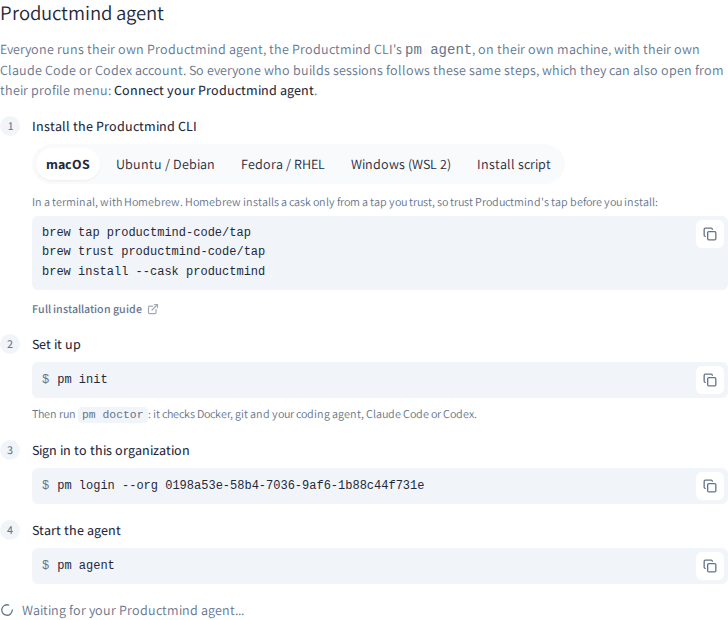
- Under Install the Productmind CLI, choose your system's tab: macOS, Ubuntu / Debian, Fedora / RHEL, Windows (WSL 2) or Install script. The tab for the system you're on is open first. Copy the commands with their copy button and run them in a terminal. Full installation guide opens Installing the CLI.
- Under Set it up, copy
pm initwith its copy button, and run it. See Setting up the CLI. - Under Sign in to this organization, copy the
pm login --orgcommand with its copy button, and run it. The command names the organization you're in by its id. - Under Start the agent, copy
pm agentwith its copy button, and run it.
Below the steps, Productmind says Waiting for your Productmind agent... until the agent connects, then, for example, my-laptop is connected, with a green dot. The status is your own agent's, not a teammate's. If the dialog opened when you started something, such as a scan, choose Try again to start it on your machine. Otherwise, choose Close.
If your agent is already running but signed in to another of your organizations, Productmind says
so, with the pm login --org command that signs it in to this one. While Productmind cloud
sessions are off, the dialog also gives an Owner or Admin a link to Settings > Coding sessions.
How the agent behaves
Only your own agents appear. The choice of where to build lists the agents you started, not your teammates'.
One organization at a time. The agent is sent only the sessions of the organization you
signed in to. If it is signed in to another of your organizations, Productmind says so where
you choose where to build, and gives you the pm login --org command that moves it. After you
sign in to another organization, restart the agent.
Three sessions at once. By default the agent works on up to three sessions at the same time.
Change it with --concurrency, from 1 to 16. It never works on the same session twice at once.
Live sessions go to your machine first. When you first start the live preview of a Live session and your agent is online, the session runs on your machine. Otherwise it runs in the cloud, unless your workspace has turned off Productmind cloud sessions. See Live preview.
Your workspace can require it. When an Owner or Admin turns off Productmind cloud sessions, nothing in the workspace runs on the cloud. Every plan, build, live preview, scan and feature discovery you start runs on your own agent, and while none of your agents is online, it doesn't start. A teammate's agent doesn't count: whoever starts the work needs their own. See Settings > Coding sessions.
Productmind tells you when you need it. While cloud sessions are off and none of your agents is online, a warning shows above the list on the Code page and where a session chooses where to build: "Cloud sessions are turned off for this workspace. Connect your Productmind agent to start sessions, live previews, scans and feature discovery.", with Connect your Productmind agent. It can't be dismissed, and it goes away once your agent is online.
The PM agent tab shows your agent. Next to the PM agent title, and next to a conversation's title, a chip with a green dot names your online agent, such as my-laptop, or my-laptop +1 when more than one is online. Sessions you start from the PM agent run there: point at the chip to see your agents. While cloud sessions are off and none of your agents is online, a gray No local agent chip shows instead: choose it to connect one. With cloud sessions on and no agent online, there is no chip. A coding session's own conversation has none either: the session's own chip says where it runs.
Local sessions don't use your plan's AI credits. A session your agent builds uses your own Claude Code or Codex account, so it doesn't count toward your plan's AI credits, and its live preview isn't billed. See Plans and limits.
Each local session can carry one flat fee. If your plan charges for sessions on your own machine, a session is charged once, at your plan's per-session rate, the first time your agent runs it: its plan, its build, its scan, or its first change in a Live session. Its later steps are never charged again, and moving it back and forth between your machine and the cloud doesn't charge it twice. A scan your agent runs is a session of its own. The sessions your agent ran this billing period are counted on Billing & Payments > Usage, under Sessions this billing period. See Usage.
Sessions leave containers behind. Each session keeps its container and working copy on your
machine after it ends. The working copies are in the workspaces folder you chose with pm init.
Run pm sessions ls to list them, and pm sessions ls --size to see the disk space each one
takes. pm sessions cleanup removes the ones idle for more than seven days. It lists them and
asks before it removes anything, and skips running containers and working copies with
uncommitted or unpushed work unless you add --running or --force.
Command reference
| Command | What it does |
|---|---|
pm init | Set up the CLI. Run it once, before the other commands. --workspaces-root names the workspaces folder instead of asking. |
pm login | Sign in through your browser. --org picks the organization. |
pm whoami | Show who you're signed in as, in which organization, and when the current access token expires. |
pm logout | Sign out, in Productmind and on this machine. |
pm agent | Run the Productmind agent. --name sets its name in Productmind, --concurrency how many sessions it builds at once, and --no-tui prints plain logs instead of the dashboard. |
pm agents | Show which coding agent the Productmind agent drives. Needs pm init. |
pm agents use claude or pm agents use codex | Choose the coding agent. Needs pm init. |
pm sessions | In a terminal, open an interactive manager for the session containers on this machine. Needs pm init. |
pm sessions ls | List the session containers on this machine. --size adds the disk space each one takes. Needs pm init. |
pm sessions cleanup | Remove idle session containers, after asking. --older-than 3d changes the age, --dry-run only reports, -y skips the question, --force includes uncommitted or unpushed work, and --running includes running containers. Needs pm init. |
pm logs <session-id> | Show the log of a session that ran, or is running, on this machine. -f keeps following it. The session's id is the last part of its web address in Productmind. |
pm doctor | Check Docker, git, your coding agent and the CLI's own version. Needs pm init. |
pm update | Update the CLI, when you installed it with the install script. |
pm version | Print the installed version. |
Run pm help or add --help to any command for all its options.
Updating the CLI
Update the CLI with the tool you installed it with:
| Installed with | Update with |
|---|---|
| Homebrew | brew update && brew upgrade --cask productmind |
| apt | sudo apt update && sudo apt install productmind |
| dnf | sudo dnf upgrade productmind |
| The install script | pm update |
If you installed with the install script, the CLI prints a one-line hint after a command when a
newer version is out. It never updates itself until you run pm update.
Permissions
| To | You need |
|---|---|
Sign in with pm login | A Productmind account in the organization |
| Start a session | Sessions: Create |
| Build a session on your machine | Sessions: Update |
| See your agent next to the PM agent title | Sessions: Create |
| Open Connect your Productmind agent from your profile menu | Sessions: Create |
| Open the Productmind CLI tab of Agents | Agents access (under Administrative access on the Roles tab) |
The agent acts as you: it can do exactly what your role allows. See Roles and permissions.
Troubleshooting
A command says "global config not found; run 'pm init'"
The CLI isn't set up on this machine. Run pm init, then run the command again. See
Setting up the CLI.
My machine isn't offered when I build a session
Check that pm agent is running and connected. Then check which organization it is signed in
to with pm whoami: if it's another one, run pm login --org with this organization's name or
id, and restart the agent.
"Productmind cloud sessions are turned off for this workspace, and no Productmind agent of yours is online"
Your workspace runs sessions only on Productmind agents, and yours isn't connected. Start it with
pm agent, then try again, or choose Connect your Productmind agent for the steps. If the message says
your agent is signed in to another organization, run the pm login --org command it gives on that
machine, and restart the agent. See
Settings > Coding sessions.
pm login says the organization requires single sign-on
Your organization requires sign-in through its identity provider. Run pm login again, sign in
with single sign-on in the browser, and choose the organization there.
pm login says you signed in through single sign-on
Your browser is signed in through an organization's single sign-on, which opens only that
organization, and you chose another one. Sign out of Productmind in your browser, sign in with
your password or Google, or through the other organization's own single sign-on, then run
pm login again and choose the organization.
A session fails as soon as it starts on my machine
Run pm doctor. Most often Docker isn't running, or the coding agent isn't installed or isn't
signed in.
Homebrew says "Refusing to load cask productmind-code/tap/productmind from untrusted tap"
Homebrew installs and upgrades a cask only from a tap you trust. Run
brew trust productmind-code/tap, then run the install or the upgrade again. See
To install on macOS.
pm update refuses to update
You installed the CLI with Homebrew, apt or dnf. Update it with the same tool, as shown in Updating the CLI.