

Lineage
Lineage draws your product work as a map of connections. Each feature sits on its own row, with the customer conversations and requests that led to it on the left and the tasks that build it on the right. From any item's own page you can follow it all the way, from the first customer who asked to the release that shipped it. Lineage answers "why are we building this?" and "what happened to that request?".
Key concepts
Node. A card on the map for one item: a conversation, a request, a feature, a task and so on. Its left edge is colored by the item's status.
Stage. The columns of the map, from left to right:
| Stage | What sits there |
|---|---|
| Customer Feedback | The customer conversations a request was picked out of (agentic interviews, customer meetings, support conversations and feedback widget chats), and the interests recorded on it by hand: customer interests, stakeholder input and other input |
| Feature Requests | The requests promoted into the feature |
| Bug Reports | Bug reports connected to the work |
| Features | The feature, and its subfeatures |
| Tasks | The tasks that build it |
| Sessions | The coding sessions that worked on those tasks, and the ones started from the feature in Produtype |
| Releases | The releases that shipped it |
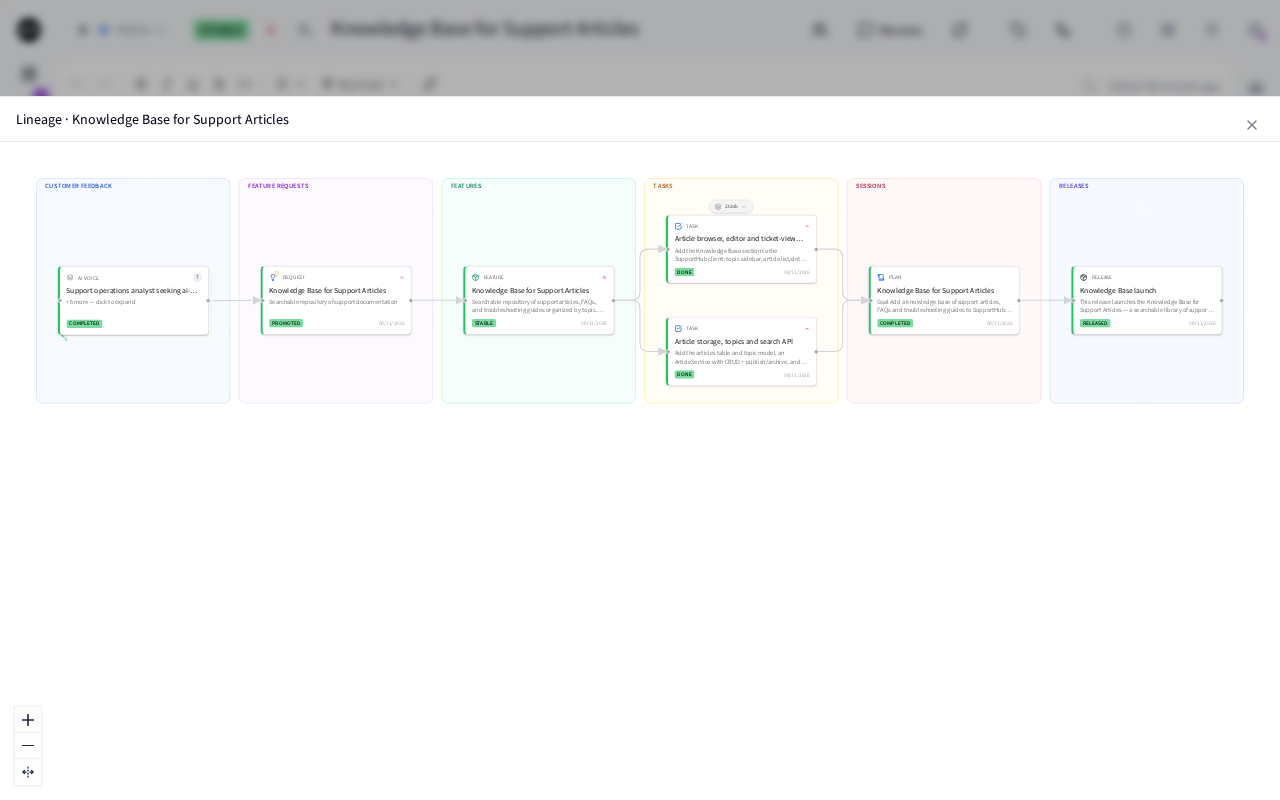
The rows of the Lineage map always draw Customer Feedback, Feature Requests, Features and Tasks, and Bug Reports too when a feature on the map has a bug report linked to it. Sessions and releases appear when you follow one item's lineage. That view draws every stage that has something in it, on the Lineage page and on the item's own page alike.
Link. A line between two nodes. Links come from what your team does: promoting a request creates the link from the request to the feature or task, giving a task a parent feature links the two, a session that works on a task links them, and starting a session in Produtype from the PM agent on a feature's page links the feature and the session.
Unlinked request. A feature request that hasn't been promoted or merged yet, so it isn't connected to any feature.
The Lineage page at a glance
In the sidebar, under Product, choose Lineage.
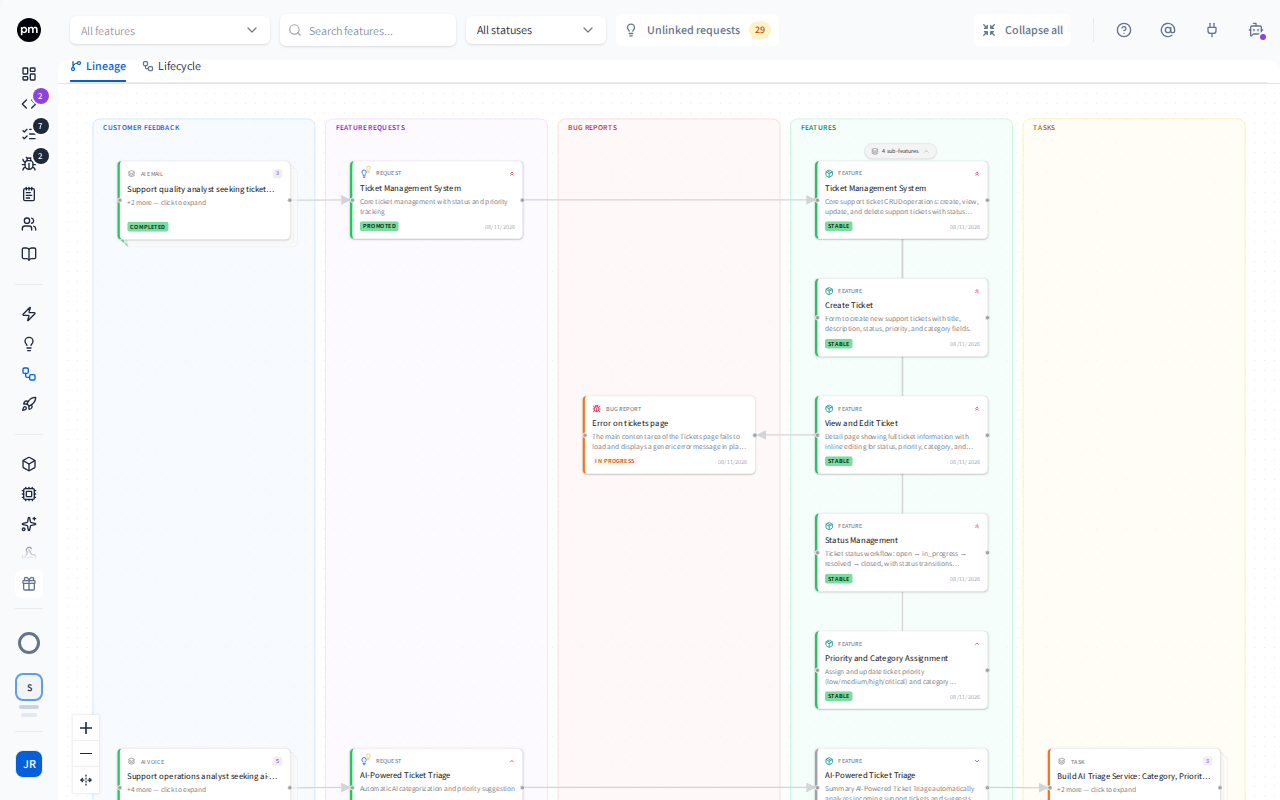
The toolbar holds, from left to right:
- All features, to show only some top-level features and their subfeatures;
- Search features..., which matches feature titles and descriptions;
- All statuses, to show only features in some statuses;
- Unlinked requests, with the number of requests not yet connected to a feature;
- Collapse all or Expand all, which folds every group of subfeatures.
Productmind remembers your feature, status and unlinked-request choices for this workspace, in this browser.
The tabs are Lineage, the map, and Lifecycle.
The map shows one row per feature. When a stage holds several items for one feature, they are stacked, and the top card says how many more there are. A feature with subfeatures shows how many it has, for example 4 sub-features. Choose it to fold or unfold them. The buttons at the bottom left zoom in and out, and fit the map to the width of the page.
The Lifecycle tab shows the same features grouped by status, in columns from Backlog to Deprecated, so you can see at a glance what is in flight.
Working with the map
To see an item's details
- Choose a node.
A panel opens on the right with the item's details. For a feature, a request, a bug report or a task, you can change it right there, just as on its own page. Choose the node again, or close the panel, to go back to the map.
To follow one item's lineage
- Right-click the node and choose View lineage.
The map shows only that item and what is connected to it, in both directions. That includes the bug reports, coding sessions and releases connected to it: the same lineage as the item's own Lineage panel. The toolbar shows Lineage: and the item's title. Choose Close (the x) next to it to go back to the full map.
To follow an item all the way to its release
- Open the item: a feature, a feature request, a bug report, a task, a session or a release.
- In its header, choose Lineage. On a session, Lineage is in the rail on the right.
A panel opens over the page with the item's whole lineage, including the bug reports, coding sessions and releases connected to it. View lineage on any node in the panel moves the map to that node. Close the panel to go back to the item.
To open an item on its own page
- Right-click the node and choose Open.
The item's own page opens. Open works for features, feature requests, bug reports, tasks, sessions, releases and customer conversations. Interests have no page of their own, so their nodes have no Open.
To see requests that aren't connected yet
- Choose Unlinked requests.
Each request that hasn't been promoted or merged gets its own row on the map, with the conversations it came from. Choose Unlinked requests again to hide them.
To act from the map
Right-click a node to act on it without leaving the map:
- on a feature request that is New or In Review: Promote to feature or Promote to task. See Feature requests;
- on a feature: Create task, and Generate tasks when it has no tasks yet. See Tasks.
The map updates when the new link or task is created.
How lineage behaves
The map is built from links, not from titles. A request only connects to a feature when it is promoted. Setting a request's status to Promoted by hand leaves it unconnected.
Changes appear live. When your team changes statuses or creates links elsewhere in the app, the map updates without a refresh.
Releases. The lineage of a release, opened from Lineage on the release, shows the work it shipped: everything under In this release, whether Productmind found it in the commits or you added it with Add work, with the coding sessions that did that work between it and the release. In the lineage of a feature, a task or a session, a release appears when a coding session that did the work is in that release. Productmind finds the session when it prepares the release, and again each time you choose Re-check work items: the merge of the session's pull request is among the release's commits, or a commit cites the session's ID, such as SSID-4. You can also set a session's release by hand, in its Release panel. Work under In this release that no session did doesn't add the release to a feature's or a task's lineage. See Releases and Pull requests and reviews.
Permissions
| To | You need |
|---|---|
| Open Lineage, or the Lineage panel on an item | Features: Read, Feature requests: Read, Sessions: Read and Releases: Read |
| Promote a request from the map | Feature requests: Update |
| Create a task from the map | Tasks: Create |
| Generate tasks for a feature | Features: Update and Tasks: Create |
| Change an item in the details panel | Update permission for that kind of item, such as Tasks: Update |
Lineage draws requests, features, sessions and releases together, so it needs all four read permissions. Lineage in the sidebar needs only Features: Read, so a custom role without the other three still sees it. Every built-in role can see Lineage. See Roles and permissions.
Troubleshooting
A request isn't connected to the feature it became
Its status was set to Promoted by hand. Set it back to In Review and promote it with Promote, choosing the existing feature.
Lineage keeps loading, or shows No lineage data available
Your role is missing one of the read permissions Lineage needs: Features: Read, Feature requests: Read, Sessions: Read and Releases: Read. Ask an Owner or Admin of your organization for a role that includes it.
The toolbar filters don't respond
You are looking at one item's lineage, where the filters don't apply. Choose Close (the x) next to Lineage: in the toolbar to go back to the full map.
A release is missing from a feature's lineage
The map's rows stop at Tasks. Right-click the feature and choose View lineage, or open the feature and choose Lineage in its header. If the release is still missing, the release hasn't matched the session that did the work. Open the release, choose In this release in the rail and choose Re-check work items: Productmind matches the release's commits against your sessions again, and the release appears in the lineage of the work they did. If the session's commits aren't in the release, set the release by hand instead: open the session, choose the Release panel, choose Set release (the +) and choose the release. The panel is available once one of the session's pull requests is merged. To see everything a release shipped, open the release and choose Lineage.