

Starting a session
You can start a session from a sentence describing the work, from tasks or bug reports you've already written, or as a blank session you set up yourself. You can also talk the change through with the coding agent first, in a Code conversation, and have it draft the plan from what you discussed. Before the agent starts, you check what the session will work on: its repositories, its tasks or bug reports, and where it builds.
Key concepts
Scope. What a session works on: its repositories, and the tasks or bug reports it covers. A Plan session covers tasks, a Bug fix session covers bug reports. A Live session covers neither, you give it instructions as you go.
Repositories. A new session gets the repositories of its sandbox's applications. A session started from tasks or bug reports also gets the repositories of the applications those items, or their features, are linked to.
Assist, Code and Produtype. The three modes of the What shall we build today? box and the PM agent panel's box, at the left of the box's bottom row. Assist sends your message to the PM agent, which can read and change your workspace's data. Code sends it to the coding agent, which reads your code. Produtype starts a live preview of your applications. Point at a mode to see what it does.
Working branch. The branch the agent commits to, cut from each repository's base branch. It is
named after the session, the first task or the first bug report, followed by the date and time the
session was created, for example session/ssid-6-2026-10-06-101530 or
bugfix/login-button-throws-500-2026-07-26-143512.
A new session at a glance
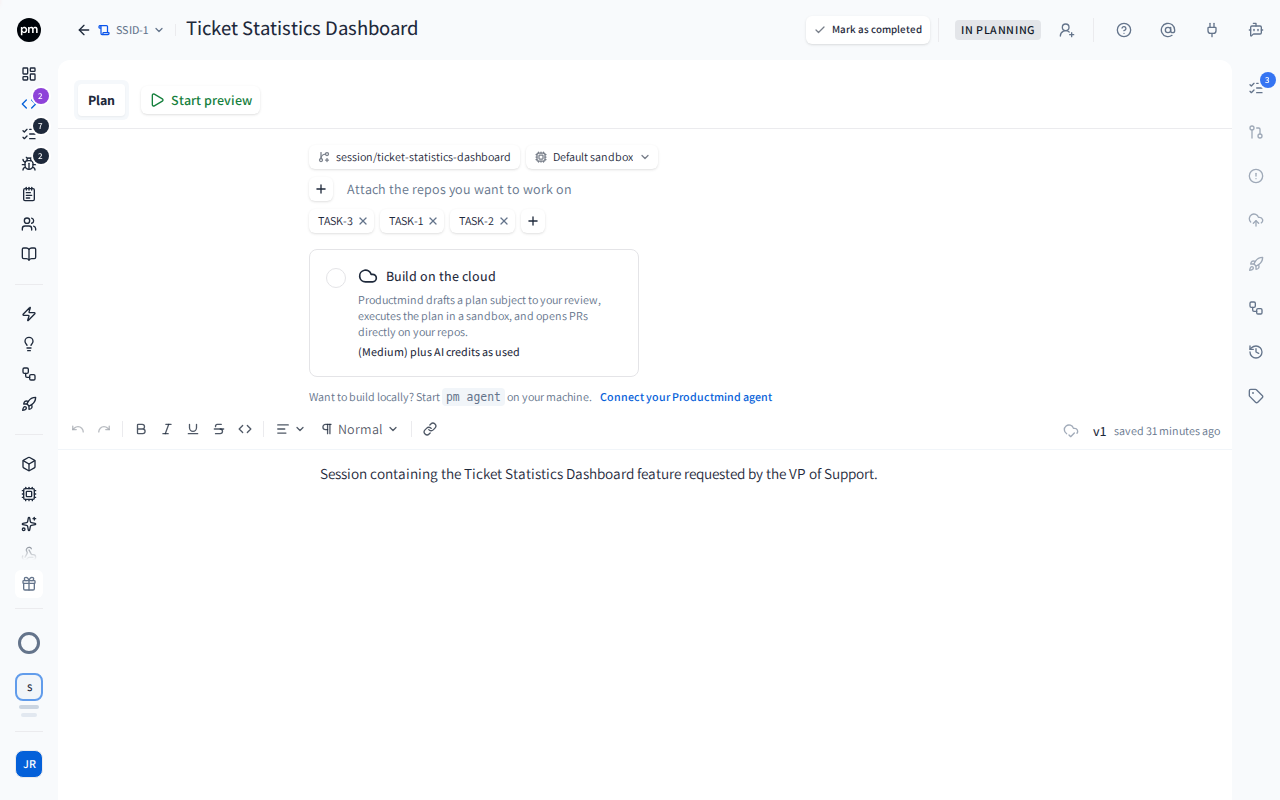
Whichever way you start it, a new session opens on its own page. You change everything the session will work on from the chips under its tabs. Once the agent starts, the sandbox can't change, but you can still add and remove repositories, tasks and bug reports: see Changing a session's scope.
| Chip | What you can do |
|---|---|
| The working branch | Choose it to rename the branch. |
| The sandbox, such as Default (default) | Choose another sandbox. The session's repositories are replaced by the new sandbox's. |
| Each repository | Choose its base branch, or Detach repository (the x). From Repository actions (the ...), choose Make read-only for a repository the agent should only read, or Allow pushes. See Read-only repositories. |
| Add a base repository (the +) | Search and add one: Suggested lists the applications the session's tasks or bug reports are in, Applications every other application with a repository, and Repositories your connected repositories. |
| Attach its repository, when the session has none and its tasks or bug reports are in an application | Add that application's repository in one click. For several applications it reads, for example, Attach 2 repositories. |
| Each task or bug report | Choose it to open it, or x to remove it from the session. |
| Add tasks to the session or Add bug reports to the session (the +) | Search, select, and add more. |
You can also change the session's category from the icon next to its ID, and its assignees from the avatar next to its status.
Changing a repository's base branch gives the session a new working branch for it.
Ways to start a session
| From | What you get |
|---|---|
| What shall we build today? in Assist, on the Dashboard or in the PM agent panel | The PM agent turns your description into a session, and starts drafting its plan. |
| What shall we build today? in Code, where the Code page's box starts | A Code conversation: the coding agent talks the change through with you, then drafts the plan when you ask. See Code conversations. |
| What shall we build today? in Produtype | A Live session: its preview starts, and the agent begins building from your message, if you wrote one, as soon as the preview is ready. |
| Launch a coding session on one or more tasks | A Plan session for those tasks. |
| Launch a coding session on one or more feature requests | A Plan session for the requests' tasks. Each request becomes a task first. |
| Launch a bug fix session on one or more bug reports | A Bug fix session for those reports. |
| The + on the Dashboard's Code card | A blank Plan session that you set up yourself. |
To start a session from a description
- Go to the Dashboard, or open the PM agent panel.
- In What shall we build today?, describe the feature, fix or idea. To point the assistant
at existing work, choose Add work items as context (the +) or type
@and a name or ID. - Leave the box on Assist. Say what you're after in your own words: the assistant tells a discussion from a request to act. Ask it to plan the work, or describe a defect and ask for a fix. To build straight away in a live preview, choose Produtype instead: see To build in a live preview.
- Send the message.
The PM agent opens on the right and works out the scope with you. When the work is clear, it proposes the session with one card, Continue in Code (Continue in Produtype for a live preview): what the session starts with, and the applications, where it runs and the sandbox it picked. Change any of them on the card, then choose Continue in Code, or Not now to keep talking. The button reads Create anyway when the session won't carry on this conversation, and waits while the scope on the card has nothing the session could work in.
The session is created, the page switches to it, and the agent starts drafting the plan. The conversation carries on in the session, so the agent knows everything you discussed.
If your workspace has turned off Productmind cloud sessions and none of your Productmind agents is
online, the assistant doesn't propose the session. It says "Cloud sessions are turned off for this
workspace. Start the Productmind agent on your machine (pm agent) to start this session.", with
Connect your Productmind agent. Start the agent, then ask again.
If you ask to see the change straight away ("build it and let me see it"), the assistant hands the conversation to a Live session instead: no plan is drafted. Its live preview starts, and the agent begins with the instruction you agreed as soon as the preview is ready. If you describe a defect, it records a bug report and proposes a Bug fix session.
To build in a live preview
- In the sidebar, choose Code, or go to the Dashboard.
- In What shall we build today?, choose Produtype. The send button becomes Play.
- Check where the session will build, in the row after the modes: the sandbox's applications, runs on (the cloud or your own machine) and the sandbox. When you can run it in more than one place, runs on is followed by a list: choose one. To use another sandbox, choose it and pick one.
- To build in more applications, choose Application (the + in that row) and pick them. You
can also pick an application with Add work items as context (the +) or by typing
@. Picked applications appear in the row too; to drop one, point at it and choose its remove button. When the box is short of room, the applications show as one chip, such as 2 apps: choose it to pick or drop them. - Optionally, describe what the agent should build first. Then choose Play (Start live preview). Pressing Enter in an empty box does nothing, so a stray key never starts a session.
The Live session's page opens at once, with Starting your live session and your message, and any images you added, marked Starting... while the session is created. Its preview then starts, with its progress on screen. Your message is kept until the preview is ready, then goes to the agent, which starts building in the preview. If you didn't write one, the preview comes up and waits for your first instruction in the session. From there, keep talking to the agent in the session, and open a pull request when you're happy.
If the session can't be created, your message stays on the page marked Not sent, with the reason. See If your first message is marked Not sent.
To send a picture with your first instruction, add a line of text to go with it: Play waits for one while the box holds only pictures.
If your workspace has turned off Productmind cloud sessions and none of your Productmind agents is online, you can't press Play: the message box says Cloud sessions are turned off for this workspace, with Connect your Productmind agent. Once your agent is online, press Play.
Every application in that row is part of the session: its repository is ready for the agent, and it runs in the preview. An application you picked runs in the session's sandbox even when another sandbox lists it; if that sandbox lacks the tools the application needs, the preview can't start it. The sandbox's own applications can't be removed: choose another sandbox to change them.
When you start a session in Produtype from the PM agent on a feature's page, the session is linked to that feature: it appears in the feature's Sessions panel and in its Lineage.
If the chosen sandbox has no applications attached, as with a new workspace's Default sandbox, pick the applications to build in with Application before you send; you don't need to attach them to the sandbox. In Produtype, Play waits until the session has at least one application with a repository, and says what's missing. If no application in the workspace has a repository yet, scan a repository first. No session is created until then.
In Assist, the assistant works autonomously: it makes changes, such as creating tasks, without asking first. Handing the conversation to Code or Produtype still shows its Continue in Code card, so you choose the scope. See Finding your way around.
To start a session from tasks
- In the sidebar, choose Tasks.
- Point at a task and choose Launch a coding session. For several tasks, select them and choose Launch a coding session in the bar that appears.
The session opens. It is named after the tasks, and its tasks move to In Progress. The agent doesn't start yet: check the session, then draft its plan.
You can also launch a session from a task's header or its right-click menu. See Tasks.
To start a session from feature requests
- In the sidebar, choose Feature requests.
- Point at a request and choose Launch a coding session. For several, select them and choose Launch a coding session in the bar that appears.
Each request becomes a task, or keeps the task it was already promoted to, and the session opens with those tasks. See Feature requests.
To start a session from bug reports
- In the sidebar, choose Bug reports.
- Point at a report and choose Launch a bug fix session. For several, select them and choose Launch a bug fix session in the bar that appears.
The Bug fix session opens. Its bug reports are assigned to you, and the ones still being triaged move to In Progress. The agent doesn't start yet: check the session, then draft its plan.
To start a blank session
- On the Dashboard, choose the + on the Code card, or the + at the start of the Code tab's toolbar.
- Choose Add tasks to the session (the +), select the tasks, and choose Add N tasks. Or, instead of adding tasks, describe the work in the session's document.
The session opens, named after its ID, such as SSID-6. Choose the name to rename it.
Code conversations
In Code, you talk with the coding agent about your code before anything is decided: how something works, where a change would go, whether it's feasible. The agent reads the code of the applications in the row under your message, answers from it, naming the files and lines it relies on, and never changes your code. When you ask, it also creates and updates tasks, features and bug reports for you. When you've settled on a change, it drafts the plan in the same conversation.
To start a Code conversation
- In What shall we build today? or the PM agent panel's box, choose Code. On the Code page the box starts on Code.
- Check the row after the modes: the sandbox's applications, any you add with +, runs on and the sandbox. On a feature's page, the PM agent panel adds the feature's applications, and the conversation is about that feature.
- Type your question, for example "Could refund approval be split out of checkout?", and choose Ask the coding agent.
The session's page opens at once, with your message, and any images you added, marked Starting... while the conversation is created. The conversation is the page's document, and the agent's answer appears under your message. Send your next message from the box under it; one you send while the agent answers waits its turn, marked Queued. If the conversation can't be started, your message stays on the page marked Not sent, with the reason. See If your first message is marked Not sent.
To carry on a conversation with the PM agent in Code, switch its box to Code and send your message: the coding agent is given everything you said. Or, when you ask the PM agent how something is built, it offers the switch with a Continue in Code card, where you can change what the agent reads before you choose Continue in Code.
To have the agent correct a specification
In a conversation about a feature or a component, ask the agent to fix its specification. When its reply says a correction waits for your review, open that feature or component and choose Review changes: apply the changes you want, or Dismiss. It proposes corrections only to that feature and its components, and only where you can change the specification.
To have the agent create tasks or update your work
Ask the agent in the conversation, for example "Create tasks for the two changes you suggested", or say yes when it offers. It creates or updates the tasks, features, bug reports and other items you asked for, as you and with your permissions, and its reply names each one, such as TASK-12, so you can open it. It does only what you asked, and nothing on its own initiative.
To draft the plan
- Choose Draft the plan beside the send button, then confirm. Or answer yes when the agent offers to draft it.
The conversation becomes a plan session, visible to your workspace, and the agent drafts the plan from what you discussed. You can stop and correct the draft as it goes. See Stopping and restarting a run.
To end a conversation without a plan, choose Mark as completed in the session's header. It then takes no more messages.
How Code conversations behave
Only you can read it, until you draft the plan. Teammates can't open it or find it in their lists, and a link to it says This code chat is private to and your name. Drafting the plan opens it to your workspace. The corrections it proposes appear on the feature's page, for everyone who can see the feature.
The agent works read-only on your code, on each application's base branch: it never changes your code, starts a preview or opens a pull request.
It acts in Productmind only when you ask. It can create and update tasks, features, bug reports and other items, as you and with your permissions, without asking you to approve each change. What it creates is visible to your workspace, even while the conversation stays private. It never starts a coding session: Draft the plan does that. A feature's specification changes only through a correction you review, never directly. If your workspace edited its Code chat template before the agent could do this, it follows your saved text, which may still tell it to only read; restore the default to change that. See Templates.
It answers from the code. When the code doesn't settle a question, it says so, and when your request is unclear, it asks you in its reply.
Each answer is a coding run. In Productmind's cloud it uses AI credits, and the first message, or one sent after five quiet minutes, waits while the agent starts up. On your own machine, your Productmind agent answers at once, and the whole conversation is one user-hosted session. See Usage.
Setting up a session
To choose where the session builds
Under the chips, choose:
- Build on the cloud: Productmind drafts a plan for your review, builds it in a sandbox and opens pull requests on your repositories. It is charged by usage: it uses AI credits, and sandbox hours at the size of the session's sandbox (Small, Medium or Large), measured by the second, which draw on your plan's Included cloud allowance at that size's price per hour. When your plan sets a price for that size, the option shows it per hour, with the size, followed by "plus AI credits as used". Otherwise it reads "AI credits as used". When your organization runs cloud coding sessions on its own model provider key, it reads "AI billed by your model provider" instead: your provider bills those tokens, and they use no AI credits (see Model provider). The size is the session's sandbox's, or your workspace's default sandbox's, or Medium when there is none. See Sandboxes.
- Build on your Productmind agent, followed by your machine's name: the same flow, run by the Productmind agent on your machine. It is offered only while that agent is online, shown by a green dot. Its AI runs on your own Claude Code or Codex account and uses none of your AI credits, and it counts no sandbox hours and uses none of your cloud allowance. If your plan charges for sessions on your own machine, the session is charged once, at your plan's per-session rate, when it first runs there, and the option shows that price per session. See Productmind CLI.
If none of your agents is online, you see the hint "Want to build locally? Start pm agent on
your machine.", with Connect your Productmind agent, which shows you how. See
Productmind CLI.
If your workspace has turned off Productmind cloud sessions, Build on the cloud is grayed out with Cloud sessions are turned off for this workspace: the session builds on your Productmind agent. You can't choose Build on the cloud then, and your online Productmind agent is chosen for you. See Settings > Coding sessions.
Once the session has started, a chip shows where it runs and what it is doing there, such as Planning with Productmind while the plan is drafted, Building with Productmind while it is built, and Runs on Productmind cloud once the run has ended. Choose it to move the session to another target. You can't move it while the agent is working or a live preview is running. While cloud sessions are off, Productmind cloud is grayed out in its Move this session list.
To draft the plan
- Make sure the session has at least one repository, and at least one task or bug report, or a description of the work in its document.
- Choose where the session builds.
- Choose Draft a plan from N tasks, or Draft a plan when the session has no tasks.
The status changes to Drafting Plan. The document's Plan tab reads Drafting the plan..., followed by what the agent is doing right now, and the document shows the whole conversation with the agent, so you can follow every step. Start preview comes back once there is a plan, and you can use it once the plan is implemented and the session is in review. Meanwhile the PM agent panel shows its list of conversations rather than the same conversation a second time. When the plan is ready, the status becomes Plan Ready for Review, the plan takes the document's place, the conversation moves to the PM agent panel beside it, and you're asked to review the plan. See Working in a session.
With the default Engineering plan instructions, the agent sizes the work first (XS, S, M or L/XL), asks any question only you can answer early, for a small task right after a quick look, and writes a plan to match: for a small task, a short summary, the files to change and how the change will be verified; the full plan, with its approach, changes per layer, risks and open questions, only for large work. It writes its questions and its summary of the plan in plain language, because they are the text of the notifications and emails you get. See Templates.
You find out about billing before you click. If your organization's billing can't pay for the plan run, Draft a plan is grayed out and The plan can't be drafted yet shows under it, with the reason and its remedy, such as Top up or Activate pay-as-you-go. The button comes back by itself once it's fixed. If a draft is still refused, the plan isn't drafted: the session shows Waiting for billing, and you choose Resume once it's fixed. See If a session is refused on billing grounds.
You find out about your Productmind agent the same way when your workspace has turned off Productmind cloud sessions. While none of your agents is online, Draft a plan is held with The plan can't be drafted yet and "Cloud sessions are turned off for this workspace. Connect your Productmind agent to run it here.", with Connect your Productmind agent. This comes before any billing reason. Build, Re-plan, Retry, Approve & build and Submit answer are held the same way, and so is starting a live preview. Each comes back by itself once your agent is online.
If Productmind can't push to one of the session's repositories, for example because the account it pushes with can only read it, or a branch rule refuses the push, Draft a plan still drafts the plan. Under it, a notice, The plan can run, but the build will be held until Productmind can push, says what to fix for each repository before the build. See Working in a session.
For a Live session there is no plan to draft. Choose Start live preview instead. See Live preview.
How starting a session behaves
Nothing runs until you ask. A session started from tasks, bug reports or the + waits for you to choose Draft a plan. Only a session the PM agent started drafts its plan straight away.
Code and Produtype open the session at once. When you send in Code or choose Play in Produtype, you don't wait for the session to be created: its page opens straight away with your message and its images, marked Starting..., and you can send while an image is still uploading. If you reload the page while it still says Starting..., or after it says Not sent, your words go back into the box you wrote them in.
Your workspace may need your own agent. When an Owner or Admin turns off Productmind cloud sessions, every session runs on the Productmind agent of the person who starts its next step. You can still create a session from tasks, bug reports or the +, because nothing runs yet. A session that would start work at once, from the PM agent or in Produtype, isn't created while none of your agents is online. Above the list on the Code page, and where a session chooses where to build, a warning says so, with Connect your Productmind agent. See Settings > Coding sessions.
Only the sandbox locks once the agent starts. Once the agent has started, the session's sandbox can't be changed. It opens up again if the session is cancelled or fails. Its repositories, tasks and bug reports can still be added and removed while the agent works, until the session is Completed or Rolled Back, and the agent is told about each change. See Changing a session's scope.
The session is yours. A new session is assigned to the person who started it.
Its pull requests can be opened as you. If you've connected your own GitHub, GitLab or Bitbucket account, the session's pull requests are opened as you. Under Draft a plan, the session warns about any repository your account can't push to, and if you haven't connected your account, offers to connect it. See Who opens the pull requests.
Instructions for every session. Your workspace can give every plan and build the same instructions, such as coding style and branch rules. See Templates.
Permissions
| To | You need |
|---|---|
| Start a session | Sessions: Create |
| Start a session from What shall we build today? | Sessions: Create and Chat: Enabled |
| Change a session's scope, category, name or assignees, and draft its plan | Sessions: Update |
Troubleshooting
Draft a plan is grayed out
The reason is under the button. If it reads The plan can't be drafted yet with "Cloud sessions are turned off for this workspace. Connect your Productmind agent to run it here.", start your Productmind agent: choose Connect your Productmind agent for the steps. If it reads The plan can't be drafted yet with a billing reason, your organization's billing can't pay for the plan run right now: see If a session is refused on billing grounds. Otherwise the session needs at least one repository, and at least one task or bug report, or a description of the work in its document. When a repository is what's missing, the ways to add one are next to the reason: attach the repository of the application your tasks are in (for example Attach APP-1's repository), Add an application, or Connect a Git provider. You can also add a repository with Add a base repository, or change the sandbox to one with applications. See Sandboxes.
The session has no repositories
The sandbox has no applications, and neither do the session's tasks or bug reports, or none of them is linked to a repository. If the tasks are in an application, choose Attach its repository. Otherwise choose Add a base repository and pick an application or a repository, or attach applications to the sandbox. When there is nothing to add, the session says so next to Add a base repository, with Add an application and Connect a Git provider, or Reconnect when your Git provider needs reconnecting. See Applications.
Moving a task under an application adds that application's repository to the task's sessions that are still In Planning and haven't chosen where they build.
My machine isn't offered as a place to build
The Productmind agent isn't running, or it is signed in to another organization. See Productmind CLI.
"Productmind cloud sessions are turned off for this workspace, and no Productmind agent of yours is online"
Your workspace runs sessions only on Productmind agents, and yours isn't online. Nothing was
started. If it was a step of a session, the session shows Failed with this reason and
Retry. Start the agent with pm agent, or choose Connect your Productmind agent for the
steps, then try again or choose Retry. See
Settings > Coding sessions.
"None of these applications has a repository connected"
None of the applications in a Code conversation's row has a repository to read. Pick one that does, or connect a repository to it under Settings > Applications.
"This code chat is closed"
The Code conversation was marked as completed, so it takes no more messages. Start a new one in Code.
A Code conversation says the Productmind agent is too old
Run pm update on the computer running it, then send your message again.
A bug report can't be added to the session
The report is already in another session that hasn't finished, and the message names it, for example "BUG-3 is already attached to SSID-2". Finish or cancel that session, or remove the report from it first. The same applies when you launch a bug fix session.
"Launch a coding session" fails for a task
Another session is still working on the task, and the message names it, for example "TASK-12 is already in SSID-4 (In Progress)". Choose Open session in the message, or the badge in the task's header, to continue the work there, or remove the task from that session first. To work on the task in a different session, add it there with Add tasks to the session, and choose Move here when asked: the task leaves the other session, whose agent is told. Once that session has finished, the task can be launched again.
If your first message is marked Not sent
The session or Code conversation you started in Code or Produtype wasn't created. Your message stays on its page with its words and images, the reason under it, and three choices:
- Try again sends it again. If the first attempt did create the session, you get that session: nothing is created twice.
- Edit takes you back to the box you sent it from, with your words, images, applications and mode, so you can change it and send it again.
- Discard drops the message and takes you back.
After Play in an empty box, the page says The session was not started., with Try again and Back. If you moved on to another page before it was refused, a message tells you, with Open to go back to it. Fix what the reason names first, for example start your Productmind agent, or see If a session is refused on billing grounds.
"AI credits for coding sessions are not included in your plan", or an AI credit limit is reached
Your plan leaves out the AI credits coding on the cloud uses, its included AI credits for this month are used up, or a daily, weekly or monthly AI credit limit is reached. Build on your own machine instead, which uses none of your AI credits. See Sessions.
"Sessions on your own machine are not included in your plan", or their limit is reached
Your plan leaves out, or caps, sessions the Productmind agent runs on your machine. Build on the cloud instead, or move to a plan that includes them. See Sessions.
If a session is refused on billing grounds
Choosing Draft a plan, Build or Retry, or sending the agent a message, can be refused the first time the session runs on your machine, or at any step on the cloud. Nothing runs and nothing is charged. You usually see it before you click: a button that starts a step, such as Draft a plan, Build, Approve & build or Submit answer, is grayed out with the same message and remedy beside it, and comes back by itself once the cause is fixed. Productmind shows the refusal once, as a short title with the reason under it and its remedy. Top up and Activate open the top-up dialog where you are, with an amount already entered: what the work needs, or at least EUR 10 for a first top-up. Open Usage opens Billing & Payments > Usage. Usage limit reached is a dialog instead, whose View plans opens the Plan tab:
| Message | What to do |
|---|---|
| "Activate pay-as-you-go to keep going" | Your organization is on the plan with no monthly fee and hasn't activated billing. An Owner or Admin chooses Activate (Activate pay-as-you-go beside a grayed-out button) and pays the first top-up. See To activate pay-as-you-go. |
| "Pay-as-you-go spending is paused" | An Owner or Admin chooses Open Usage and turns the allowance's switch to Spending on. |
| "Your Pay-as-you-go balance is EUR 4.57, and a coding step needs at least EUR 6.24 available. Top up to continue." | The balance can't cover the step. The message names your balance and what the step needs, or what a session on your own machine costs. An Owner or Admin chooses Top up. |
| Usage limit reached | Your plan doesn't include the work, its allowance is used up, or a daily, weekly or monthly AI credit limit is reached. Choose View plans to compare plans. For an AI credit limit, the dialog also says when the limit resets, and offers the plans that raise it, or Contact us when no plan you can switch to does. See Plans and limits. |
A refused plan or build waits for billing rather than failing. The session's status reads Failed, but the session shows a warning instead of an error: Waiting for billing, the reason with its amounts, the action that fixes it, and Resume and Cancel session. A member who can't take the action reads who can, for example "Ask an Owner or Admin to top up the Pay-as-you-go balance." The session checks billing again every 30 seconds, and when you come back to its page, so it notices a top-up, an activation or spending turned back on. It then reads Billing is ready. Resume to continue. Choose Resume to run the step.
A message you sent the agent that was refused comes back to the conversation, so you can send it again once the cause is fixed.
A step accepted just before spending was turned off waits for billing too. On the cloud, a step that was accepted but whose runner hasn't started it yet is checked again when its runner is ready. If AI credit spending was paused in the meantime, or the balance can no longer cover the step, it doesn't start: the session shows Waiting for billing as above, nothing is charged, and Resume starts it once the cause is fixed. While it waits for its runner, the session already says so. See Working in a session.