

Feedback widget
The feedback widget is a chat window for your website or web app. A visitor tells it what they think, and an AI interviewer asks follow-up questions, guided by the objectives and questions of one of your researches on Agentic interviews. Each conversation is saved in that research as an interview, and Productmind turns what the visitor asked for into feature requests and bug reports.
Key concepts
Research. Every widget belongs to one research on Agentic interviews. The research's objectives and questions steer what the AI interviewer asks, and every conversation from the widget is saved in that research, as an interview. Every workspace starts with a research called General, and every research you create gets a widget of its own. See Agentic interviews.
Widget key. The code that ties a widget to its research. It isn't a secret: it sits in your web page, where anyone can read it, and all it lets someone do is send feedback to that research.
Welcome message. The first message a visitor sees when they open the widget.
Display mode. How the widget sits on your page:
| Mode | What visitors see |
|---|---|
| Floating (the default) | A chat button in the bottom-right or bottom-left corner. Choosing it opens the chat window above the page. |
| Inline | The chat window placed inside an element of your page, such as a section of a Contact us page, and always open. |
The Feedback widget tab at a glance
In the sidebar, choose Agentic interviews, choose a research, then choose the Feedback widget tab.
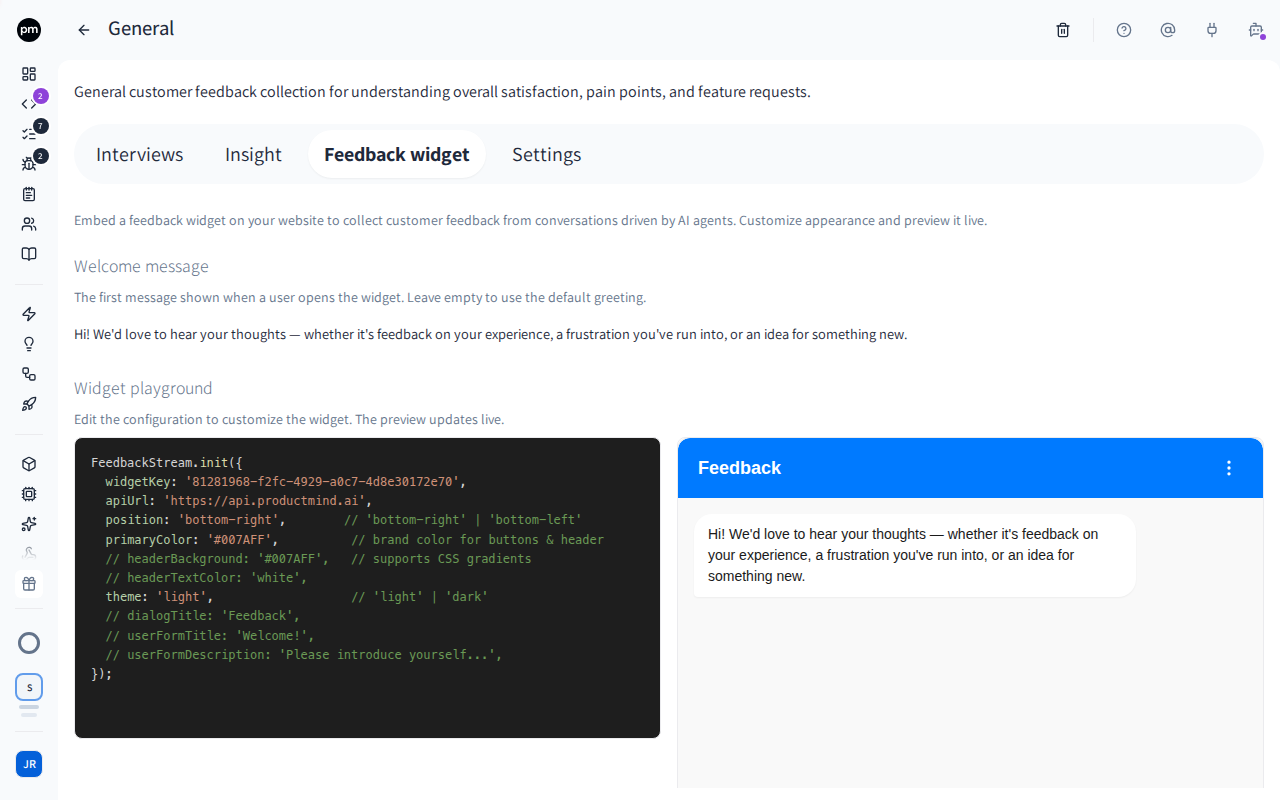
The tab has four sections, from top to bottom:
- Welcome message. The widget's first message. Leave it empty to use the default greeting, which shows in the field as a placeholder.
- Widget playground. The widget's configuration on the left, and a live preview of the widget on the right. The preview updates a moment after you stop typing.
- Widget key. The research's key, with Copy.
- Embed code. The code that loads the widget on a web page, generated from the playground's configuration, with Copy.
Setting up the widget
To change the welcome message
- On the Feedback widget tab, choose the text under Welcome message.
- Enter the message. You can format it, and write
{user.name}where the visitor's name should appear. - Choose anywhere outside the field.
The message is saved, and every widget for this research shows it from the next time it loads.
To customize the widget
- On the Feedback widget tab, edit the configuration in Widget playground. The options are listed in Configuration options.
- Watch the preview beside it change.
The preview always shows the widget open, inside the playground. It ignores displayMode,
container, position and attachTo, which take effect on your site. The preview and the
embed code both always use this research's widget key and address, whatever the configuration
says.
If the configuration can't be read, for example because a quote or a comma is missing, the playground shows "Could not parse configuration. Check the syntax and try again." The preview is empty, and the Embed code section is hidden, until the configuration can be read again.
The preview is a real widget. Messages you send in it reach the AI interviewer and are saved in this research, like any visitor's.
To add the widget to your site
- On the Feedback widget tab, under Embed code, choose Copy.
- Paste the code into your site's HTML. Just before the closing
</body>tag is best, because the rest of the page then doesn't wait for the widget to load. The page's<head>works too. - Publish the page.
The widget appears the next time the page loads. In floating mode, that is a chat button in the corner of the page.
For inline mode, add displayMode: 'inline' and container to the playground's configuration
before you copy the embed code. The element you name in container must be in the page's HTML.
Configuration options
The options go inside FeedbackStream.init({ ... }), in the playground's configuration.
| Option | What it does | Default |
|---|---|---|
widgetKey | The research's widget key. Required. | None |
apiUrl | The address the widget sends feedback to. Required. The embed code always sets it, whatever the configuration says. | None |
displayMode | 'floating' or 'inline'. | 'floating' |
container | Inline mode only, and required there: the element to show the widget in, as a CSS selector such as '#feedback'. | None |
position | Floating mode only: 'bottom-right' or 'bottom-left'. | 'bottom-right' |
attachTo | Floating mode only: an element, as a CSS selector, to pin the chat button to, so it scrolls with that element instead of staying in the corner of the window. | None |
primaryColor | Your brand color, for the buttons and the visitor's messages. | '#007AFF' |
headerBackground | The header's background: a color or a CSS gradient. | primaryColor if you set it, otherwise a blue-to-purple gradient |
headerTextColor | The color of the header's text and icons. | 'white' |
theme | The chat area's colors: 'light' or 'dark'. | 'light' |
dialogTitle | The title in the widget's header. | 'Feedback' |
welcomeMessage | A welcome message for this page only. It replaces the one you set on the tab. | The tab's welcome message |
userFormTitle | The title of the form that asks for the visitor's name and email. | A short welcome |
userFormDescription | The text under that title. | 'Please introduce yourself before we start chatting.' |
userInfo | The visitor's email and name, and optionally organization. With both email and name, the widget skips its form, unless the browser already remembers a visitor. | None |
autoEnd | When the widget ends a quiet conversation by itself. See How the widget behaves. | On |
autoEnd takes these settings:
| Setting | What it does | Default |
|---|---|---|
enabled | false turns automatic ending off. | true |
inactivityTimeout | Seconds of silence after the interviewer's reply before the countdown starts. | 30 |
countdownDuration | Seconds the countdown lasts. | 300 |
completionPhrases | Phrases in the interviewer's reply that start the countdown straight away. | "thank you for your feedback" and "Thanks again for your time!" |
countdownMessage | The countdown's text. {seconds} shows the seconds left. | "Conversation seems complete. Ending in {seconds} seconds..." |
What visitors see
- The visitor opens the widget and sees your welcome message.
- They type their feedback and send it. The first time, the widget asks who they are: they enter their Name and Email, and optionally their organization, and choose Start Chat.
- The AI interviewer replies and asks follow-up questions. Its replies appear as it writes them.
- The conversation ends when the visitor ends it, or when it goes quiet (see below). The widget shows "Thank you! Your feedback has been submitted. Feel free to start a new conversation anytime."
The widget's Settings menu offers Set User, to change the name and email, and End Conversation. In floating mode, closing the widget during a conversation asks "End Conversation?", because closing it ends the conversation.
Images
Visitors can show you what they mean. They can attach images to a message in three ways:
- choose the paperclip beside the message box, and pick one or more images;
- paste an image, such as a screenshot, into the message box;
- drag images onto the chat window, which shows "Drop images to attach" while they drag.
Each image appears above the message box while it uploads, with a button to remove it. The visitor can send the images with or without words, and sends them once every image has finished uploading. The message shows the images above the visitor's words.
| Limit | Value |
|---|---|
| Image types | PNG, JPEG, GIF and WebP |
| Size | 10 MB per image |
| Per message | 5 images |
| Per conversation | 50 images |
Anything else, an SVG or a PDF for example, is refused with a message naming the file, and so is a sixth image on one message. Images are on for every widget: there is nothing to switch on.
Where the feedback goes
The conversation. Each conversation is saved as an interview in the research the widget belongs to, on its Interviews tab.
The images. The images a visitor sends are saved with the conversation. Your team sees each one under the message it was sent with, on the interview's Conversation tab, and all of them among the interview's attachments. They are kept for as long as the conversation is: deleting the interview deletes its images too, but not the copies on feature requests and bug reports (see The summary below).
The visitor. Productmind looks for a contact with the visitor's email. If there is none, it creates one, under the account with the same name as the organization the visitor entered, or under an account named Unknown. See Contacts.
The summary. When the conversation ends, Productmind summarizes it. It adds the requests it finds to Feature requests and the problems to Bug reports. Everyone in the workspace with Customer meetings & support: Read is notified when the summary is ready.
The images in the summary. Productmind works out from the conversation which images belong to which request or problem, and copies each image onto the feature requests and bug reports it shows, including ones the conversation adds interest to. The interview's Summary tab shows the images that matter under the summary, each with the requests and bug reports it was copied to. An image whose link to a request is unclear stays on the interview only. Summarizing the interview again copies an image a request newly needs and never removes one. The copies belong to the request or bug report: deleting the interview keeps them.
How the widget behaves
The browser remembers the visitor. The widget keeps the visitor's name and email in their
browser, so it asks only once. While it remembers someone, it ignores userInfo: on a shared
browser, or after a different person signs in to your app, it keeps the first person's name and
email until the visitor changes them with Set User in the widget's Settings menu.
The browser remembers an unfinished conversation. If a visitor comes back in the same browser before their conversation ended, their next message is added to that conversation instead of starting a new one.
Quiet conversations end by themselves. Once the interviewer has replied, 30 seconds without
a message from the visitor starts a countdown: "Conversation seems complete. Ending in 300
seconds...". The visitor can choose End now, or Cancel, or keep typing to carry on. When
the countdown reaches zero, the conversation ends as if the visitor had ended it. If the
interviewer's reply thanks the visitor for their feedback, the countdown starts straight away.
You can change all of this with the autoEnd option.
A conversation nobody ends isn't summarized. If the visitor leaves before the conversation ends, it stays in the research, unsummarized. You can summarize it yourself: see A conversation has no summary.
Conversations use your plan's AI credits. Every reply from the interviewer counts toward your organization's AI credits, the same ones your other AI work uses. See Plans and limits.
The interviewer sees the images. The AI interviewer receives the images with the visitor's message, so it can ask about what they show. A conversation with images uses more of your AI credits than one without. An image too large for the interviewer to view is still saved for your team, and the interviewer is told it was sent.
Location data is removed from photos. Before a JPEG photo is uploaded, the widget removes its camera and location data (such as where the photo was taken), keeping how it is turned. If the widget can't do that for a photo, it refuses the photo instead of uploading it. Other image types are uploaded as they are.
Visitors never see your billing. If the interviewer can't reply because of your organization's billing, for example because its AI credits are used up or its pay-as-you-go spending is paused, the visitor sees "Thanks, we received your message. The team will follow up with you." instead of a reply. Their message, and any images with it, are still saved in the conversation for your team, and their next messages are added to it. Your Owners and Admins get a notification about it, in the app and by email, at most once a day. Visitors see the same message when your organization's own model provider key can't be used.
New researches get a welcome message. When you create a research with objectives and leave its widget welcome message empty, Productmind writes one from the objectives.
The same AI interviewer answers comments on shared live previews. When a session's live preview has a public link with AI replies to comments on, each comment an outside viewer leaves on the running application starts a conversation with the AI interviewer, guided by the research the link names (General unless someone chose another). The viewer gives their name and email before their first comment, as a widget visitor does. Each comment's conversation is saved in that research as an interview of the Feedback widget type. It ends when your team resolves the comment, when the link or its AI replies are turned off, when your workspace turns off public preview links, or after 24 hours without a new message, and is then summarized into feature requests and bug reports, as a widget conversation is. The replies use the same AI credits, and when billing refuses one, the viewer reads the same "Thanks, we received your message. The team will follow up with you."
Deleting the research stops its widget from working.
Permissions
| To | You need |
|---|---|
| See the Feedback widget tab, the widget key and the embed code | Agentic interviews: Read |
| Change the welcome message | Agentic interviews: Update |
| Generate a missing widget key | Agentic interviews: Update |
| Read the conversations on the Interviews tab | Customer meetings & support: Read |
| Summarize an unfinished conversation | Customer meetings & support: Update |
Visitors don't need a Productmind account.
Troubleshooting
The widget doesn't appear on my site
Check these, in order:
- The element, in inline mode. The element you name in
containermust be in the page's HTML when the page loads. An element that a script adds later isn't found. - Your site's Content Security Policy. If your site sends one, it must allow the address
in the embed code's first line in
script-src, theapiUrladdress inconnect-src, and inline scripts and styles. - The address in the embed code. If the first line of the code on your site names a different address from the embed code on the Feedback widget tab, copy the embed code again and replace it.
Visitors can't attach images
Check these, in order:
- Your site's Content Security Policy. Images are uploaded from the visitor's browser straight
to storage at
https://*.s3.eu-central-1.amazonaws.com. If your site sends a Content Security Policy, add that address toconnect-src, or every upload fails with "The image could not be uploaded. Check your connection and try again." To show the images' previews in the widget, also allowblob:inimg-src. The visitor can still send words either way. - "You've attached a lot of images in a short time." The widget accepts a limited number of uploads per visitor, and per widget, each hour. The visitor can try again a little later.
- "An image upload expired or could not be found." The image never finished uploading, or was attached days before the message was sent. The visitor can remove it and attach it again.
"Could not parse configuration. Check the syntax and try again."
The playground can't read the configuration. Look for a missing quote, comma or brace. Every
option is written as name: value,, and text values go in quotes. Until it can read the
configuration again, the preview is empty and the Embed code section is hidden.
The widget answers "Invalid widget key" to every message
Productmind doesn't recognize the key the widget sends. Either:
- The embed code on your site carries another key. Copy the embed code from this research's Feedback widget tab again, and replace the one on your site.
- The research, or its workspace, was deleted. A deleted research's widget, and every widget of a deleted workspace, stop accepting conversations. Embed the widget of a research you still use. See Workspace settings.
- The workspace's data was reset. A reset gives the workspace's feedback widget a new key, and the old one stops working. Copy the embed code again, and replace the one on your site.
The tab says "This research has no widget key yet"
This research was created without a widget key, so it has no playground and no embed code yet. Under Widget key, choose Generate widget key. The research gets its key, and the Widget playground and Embed code sections appear.
You need Agentic interviews: Update. Without it, the tab shows the sentence but not the button: ask an Owner or Admin of your organization.
The Interviews tab is missing
You need Customer meetings & support: Read to read the conversations. Ask an Owner or Admin of your organization.
A conversation has no summary
The visitor left before the conversation ended. To summarize it:
- On the research's Interviews tab, open the interview.
- Choose the circular arrows. Their tooltip says the interview is still in progress, and that you can summarize it now.
- Choose Re-summarize.
The summary uses the conversation so far. You need Customer meetings & support: Update.