

Internal meetings
Internal meetings are the meetings your team has with itself: a debrief, a roadmap discussion, a retro, an architecture review. Write the agenda before, take notes or let an AI notetaker join the call, and Productmind summarizes what was said, what was decided and who does what next. Link the meeting to the features, feature requests and tasks it was about.
Key concepts
Meeting. A title, a date and time, an optional video link, an agenda, notes, and its participants.
Participants. The people in the meeting: team members you add, or the attendees of an imported calendar event, who can include external guests. Whoever called the meeting is the Organizer, everyone else an Attendee. Only participants can own action points.
Agenda. What the meeting set out to cover, written before it. The summary is organized around it.
Summary. What the meeting covered, under Summary, Key points, Decisions and Action points.
Action point. A follow-up from the meeting. It can be assigned to a participant and ticked done.
Notetaker. An AI notetaker that joins a Google Meet, Zoom or Microsoft Teams call, records it, and writes the transcript into the meeting's notes. It's the same notetaker as on Customer meetings.
Status. Productmind sets it as the meeting moves along.
| Status | Means |
|---|---|
| Draft | Created, with nothing to summarize yet. |
| Scheduled | Created for a future date. |
| In Progress | The notetaker is joining or in the call. |
| Processing | The meeting is being summarized. |
| Completed | The summary is ready. |
| Failed | The summary couldn't be written. |
The Internal meetings page at a glance
In the sidebar, choose Internal meetings.
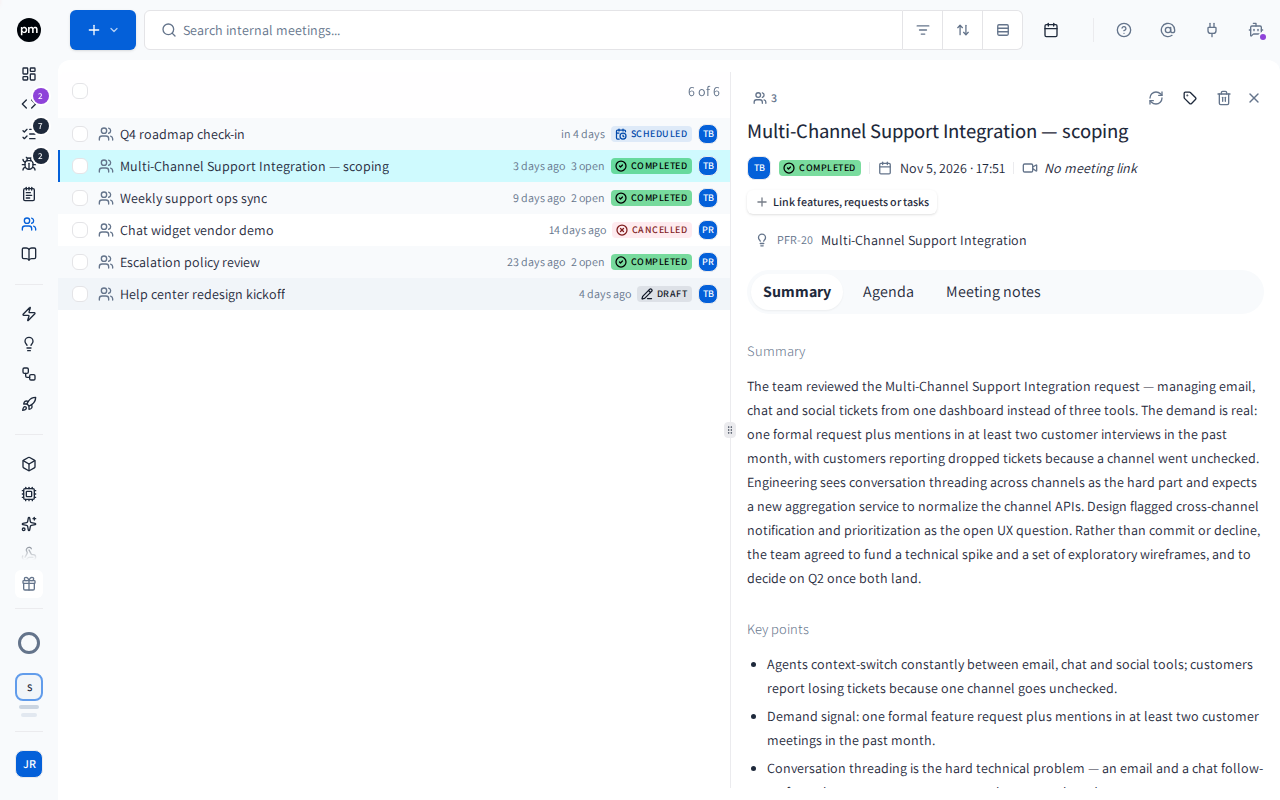
The toolbar holds:
- Create (the +);
- the search box;
- Filters, Sort and Group by;
- Toggle calendar, which shows the meetings on a month, week or day calendar instead of a list.
| Control | Options |
|---|---|
| Filters | Status, Participant, Source and Tags |
| Sort | Title, Status, Source, Meeting date or Created |
| Group by | Participant, Tag, Status or Source |
Source is Google Calendar for an imported meeting, and Productmind for one you created.
Each row shows the meeting's title and tags, its date, how many action points are still open (for example 3 open), its status, and who created it. Choose the tags chip to add or remove tags without opening the meeting (see Tags).
A meeting, open beside the list, shows:
- in its header: the participants (the people icon and a count), what the notetaker is doing, Summarize this meeting (the circular arrows), Tags, Delete meeting and Close panel;
- its title, then who created it, its status, its date and time, and its meeting link;
- Link features, requests or tasks, and the items it's linked to;
- the tabs Summary, Agenda and Meeting notes.
A summarized meeting opens on Summary, and one without a summary on Meeting notes.
Creating meetings
To create a meeting
- In the sidebar, choose Internal meetings.
- Choose Create (the +), then New meeting.
The meeting is created for today and opens. Give it a title, set its date and time, and add its participants, agenda and link in place.
To import a meeting from Google Calendar
- Choose Create (the +), then Import from Google Calendar.
- Connect your Google Calendar if it isn't connected yet.
- Meeting: choose the meeting.
- Review: check the title, date, time, duration and meeting link.
- Choose Create meeting.
The meeting keeps the calendar's attendees as its participants, with the organizer marked Organizer, and its source is Google Calendar. The steps are the same as for a customer meeting, without choosing a contact. See Customer meetings.
Working with a meeting
To add participants
- Open the meeting and choose the participants (the people icon).
- Choose Add participant, then pick a team member under Team member.
To remove someone, choose Remove and their name. Adding participants doesn't change a summary that was already written. It changes who you can assign action points to.
To take notes and summarize the meeting
- Open Agenda and write what the meeting should cover. Do this before the meeting if you can.
- After the meeting, open Meeting notes and add the notes.
- Choose Summarize this meeting (the circular arrows).
The meeting moves to Processing, and to Completed when the summary is ready. You're notified when it's done, and can leave the page meanwhile.
To summarize again after you change the notes, choose Re-summarize this meeting, then Re-summarize. The new summary replaces the old one, including any action point assignee you corrected.
To let the notetaker record the meeting
The notetaker needs a Google Meet, Zoom or Microsoft Teams link, and a meeting time that hasn't passed yet.
- Open the meeting, and set its date and time and its meeting link.
- In the header, turn on the switch next to Notetaker.
The header reads Notetaker scheduled, and at the meeting's time the notetaker joins the call. Admit it if your call has a waiting room. When the call ends, the transcript goes into Meeting notes and the meeting is summarized by itself. What the header says while the notetaker works is described in Customer meetings.
To stop the notetaker from joining, turn the switch off.
To work with action points
On Summary, under Action points:
- select Mark as done to tick one off;
- choose its text to change it;
- choose Assignee to assign it to a participant, or Unassigned;
- choose Remove action point to delete it.
To link a meeting to your backlog
- Choose Link features, requests or tasks.
- Search for and choose the features, feature requests or tasks the meeting was about.
The links stay above the tabs. To remove one, choose Unlink next to it.
To delete a meeting
- Open the meeting and choose Delete meeting.
- Confirm.
How internal meetings behave
The agenda guides the summary, the notes decide it. With an agenda, the summary is organized around the questions the meeting set out to answer. The AI is asked to report as discussed, decided or owned only what the notes show, and to say which agenda items weren't reached.
Action points are assigned only when it's clear. An action point gets an assignee only if its owner matches exactly one participant. Otherwise it's left unassigned for you to pick.
Notifications. When you summarize a meeting, you're notified when the summary is ready. When the notetaker's transcript is summarized, everyone who can see internal meetings is notified.
Meetings are the team's own. Internal meetings are separate from customer meetings, with their own permission.
Permissions
| To | You need |
|---|---|
| See internal meetings | Internal meetings: Read |
| Create or import meetings | Internal meetings: Create |
| Edit a meeting, its participants, notes and action points; summarize it; turn the notetaker on or off; link it | Internal meetings: Update |
| Delete meetings | Internal meetings: Delete |
The Owner, Admin, Power User, Developer and Product Manager roles can do all of these. Viewer and Customer can't see internal meetings. Roles are managed by Productmind: contact Productmind support if another role needs access. See Roles.
Limits
The notetaker's minutes come out of your plan's monthly allowance, the same one customer meetings use. They count from when the notetaker joins the meeting until it leaves, including any time it waits to be let in, and are billed by the second. A notetaker that never joins uses nothing. See Plans and limits.
Troubleshooting
Internal meetings isn't in my sidebar
Internal meetings may not be available to your organization yet, or your role doesn't include Internal meetings: Read. Ask an Owner or Admin of your organization.
Summarize this meeting is grayed out
The meeting has no notes yet. Add them on Meeting notes, or let the notetaker record the meeting.
The notetaker switch is grayed out
Point at it to see why. The meeting needs a Google Meet, Zoom or Microsoft Teams link and a time that hasn't passed.
I can't assign an action point to someone
Only participants can own action points. Add the person as a participant first.