

Dashboard
The Dashboard is the first page you see in a workspace. It shows what is waiting for you, lets you start new work by describing it to the PM agent, and draws your whole pipeline, from customer feedback to released code, with the latest updates at each step.
Key concepts
Pipeline. The path work takes through Productmind: feedback from your customers and your team, feature requests, work items, coding sessions and releases. See How it all fits together.
Card. One step of the pipeline under Your product development life-cycle, with how many items are at that step today.
Updates. The tabs under the pipeline. Every tab is the full list of one kind of item, the same list as on its own page, opened on what its card counts.
The Dashboard at a glance
In the sidebar, choose Dashboard.
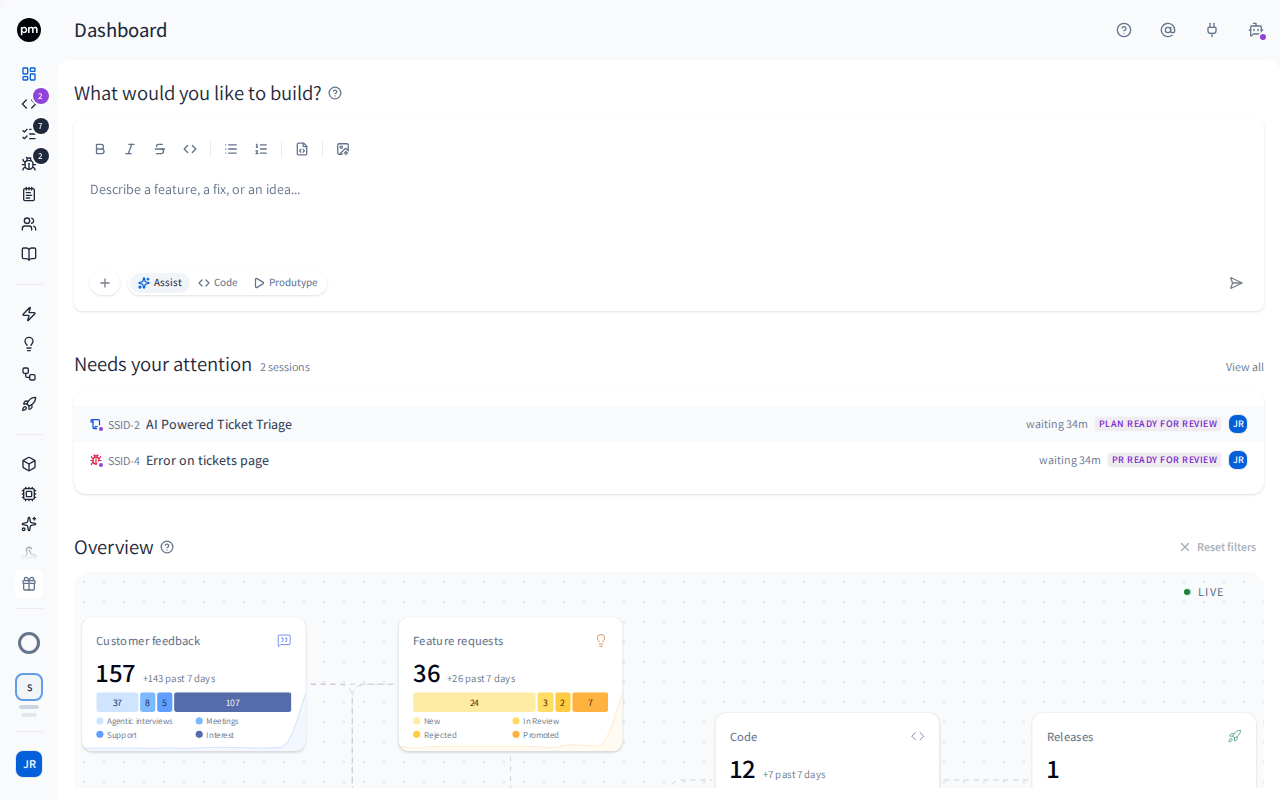
From top to bottom, the page shows:
- What shall we build today?, a box to describe new work to the PM agent. Until your workspace has an application, it shows Getting started instead.
- Needs your attention, when something is waiting for you.
- Your product development life-cycle: the pipeline, then the Updates tabs. Reset filters is on the right of that heading, because it acts on both. The Updates tabs, and Reset filters with them, appear once there is something to list.
The header shows only the page title, Dashboard.
Getting started

Until your workspace has an application, there is nothing for an agent to build in, so What shall we build today? asks how you want to start instead of showing its box:
- I want to build something new: start from a template.
- I want to work on my existing application: connect your repository and let us set it up.
Choose one to see its steps. The back arrow at the top left of its card takes you to the two choices again.
Build something new. Pick a template, then name your application (it starts with the template's name, and you can rename it later), and choose Create application. We copy the template's repository, documentation and feature specifications into your workspace. This can take a minute.
Work on your existing application. There are three steps:
- Connect your repos: connect GitHub, GitLab or Bitbucket.
- Setup your application in PM: PM scans your application to detect its runtime and configurations. The scan takes a few minutes, and the step says so while it runs.
- Start building: the box that comes back once your application is ready.
Beside the back arrow is the first step that isn't done. On Build something new, each bar is one step, green when it's done; point at a bar to see its step. On Work on your existing application, the steps themselves form the bar: a done step is green and marked Done, the step to do now is blue with its button, and a step that is running says In progress.
When your application is ready, it is added to your workspace's default sandbox, if that sandbox doesn't have an application yet. Getting started then gives way to the box, with Produtype already chosen: describe what to build, or just choose Play, to see your application running in a live preview. The box starts in Produtype until your first session; after that it starts in Assist, as it does for everyone.
Only members who can add applications see Getting started. Everyone else sees the box.
What shall we build today?
Describe a feature, a fix or an idea, and send it. The PM agent opens on the right with your message, and takes it from there. The box works the same way as the one at the bottom of the PM agent tab: the formatting bar with Upload image (the picture icon) at its end, Add work items as context (the +), and Assist, Code and Produtype. See Finding your way around.
Point at the ? beside the title for a reminder of what to write. To have an agent start coding straight away instead, switch to Produtype and choose Play, with or without a first instruction. See Starting a session. To talk a change through with the coding agent over your code first, switch to Code, check the applications, and choose Ask the coding agent. See Code conversations.
Examples to start from. Until your workspace runs its first coding session, a row of examples sits under the box, for example Explain the code or Plan an improvement. Choosing one writes its message into the box and switches the mode to match, so you can edit it before you send. Nothing is sent until you send it. The examples step aside while the box holds text, and they name your first application once you have one.
The box needs Chat: Enabled in your role, and a screen at least 1024 pixels wide. While the PM agent tab shows a conversation, the box folds away, and it comes back when you leave the conversation.
Needs your attention
This list appears only when something is waiting for you. Next to its title, it counts what it holds, for example 1 session. It lists:
- coding sessions waiting for your answer, your plan review or your review of a pull request, that are assigned to you, that you started, or that are in one of your teams' areas. The longest wait comes first, and each row says how long it has been waiting, for example waiting 3h;
- then customer conversations behind requests that were promoted into features you own.
These are the same sessions as the violet count next to Code in the sidebar. The list shows up to 5 rows. Choose a row to open it. View all opens Code with the Assignee filter set to For me, filtered to the sessions waiting for you or your teams.
Your product development life-cycle
The pipeline reads from left to right. Feedback comes from two sources, your customers and your own team, and becomes feature requests and work items, which coding sessions build and releases ship:
| Card | Counts | Split into |
|---|---|---|
| Customer feedback | Conversations with your customers, and the interest customers showed in feature requests | Agentic interviews (AI Voice, AI Email and AI Widget together), Meetings, Support, Interest |
| Ideas | Your team's internal meetings and notes, and the interest your team showed in feature requests | Meetings, Notes, Interest |
| Feature requests | Feature requests, except merged ones | New, In Review, Rejected, Promoted |
| Work items | Tasks and bug reports, together | Tasks, Bug reports |
| Code | Sessions, except cancelled and rolled back ones | Planning, Needs you, Building, Completed |
| Releases | Releases shipped, and the latest one |
Each card shows its total, how many were added in the last 7 days (for example +5 past 7 days), and a bar that splits the total. A faint line behind the numbers shows how many arrived each day over the last 8 weeks. On Work items the bar shows tasks in blue and bug reports in red, and the faint line has two layers in the same colors: tasks, with bug reports on top.
Some parts of a bar group several statuses:
- Code: Planning is a session queued, in planning or drafting its plan. Needs you is a session waiting for your answer or your plan approval, with a pull request in review, or one that failed. Building is a session with an approved plan, building, in progress, or whose agent is offline.
- Ideas: Meetings are your internal meetings, except cancelled ones, and appear only when your organization has internal meetings. Notes include notes you have already promoted into the backlog.
- Interest: interest recorded from customer feedback counts on Customer feedback, interest from your team on Ideas. Other inputs, such as market signals, count on neither.
A dot travels along the pipeline when something arrives. A new feature request, or new interest in one, travels into Feature requests from the card it came from. A new task travels into Work items in blue and a new bug report in red: from Feature requests when it was promoted from a request, otherwise from the card it came from. A new coding session leaves Work items in red for a bug fix and in blue otherwise.
A card at zero says what it counts and where those items come from, in place of its bar, and its + stays in view. Point at the ? beside Your product development life-cycle at any time for how the pipeline reads.
A new workspace shows sample data. While every card would be at zero, the pipeline plays a sample workspace filling up, so you can see how work moves through it. It starts empty, then customer conversations and team notes arrive on the left in batches, and dots carry feature requests, tasks and bug reports to the next card, which counts them as their dot arrives. Each card's faint curve shows its sample activity over the past 15 days. Coding sessions move from planning to completed, and once a few have merged, a release ships to Releases. Sample data at the top-right of the pipeline, and a line under Your product development life-cycle, say so. The cards' + buttons work as usual, and nothing else on a sample card can be chosen. Your own numbers replace the sample as soon as your first item arrives.
Live at the top-right of the pipeline means the numbers update as your team works. Paused, followed by when the numbers last updated, means the live connection dropped, and the numbers refresh every minute instead. Updated 5m ago on its own means the latest refresh failed, so the numbers are from that time.
The Updates tabs
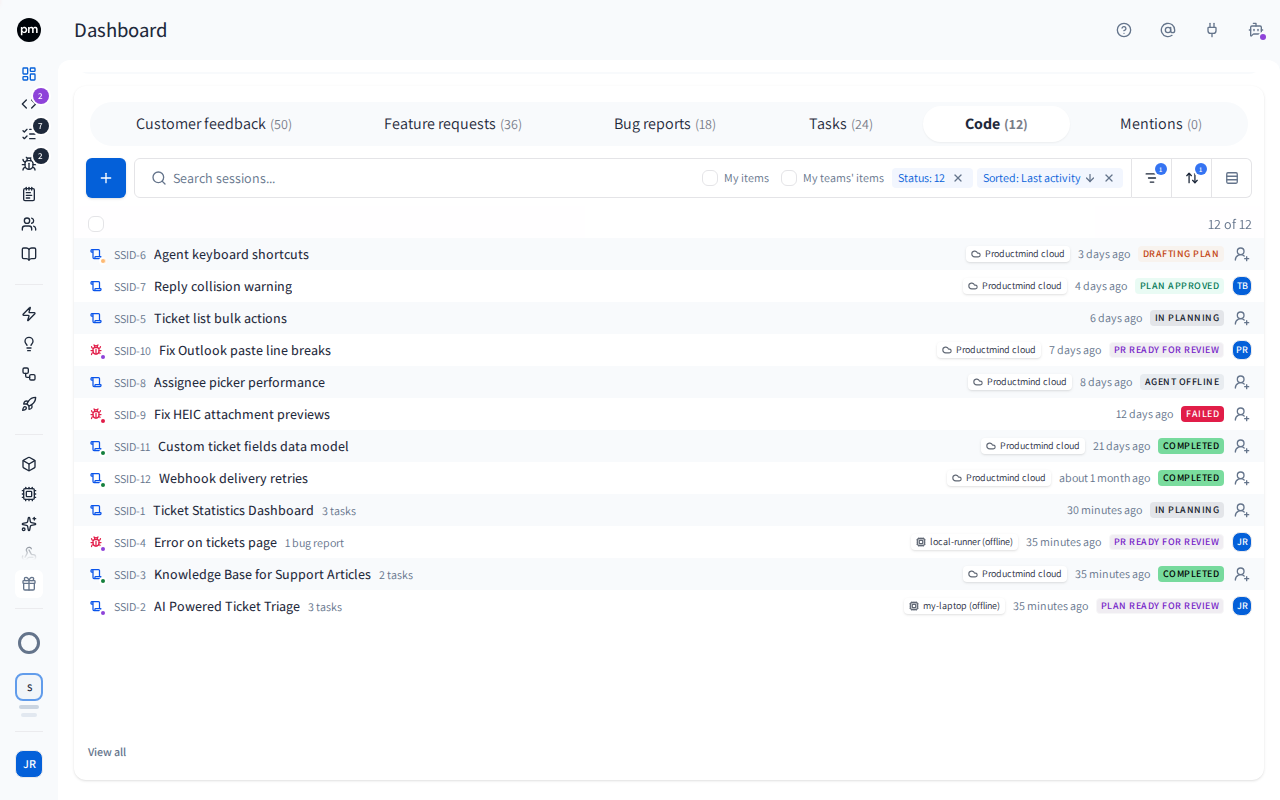
| Tab | Lists |
|---|---|
| Customer feedback | Customer conversations from AI Voice, AI Email, AI Widget, Meetings and Support, together |
| Feature requests | Feature requests, except merged ones |
| Bug reports | Bug reports, except merged ones |
| Tasks | All tasks |
| Code | Sessions, except cancelled and rolled back ones |
Your mentions aren't a tab here: find them in the Notifications tab of the activity panel. See Profile and notifications.
The number beside each tab always matches the pipeline above it, whatever you filter inside the tab. Tasks and Bug reports are the two halves of the Work items card. The Customer feedback tab counts the card's conversations; the card's Interest part is counted on the card only.
Every tab is the same list as on the item's own page:
- the same search box, and the same Filters, Sort and Group by;
- the same view toggle, where the list has one: the timeline on Tasks, the calendar on Customer feedback;
- the same rows. Change a status, priority, severity or assignee in place. Point at a task for Launch a coding session, or at a bug report for Launch a bug fix session. Right-click a row for its menu, for example Open in new tab or Delete. Select rows to act on several at once.
What you may change depends on your role, as on the list pages.
A tab opens on exactly what its card counts, newest first: Code by most recent activity, the others by most recently updated. The search box shows these defaults as chips, for example Status: 5 and Sorted: Last updated. Tabs start ungrouped.
New activity is marked, tab by tab. Each tab keeps its own visits:
- A dot after a tab's number means that tab has items that changed since you last had it open. It counts only what the tab's own filters and search show. Point at the dot to see how many, for example "3 items changed since you last opened this tab".
- Open the tab, and those items are the rows with a dot before them. Point at a row's dot to see when the item was updated. The tab you have open never carries a dot.
- Leaving a tab marks its items as seen. A tab you open for less than a second doesn't count.
- Opening an item doesn't clear its dot: the dot means the item changed, not that you haven't read it.
The tabs measure against your visits to each tab, not to the list pages: each list page keeps its own. Something you do in one tab can mark another, for example promoting a feature request to a task marks Tasks. Your visits are kept in this browser, for each workspace. Another browser or device keeps its own, and nobody else's visits change your dots.
The + at the start of a tab's toolbar creates the same item as its card's +: a session, a task, a feature request or a meeting. It's shown only if you may create that kind of item. Bug reports has no +: bug reports arrive from the feedback widget and support imports.
An empty tab says what it lists and where those items come from, with the same create button when you may use it, and a link to that list's guide page. A tab you filtered down to nothing says so instead, so you can clear the filter rather than create a duplicate.
View all, under a tab, opens its list page with the tab's status, category, priority or severity, and assignee filters. The search, tags, sort and grouping stay on the Dashboard. Customer feedback has no View all.
Filtering the Dashboard
To see only your own work
- Open the Feature requests, Bug reports, Tasks or Code tab.
- In the tab's search box, select My items, or My teams' items for the work of the teams you belong to.
The tab lists only that work, and the checkbox becomes the chip Assignee: Me or Assignee: My teams. To see both, open Filters and select yourself and My teams under Assignee. Choose the x on the chip to see everyone's work again.
Each tab keeps its own Assignee filter. The cards and the numbers beside the tabs keep counting the whole workspace.
To focus on one step of the pipeline
- Choose a card's total to open its tab with all of that card's items.
- Or choose one part of a card's bar, or its label, to open the tab showing only that part, for example only In Review feature requests.
The card you chose stays highlighted, and the other cards dim. To clear it, choose the same part again, or the card again if you chose the whole card: the tab goes back to every status or type it opens on. Your other filters in the tab stay as they are. If you chose a part, choosing the card instead opens its tab with all of that card's items.
- Work items drives two tabs. Its Tasks part opens the Tasks tab and its Bug reports part the Bug reports tab, each with all of its items. The card's total opens Tasks, and puts Bug reports back to all of its items as well.
- The Interest part of Customer feedback or Ideas opens Feature requests.
- On Ideas, Meetings and Notes open their own pages.
While a card is highlighted, editing the Status filter of the tab it opened (on Customer feedback, Type) lights the matching parts of the card. If you chose the Interest part of Customer feedback, only Interest stays lit. On Work items, the part you chose stays lit, and both parts do if you chose the whole card.
Ideas and Releases have no tab: choosing them opens Notes and Releases.
To add an item from the pipeline
- Point at a card.
- Choose its +, for example Add Work items.
The same dialog opens as from the item's own page. Customer feedback (a meeting), Ideas (a note), Feature requests, Work items (a task) and Code have a +, shown only if you may create that kind of item. On a card at zero the + shows without pointing at it. The + at the start of the matching tab's toolbar does the same.
To reset the Dashboard
- On the right of the Your product development life-cycle heading, choose Reset filters.
Every tab goes back to how it opens: its filters, search, sort, grouping and view. The highlighted card is cleared. The tab you are on stays open. Reset filters is dimmed until something in the pipeline or the Updates tabs differs from how it opens.
How the Dashboard behaves
It opens the setup steps first. If nobody has finished setting up the workspace, the Dashboard sends you to the setup steps. See Setting up your workspace.
It updates live. Counts and lists change as your team and your sessions work, without a refresh.
It remembers your choices. Each tab's filters, sort, grouping and view, and how you chose to start in Getting started, are kept per workspace in this browser. The search isn't kept, and neither is the status or type that the cards control. The tabs keep their settings apart from the list pages: filtering the Tasks tab doesn't change the Tasks page, and the reverse.
Permissions
| To | You need |
|---|---|
| Open the Dashboard | Nothing: every member can |
| See a card's items and its tab | Read permission for that kind of item, for example Tasks: Read for Tasks |
| See Customer feedback | Customer meetings & support: Read |
| Open Meetings or Notes from Ideas | Read permission for internal meetings or notes |
| Use What shall we build today? | Chat: Enabled |
| Add an item with a card's or a tab's + | Create permission for that kind of item, for example Tasks: Create |
| Change, delete or launch work from a tab's rows | The same permissions as on the item's own page, for example Tasks: Update |
| See Getting started | Applications: Create and Applications: Read |
Troubleshooting
A tab I expected is missing
Each tab needs permission to read its kind of item. For example, a role without Sessions: Read doesn't see Code. A role that may read none of the five kinds sees no tabs at all. See Roles and permissions.
A row I expected isn't in a tab
A tab lists only what its card counts. For example, Bug reports leaves out merged bug reports, and Code leaves out cancelled and rolled back sessions. A filter or a search in the tab can also hide the row: check the chips in the search box, or choose Reset filters.
Show only my updates and My teams are missing
The Dashboard has no page-wide switches. Each tab has its own Assignee filter instead: see To see only your own work. If you had either switch on, the Feature requests, Bug reports, Tasks and Code tabs open with that choice as their Assignee filter.
What shall we build today? is missing
- Your role doesn't have Chat: Enabled. The Viewer and Customer roles can't start conversations. Ask an Owner or Admin.
- Your screen is narrower than 1024 pixels.
- The PM agent tab is open on a conversation. Choose the back arrow at the top of the tab to go back to PM agent conversations, or close the panel, and the box comes back.