

Deployments
The Deployments list shows what your applications deployed, newest first, and what runs now. You can see the state of your deployments without leaving Productmind: which commit reached Production, whether CI reported it deployed, and which coding sessions and release it shipped. Each environment's page lists the deployments made to that environment, from every application. Each application lists its own, to every environment, in its Deployments tab.
Key concepts
Deployment. One row of the list. It is one of two kinds:
- A merge. A pull request merged into a branch that an application maps to one of its environments, for example its production branch. Productmind records every such merge, whether a coding session opened the pull request or someone opened it outside Productmind. Your CI pipeline can then report how the deploy went. A merge of one commit is one row, even when it shipped several coding sessions and a release.
- A deploy run. A run of the deploy workflow of an environment that deploys to a cloud account. Each attempt of a run is a row: a retry is attempt 2, then attempt 3. See Deploys.
When a deploy run deployed a commit, the merge of that commit isn't listed again: the run's row stands for it.
CI jobs. The checks your CI ran for a deployment, as a pull request lists them: each job's name, its state and a link to it at your git provider. A merge lists every check that ran on the merged commit, from every workflow. A deploy run lists the jobs of that run's attempt only.
Environment. Where the deployment went: Production, Development, or one of your workspace's own environments, such as Staging. Which branch deploys to which environment comes from each application's branches, set in its Source code tab, or else from the workspace's defaults in Settings › Git workflow. See Environments.
Live. The deployment that runs now in its application's environment. At most one deployment of an application's environment is live at a time:
- For an environment that deploys to a cloud account, the deploy run that last deployed it. A newer run that failed doesn't change it, and none is live after the environment was destroyed.
- For any other environment, the newest merge that CI reported Deployed. A merge that is only Merged is never live.
Status. A merge shows what CI reported for it:
| Status | What it means |
|---|---|
| Merged | The pull request merged. CI hasn't reported on its deploy yet |
| Pending | CI reported the deploy as started |
| Deployed | CI reported the commit deployed |
| Failed | CI reported the deploy failed |
| Skipped | CI reported that it didn't deploy this commit |
| Rolled back | CI reported the deploy rolled back |
When several records of one merge disagree, the row shows the furthest one: Rolled back, then Deployed, Failed, Pending, Merged and Skipped.
A deploy run shows the states of an environment's deploys: Queued, Deploying, Finishing, Deployed, Failed, Cancelled, Replaced by a newer run, Not deployed and Unknown. See Deploys for what each means.
The Deployments list at a glance
The list is in two places:
- On an environment's page. In the sidebar, choose Environments, under Engineering, then the environment. Its Deployments section lists the deployments to that environment, from every application.
- On an application's Deployments tab. The deployments of that application, to every environment.
Running now. Above the list, what runs now, one card per application and environment. On an environment's page each card shows its application; on an application's tab, its environment. Each card also shows the commit and the branch that run there, and since when. Nothing shows there while nothing runs.
Application filter. On an environment's page, choose All applications, or one application to see only its deployments to that environment. Productmind remembers your choice.
The list. One row per deployment, newest first. From left to right, each row shows:
- The arrow that unfolds the deployment's CI jobs under the row. A deployment with no commit has none.
- The commit's short id. Point at it to see the full commit.
- The application that deployed, with the branch it deployed beside it. In an application's Deployments tab, where every row is the same application, the row shows the branch instead.
- What it shipped: the run on GitHub, with its attempt (for example Run 411, attempt 2), the pull request (for example #218), the CI build, and the coding sessions and the release it shipped. When the list is narrow, these make room for the application's name, the last one first.
- When it happened: when the run was created, or for a merge, when it merged or when CI last reported its deploy.
- The status, as a symbol: point at the row to read it. The statuses are described in Key concepts. The deployment that runs now reads Live.
- The environment it deployed to.
Choose Load more at the bottom of the list to see older deployments. While a deploy run is queued, deploying or finishing, the list refreshes itself every 30 seconds.
CI jobs under a row. Rows are folded by default. A row unfolds on its own while its deployment is in progress: while its status is Queued, Deploying, Finishing or Pending, or while its CI jobs are still running. Productmind looks at the jobs of the merges of the last hour when the list opens, and at any listed deployment whose commit GitHub reports new job activity for. A row that unfolded on its own stays open after its jobs finish. A row you fold stays folded until you open it again.
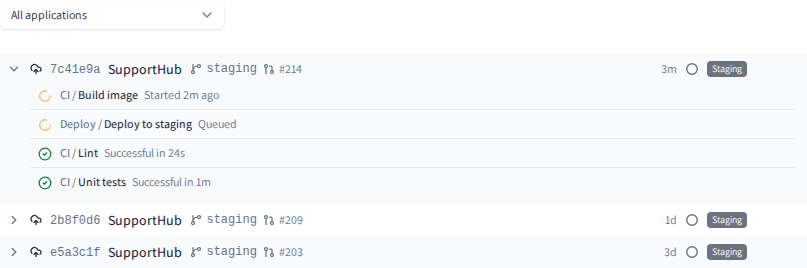
The jobs under an open row update as they run. On GitHub they move as soon as GitHub reports them. On GitLab and Bitbucket, and for a GitHub commit status that external CI reports, the list reads them again every 15 seconds while one is still running, and stops once they have all finished.
Working with deployments
To see the deployments to an environment
- In the sidebar, choose Engineering, then Environments.
- Choose the environment.
- Optionally, choose an application in the filter at the top of its Deployments section.
The list shows the deployments to that environment, newest first, with what runs there now above it.
To see one application's deployments
- In the sidebar, choose Applications, then the application.
- Choose the Deployments tab.
The tab shows the same list as an environment's page, for this application only, with what runs now in each of its environments.
To see a deployment's CI jobs
- Find the deployment in the list.
- Choose the arrow at the start of its row.
Its jobs are listed under the row: running first, then failing, successful and the others. Choose a job to open it at your git provider. Choose the arrow again to fold the row.
The list only shows the jobs: to run a deploy again, use Retry in the environment's Deploys, or re-run the job at your git provider.
To open what a deployment shipped
- Find the deployment in the list.
- In its row, choose the pull request, the CI build or the run to open it at your git provider or CI, or choose a coding session or the release to open it in Productmind.
How deployments are recorded
- A merge into a mapped branch. When a pull request merges into a branch that an application maps to an environment, Productmind records the merge for that application, with the status Merged. A repository that holds several applications records the merge once for each application that maps the branch, each with its own environment. A merge into any other branch isn't a deployment.
- CI's report. When your deployment pipeline reports to Productmind how a commit's deploy to an environment went, the merge's status follows. See API access and authentication.
- A cloud account deploy. Each run of an environment's deploy workflow is recorded as it moves, from Queued to what it did.
Only merged pull requests are recorded as merges: a commit pushed straight to a branch appears only when it deploys through a cloud account. Merges that happened before your workspace had the Deployments list appear only when a coding session or a release recorded them.
Permissions
| To | You need |
|---|---|
| See an environment's deployments and an application's Deployments tab | Applications: Read |
| See the coding sessions a deployment shipped | Sessions: Read as well |
| See the release a deployment shipped | Releases: Read as well |
Troubleshooting
A merge isn't listed
The branch the pull request merged into isn't mapped to an environment for the application that owns the repository. Check the application's branches in its Source code tab, or the workspace's defaults in Settings › Git workflow. A pull request merged before the Deployments list existed is listed only when a coding session or a release recorded it.
A merge stays Merged
Productmind knows a merged commit deployed only when your CI pipeline reports it. Make the pipeline report the deploy's status for the merge commit and the environment. Its CI jobs under the row still show how the pipeline is doing.
A deployment shows no CI jobs
- Nothing shows under the open row. No CI ran on that commit: the repository has no workflow for it, or the workflow hasn't started yet. Jobs appear as soon as your git provider reports them.
- A sentence shows instead of the jobs. Your git provider refused to let Productmind read them, and the sentence is its reason. A repository that left Productmind's hosting shows that its deploy jobs can no longer be read here.
- "This attempt was retried; its jobs are on the newer attempt's row." The deploy run was retried. Open the row of its newest attempt to see the jobs.
- "Couldn't read this deployment's checks." Your git provider didn't answer. Fold the row and open it again in a few minutes.