

Cloud accounts
The Cloud accounts tab holds the AWS accounts your workspace's applications deploy into: an account Productmind creates and manages for your workspace, or one your company owns and connects. To connect one, your AWS administrator creates one role in it from a template Productmind provides, and Productmind checks the connection before anything uses it. AWS bills your company directly for everything in an account you connect.
An application's environment, such as Development, then deploys to one of these accounts from its branch: each pull request merged into that branch deploys, under an address Productmind provides for the environment or a domain your company owns.
Cloud accounts is in early access, and is being turned on for a few organizations first. An application's environment can deploy to an account Productmind manages for your workspace, under an address Productmind provides or a domain your company owns, and to an account you connect yourself, under a domain your company owns. The terms you accept when you connect are a draft.
Key concepts
Your own AWS account. An AWS account your company owns and pays AWS for. Connecting it doesn't move it or change its bill.
An account Productmind manages. An AWS account Productmind creates for your workspace, with its own network and security baseline. Its network gets a NAT gateway with the first environment attached to it, and keeps it until the account is deleted, even with nothing attached: about USD 38 a month plus its public address. Deleting it closes it in AWS, with everything in it.
Connection. One AWS account connected to this workspace. An account holds one connection at a time: the role its stack creates accepts a single ExternalId.
Template. The AWS CloudFormation template your AWS administrator runs in the account. Its
stack, productmind-byo, creates the role Productmind uses, a workload boundary, which limits what
the roles your applications deploy with may do, and GitHub's OIDC provider if the account doesn't
have it yet.
ExternalId. A long random value that belongs to one connection. The role accepts Productmind only with it, so no other workspace can have Productmind use your account. A disconnected connection's ExternalId is never used again.
Tier. Whether the account is Production or Non-production: a Production account is for your production-tier environments, a Non-production one for your development and other non-production environments. An environment deploys only to an account of its own tier. See Environments.
The check. Once your administrator has created the stack, you enter the account's id, and Productmind checks the connection: it uses the role with this connection's ExternalId, makes sure the role refuses a wrong ExternalId, reads the template's version and checks that the workload boundary exists. It takes a minute or so.
An account's state is one of:
| State | What it means |
|---|---|
| Waiting for the stack | The connection is started. Productmind hasn't checked an account yet |
| Verifying | Productmind is checking the account |
| Queued | Productmind hasn't started creating the account yet. You can cancel the request |
| Setting up | Productmind is creating the account and setting up its network and security baseline. The account's page shows the step it is at |
| Ready | An account Productmind manages is set up; for one you connect, the check passed: Productmind can use the role, and only with this connection's ExternalId |
| Failed | The last check, or a step of the setup, failed. The account says why. Productmind can go on setting up an account it manages from the step that failed |
| Frozen: over its spend cap | This month's AWS spend reached the account's spend cap: what runs keeps serving and costing, nothing new can be deployed, created or started. An account being deleted says Deleting instead. See Cloud account spend caps |
| Deleting | The account is deleted, and frozen until the date its page shows: what runs in it keeps serving, but nothing new can be deployed, created or started. Until then you can cancel the deletion |
| Closing and Closed | Productmind is closing the account in AWS, or has closed it, with everything in it |
| Disconnected | Productmind deleted the connection's ExternalId from its records, and can no longer use the role |
Deploying an environment. An application's environment (Development, Production, or one your workspace adds) can deploy to one of the workspace's accounts of its tier. Each pull request merged into the environment's branch then deploys to the account. Only an application whose repository Productmind hosts, one created from a template, can deploy to a cloud account.
Protected branch. While an environment deploys to an account, what its branch holds changes only through merged pull requests, and the environment moves to another branch only with Change branch, which moves the deploys with it.
Address. The domain an environment's app, API, websocket and docs hosts live under: Productmind's address, a random name under a domain Productmind provides, kept for the environment, or a domain your company owns, which you point at the environment's DNS zone. See Domains.
Stack settings. The settings an environment's app takes when it deploys, such as how much memory its API has, whether its documentation site is published, and its API secrets, such as a payment provider's key. The application's repository declares which settings there are, and each environment has values of its own. See Stack settings.
An environment's state, in its application's Cloud accounts section, is one of:
| State | What it means |
|---|---|
| Queued | Productmind is about to set up deploys to the account |
| Setting up | Productmind is preparing the account and the environment's address, then the repository's deploy settings and the branch's protection; under a domain you own, it waits for the domain to point at the environment's DNS zone first. Nothing deploys until it is done |
| Waiting for your DNS | Under a domain you own, the zone is made and your DNS change is next: point the domain at the zone's name servers, listed under DNS records. Owners and Admins see it, here and in the account's Environments; anyone else sees Setting up |
| Active | Each pull request merged into the environment's branch deploys to the account |
| Changing branch | Productmind is moving deploys to the new branch. A push to either branch may not deploy until it is done |
| Updating | The repository was renamed, and Productmind is following its new name. Deploys fail until it is done |
| Paused | Nothing deploys while the organization is suspended, or while the account isn't ready to take deploys. Deploys resume by themselves |
| Resuming | The account takes deploys again, and Productmind resumes them within a few minutes |
| Detaching | Productmind is taking the environment out of deploys. What runs in the account keeps running |
| Failed | A step failed. An Owner or Admin sees why, and what to do: try again, or, when Productmind no longer hosts the repository, stop the environment deploying |
While a destroy is asked for, and once one removed the stack, an environment's row shows the destroy's state too: Destroy scheduled, Destroying, Restoring, Destroy failed or Destroyed. See Destroying an environment.
The Cloud accounts tab at a glance
In the sidebar, choose Settings, then the Cloud accounts tab. The tab shows once Cloud accounts is turned on for your organization, or when the workspace already has an account.
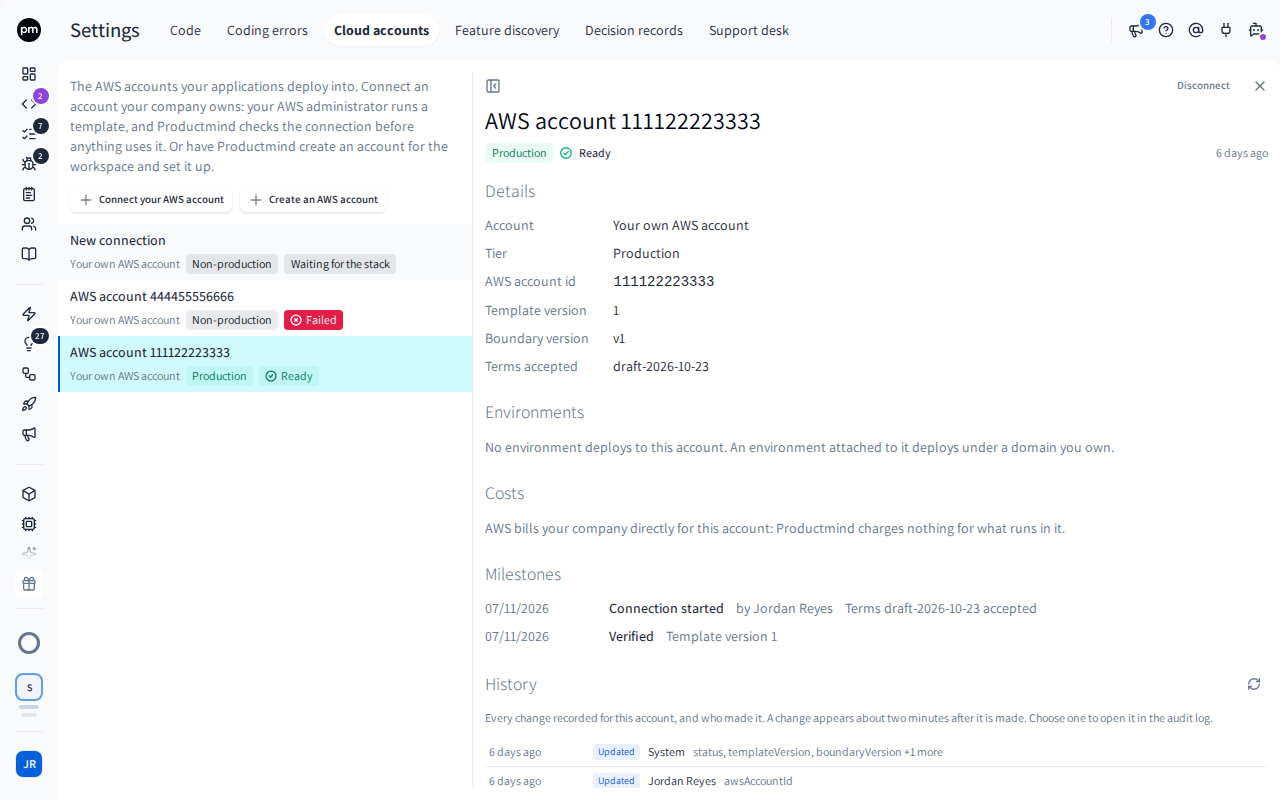
On the left are a short description, Connect your AWS account, Create an AWS account and the workspace's accounts, newest first. Each row shows the account's AWS account id, or New connection before you have entered one, then whose account it is, its tier and its state. A spinner shows next to an account Productmind is checking.
Choose an account to open it on the right. Its header shows the tier and the state, and the actions you can take. For an account you connect: Continue setup, or Try again after a failed check, and Disconnect. For an account Productmind manages: Try again after a failed setup, Cancel request while Productmind hasn't started creating it, Delete account once it is ready or its setup failed, and Cancel deletion while it is being deleted. Under the header are:
- a note while Productmind is checking the account or setting it up (with the step it is at), after a failed check or setup with the reason, while the account is being deleted (with the date Productmind closes it), and once it is closing, closed or disconnected;
- Details: whose account it is, the tier and the AWS account id. For an account you connect, the template version and the workload boundary's version Productmind found at the last check, and the version of the terms accepted when the connection was started. For an account Productmind manages, its Region, its Network (the address range of its network), its VPC, and what its network costs;
- Environments: each application environment that deploys to the account, with its state. Choose an application to open it;
- Spend cap: for an account Productmind manages, the most it may spend a month. See Cloud account spend caps;
- Costs: what the account costs each month. See Cloud account costs;
- Productmind access: for an account Productmind manages, each time Productmind records that it may act inside it, and what it changed. See Cloud account Productmind access;
- Milestones: for an account you connect, when the connection was started and by whom, when Productmind last verified the account, and when it was disconnected; for an account Productmind manages, when it was requested and by whom, and when it was ready;
- History: every recorded change to the account, who made it and when. Choose one to open it in the audit log. A change appears about two minutes after it is made: choose Refresh (the circular arrows beside History) to load new ones. It shows when your role can read the audit log and your plan includes it. See Audit log.
Connecting your AWS account
You need someone who can create a CloudFormation stack with IAM resources in the account, usually your AWS administrator.
To connect your AWS account
-
In the sidebar, choose Settings, then the Cloud accounts tab.
-
Choose Connect your AWS account.
-
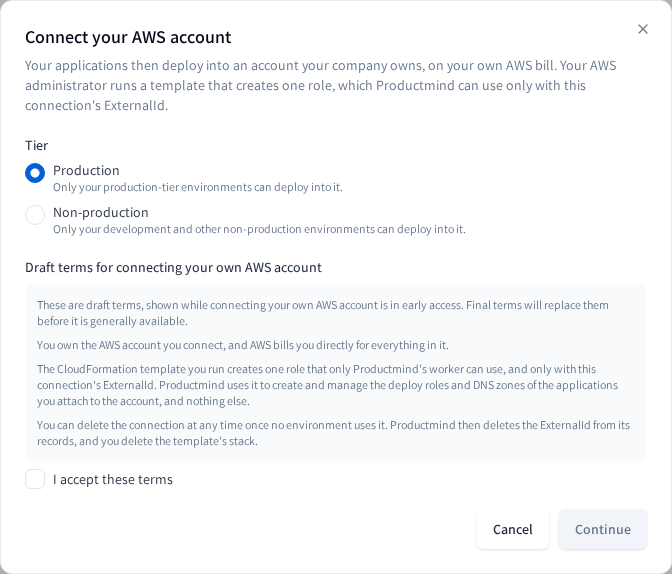
Under Tier, choose Production or Non-production.
-
Read the terms, select I accept these terms, and choose Continue.
-
Create the stack shows the connection's ExternalId. Under The account, select It already has GitHub's OIDC provider if IAM in the account lists
token.actions.githubusercontent.comas an identity provider, and It kept its workload boundary from an earlier connection if it kept one.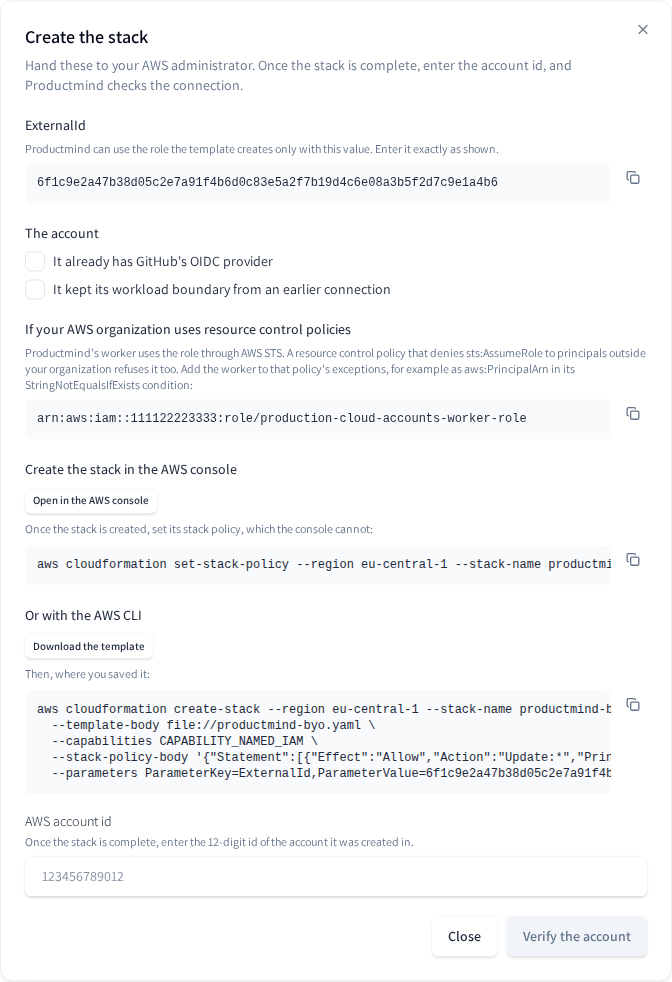
-
Hand the ExternalId and one of the two ways to create the stack to your AWS administrator:
- In the AWS console: choose Open in the AWS console, which opens the stack with its values filled in. Once the stack is created, run the stack policy command shown under it: the console can't set a stack's policy.
- With the AWS CLI: choose Download the template, then run the create-stack command shown, in the folder where the file was saved.
If your AWS organization uses resource control policies, hand over the role under If your AWS organization uses resource control policies too.
-
Once the stack is complete, enter the 12-digit AWS account id of the account it was created in, and choose Verify the account.
Checking the connection follows the check. When it is done, it shows Connected, or The check failed with the reason and Try again. Choose Open the account to open it beside the list, or Close. You can close the window while it checks: the account shows the result when it is done.
The connection is listed, as Waiting for the stack, as soon as you choose Continue. If you close the dialog before you verify, open it again with Continue setup.
To continue setting up a connection
- In the Cloud accounts tab, choose the account.
- Choose Continue setup, or Try again after a failed check.
- Follow steps 5 to 7 of To connect your AWS account.
The ExternalId stays the same, so a stack your administrator already created with it still works. After a failed check, the reason shows above the ExternalId: fix it in the account, then verify again.
Having Productmind create an account
To have Productmind create an account
- In the sidebar, choose Settings, then the Cloud accounts tab.
- Choose Create an AWS account.
- Under Tier, choose Production or Non-production, then choose Create.
The account is listed as Queued, then Setting up while Productmind creates it and sets up its network and security baseline, then Ready. Setting it up takes a while: the account's page shows the step it is at, from creating the AWS account and preparing it to setting up its network and security baseline and finishing its setup.
If a step fails, the account shows Failed with the reason. Choose Try again on its page, and Productmind goes on from the step that failed.
To cancel a request
- In the Cloud accounts tab, choose the account, which shows Queued.
- Choose Cancel request, then Cancel request to confirm.
Productmind hadn't started creating the account, so nothing is made in AWS. Once it has started, the setup finishes first, and the account is then deleted instead.
Disconnecting an account
To disconnect an account
- In the Cloud accounts tab, choose the account.
- Choose Disconnect.
- Productmind asks, for example, Disconnect AWS account 111122223333?. For a Ready account, enter its AWS account id to confirm.
- Choose Disconnect.
The account shows Disconnected. Productmind deleted the connection's ExternalId from its
records, so it can no longer use the role. Then have your AWS administrator delete the
productmind-byo stack in the account.
If a domain whose zone is in the account sits under another of your domains on an account Productmind manages, Productmind removes the NS records it keeps for it there, and that domain stops resolving: the confirm names each one.
The workload boundary and GitHub's OIDC provider stay in the account when the stack is deleted, as the template keeps them. Delete them by hand only if the stack created them and nothing else uses them.
A disconnected connection can't be connected again. To connect the same AWS account later, connect it as a new account: it gets a new ExternalId, so your administrator creates the stack again with it.
Deploying an environment to an account
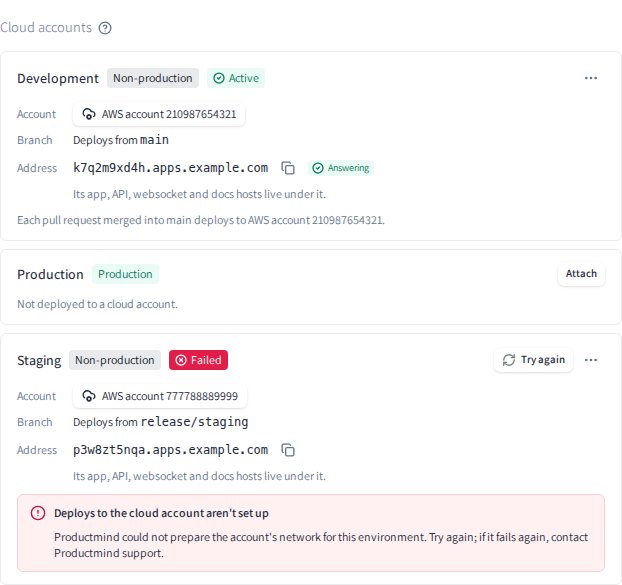
Open an application and choose Source code. Under Cloud accounts, each of its environments has a row: its tier and state, the account it deploys to, its branch, its address and what you can do. The section shows for an application whose repository Productmind hosts, once deploying environments is turned on for your organization, or while any of its environments deploys to an account.
To deploy an environment to a cloud account
-
Open the application and choose Source code.
-
Under Cloud accounts, choose Attach on the environment's row.
-
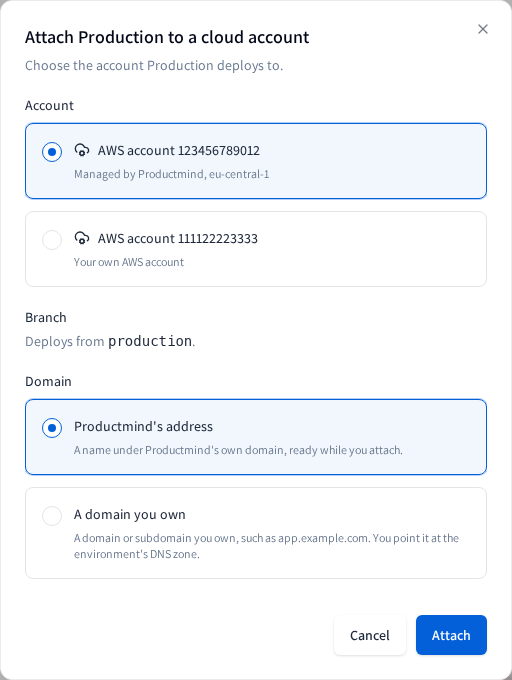
Under Account, choose the account. The dialog lists the workspace's accounts of the environment's tier, and says why one can't take the environment.
-
Under Domain, choose Productmind's address, or A domain you own and enter it. Your own AWS account takes a domain you own. See Domains.
-
Choose Attach.
Productmind first checks the repository, which can take a few seconds. The row then shows Queued, then Setting up, with Waiting for DNS beside Productmind's address until it answers, then Active: this takes a few minutes. Under a domain you own, the row shows Waiting for your DNS to Owners and Admins (anyone else sees Setting up its DNS) until the domain points at the environment, which takes as long as your DNS change takes to spread, up to two days for a whole domain, then Active. What Productmind runs in the account costs from its first deploy. A Development or Production branch that came from your workspace's Git workflow is kept as the application's own, so a later change of the workspace's branch doesn't move it.
To change the branch an environment deploys from
- Open the application and choose Source code.
- Under Cloud accounts, choose the ... on the environment's row, then Change branch....
- Choose the new branch, then Change branch.
The row shows Changing branch, then Active. Productmind moves the role the environment deploys with, the branch's protection and the repository's deploy settings to the new branch, then deploys from it. The environment must be Active, and the new branch must hold the deploy contract and both deploy workflows. It can't be another environment's deploy branch or an open coding session's branch.
To change an environment's stack settings
On the environment's row, choose the ..., then Stack settings...: its settings, its API's variables and its API secrets. See Stack settings.
To see an environment's deploys
Under its row, Deploys shows what runs now and at which address, the latest run and why it failed, with Retry deploy, Deploy now and History. See Deploys.
To try a failed step again
- Open the application and choose Source code.
- Under Cloud accounts, choose Try again on the environment's row.
Productmind is trying again appears, and the row goes on from the step that failed. If Productmind can't go on, the reason appears instead.
To stop an environment deploying to an account
- Open the application and choose Source code.
- Under Cloud accounts, choose the ... on the environment's row, then Detach....
- If its stack may still run in the account, choose Detach and keep it running, then Continue.
- Enter the environment's key, for example development, to confirm. An environment still Queued, or one whose setup failed before it started, needs none.
- Choose Detach.
The row shows Detaching, then Not deployed to a cloud account. Productmind takes the environment out of deploys within about a minute, removes the deploy settings it wrote to the repository, waits for any deploy still running, then removes the role the environment deploys with. The branch keeps its protection. The environment's stack settings, its secrets and API secrets included, stay in the repository's environment and apply again if the environment is deployed to an account again. Once it is detached, Productmind can no longer change or remove them there, so remove any you don't want kept, such as the demo password, the platform owner email or a payment provider's key, before you detach.
Detaching doesn't remove what already runs in the account. To remove it first, choose Destroy, then detach: see Destroying an environment.
How cloud accounts behave
Nothing uses an account before the check passes. Productmind uses the role only to check it until the account is Ready.
A role that accepts any ExternalId fails the check. If the role lets Productmind in without this connection's ExternalId, any workspace could have Productmind use it, so the check fails until the role's trust is the template's again.
One connection per account. An AWS account already connected to this workspace can't be connected to it again until it is disconnected. Connect an account to one workspace at a time: creating the stack for another workspace's connection gives the role that connection's ExternalId, so this connection can no longer use the account, though it still shows Ready.
Disconnected and closed accounts stay listed. A disconnected or closed account, and a cancelled request, stays in the list, with its milestones and history.
A workspace with accounts can't be deleted. Disconnect the accounts your company connected and delete the ones Productmind manages first. An account Productmind manages counts until it is closed, on the date its page shows. See Workspace settings.
Productmind closes the accounts it manages before it suspends or deletes your organization. Your organization's Owner gets an email naming them. They close at once, with no waiting period, and the closure can't be cancelled: what runs in them stops when AWS closes them, and AWS deletes everything they held 90 days later. An account holding the DNS zone of a domain you own, while the domain still points at it, stays open for at least seven days from the email your Owners and Admins get about it (Domains). Each account's last month, up to the day it closes, is charged as usual (Cloud costs). Lifting the suspension or cancelling the deletion doesn't bring them back, and creating an account Productmind manages stays off for your organization until Productmind turns it back on.
Deleting your organization disconnects the accounts you connected. When an organization is deleted, Productmind disconnects every account still connected before it deletes the organization's data. The stacks stay in your AWS accounts: delete them there.
An environment's branch stays put. While an environment deploys to an account, its row under Branches in the application's Source code is read-only: its branch changes only with Change branch. One branch deploys one environment, and each environment of an application deploys to an account of its own.
What can't change while an environment deploys. The application can't be deleted, the account can't be deleted or disconnected, and the environment can't be deleted or change its tier. Stop the environment deploying first.
A paused environment resumes by itself. Nothing deploys while its account isn't ready to take deploys, or, on an account your company connected, while its organization is suspended: Productmind closes the accounts it manages before a suspension. Once the account takes deploys again, Productmind resumes them within a few minutes.
The rows keep themselves current. While Productmind sets up, changes or detaches an environment, its application's Cloud accounts rows refresh every 15 seconds.
Deleting your organization detaches its environments first. When an organization is deleted, Productmind stops each of its environments deploying before it deletes the organization's data.
Each change is recorded. For an account you connect: starting the connection, entering an account id, each check's outcome and a disconnect. For an account Productmind manages: the request, each step of its setup, Try again, a cancelled request, its deletion, a cancelled deletion and its closing. Each is recorded in the audit log, with who made it, and shows in the account's History. A check's outcome and a step Productmind takes are recorded as System. A change to an environment's stack settings is recorded in the audit log as Stack settings changed: see Stack settings.
Permissions
| To | You need |
|---|---|
| See the Cloud accounts tab and its accounts | The Owner or Admin role |
| Connect, continue setting up and disconnect an account | The Owner or Admin role, signed in to Productmind yourself |
| Have Productmind create an account, try a failed setup again and cancel a request | The Owner or Admin role, signed in to Productmind yourself |
| Delete an account Productmind manages and cancel its deletion | The Owner or Admin role, signed in to Productmind yourself |
| Deploy an environment to an account, change its branch, try again and stop it deploying | The Owner or Admin role, signed in to Productmind yourself |
| See which account an environment deploys to, and why a step failed | The Owner or Admin role |
| See an environment's state, branch and address | Anyone who can open the application |
| See and change an environment's stack settings | The Owner or Admin role, signed in to Productmind yourself. See Stack settings |
| See an account's History | The Owner or Admin role, on a plan that includes the audit log |
Limits
- A workspace can have up to 20 connections to accounts your company owns at once. Every one that isn't disconnected counts, including one waiting for its stack.
- A workspace can have up to 5 accounts Productmind manages at once. Each counts until it is closed, including one being deleted.
- Up to 3 of a workspace's connections can be checked at the same time.
Troubleshooting
There is no Cloud accounts tab
Cloud accounts is in early access, so the tab shows only once it is turned on for your organization, or when the workspace already has an account. It also needs the Owner or Admin role. To ask for early access, contact Productmind support.
"Your plan does not include Cloud accounts"
Your organization's plan doesn't include Cloud accounts, so you can't connect an account or have Productmind create one. Accounts already in the workspace stay listed, and you can still disconnect or delete them. Cloud accounts is on the Enterprise plan.
"Productmind could not use the role in AWS account 111122223333"
The stack isn't complete in that account, it has another ExternalId, or the account id is wrong. Check them, then choose Try again.
If your AWS organization uses resource control policies, one that denies sts:AssumeRole to
principals outside it refuses Productmind too: add Productmind's worker, the role in the stack's
WorkerRoleArn parameter (while a connection is being set up, Create the stack shows it too), to
that policy's exceptions, for example as aws:PrincipalArn in its StringNotEqualsIfExists condition. An
environment's row says the same at any step of its attach, and so does a domain change's row: once the
worker is let in, choose Try again on the row, or Check again for the change.
"The role in AWS account 111122223333 accepts Productmind without this connection's ExternalId"
The role's trust policy was changed since the stack created it. Update the stack from the template, then choose Try again.
"Productmind could use the role in AWS account 111122223333 but not read it"
The role's permissions differ from the template's. Update the stack from the template, then choose Try again. The same fix applies to "Productmind could not read the workload boundary".
"The role in AWS account 111122223333 was not created from a template version Productmind supports"
Create the stack from the template shown in Create the stack, then choose Try again.
"AWS account 111122223333 has no workload boundary"
The stack was created with It kept its workload boundary from an earlier connection selected, but the account has none. Update the stack with that choice cleared, then choose Try again.
"AWS STS is turned off in eu-central-1 for AWS account 111122223333"
Productmind checks the connection from that Region, where the account turned AWS STS off. Turn it on in the IAM console's account settings, then choose Try again.
"AWS did not answer Productmind's check"
AWS didn't answer in time. Wait a few minutes, then choose Try again.
"This AWS account is already connected to this workspace."
Use the workspace's connection to that account, or disconnect it first.
"This connection is being checked. Wait for the result, then try again if it fails."
A check is already running. Wait for its result.
A limit on connections, accounts or checks
"This workspace already has 20 connections to AWS accounts it owns", "This workspace already has 5 AWS accounts managed by Productmind", "3 of this workspace's connections are being checked" and "Productmind is setting up as many accounts as it can at once" each say a limit was reached. Disconnect or delete an account you no longer use (an account Productmind manages counts until it is closed, on the date its page shows), or wait a few minutes (Productmind sets up only a few accounts at a time, and checks at most three of a workspace's connections at once), then verify again or choose Try again on the account's page. The workspace's own limits are under Limits.
"The terms have changed since you opened them. Review the current terms, then accept them again."
The terms changed since you opened Productmind. Reload the page, choose Connect your AWS account again, and accept the current terms.
There is no Cloud accounts section on an application's Source code tab
The section shows only for an application whose repository Productmind hosts, an application created from a template, once deploying environments is turned on for your organization. To ask for early access, contact Productmind support.
"Productmind's address isn't available to your organization yet"
During early access, Productmind's address is available to a few organizations only. Choose A domain you own for the environment instead. See Domains.
"An AWS account you connected yourself needs a domain you own"
An environment deploys to your own AWS account under a domain your company owns. Under Domain, choose A domain you own. See Domains.
A refusal about a domain you own
What the Attach dialog says when it refuses a domain, and what to do, is on Domains. A refusal about how many domains an environment holds is on Changing domains.
"Production deploys from main to a cloud account already"
One branch deploys one environment, and another environment of the application already deploys from this branch. Give one of them a branch of its own under Branches in the application's Source code, then attach.
"The development environment of SupportHub already deploys to this account."
Each environment of an application needs an account of its own. Choose another account, or have Productmind create one.
"The main branch of this application's repository holds no deploy contract"
The environment's branch doesn't hold the deploy contract or both deploy workflows, so it can't deploy. The same applies to "The deploy contract on the main branch of this application's repository is not one Productmind can deploy", and, in Stack settings, to "...is not one Productmind can read". Ask Productmind support to bring the repository up to date.
"This application's repository does not use GitHub's immutable OIDC subject"
The deploy role trusts only the repository's immutable identity. Contact Productmind support.
"The AWS account has no GitHub Actions identity provider for this environment's role to trust"
The account has no identity provider for token.actions.githubusercontent.com. Update the account's
Productmind stack with CreateGitHubProvider set to true. If it already is, the provider was deleted in
IAM: update it to false, then to true. Then choose Try again on the environment's row.
"This application's repository is temporarily unreachable"
Productmind couldn't reach the repository to check it. Try again in a few minutes.
A refusal in Stack settings
What Stack settings says when a save is refused, and what to do, is on Stack settings.
An environment shows Paused
Nothing deploys while the account isn't ready to take deploys, or, on an account your company connected, while your organization is suspended: Productmind closes the accounts it manages before it suspends an organization. An Owner or Admin sees which. Deploys resume by themselves within a few minutes once the account takes deploys again.