

Contacts
Contacts lists the people your feedback comes from, grouped under the accounts (the companies) they belong to. Meetings, interviews and support cases are linked to the contact they're with, so a contact's or an account's page shows everything they've told you and every feature request they've asked for. You can add people by hand, ask the PM agent to add them, or import them from Google.
Key concepts
Account. A company or organization. Its type is Internal, Customer, Partner or Other, shown as an icon on its row.
Stage. How far a Customer account is in its relationship with you: Prospect, Trial, Customer, Expansion, At risk or Churned. Only Customer accounts have a stage.
Strategic account. An account you've marked as especially important, shown with a star.
Contact. A person, with a name, and optionally an email address, a title or role and a phone number. Every contact belongs to one account.
Primary contact. The main person at an account, shown with a star and listed first.
Unknown. The account for contacts that don't belong to any company. When you add a contact without choosing an account, it goes here. Unknown is an ordinary account listed last, and you can move its contacts to a real account at any time.
Last contacted. The date of the most recent conversation linked to a contact.
The Contacts page at a glance
In the sidebar, under Feedback, choose Contacts.
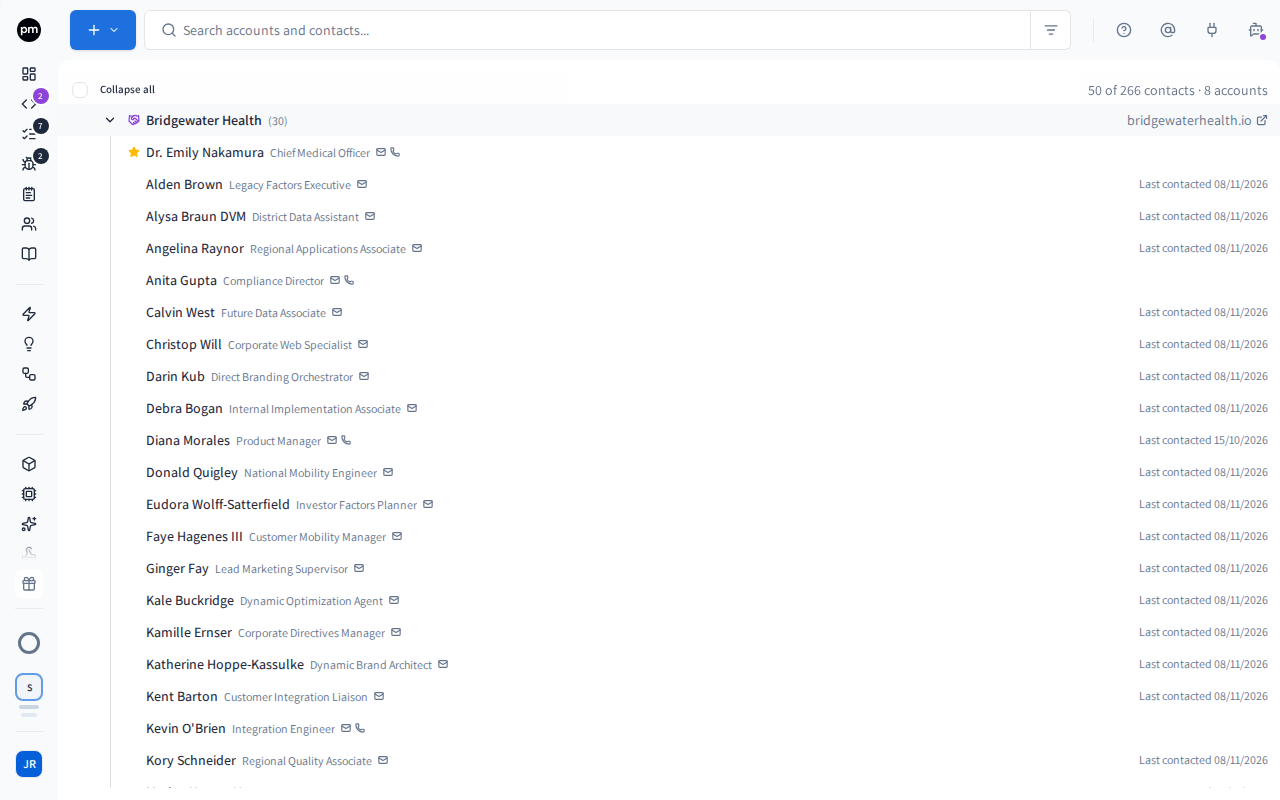
The toolbar holds:
- Create (the + button), which adds an account or a contact, or imports contacts;
- the search box, which matches account names and websites, and contact names and email addresses;
- Filters, which narrows the list by the accounts' Type, Stage and Tags.
Above the list, Expand all or Collapse all opens or closes every account, and a counter shows how many contacts and accounts are listed.
Each account row shows:
- a star, if it's a strategic account;
- its type, its name and how many of its contacts are listed;
- Add contact to the account (the +), when you point at the row;
- its tags, in one chip you choose to add or remove tags (see Tags);
- its website, which opens in a new tab;
- its stage, unless the stage is Customer.
Choose the arrow at the start of the row to show or hide its contacts. Productmind remembers which accounts you've closed.
Each contact row shows:
- a star, if it's the account's primary contact;
- the contact's name and role;
- an email icon and a phone icon, if you have their address and number. Point at one to see it;
- a Google Contacts icon, if it was imported from Google. Choose it to open the contact in Google;
- when you last had a conversation with them.
Choose an account or a contact to open it beside the list. Right-click a row to open it in a new tab or delete it.
The account page
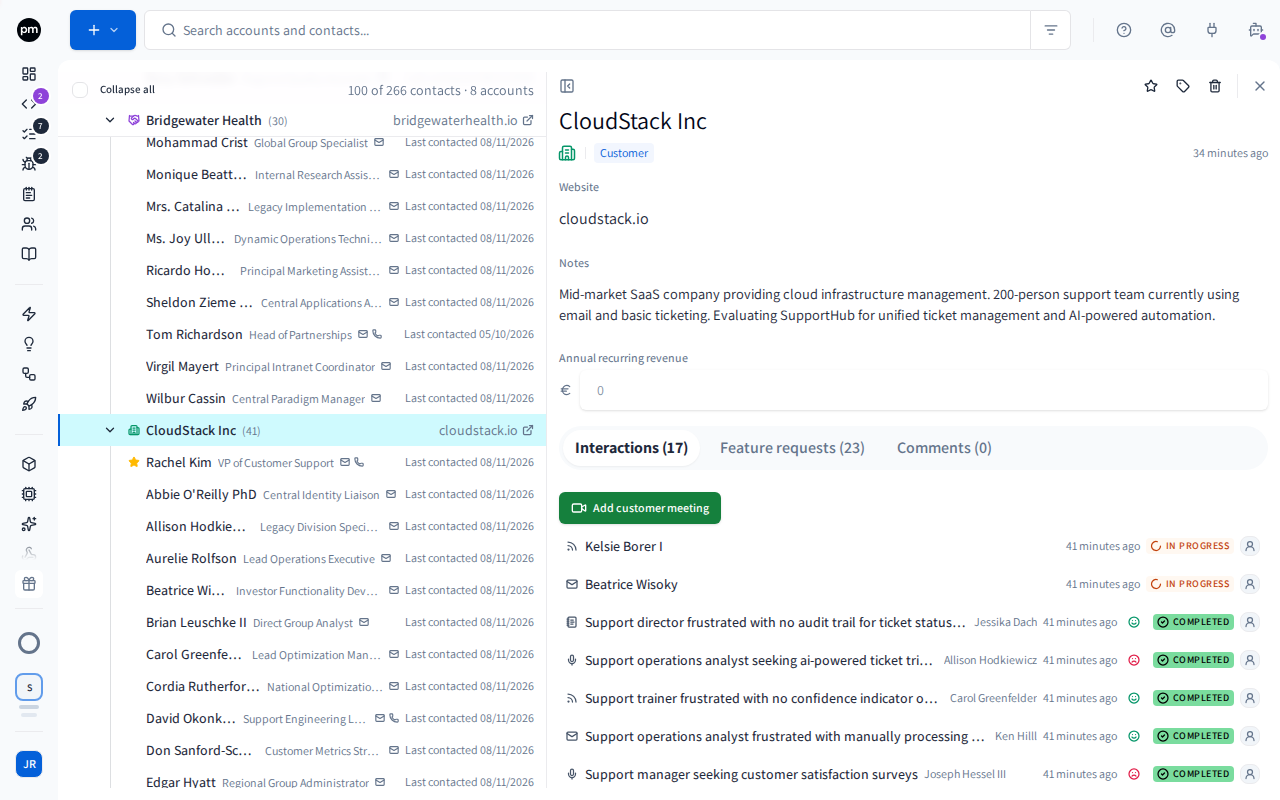
The header holds Mark as strategic account (the star), Tags, Delete account and Close. Below it are the account's name, its type (as an icon) and, for a Customer account, its stage. Choose the name, the type or the stage to change it.
The body holds the account's Website, Notes (where you can @mention teammates) and Annual recurring revenue. Choose any of them to edit it.
The tabs:
| Tab | What it shows |
|---|---|
| Interactions | Every meeting, interview and support case with anyone at this account, with Add customer meeting. |
| Feature requests | Every feature request this account's people have asked for. Open one to read what they said about it. |
| Comments | Your team's comments on the account. |
The contact page
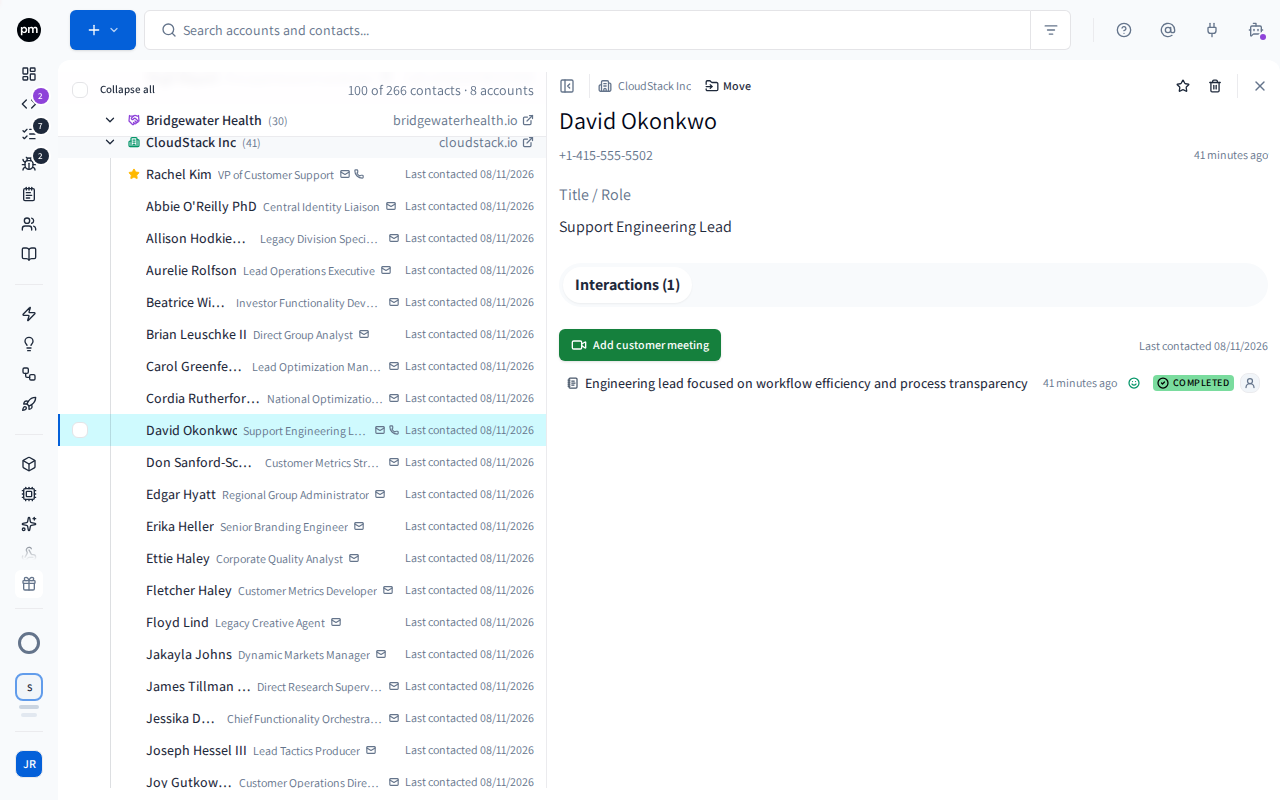
Above the name is the contact's account, which opens it, and Move, which moves the contact to another account.
The header holds Make this contact primary for this account (the star), the contact's name, email address and phone number, where the contact came from if it was imported, and Delete contact. Choose the name, the email or the phone to edit it.
The body holds the contact's Title / Role, and Release update emails: whether the contact gets the emails your team sends from Marketing when something they asked for ships or a bug they reported is fixed. When they're off, it says when and how they were stopped: from the email's link, from their mail app's Unsubscribe button, or by your team. Switch it off to stop the emails, or on to let them through again.
The Interactions tab lists every meeting, interview and support case with this contact, with Add customer meeting and the date they were last contacted.
Adding accounts and contacts
To add an account
- In the sidebar, choose Contacts.
- Choose Create (the + button), then Add account.
- Enter a Name, and choose a Type. It starts on Customer.
- If you like, enter a Website and Notes.
- Choose Create.
The account appears in the list.
To add a contact
- Choose Create (the + button), then Add contact.
- Enter the contact's Name.
- If you like, enter their Email, Role and Phone, and choose an Account.
- Choose Create.
The contact opens. Without an account, it's filed under Unknown.
To add contacts to an account quickly
- Point at the account's row, and choose Add contact to the account (the +).
- Enter the contact's name, and press Enter.
The contact is added under the account, and the field stays open for the next one. Press Escape when you're done.
To move a contact to another account
- Open the contact.
- Choose Move, above the contact's name.
- Choose the Account, then Move contact.
The contact now appears under the new account.
To mark the primary contact or a strategic account
- Open the contact and choose Make this contact primary for this account (the star).
- Open the account and choose Mark as strategic account (the star).
Choose the star again to remove the mark.
To add or edit accounts and contacts with the PM agent
You can also ask the PM agent to add an account or a contact, or to change one. For example: "Add Jane Doe, Head of Operations at Acme Corp, to our contacts."
- Open the PM agent and say what to add or change.
- The assistant looks for the account and the contact first. If one is already there, it uses it and offers to update it. If it finds something similar, it asks which one you mean.
- The assistant makes the change without asking, and its reply says what it did.
- It needs the same permissions as the Contacts page. Adding needs Accounts: Create or Contacts: Create, and editing needs Accounts: Update or Contacts: Update. If you don't have them, the assistant tells you so and changes nothing.
- An email address you already have is never added twice. The assistant tells you who has the address, and can update that contact instead.
- It can add and remove an account's tags.
- Deleting stays on the Contacts page. The assistant doesn't delete accounts or contacts.
Importing contacts from Google
Rather than typing people in, you can import them from your Google contacts. The import creates the accounts they belong to, based on their email domain, and can be run again whenever you like.
To import contacts from Google
- Choose Create (the + button), then Import from Google.
- Connect: if your Google account isn't connected yet, choose Connect Google, and sign in with Google. If it's connected without access to your contacts, choose Reconnect Google instead. Your calendar and document access is unaffected. If Google is already connected with access to your contacts, the dialog starts on the next step.
- Select: select the contacts to import. Filter by Name, Email or Domain, or select Only contacts not yet in Productmind. Select all shown selects only the rows the filters are showing. Choose Next.
- Accounts: the contacts are grouped by email domain. For each domain, choose the
Account they go to:
- Create account, with a name suggested from the domain. You can change the name;
- an existing account. An account whose website is on that domain is chosen for you;
- Unknown (no account).
- Choose Import N contacts.
The import runs straight away and lists each contact as it goes:
| Result | Means |
|---|---|
| Created | A new contact. |
| Updated | An existing contact, with the details that changed. |
| Moved | An existing contact moved from Unknown to a real account. |
| No change | Already up to date. |
| Skipped | Not imported, with the reason, for example no email address. |
| Failed | The contact couldn't be saved, with the reason. |
Failed contacts are listed first. One failure never stops the others. Choose Re-run to run the same import again, or Done to close the dialog.
A personal email domain, such as a free webmail address, can't create an account: it identifies a person, not a company. Those contacts go to Unknown unless you choose an account.
How importing works
- The email address identifies a person. A contact with no email address is skipped, because Productmind can't tell whether they're already in your contacts.
- Existing contacts are updated, never duplicated. Only details that differ are changed, and an empty value in Google never erases one you have.
- Contacts you've already filed stay where they are. An existing contact is moved only if it's in Unknown and its domain now has an account.
- A domain that already has an account never gets a second one.
- You can run it again. Run it every so often to pick up new people and update details.
- You can import up to 250 contacts at a time. The dialog tells you when you've selected more.
Deleting accounts and contacts
To delete accounts and contacts
- Open the account or contact and choose Delete account or Delete contact, or right-click its row and choose Delete.
- Confirm. For an account, type its name first.
To delete several, select them with the checkboxes that appear when you point at a row, then choose Delete selected. You can mix accounts and contacts. If the selection includes an account, type delete to confirm.
Deleting accounts and contacts can't be undone.
How contacts behave
Adding a contact never duplicates an email address. Adding a contact with an email address you already have opens the existing contact instead of creating a second one.
Conversations find their contact by email address. Importing a support ticket or a calendar meeting links it to the contact with the matching address. See Customer support and Customer meetings.
Deleting an account deletes its contacts. You confirm by typing the account's name.
Deleting a contact keeps their conversations. Meetings, interviews and support cases with the contact stay, without a contact.
Unknown comes back. If you delete the Unknown account, it's created again the next time a contact is added without an account.
A contact can stop your release update emails. Every customer email ends with Stop these emails, and their mail app's Unsubscribe button works too. A contact who stopped them is still listed in Customer emails, but can't be selected. Deleting a contact keeps the record of the emails already sent to them.
Permissions
| To | You need |
|---|---|
| See contacts and accounts | Contacts: Read and Accounts: Read |
| Add or import contacts | Contacts: Create, and Contacts: Update for an import to update or move contacts you already have |
| Add accounts, or choose Create account when importing | Accounts: Create |
| Edit or move a contact, mark the primary contact, switch Release update emails | Contacts: Update |
| Edit an account, mark it strategic | Accounts: Update |
| Delete contacts | Contacts: Delete |
| Delete accounts | Accounts: Delete |
| See the Interactions tab | Customer meetings & support: Read |
| Choose Add customer meeting on a contact or an account | Customer meetings & support: Create |
| See an account's Feature requests tab | Feature requests: Read |
| See an account's Comments tab | Comments: Read |
By default, the Owner, Admin, Power User and Product Manager roles can do all of these. Viewer and Customer can see contacts and accounts but not change them. Developer can't see Contacts. See Roles and permissions.
Troubleshooting
"You cannot create accounts" when importing
You don't have Accounts: Create, so Create account isn't offered and new domains go to Unknown. Someone who can create accounts can run the import again later to file them.
A contact I added is under Unknown
It was added without an account. Open it, choose Move, and choose the account.
A contact can't be invited to an interview
Agentic interviews are sent by email, so the contact needs an email address. Open the contact and add one.