

Pull requests and reviews
When a session finishes building, the agent opens a pull request in each repository it changed. You review them on the session page: read the diff, comment on lines, and have the agent apply your comments to the same pull request. When the work is right, you merge it from Productmind, or ask a teammate to review it first.
Key concepts
Pull request. One per repository the session changed, opened on the session's working branch against the repository's base branch. It lives in your Git provider: GitHub, GitLab or Bitbucket.
Who opens it. The person who created the session, when they've connected their own GitHub, GitLab or Bitbucket account and it can push to the repository. Otherwise your workspace's Git connection opens it: the Productmind GitHub App, or the workspace's GitLab or Bitbucket connection. See Who opens the pull requests.
Review comment. A comment on a line of the diff. Review comments stay in Productmind. They aren't posted to your Git provider. Only Merge writes a review there: it approves the pull request before merging it.
Risk flag. A High risk or Medium risk badge just before a changed file's added and deleted line counts, so you can see which files to read most carefully. The rules come from the Risk rules tab of the application the pull request's repository belongs to. By default, data migrations, API contracts, authentication and security code, and CI and infrastructure files are high risk; dependencies, configuration, data models and changes of 300 lines or more are medium risk; and tests, documentation and lockfiles are never flagged.
Checks. The pull request's CI results, as your Git provider reports them. What each check shows, why one failed, how to run it again and how the agent fixes failing checks are in Pull request checks.
Documentation and Feature specifications. Before it opens its pull request, the agent looks at what its changes made out of date, and proposes updates to your knowledge base documents and your features' specifications, and the first specification of each feature the approved plan names. Each set appears as a pull request of its own, with the name Documentation or Feature specifications. Nothing changes until you approve and merge it.
Review task. When you ask a teammate to review, Productmind creates a task for them under the session.
CI workflow changes. Changes to the files that define your GitHub Actions workflows, under
.github/workflows/. Those workflows run with your repository's secrets, so the agent can't push
them itself. When a session changes them, its pull request opens without them, and the changes
wait for someone on your team to approve the exact content.
The pull requests at a glance
The session's pull requests are listed under Pull requests, below the session's chips.
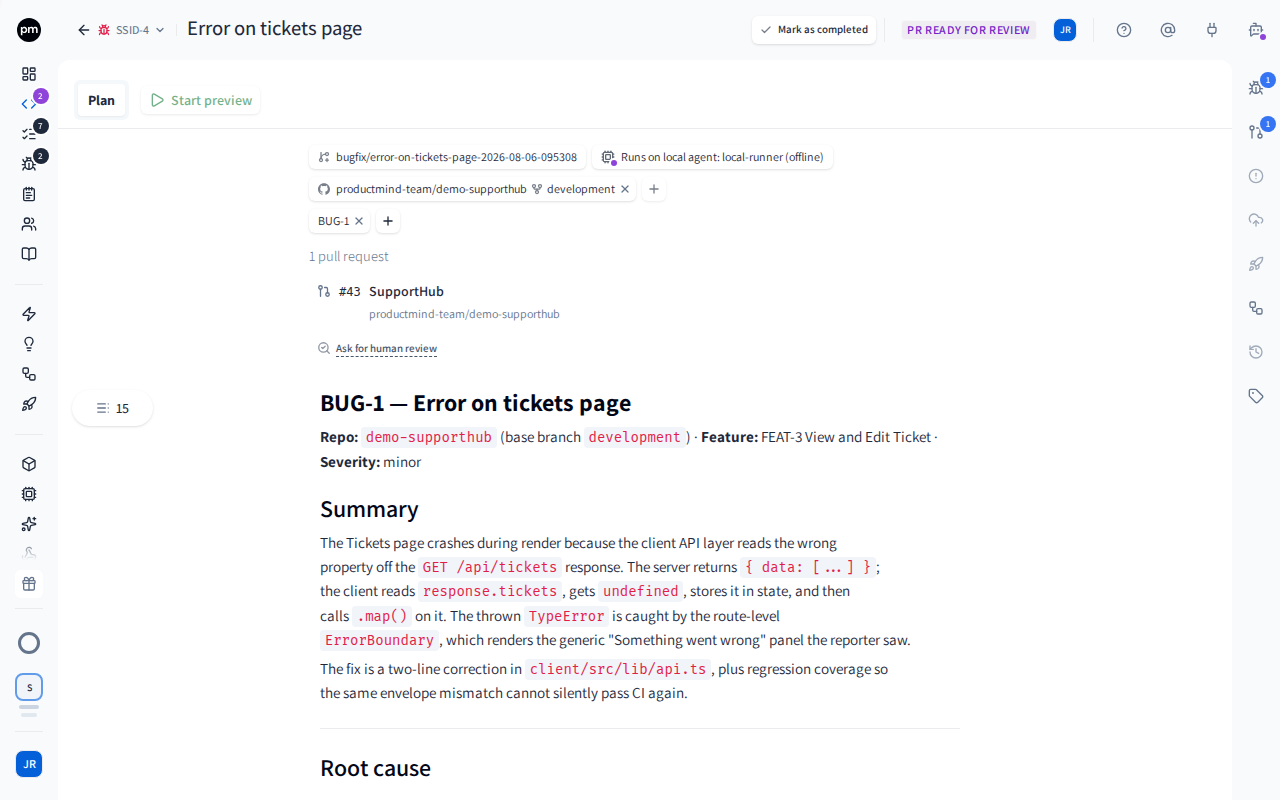
The heading counts the pull requests and sums their checks, such as 33/39 passed, with the total number of commits and lines changed at the right. While a pull request's checks are being read again for its latest commit, the heading leaves the checks out rather than count the previous commit's.
Each row shows the pull request's number, its title and its application, then its repository and branch, the number of commits and the lines added and removed. The checks of each pull request are listed under its row. When a session has three or more pull requests, the rows start folded to keep the list short: each shows its one line, without its checks. Choose the arrow at the start of a row, or select it with the keyboard and press Enter, to show or hide that row's checks. The rows stay as you set them until you reload the page. The heading still counts every pull request's checks while the rows are folded. The row's colour says where it stands:
| Colour | Meaning |
|---|---|
| Green | Open, and every check passed or was skipped. |
| Amber | Open, and a check is still running. |
| Red | Open, and a check failed. |
| Violet | Merged. |
| Grey | Closed without merging. |
| No colour | The checks haven't been read yet, they are being read again for the pull request's latest commit, or your Git provider didn't let Productmind read them. |
N behind means the base branch has new commits the pull request's branch doesn't have, and N behind · conflicts that those commits also conflict with it. Choose the row to review the pull request, its number or branch to open it in your Git provider, and N commits to list its commits under its checks. The list shows the newest 20; for more, choose View the full PR.
For an application started from a template, Productmind hosts the repository, so its pull requests and their check details open on GitHub only for the repository's collaborators. Their links say (collaborators only). Review the changes and the checks here instead.
A row such as applications: 2 CI workflow files awaiting approval means the session proposed CI workflow changes for that repository. Choose Review to see them.
Below the list, Ask for human review asks for a review, and Reviews lists the reviews already asked for. They stay on screen under the list, however many pull requests it holds.
The Pull Requests panel opens on the right when you choose a pull request, or choose Pull Requests in the rail. From top to bottom it holds:
- the pull request, with its actions: Merge, Apply N code revisions and Close PR;
- the checks, when your provider reports any, and how many review comments and failed CI checks are unresolved. The failed CI checks are listed in the Errors tab: choose their number to open it, or View error beside a failed check to open its failed job;
- a warning when the branch is behind, with Sync branch;
- the pull request's Description, the first thing in the list, so reading on into the diff scrolls it out of the way;
- Collapse all or Expand all, how many files are high risk, and how many you've marked viewed. This row stays in view as you scroll through the files;
- Not in the current diff, comments on a file the pull request no longer changes;
- each changed file, folded, with its risk flag.
The rail's Pull Requests button shows how many pull requests are open, and a dot when comments or proposals wait for you.
Who opens the pull requests
When the person who created a session has connected their own Git account, the session's pull requests are opened as them, in every repository their account can push to. Your Git provider shows that person as the pull request's author. Every other pull request is opened by your workspace's Git connection: the Productmind GitHub App, or the workspace's GitLab or Bitbucket connection. The session's branch is pushed through your workspace's connection too, unless your workspace pushes as the session's creator: see Who pushes a session's code.
The agent never pushes or opens a pull request itself, even when you ask it to: it has no access to your Git provider of its own. The session pushes the agent's commits when each turn ends, and opens the pull request when the build finishes. In a Live session, the pull request opens when you choose Open PR. If someone pushed to the session's branch while the turn ran, the session merges their commits with the agent's and pushes again; you only see a row when they conflict, naming the files, or the second push is refused too. If your Git provider refuses the push, the session shows the provider's own reason, and keeps the agent's changes when it can. The repository's row under Pull requests says what became of them: kept, so the next turn pushes them again; kept only on the runner that made them, so a turn on another runner starts without them; or not kept, so the next turn makes the changes again. When the session failed, Retry continues the build's conversation when it can, and tells the agent why your provider refused the push. A Live session doesn't fail over a refused push: it shows the row, and your next message pushes the kept changes with its own. When the reason is a rule on branch names, the session shows Branch name refused: see A branch name your Git provider refused.
On GitLab, the session's commits keep their author, the person they were made for, and name the
account that pushes them as the committer, because GitLab checks a push against the account that
makes it, for example with the Reject unverified users push rule. That is your workspace's
GitLab connection, unless the session creator's own account pushes. For a group or project access
token, the connection's account is the token's bot user, whose email ends in @noreply. and your
GitLab host. With OAuth, it is the person who approved the connection. If you use a Commit
author's email push rule, allow that address too.
Before the agent starts, the session page says when a pull request won't be opened as the session's creator. Under Draft a plan, Re-plan or Build, a warning names the repositories and the reason, for example: "Pull requests on acme/payments will be opened by the Productmind GitHub App: your GitHub account @octocat can't push to it." If you created the session and can fix it from Productmind, the warning offers the fix: Reconnect GitHub, or Authorize single sign-on. Anyone else who opens the session sees the same warning, about the session creator's account, without the fix.
If you created the session and haven't connected your own account, a note under the button says who opens the pull requests instead, for example "Pull requests are opened by the Productmind GitHub App. Connect GitHub to open them as yourself." Only you see it.
To open your session's pull requests as yourself
- Open a session you created, before the agent starts.
- Under Draft a plan, Re-plan or Build, choose Connect GitHub, Connect GitLab or Connect Bitbucket.
- Approve the access your Git provider asks for. For GitLab, it follows how your workspace connected GitLab: you sign in through your workspace's GitLab application, or, when your workspace connects GitLab with an access token, you paste a personal access token of your own with the api scope. See To connect your own GitLab account.
You return to the session, and the note is gone. If your account can't push to one of the session's repositories, a warning names that repository instead: its pull request is opened by your workspace's connection.
To fix a warning about your account
- Under Draft a plan, Re-plan or Build, read the reason the warning gives.
- Choose its fix, when it has one:
- Reconnect GitHub (or GitLab, Bitbucket): approve the access your Git provider asks for.
- Authorize single sign-on: on GitHub, authorize your account for the organization's single sign-on.
- When the reason is that your account can't push to a repository or has no access to it, ask a maintainer of the repository for write access.
When you return to the session, the warning is checked again. Once your account can push to every repository, the warning is gone.
A branch name your Git provider refused
Your Git provider can refuse a session's branch because of its name, for example with a GitLab push rule or a GitHub ruleset on branch names. The session then shows Branch name refused for that repository, with the provider's reason and the pattern it expects. The next turn would push the same name, so nothing changes until you rename the branch.
To rename the session's branch
- Open the session, and choose its working branch: the first chip above the session's description.
- Enter a name your provider accepts, for example
chore/ABC-0/checkout-redesign. - Move out of the field, for example by pressing Tab.
The next turn pushes the changes the session kept under the new name, and keeps the conversation. Nothing was pushed under the old name. If the changes could not be kept, or were kept only on the runner that made them and the next turn runs on another one, the agent starts the new branch from the base branch and makes its changes again.
You can rename the branch only while nothing could have been pushed under the old name: not while the agent is working, and not once the session has a pull request or has pushed. A base, development or production branch can't be the session's branch, nor can a branch an application maps to an environment. To name the branches of new sessions to match, change the prefixes in Settings > Git workflow.
Reviewing a pull request
To review the changes
- Open the session and choose the pull request under Pull requests.
- Start with the files flagged High risk, then Medium risk. Point at a flag to see the rules the file matched.
- Open each file to read its diff, or choose Retry on one whose diff can't be shown. Very large files show without colours. Select Viewed on a file to fold it away once you've read it.
Your Viewed marks are kept in your browser. When the agent changes a file you marked, the mark is cleared and the file opens again.
To comment on a line
- In the diff, choose the line number.
- Enter your comment in Leave a review comment..., and choose Comment.
The comment stays on the line. Reply to it, Resolve comment when it's dealt with, or Delete comment.
Type @ to mention someone. You can mention only people who can see the session: people who can't are grayed out with No access, and you can't choose them. If a comment can't be saved, Productmind says why and keeps it in the box, so you can try again. To ask the session's agent about the line instead, mention @pm: see Asking PM about a change.
To have the agent apply your comments
- Leave comments on the lines you want changed.
- Choose Apply N code revisions.
The session goes back to Building. The agent reads your unresolved comments, changes the code on the same branch and pushes to the same pull request. A question for @pm isn't sent until it's in the review queue. When it's done, the session is In Review again and the diff shows the new commits.
You can also send the agent instructions in words: type them in the conversation while the pull request is open. See Working in a session.
When a change makes the pull request's title or description out of date, the agent rewrites them after it pushes. A title or description you edited in your Git provider is replaced when it does. A description someone edited in Productmind is kept: the agent no longer rewrites it, and its title stays as it is too. See To edit a pull request's description.
To edit a pull request's description
The description is shown above the diff in the Pull Requests panel. A long one shows its first 10 lines; choose Show more to read the rest, and Show less to fold it again.
- Choose the description. An empty one reads Add a description.
- Edit it as you would a task's description.
- Choose anywhere outside it, or the send button, to save it to GitHub, GitLab or Bitbucket. Press Esc to discard your changes instead.
Productmind saves the description through your workspace's Git connection, so your Git provider shows the edit as made by that connection, for example the Productmind GitHub App. A line under the description says who edited it in Productmind.
From then on, the agent no longer rewrites this pull request's title and description when it pushes changes. The session's timeline says so when it tries. Edits made directly in your Git provider don't stop the agent.
If someone changed the description in your Git provider while you were editing, nothing is saved and the editor says so, with your text still in it. Save again to replace their version with yours.
A description that uses HTML, or a table with aligned columns, can't be edited here without changing how it looks. It's shown with a link to edit it in your Git provider instead.
To merge a pull request
- Choose Merge.
Productmind approves the pull request in your Git provider and merges it: with a merge commit on GitHub and Bitbucket, and with your project's merge method on GitLab. When every pull request of the session is merged, whichever branch it targets, the session is Completed.
Merge is unavailable while checks are running or failing. Point at it to see why. It comes back by itself when the checks pass.
The checks always belong to the pull request's latest commit. When the branch changes, for example after you bring it up to date or someone pushes to it, Merge waits until the new commit's checks have been read. The checks area says what it is waiting for instead of showing the previous commit's checks: Refreshing checks for the latest commit..., or Waiting for checks to start on the latest commit... while your CI hasn't started them yet. It also waits a moment for the checks to load when you open a pull request.
Merge merges the commit the panel shows. If new commits arrive on the branch before you choose it, the merge is refused: review the latest changes, then merge again.
When your workspace pushes as the session's creator and your own account pushed the latest changes, your Merge merges without approving the pull request. If your repository requires a review, your Git provider refuses it until someone else approves: "Your account pushed the latest changes to acme/web, so it needs someone else's approval on GitHub before it merges." Pointing at Merge shows the same sentence. Once someone else in the workspace approves the pull request on your Git provider, choose Merge again, or let them merge it.
To merge before the checks pass
- Choose Merge anyway.
- Check the list of checks that haven't passed, then choose Yes, merge now.
The pull request is merged. Your provider's branch protection still applies: if it refuses the merge, the merge fails. Merge anyway is also offered while the checks are being read for the latest commit, but not while the branch is being updated.
To close a pull request without merging
- Choose Close PR.
The pull request is closed, and the session is Cancelled. Draft a new plan then starts over. Reopening the pull request in your Git provider puts the session back PR Ready for Review.
To bring a branch up to date
When the base branch has new commits, the panel says how many, with Sync branch.
- Choose Sync branch.
- Choose Update branch (GitHub and Bitbucket) or Rebase branch (GitLab).
On GitHub, the base branch is merged into the pull request's branch. On GitLab, the branch is rebased onto the base branch, which rewrites its commits. Bitbucket can't update a pull request branch itself, so the session's runner merges the base branch in and pushes a merge commit, as a short turn in the session. It usually takes a minute or two.
The updated branch has a new latest commit, and its checks run again. While the branch is being updated, the checks area says Updating the branch. Checks run again on the new commit. Then it shows the new commit's checks as soon as they are read, with no need to reload the page, and Merge waits for them.
To bring a branch up to date before a pull request is open
Before a pull request is open, in a Live session for example, there is no Sync branch. Ask the agent instead.
- Open PM agent.
- Ask the agent to bring the branch up to date, for example "Pull the latest from development", and send it.
The agent merges the new commits of each repository's base branch into the session's branch. The conversation says, for each repository that changed, how many new commits it took. If the base branch's changes conflict with the session's, the agent resolves them in the same turn. The changes reach the session's working branch when the turn ends, and the session's work is never rewritten. A read-only repository is never changed.
If the agent can't settle every conflict, nothing is pushed for that repository. Ask it again, or carry on without the base branch's changes.
If the branch has conflicts
When the base branch has changes that conflict with the pull request's branch, the panel says so and offers Resolve conflicts automatically instead of Sync branch, which could only fail. It appears when a sync stops on a conflict, and when your Git provider already reports one. It works the same way on GitHub, GitLab and Bitbucket.
- Choose Resolve conflicts automatically.
The session goes back to Building, and the work appears in the conversation as a new turn. The agent merges the base branch into the pull request's branch, resolves the conflicts, and pushes a merge commit to the same pull request. No commits are rewritten, on any provider. When it's done, the session is PR Ready for Review again and the warning is gone.
If the agent can't settle every conflict, nothing is pushed. The session is PR Ready for Review, the warning lists the files still in conflict, and you can choose Resolve conflicts automatically again or resolve them in your own checkout.
Asking for a review
To ask a teammate to review
- Under Pull requests, choose Ask for human review.
- Under People or Teams, select the reviewers, and choose Done.
- Optionally, write a note. You can @mention people in it.
- Choose Submit request for review.
Productmind creates a task, Review pull requests: and the session's name, assigned to the reviewers, with a link to the session and each pull request. The reviewers are notified. The task appears under Reviews on the session, and in Tasks under the session.
If Productmind reviews are available to your organization, Ask for human review can also ask a Productmind Architect for a code, architecture or product review. See Support center.
To give your verdict as a reviewer
- Open the session and review the pull requests. Leave comments on the lines that need changes.
- Under Reviews, on your review task, choose Approve or Request changes.
Approve marks the task Done. Request changes moves it to In Progress and points the requester at your comments. Either way the requester is notified by a comment on the task.
Approving doesn't merge. The requester, or anyone who can update the session, merges.
To ask for another review
After the reviewer asked for changes and you've made them:
- Under Reviews, on the review task, choose Re-request review.
The reviewers are mentioned, and the task goes back to To Do.
Documentation and specification updates
When the agent proposes updates to documents or feature specifications, they appear under Pull requests as Documentation or Feature specifications.
To review proposed documentation updates
- Under Pull requests, choose Documentation or Feature specifications.
- For each proposal, compare the current text with the proposed one. Approve it, dismiss it, or edit it first.
- When every proposal is approved or dismissed, choose Merge.
To approve the rest and merge at once, choose Approve & merge all in the menu beside Merge.
The approved updates are written to your documents or specifications. Merging your code doesn't depend on them, and they don't depend on your code.
CI workflow changes
When a session changes CI workflow files in a GitHub repository, the pull request opens with every other change, and the workflow files wait for approval. The session's conversation shows the proposal as a card, and the Pull requests list shows a row for the repository. The card shows each file with what changes and its complete new version.
To approve CI workflow changes
- On the session page, under Pull requests, choose Review on the row that says the repository has CI workflow files awaiting approval. You can also answer the card in the session's conversation.
- Read each file's changes and its new version. Hidden characters in a file are shown as
[U+XXXX]. - Choose Approve and commit.
Productmind commits the files to the pull request's branch in one commit that names you, and the repository shows Applied with the commit. The pull request's checks then run with the new workflows.
To decline CI workflow changes
- Open the proposal, as in the procedure above.
- Choose Decline.
The repository shows Declined. The pull request stays without the workflow changes, and you can merge it as it is.
How pull requests behave
Only opening the pull request is yours. When a pull request is opened as the session's creator, everything else Productmind does on it still goes through your workspace's Git connection: Merge and the approval it writes, Close PR, Sync branch, and, unless your workspace pushes as the session's creator, the agent's later pushes.
Your account is checked again when the pull request opens. If it can no longer push to the repository then, your workspace's connection opens the pull request, and the session carries on. A warning never stops a session from starting.
Commits link to your account. When the session's creator has connected their own GitHub or GitLab account, the session's commits carry the address the provider links to that account, so the provider shows them as that person's. On GitHub that's the account's private noreply address, never your own email. Bitbucket commits carry the creator's Productmind email. A session that builds on your machine with the Productmind agent commits with your own Git name and email, when your Git has them.
Your pull request shows as a draft while the agent works. When a later turn of the session works on a pull request that is already open, Productmind marks it as a draft before it pushes the agent's first finished step, and marks it ready again when the agent finishes. So a CI that skips drafts runs once, at the end. A draft you made yourself stays a draft. This happens only while Push work in progress is on; see Settings > Git workflow.
The agent fixes failing checks. When a pull request's checks fail, Productmind sends the failures to the agent, which fixes the ones its own changes caused. Each attempt is a billed build turn. See How checks behave.
CI workflow changes wait for a person. Only someone signed in can approve them; the agent can't, and no credential the agent holds can push a workflow change. Until someone decides, the pull request's checks run with the workflows the branch already has, and the agent doesn't try to fix the failing checks of that session. If the agent changes workflow files again on a later turn, its new changes join the same proposal. A proposal is cancelled when its pull request is merged or closed, or the session is cancelled. The approval appears only for GitHub repositories.
Resolving conflicts is a turn of the session. It runs where the session's other turns run and uses the agent like any other turn. When the base branch merges in without conflicts, the agent isn't used: the branch is updated and pushed, and that's all. A pull request with conflicts can't be merged, on any provider, until they're resolved.
A risk flag orders the review, it doesn't replace it. A file without a flag still needs reading: the flag says which of the application's rules a file matched, not that the other files are safe. Files keep their order, and the summary above them counts only the high-risk ones. When someone changes the application's risk rules, the flags change the next time the review loads the pull request's files.
Merging finishes the work. When every pull request of the session is merged, here or in your Git provider and whichever branch it targets, the session is Completed, its tasks become Done, and a bug fix session's bug reports are closed. When no merge will finish a session, you can mark it completed.
Closing cancels the session. Closing any of the session's pull requests without merging, here or in your Git provider, cancels the session.
Deployments and releases. Once a pull request is merged, the rail's Deployments panel records where the change was deployed: Development, Production or one of your own environments, shown by its key, with a status and the commit. A merge into a branch that no application maps to an environment records no deployment. Choose Record deployment (the +) to add one. A deployment to production moves the session's tasks to Done.
The rail's Release panel lists the releases the session's work shipped in, and the release linked to the session by hand. Choose a release to open it. Productmind lists a release when it finds the session in the release's commits, as it prepares the release or re-checks its work, and when the session is part of what the release contains; you can't remove those from here. The panel opens once a pull request is merged or the session is in a release, and you can link, change or remove the release linked by hand until the session is Completed or Rolled Back. Merging a session's only pull request completes it, so such a session can't be linked from here. You can also add a session to a release from the release. See Releases.
Permissions
| To | You need |
|---|---|
| See pull requests, diffs and checks | Sessions: Read |
| Comment on lines, and reply to comments | Comments: Create |
| Resolve comments | Comments: Update |
| Delete your own comments | Comments: Delete |
| Apply code revisions, merge, close, edit a pull request's description, sync a branch, resolve conflicts, record a deployment | Sessions: Update |
| Ask a teammate to review | Tasks: Create |
| Link a session to a release | Sessions: Update. Seeing the Release panel needs Releases: Read. |
| Approve or decline CI workflow changes | Sessions: Update |
| See who opens a session's pull requests | Sessions: Read |
| Connect your own Git account from a session | Being the person who created the session |
Troubleshooting
The warning says your account can't push to a repository
Your account can read the repository but not push to it, so it can't open the pull request there. Ask a maintainer of the repository for write access: the Write role on GitHub, Developer or higher on GitLab, or write access on Bitbucket. Until then, your workspace's connection opens that pull request.
The warning says your account needs to be reconnected
Productmind can no longer act for your account, or the account was connected before Productmind could open pull requests with it. A GitLab or Bitbucket account connected before then needs to be reconnected once. Choose Reconnect GitLab or Reconnect Bitbucket, and approve the access your provider asks for.
It also happens when an admin connects your workspace's GitLab through another OAuth application, or disconnects it: your account was connected through the workspace's application. Choose Reconnect GitLab. The workspace's GitLab application must allow the api and read_user scopes; if it doesn't, GitLab refuses the sign-in and Productmind says so. Ask an admin to change the application.
The warning says your account isn't authorized for single sign-on
The repository's GitHub organization requires single sign-on, and your account hasn't signed in through it for Productmind. Choose Authorize single sign-on, and authorize your account on GitHub.
The warning says your account is on another GitLab instance
The GitLab account you connected is on a different GitLab server than the repository, for example gitlab.com and your company's own GitLab. Connect the account you use on the repository's server.
A repository says Git credential refused
Your Git provider refused the credential the session pushes with, and a fresh one too, so nothing was pushed. The workspace's Git connection no longer works: its token expired or was revoked, or the person who approved its OAuth access lost it. Ask an Owner or Admin to reconnect it, or replace its token, on its page in Integrations. The agent's next turn then pushes the kept changes.
A repository says Creator's account couldn't push
Your workspace pushes as the session's creator, and the creator's own Git account couldn't be used: it was disconnected, its sign-in expired, or it lost access to the repository. Nothing was pushed with another account, and the session kept the changes. Ask the creator to reconnect their account in Integrations, then choose Retry.
"The changes in this pull request could not be loaded"
Your Git provider didn't answer, so the diff is unknown, not empty. Choose Retry. If it keeps happening, check the Git connection in Integrations.
"The description could not be loaded"
Your Git provider didn't answer, so the description is unknown, not empty. Choose Retry. If it keeps happening, check the Git connection in Integrations.
Saving a description says the Git connection can't edit it
Your Git provider refused the edit, and the message quotes its reason. Your text is still in the editor. The workspace's Git connection needs write access to the repository's pull requests: on GitHub, the Productmind GitHub App's Pull requests: Read & write permission; on Bitbucket, a repository may only let a pull request's author or an admin edit it. Ask an admin of the repository, or edit the description in your Git provider.
A file has no risk flag
The file matched none of the application's risk rules, or it matched a Never flagged rule, such as the rules for tests, documentation and lockfiles. To see which, enter the file's path in the Try by typing a path box on the application's Risk rules tab, and change the rules there to change what's flagged. See Risk rules.
When no file shows a flag at all, either none matched, or Productmind couldn't read the application's rules this time. The diff is complete either way. Open the pull request again to load its files again.
Merge is grayed out
Point at it to see why. Checks may still be running, or failing: wait, or use Merge anyway. A pull request your provider can't merge, for example one with conflicts, can't be merged from here either. For conflicts, see If the branch has conflicts. Merge is also unavailable while the agent is working on the branch, or while another action on the pull request is running.
Right after the branch changes, Merge waits while the checks are read for the latest commit. This usually takes a few seconds. If the checks area says Couldn't refresh the checks for the latest commit., open the pull request again later, or use Merge anyway.
The merge was refused because of new commits
Someone pushed to the branch after the panel showed it. Review the latest changes, then choose Merge again.
Apply code revisions is grayed out
There are no unresolved comments, the agent or PM is already working, or the session was cancelled or failed. Point at it to see why.
Resolve conflicts automatically is grayed out
The agent is already working on the session, another action on the pull request is running, or the session was cancelled or failed. Point at it to see why. A session that failed needs Retry first.
Resolving conflicts says the Productmind agent is too old
The session builds on a computer whose Productmind agent predates resolving conflicts. Run
pm update on that computer, then choose Resolve conflicts automatically again. See
Productmind CLI.
Approving CI workflow changes says the Workflows permission is needed
The Productmind GitHub App installed on your GitHub organization doesn't have the Workflows permission yet. An owner of the GitHub organization must accept it: in GitHub, under the organization's settings for installed GitHub Apps, open the Productmind app and accept the requested permissions. Then choose Approve and commit again.
Approving CI workflow changes says the branch changed
The pull request's branch changed after the session proposed the files. If the branch only gained other commits, approving again can succeed. If its workflow files changed, ask the agent in the session to make the workflow changes again; the new proposal replaces the old one for those files.
Ask for human review is missing
It appears only while the session has an open pull request and isn't Completed, Rolled Back or Cancelled. You also need to be able to create tasks (Tasks: Create), or your organization needs to be able to ask Productmind for a review.