

Sandboxes
A sandbox is the container a coding session works in. It says which applications the session clones and runs, in which order, and how the container is set up: its image, its size and its environment variables. Every workspace starts with one sandbox, Default, which sessions use unless they pick another.
Key concepts
Sandbox. A container setup with its attached applications. Every sandbox has an ID such as SBX-2, numbered within your workspace.
Default sandbox. The sandbox a session runs in when it doesn't pick one. A workspace has at most one. It's marked with an icon in the list, and with the Default switch turned on.
Attached applications. The applications that run in the sandbox. A session clones the repository of each one, and runs them all in the same container. Their order is the order the session starts them in, for example for a live preview.
Container image. The image the container starts from. Leave it empty to use Productmind's standard image.
Size. The machine size in Productmind's cloud that a hosted preview or a hosted coding session in this sandbox is scheduled on. There are three sizes, and you can pick any of them on every plan:
| Size | CPU | Memory | Storage |
|---|---|---|---|
| Small | 2 vCPU | 8 GB | 50 GB |
| Medium (the default) | 4 vCPU | 16 GB | 60 GB |
| Large | 8 vCPU | 32 GB | 100 GB |
Your plan sets what an hour of each size costs and the Included cloud allowance in euros that every size draws on, and it can cap a size, or leave it out, with a Sandbox hours limit. Part of the storage, about 15 GB, is used by Productmind's own system, so when a session starts about 32 GB is free for its repositories, installs, builds and Docker images on Small, 42 GB on Medium and 79 GB on Large. A run on your own machine with the Productmind agent ignores the size.
The Sandboxes page at a glance
In the sidebar, under Engineering, choose Sandboxes.
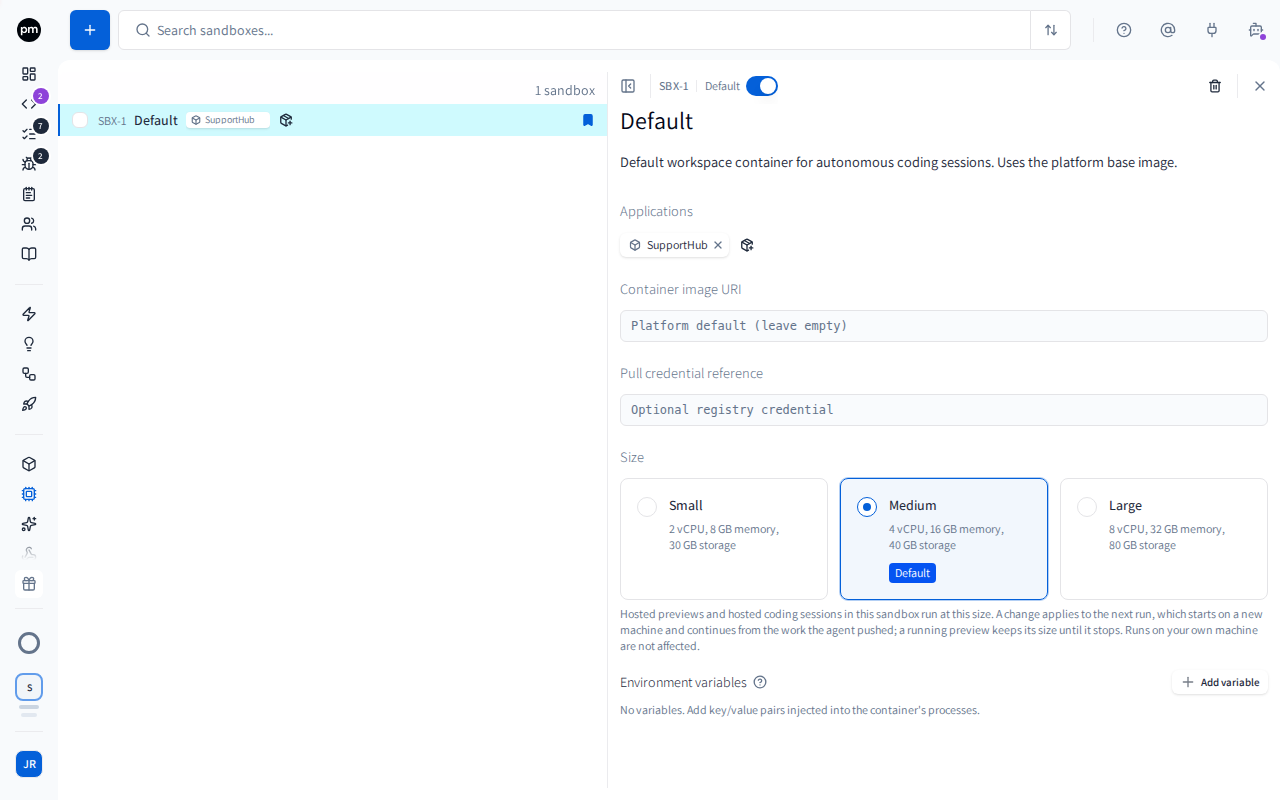
The toolbar holds New sandbox (the + button), the search box, which matches names, descriptions and images, and Sort, by Name or Created.
Each row shows the sandbox's ID, name and description, its attached applications, Link applications, and, when the list is wide enough, its size, such as Medium (4 vCPU, 16 GB). The default sandbox has an icon at the end of its row. To delete several sandboxes at once, select them with the checkboxes that appear when you point at a row, then choose Delete selected.
Choose a sandbox to open it. The header holds its ID, the Default switch, Delete sandbox and Close. Below the title are:
- the description;
- Applications, the attached applications in startup order;
- Container image URI and Pull credential reference;
- Size, a card for each of Small, Medium and Large, with its CPU, memory and storage, and its price per hour when your plan sets one;
- Environment variables.
Changes save automatically.
Working with sandboxes
To create a sandbox
- In the sidebar, choose Sandboxes.
- Choose New sandbox (the + button).
- Enter a Name.
- To make it the default for new sessions, turn on Default sandbox.
- Choose Create sandbox.
The new sandbox opens, so you can attach applications and set up its container. It starts at Medium.
To attach applications
- Open the sandbox.
- Under Applications, choose Link applications (the +).
- Search for the applications and choose them.
They're added at the end of the list. To detach one, choose the x on it. You can also attach applications from a sandbox's row in the list.
An application you import isn't attached to any sandbox. Attach your applications to the default sandbox, so every session gets their code. A session built from a task still previews and runs its own application when no sandbox lists it, but it only clones that repository because the task points at it. Produtype in What shall we build today? works the same way while the sandbox it builds in has no applications: the session brings your applications that no sandbox lists.
To change the startup order
Drag an application to a new position. From the keyboard, move the focus to it, press Enter, and move it with the left and right arrow keys. Each move is saved as you make it. Press Enter or Escape to let go.
To make a sandbox the default
Open the sandbox and turn on Default.
The sandbox that was the default until now is no longer the default. Sessions that already picked a sandbox keep it.
Turning Default off leaves the workspace without a default sandbox: no other sandbox becomes the default. To change the default, turn it on for the new sandbox instead.
To set up the container
- Open the sandbox.
- To use your own image, enter its Container image URI. Leave it empty to use Productmind's standard image.
To change the size
- Open the sandbox.
- Under Size, select Small, Medium or Large.
The size is saved at once, and the card stays selected. When your plan sets a price for sandbox hours, each card also shows its price per hour. Otherwise the cards show the hardware only.
To set environment variables
- Open the sandbox.
- Choose Add variable (the + beside Environment variables), and enter the key and the value.
- For a password, a token or any other secret, turn on Secret.
These variables reach every session that runs in this sandbox, and every application
started in it. An application's own variable wins over a sandbox variable with the same
key. As on an application, a value can include {sessionId}, {workspaceId} and
{previewBaseUrl}.
Scans use the default sandbox, and give its variables to each application's install command
only. So a private registry's token set here, for example GITHUB_PACKAGES_TOKEN, lets a scan
install the dependencies too. See
Applications.
To delete a sandbox
- Open the sandbox and choose Delete sandbox (the trash icon).
- Choose Delete.
Sessions that used it run in the workspace's default sandbox the next time they run, if there is one. Deleting a sandbox doesn't delete its applications.
Deleting the default sandbox leaves the workspace without one. Make another sandbox the default first.
How sandboxes behave
A session gets the repositories of its sandbox. When a session is created, it gets the repositories of its sandbox's applications. A session launched from tasks or bug reports also gets the repositories of the applications they belong to, directly or through one of the applications' features. If you pick repositories for a session yourself when you create it, it gets exactly those. A session that doesn't pick a sandbox uses the default one.
An application you pick runs in the session's sandbox. An application you add to a session yourself, with Application when you build, or when the assistant asks where the session should work, runs in that session's preview even when another sandbox lists it. It runs on the session's sandbox, so it needs the tools that sandbox provides. An application a session only reaches through its tasks or bug reports runs only in a sandbox that lists it, or when no sandbox lists it at all.
A workspace can be left without a default. Turning off Default, or deleting the default sandbox, doesn't make another sandbox the default. A session that doesn't pick a sandbox then gets no repositories from one, and runs on the standard image.
Changing a session's sandbox replaces its repositories. Until a session starts working, you can change its sandbox from the sandbox chip in the session. Its repositories are then replaced by the new sandbox's, including any you added by hand. See Starting a session.
Every workspace starts with a Default sandbox, which uses the standard image and has no applications attached.
Applications share one container. Each attached application must use its own ports, so two applications don't both claim the same port in a live preview.
Hosted runs use the sandbox's size. A live preview or a coding session that runs in Productmind's cloud runs on the sandbox's size. A session with no sandbox runs at Medium. Scans don't run in a sandbox, and use none of your cloud allowance.
A size change applies to the next run. The next hosted run of the sandbox's sessions starts on a new machine of the new size, and continues from the work the agent pushed to the session's branch. With Push work in progress on, that includes every step the agent had finished, so nothing is done again; see Settings > Git workflow. A running live preview keeps its size until it stops.
Docker works in a hosted sandbox. A session in Productmind's cloud has a Docker daemon of its
own, so docker run, docker build, Docker Compose, including services that build their own
image, and Testcontainers work there as they do on your machine. A port a container publishes is
on localhost: the session's commands and tests reach it, and nothing outside the session can. To
check that a service answers, use curl or nc: ping may not work, because a hosted session
can't open raw network sockets.
Docker refuses what would reach beyond the session. It answers with an error that says so to
--privileged, to sharing the runner's processes or another of its namespaces (--pid host, for
example; --network host works), to devices and GPUs, to most capabilities beyond Docker's
defaults (IPC_LOCK, SYS_NICE and SYS_PTRACE work), to a bind mount from outside the session's
working folder, which holds its repositories, and to a build on the host network.
Containers last as long as the runner. Containers, images and volumes stay while the session's
runner does: about five minutes after each step, and while its live preview runs. The next step
after that starts on a fresh machine, which pulls the images again. Docker Hub allows each address
100 pulls every six hours without signing in, and each runner has an address of its own. To pull
more, have the session sign in with docker login and your own Docker Hub account, with its token
in a secret environment variable, or pull official images from
public.ecr.aws/docker/library/<name> instead.
Each hosted session gets a runner of its own. In Productmind's cloud, a session runs on a runner of its sandbox's size that serves only that session, never another session or another organization. When the cloud is busy the session waits for its runner, and a larger size can wait longer. See Working in a session.
Hosted time draws on one allowance, at each size's price. A hosted preview or a hosted coding session counts hours at its sandbox's size, measured by the second, and draws on your plan's Included cloud allowance at that size's price per hour: an hour of Large uses twice as much of it as an hour of Medium when Large costs twice as much. Every size shares the allowance. Once it is used up, the allowance's one overage switch decides for every size: with overage on, you pay for the seconds used at each size's own price per hour; with overage off, new hosted runs are refused. A size's Sandbox hours limit caps that size alone, whatever the allowance. A size your plan sets no price for can't run in the cloud while your plan has an allowance. The time a session waits for its runner isn't counted. A run on your own machine with the Productmind agent never counts sandbox hours. See Usage.
A change applies to the next run. A run that has started keeps the size it started with. While a live preview runs in the cloud, the session's builds and changes run at the preview's size too, until the preview stops.
Sandboxes created before sizes existed use Medium. Their earlier CPU and memory settings no longer apply.
Permissions
| To | You need |
|---|---|
| See, create, change and delete sandboxes | Sandboxes access (under Administrative access on the Roles tab) |
| Pick the sandbox of a session | Sessions: Update |
The Owner, Admin, Power User and Developer roles have Sandboxes access. Product Manager, Viewer and Customer don't see Sandboxes in the menu. See Roles and permissions.
Limits
| Limit | Value |
|---|---|
| Applications per sandbox | 50 |
| Environment variables per sandbox | 100 |
| Size | Small, Medium or Large: you can pick any of them on every plan |
Troubleshooting
A session has none of my code
Its sandbox has no applications attached, or none of them has a repository. The sandbox says Nothing attached: a session running here has nothing to clone or run. Attach the applications the work needs.
If the session didn't pick a sandbox, check that your workspace has a default sandbox: one row in the list has the default icon. If none has, open the right sandbox and turn on Default.
A session ran in the wrong sandbox
The session didn't pick a sandbox, so it used the default one. Pick the sandbox in the session before it starts working, or make the right sandbox the default.
"Medium sandboxes are not included in your plan"
The full message is "Medium sandboxes are not included in your plan. Please upgrade or choose another size.", with the size of the sandbox. You can pick any size, but your plan's Sandbox hours limit for this one is zero, or your plan sets no price for it while it has a cloud allowance, so a preview or a coding session in the cloud can't start on it. Choose another size for the sandbox, run the session on your own machine with the Productmind agent, or move to a plan that includes the size. See Plans and limits.
"Monthly limit of Medium sandbox hours reached"
The full message is "Monthly limit of Medium sandbox hours reached. It resets at the start of your next month.", with the size of the sandbox. Your organization has used this size's Sandbox hours limit for the billing period, and overage doesn't lift it. Choose another size for the sandbox, run the session on your own machine, or wait for the next billing period.
"Overage is off for cloud usage and your cloud allowance is used up"
Your organization has used its Included cloud allowance for this billing period, and its overage switch is off. An Owner or Admin can turn it on (Overage on) on Usage, and new hosted runs of every size are then charged at each size's price per hour. "Pay-as-you-go spending is paused for cloud usage" means your plan includes none of the allowance and an Owner or Admin has paused its spending: they can turn it back on (Spending on) there.
"This sandbox has no valid size"
The full message is "This sandbox has no valid size. Choose Small, Medium or Large in its settings." Open the sandbox and select a size under Size, then start the preview or send the session its next message again.
My environment variable has the wrong value in a session
An application attached to the sandbox sets the same key, and the application's value wins. Check the application's Environment variables tab.