

Code
Code is where you work with the AI coding agent. Each piece of work is a session. The agent works in your repositories on the tasks or bug reports you give it: it drafts a plan for you to approve, builds it, and opens pull requests for you to review and merge. You can also talk a change through with it first, in a Code conversation, and have it draft the plan from that. You follow its progress, answer its questions and send it corrections from the session page.
Key concepts
ID. Every session has an ID such as SSID-12, numbered within your workspace.
Category. What kind of work the session does. You can see it as the icon before the ID.
| Category | Use it for |
|---|---|
| Plan | Planned work on tasks: the agent drafts an engineering plan, you approve it, then the agent builds it. New sessions are Plan sessions. |
| Bug fix | The same plan-first flow, for bug reports instead of tasks. |
| Live | Working on the running application with the agent, change by change, with no plan up front. See Live preview. |
| Code chat | A Code conversation: you talk a change through with the agent, which reads the code and never changes it, until you draft the plan. When you ask, it creates and updates tasks, features and bug reports for you. Only you can see the conversation until then. See Code conversations. |
Engineering plan. The session's document: what the agent will change and how. The agent writes it, and you review it before anything is built.
Repositories. The Git repositories the session works in. Each one has a base branch, and the session works on its own working branch off it.
Sandbox. The container the session runs in. Its applications decide which repositories a new session gets. See Sandboxes.
Where it builds. Build on the cloud runs the session on Productmind's servers, on a runner that serves only that session. Build on your Productmind agent runs it on a machine where you started the Productmind agent. See Productmind CLI. A workspace can turn off Productmind cloud sessions: then every session runs on a Productmind agent. See Settings > Coding sessions. A session that your own AI coding assistant picks up through Productmind's MCP tools runs through your coding agent. See AI assistants (MCP). Your assistant can also take over a session that Productmind's agent planned, while nothing runs there. See Hand a cloud session to your coding agent.
Each row of the list says where its session runs, in any status, a failed one included: the name of the Productmind agent or, for a session an AI coding assistant works over MCP, the person whose assistant it is, such as Ada Lovelace over MCP. A session in the Productmind cloud shows the cloud icon alone; point at it to see Productmind cloud. On the session page, a chip says what the session is doing there: Planning with while the plan is drafted, Building with while it is built, Live editing with in a Live session, and Runs on once the run has ended. For a session an AI coding assistant works over MCP, the chip starts with the person's first name instead, such as Steen building over MCP.
User-hosted session. A session the Productmind agent runs on your own machine. Its AI runs on your own Claude Code or Codex account and uses none of your AI credits. If your plan charges for sessions on your own machine, each one is charged once, at your plan's per-session rate, the first time it runs there, and never again for that session. While your Productmind agent is online, Productmind can also send it work you didn't start from the build choice, such as a scan, a Live session's first change or a conversation handed over to a session: each of those is a user-hosted session too.
Conversation. Everything the agent does, and everything you tell it, is one conversation. It opens in the PM agent panel on the right. See Working in a session.
Status. Productmind sets the status as the session moves along. You can't pick a status yourself, but you can mark a session completed when its work is finished. See Completing a session.
| Status | Means |
|---|---|
| In Planning | The session is being set up and nothing has run yet. New sessions start here. |
| Queued | The session is waiting for the coding agent to start. |
| Drafting Plan | The agent is writing the engineering plan. |
| Awaiting User Input | The agent asked a question and is waiting for an answer. |
| Plan Ready for Review | The plan is waiting for your approval. |
| Plan Approved | You approved the plan and the build hasn't started. |
| Building | The agent is building the plan. |
| In Progress | The agent is working on your message, or has finished and is waiting for the next. |
| Agent offline | The machine running the agent went offline. The session continues when it's back. |
| PR Ready for Review | A pull request is open and waiting for your review. |
| Completed | Every pull request of the session was merged, or someone marked the session completed. |
| Rolled Back | The session's work was rolled back. |
| Failed | The run stopped on an error. Retry it, or cancel the session. |
| Cancelled | The run was cancelled. Resume it to continue its open pull requests or its approved build, draft a new plan, or mark the session completed. |
Point at a session's status on the session page to see what it means, or reach it with the Tab key. In the Code list, the status is an icon near the end of the row: point at the row to see its name, in short form, such as Plan review for Plan Ready for Review, PR review for PR Ready for Review and Needs input for Awaiting User Input. See Status icons.
Why a session is Cancelled. Someone cancelled the session or its plan, a pull request was closed without merging, or the agent didn't respond to Stop turn. In the last two cases, the session says so. A cancelled session keeps its branch and its pull requests. It can go back with Resume session when it has an open pull request or an approved build to continue, start again with Draft a new plan, or be marked completed. See To resume a cancelled session.
Activity. A dot on the session's icon tells you, at a glance, whether you need to do something:
| Dot | Means |
|---|---|
| Pulsing orange, In progress | The agent is working. |
| Violet, Awaiting your action | The agent asked a question, the plan waits for your review, or a pull request waits for your review. |
| Red, Failed | The run failed or the session was cancelled. |
| Green, Done | The work is finished. |
The Code page at a glance
In the sidebar, choose Code.
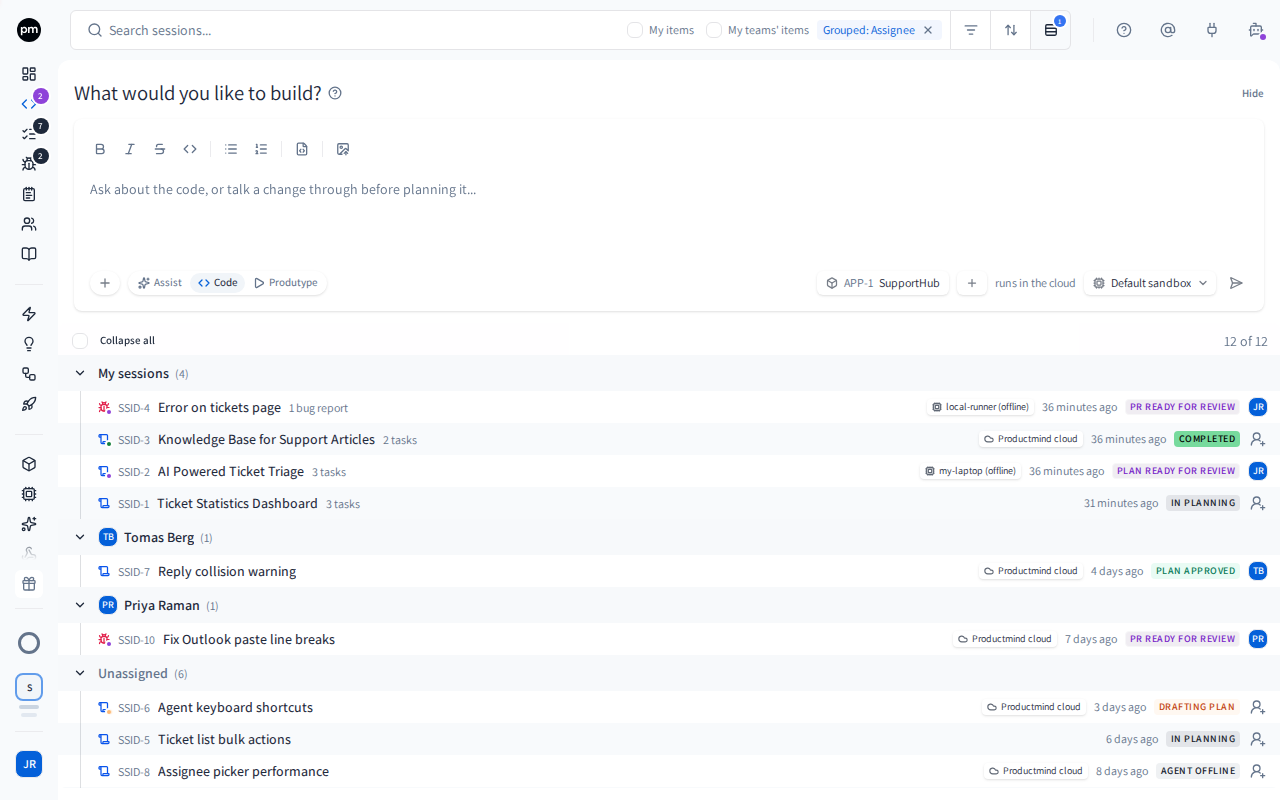
What shall we build today? is where you describe new work. Here it starts on Code, so your message goes to the coding agent; choose Assist for the PM agent, or Produtype for a live preview. Choose Hide to fold it away. A + then appears in the toolbar to bring it back. See Starting a session.
The toolbar holds:
- the search box, which matches session names and plans;
- chips for the filters, sort and grouping in use;
- Filters, Sort and Group by.
| Control | Options |
|---|---|
| Filters | Assignee, Team, Status, Category, Runner and Tags |
| Sort | Name, Status, Category, Planned date, Created or Last activity |
| Group by | Assignee (the default), Status, Category or Runner |
Runner is where the session runs: Productmind cloud, each Productmind agent your workspace's sessions have run on (offline ones and your teammates' included), Your coding agent (MCP), or Not started yet. Grouped by runner, the list shows the cloud first, then each agent, the one with the newest session first, then sessions on your coding agent, then those not started yet.
While no assignee is selected, the search box offers two checkboxes, My items and My teams' items. Select one to see only the sessions assigned to you, or to your teams. It turns into the chip Assignee: Me or Assignee: My teams. The checkboxes are hidden while any assignee is selected, from them or from Filters, and come back when you remove the chip. My teams' items appears only when your organization has teams. When the search box is too narrow for them, the checkboxes sit in the row of chips under the search box.
The list is grouped by assignee. My sessions comes first: every session assigned to you or created by you. Then each other person's sessions, the person with the newest session first. Last comes Unassigned: sessions with no person assigned, including sessions assigned only to a team.
My items shows only the sessions assigned to you, while My sessions also holds the sessions you created. The Assignee filter starts with two options of its own, on this page only:
- For me, first: the sessions assigned to you, started by you, or in your teams' areas (see Team below). Its description reads "Assigned to me, started by me, or in my teams' areas", and the chip reads Assignee: For me.
- My sessions: the sessions assigned to you or created by you, like the My sessions group, without your teams' sessions. The chip reads Assignee: My sessions.
View all under Needs your attention on the dashboard, and under both headings of the Code entry's preview in the sidebar, opens the list on For me, so it shows the same sessions the count does.
Team shows a team's whole area: the sessions assigned to the team, the sessions started from a
feature in its area (a feature assigned to the team, or any feature under one), and the sessions
working on a task or bug report in it. Select several teams, or My teams, to see all of their
areas together. It works with every other filter and doesn't change the grouping. The dashboard's
Code tab doesn't have it. To bookmark or share your teams' view, add
?team=my-teams to the list's address.
Each row shows, from left to right:
- a dot before the icon, if the session had new activity since you last looked at this list;
- the session's category icon;
- its ID and name, and a green dot if its live preview is running;
- for a scan, what it scans; where the session runs; how many work items it covers; and its tags. When the row is too narrow for all of them, they're hidden from the last one back, so the name stays whole;
- when it last had activity, such as 3h, 4d or Nov 7. Point at it to see the full date and time;
- its status, as an icon. Point at the row to see the status's name. When the session waits for you, the row says so in full, such as Plan ready for your review, while it has room;
- its assignee.
Choose a row to open the session. Right-click a row for Open in new tab, Mark as completed and Delete.
Scan sessions are the scans Productmind runs for you, such as detecting applications, checking agentic readiness, writing documentation, mapping your services, discovering features or reading a feature in depth. Each one is listed under the person who started it, with a scan icon and what it scans, and running scans offer View scan session to open it. Its page is laid out like any session's, and read-only: its status and the person who started it at the top, then how long it ran and what it cost, its repositories and what the scan is about, then the agent's activity, and, for the person who started it and workspace admins, the Instructions it ran on. A scan reads Queued until a runner starts it, and its page says it is waiting for a runner; then it reads In progress and shows its activity. You can't send it a message, retry it or delete it: start the scan again where you started it. Stop scan stops the scan itself, for anyone who could stop it there. A scan of a private feature appears only to people who can see that feature, and the activity of a feature discovery scan is shown only to people who can see every feature.
In the sidebar, the violet number next to Code counts the sessions waiting for an answer, a plan review or a pull request review, and the orange one the sessions working now. Both count only the sessions assigned to you, started by you, or in your teams' areas. Point at Code to list them. See Finding your way around.
The session page at a glance
The session page has five parts:
- The header holds Back to sessions, the session's ID (choose it to switch to another session) and its name. On the right are Cancel session while the agent works, waits for your answer or is offline, Mark as completed while the session is unfinished and no agent works on it, then the session's status and assignees. Point at the status to see what it means.
- The tabs at the top of the document: Plan, which shows the engineering plan, one tab for each endpoint of a running preview you open, and the preview control: Start preview until a preview runs, then the running preview with Stop preview beside it. See Live preview. While the agent works, the Plan tab says so with a spinner: Drafting the plan... while it drafts the plan, and Implementing the plan while it builds it, fixes it after review comments or answers your message. How long the run has gone on and what the agent is doing right now follow the tabs.
- The chips under the tabs show the working branch, the sandbox (until the session starts), where the session builds, what the session has cost so far (once it has started), the repositories, the tasks or bug reports, the pull requests, and Ask for human review, which stays on screen under the pull requests however long their list is. With three or more pull requests, each pull request shows on one line and its checks are hidden: choose the arrow at the start of a row to show or hide its checks. See The pull requests at a glance. When you scroll down the plan, the chips fold into one line of counts, and the branch, build and cost chips stay. See How a running session behaves.
- The document is the engineering plan. Before there is a plan, it shows what to do next. While the agent drafts the plan, and in a Code conversation, it is your conversation with the agent, with the box to answer it. Snippets sit at the top of the plan: the images in the conversation, the ones you pasted and the screenshots the agent took, counted as, for example, 7 snippets, the same strip as above the message box in the conversation. Choose a snippet to open it full size, and use the arrows to step through the others. They scroll with the plan, and a conversation with no images shows no strip.
- The rail on the right opens panels: Tasks (or Bug reports in a bug fix session), Pull Requests, Errors (see Reading the session's errors), Deployments, Release and Document history. Lineage, after Release, opens the session's lineage over the page, and Tags, at the bottom, opens its tags beside the rail. The PM agent button at the top of the page opens the session's conversation.
Completing a session
A session completes by itself when every one of its pull requests is merged, whichever branch it was merged into. When no merge will complete it, for example because its work was finished outside Productmind, you can mark it completed.
To mark a session as completed
- Open the session and, in the header, choose Mark as completed. Or, in the list, right-click the session and choose Mark as completed.
- Choose Mark as completed to confirm.
The session's status becomes Completed, its tasks move to Done and, in a bug fix session, its bug reports are closed. Its pull requests are not merged or closed. A plan or CI workflow changes waiting for your approval are closed.
You can mark any session completed except one that is Completed or Rolled Back, and only while no agent works on it: not while it is Queued, Drafting Plan, Building, Awaiting User Input or Agent offline, or while the agent works on a message you sent.
Deleting sessions
To delete a session
- In the list, right-click the session and choose Delete. To delete several, select them and choose Delete selected in the bar that appears.
- Choose Delete. When you delete a single session that is In Progress, PR Ready for Review, Completed or Rolled Back, type the session's name first.
The sessions are removed from the list.
Deleting a session removes its comments, attachments, deployments and logs, stops its live preview, and deletes the tasks that belong to it, such as its review tasks. The tasks and bug reports it worked on are unlinked, not deleted. Branches and pull requests in your Git provider are not touched. It can't be undone.
How sessions behave
Sessions move your work forward. Starting a session from tasks moves them to In Progress, opening a pull request moves them to In Review, and merging every pull request, or marking the session completed, moves them to Done. The full table is in Tasks. A bug fix session moves its bug reports to In Progress when it's created, and closes them when every pull request is merged or the session is marked completed. See Bug reports. A task or bug report you add to a session after its agent started moves forward the same way, and one you remove goes back to the status it had before. See Changing a session's scope.
A task works in one session at a time. While a session is still working on a task, the task shows that session's badge in its header instead of Launch a coding session, and launching a new session for it from the list is refused with a message that names the session, such as "TASK-12 is already in SSID-4 (In Progress)". Choose Open session in the message to go to it. Adding it to another session asks first, with Move here: the task then leaves the session it was in, whose agent is told, and joins the one you add it to. Once every session the task is in has finished, that is, is Completed, Rolled Back, Failed or Cancelled, Launch a coding session shows beside their badges: the new session takes the task on, and the finished ones keep their record. A session that is still In Planning doesn't hold its tasks either. If it is yours and you haven't chosen where it builds, launching from one of its tasks replaces it: the task and the session's repositories move to the new session, and the old one is deleted once nothing is left in it. A bug report can be in only one unfinished session at a time.
Repositories follow your tasks. A session gets the repositories of its tasks' applications when it's created. When you move a task under an application or a feature later, the sessions it's in that are still In Planning, and haven't chosen where they build, get the repositories it now reaches, and note what they added. A session also offers the applications its tasks are in, from Add a base repository or with Attach its repository. A task you add to a session that already exists doesn't bring its repository along: a message offers it instead, for example Add acme/web too?. See Starting a session.
Sessions start from your product context. Before the agent plans or builds, the session gets the knowledge base documents linked to the applications and features it works on, the specification of each of those features and of the features closest to them, and their business rules. When the code and a specification disagree, the agent is asked to name the conflict in its plan rather than quietly pick one. A private feature the person who started the session can't see is left out. See Knowledge base and Features.
Every plan says which features the work belongs to. The plan's Features section names each feature that owns the work, with the specification update it needs, or "none". The plan also uses these labels:
| The plan says | Means | After you approve the plan |
|---|---|---|
| Weak | The feature only shares some code with the work, or covers a small part of it. It isn't treated as the owner. | Nothing for that feature. |
| First specification | The feature owns the work but has no specification yet. | The session proposes its first specification. |
| New specification | No feature fits, so the plan proposes one: its title, whether it's a feature or a component, where it goes in your feature tree, and the features it checked. | The session creates the feature during the build, unless one like it exists by then, and proposes its specification. |
| No feature found | The work changes nothing a user can see, such as a refactor. The plan says why. | Nothing. |
The plan itself creates nothing. If a proposed feature's title or place isn't right, comment on it and request changes. A first specification follows your workspace's specification template and is proposed under Feature specifications, beside the session's pull requests: it's written to the feature only when you approve and merge it. See Pull requests and reviews.
Changes appear live. The list and the session page update as the agent works, without a refresh.
New activity is marked. A dot before a row's icon means the session had activity since you last looked at this list. It's separate from the session's status, near the end of the row. Point at it to see "New activity since your last visit" and when the session was updated. Your first visit shows no dots, and changes you make while you're on the page don't get one.
Notifications. When a plan is ready for review, everyone in the workspace sees it in their notifications, and the person who started the session and its assignee are also emailed. When the agent asks a question, only the people the session waits on are notified: the person who started it, the person whose machine runs it, its assignees and every member of a team it is assigned to. They are emailed too, except a member reached only through a team, who is emailed when they don't have Productmind open. You don't need to keep the page open while a session builds: the person who started it, its assignee and the person whose machine runs it are told, in the app and by email, when it opens its pull request or fails, and when the checks on its pull request fail with CI auto-fix not fixing them. When a run goes on past an error, they are told in the app only. See Profile and notifications.
Permissions
| To | You need |
|---|---|
| See sessions | Sessions: Read |
| Read a session's conversation | Sessions: Read and Logs: Read |
| Start a session | Sessions: Create |
| Draft, approve, build, stop, answer, send messages, start a preview, merge or close pull requests, mark a session completed | Sessions: Update |
| Delete sessions | Sessions: Delete |
| Use What shall we build today? | Chat: Enabled |
The Owner, Admin, Power User, Developer and Product Manager roles can do all of these. Viewer and Customer can see sessions but not change them. See Roles and permissions.
Limits
Your plan can leave out coding sessions that build on the cloud. They use the same AI credits as Productmind's agents: your plan's Included AI credits each month, then, with overage on, AI credits paid from your Pay-as-you-go balance. Your plan can also limit the AI credits they use together per day, per week or per month, the ones you pay for included. Reaching one of those limits stops new work, and also every session your organization is building on the cloud, within about a minute: a build first saves its work in progress to its branch, the session says which limit stopped it and when it resets, and a message in the session continues it once the limit has reset. A session that builds on the cloud, and its live previews there, also count sandbox hours at the size of its sandbox, Small, Medium or Large, each with a price per hour of its own, and draw on your plan's one Included cloud allowance at that price. Your plan can also cap each size with a monthly Sandbox hours limit. See Sandboxes.
Work on your own machine uses none of your AI credits or your cloud allowance. A session the Productmind agent runs there can carry your plan's per-session fee instead, charged once, the first time it runs, and counted toward User-hosted sessions. A preview it runs is free, and a session your own coding assistant claims over MCP is counted, never charged. See Plans and limits.
Troubleshooting
A session stays PR Ready for Review after its pull requests were merged
Productmind completes a session when it hears that each of its pull requests was merged. It can miss a merge, for example one made while your Git provider couldn't reach Productmind. It also ignores a merge it can't trust: a Bitbucket pull request, and a GitLab merge request that reached a webhook added by hand or one set up before each GitLab connection had a secret of its own (see the GitLab Webhook tab in Integrations). Open the session and choose Mark as completed. See To mark a session as completed.
Mark as completed is missing
It shows only on a session that isn't Completed or Rolled Back, while no agent works on it, and only if you have Sessions: Update. Wait for the agent to finish, or answer its question. An Agent offline session continues when its agent is back. To stop waiting, choose Cancel session: Mark as completed shows once the session is Cancelled.
What shall we build today? is missing
You need Chat: Enabled, and a screen at least 1024 pixels wide. If you chose Hide, choose the + in the toolbar to show it again. It is also hidden while the AI Assistant panel shows a conversation: choose the back arrow at the top of the panel, or close the panel.
A teammate's session is under Unassigned
The session is assigned only to a team, or to no one. Unassigned holds every session with no person assigned. To move it under a person, choose the assignee icon at the end of its row and select them.
"AI credits for coding sessions are not included in your plan"
Your plan doesn't include AI credits for coding sessions that build on the cloud. Build the session on your own machine with the Productmind agent: see Starting a session. Or move to a plan that includes them.
"Sessions on your own machine are not included in your plan"
Your plan doesn't include sessions the Productmind agent runs on your machine, or its allowance of them is used up for this billing period ("Monthly limit of sessions on your own machine reached"). Build the session on the cloud instead, or move to a plan that includes them. If the message is about pay-as-you-go instead, for example "Pay-as-you-go spending is paused", its action opens Billing & Payments > Usage. See Plans and limits.
"Daily AI credit limit reached", "Weekly AI credit limit reached" or "Monthly AI credit limit reached"
Your organization has reached its AI credit limit for the day, the week or the billing period: agents and coding sessions draw on the same AI credits, and the ones you pay for count too. Neither overage nor your Pay-as-you-go balance lifts a limit. Build the session on your own machine instead, wait for the limit to reset (Usage limit reached says when, and so does Billing & Payments > Usage), or move to a plan with a higher limit: the dialog offers the plans that raise it. When no plan you can switch to raises the limit, the message ends at "Please try again after it resets." and the dialog offers Contact us instead.
A session that was building on the cloud when the limit was reached stops within about a minute, with "Stopped: the organization reached its AI credit limit. Send a message to continue once it resets." A build saves its work in progress to its branch first. Its See plans opens Usage limit reached. Once the limit has reset, send a message in the session to continue: a message sent before then is refused with the limit's message. See Plans and limits.
"Your plan's included AI credits for this month are used up"
Your organization has used the AI credits your plan includes this billing period, and your plan charges for none past them. "AI credits are not included in your plan" means it includes none. Build the session on your own machine instead, wait for the next billing period, or move to a plan that charges for more. If the message says overage is off instead, an Owner or Admin can turn it on under Billing & Payments > Usage. See Plans and limits.
Related topics
- Starting a session
- Working in a session
- Changing a session's scope
- Stopping and restarting a run
- Live preview
- Pull requests and reviews
- Tasks
- Sandboxes