

Filtering, sorting and grouping features
The Features list can show just the features you are looking for. Filter it by who owns a feature, its status, what a scan has done for it or the code it uses, then sort or group what is left.
The panel at a glance
Filters, Sort and Group by open one panel with three columns.
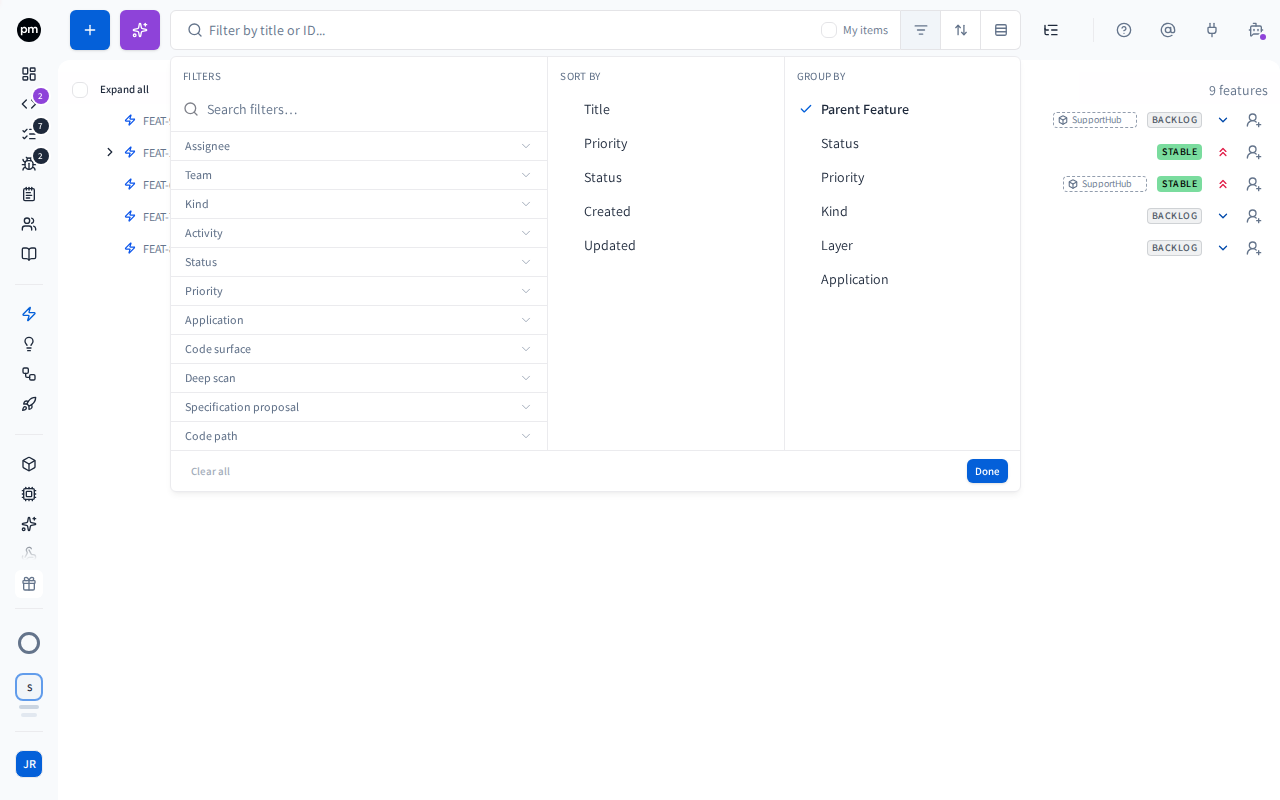
| Column | Options |
|---|---|
| Filters | Assignee (a person or a team), Team (a team, or My teams), Kind, Activity, Status, Priority, Tags, Application, Code surface (Recorded or Missing), Deep scan (Scanned, Waiting for review or Not scanned), Specification proposal (Pending), and Code path (a file or a folder, with Exact match) |
| Sort by | Title, Priority, Status, Created or Updated. Choose an option again to reverse the order, and a third time to remove it. |
| Group by | Parent Feature (the default), Status, Priority, Kind, Layer or Application |
Deep scan filters by what a scan of your code has done for each feature: Scanned features have a specification written by a scan, Waiting for review features have a scan's draft waiting for your review, and Not scanned features have neither yet, including features a scan can't read, such as domains.
Specification proposal: Pending shows every feature whose specification has a draft waiting for your review, or one approved in a coding session's pull request and not yet applied: the rows marked as in review. It counts drafts however they were written, by a scan, a coding session, review comments or a code chat, while Deep scan: Waiting for review counts only a scan's drafts. A feature leaves the filtered list as soon as you apply or dismiss its draft.
The search box matches titles and IDs. While you sort and aren't grouping by anything other than Parent Feature, it matches descriptions too, and the box reads Search title, description or ID.... Press Enter to ask the PM agent to search your features. To search titles and content from anywhere in the list, press Ctrl+K (Cmd+K on a Mac).
While no assignee is selected, the search box offers a My items checkbox. Select it to see only the features assigned to you. It turns into the chip Assignee: Me.
Team shows a team's whole area: its features and every feature under them. While filtering, a feature's arrow folds its subfeatures.
Code path shows the features whose code surface includes a file or a folder. See Code surface.
How filtering, sorting and grouping behave
Filtering keeps the tree: a matching feature is shown with the features above it. Sorting shows every feature on its own row, in the order you chose. When you group by anything other than Parent Feature, the grouping wins and the sort applies within each group.
Productmind remembers your filters, search, sort and grouping for this workspace in this browser, so they are still there when you come back from a feature, until you clear them. The list you open from a feature's ID, on its page, shares them.