

Finding your way around
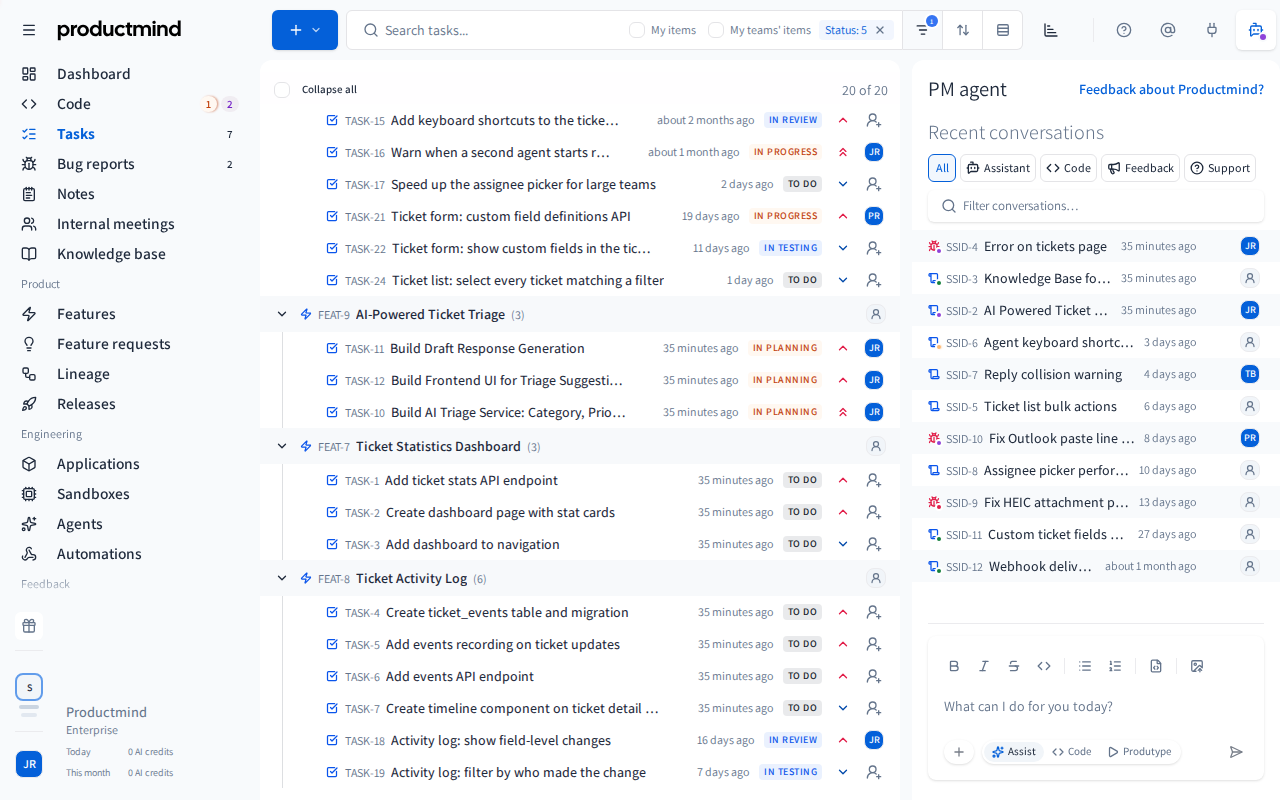
Every page in Productmind has the same frame: the sidebar on the left takes you to each part of your workspace, the page title and the activity panel's tabs run along the top, and the activity panel opens on the right with what's new in Productmind, the Support center, your mentions, integrations and the PM agent.
Key concepts
Sidebar. The menu on the left. You can expand it to show each item's name, or collapse it to an icon rail.
Activity panel. The panel that opens on the right side of any page. It has up to five tabs: Support center, Notifications, What's new, Integrations and PM agent.
Page tools. Extra tabs that some pages add, such as a session or a feature. On a wide screen they sit in a strip down the right edge, and open in the same panel.
Badges. Numbers on menu items, and numbers and dots on tab icons, that tell you something needs you, or that something is running.
The sidebar
The sidebar lists everything in your workspace, in this order:
| Where | Items |
|---|---|
| At the top | Dashboard, Code, Tasks, Bug reports, Notes, Internal meetings, Knowledge base |
| Product | Features, Feature requests, Lineage, Releases, Marketing |
| Engineering | Applications, Environments, Sandboxes, Agents, Automations |
| Feedback | Agentic interviews, Customer meetings, Customer support, Contacts |
| Settings | Settings, Integrations, Identity & Access, Billing & Payments |
You see only the items your role allows, and only the features your organization has. A group with nothing in it for you is left out. For example, only the Owner and Admin roles see the Settings group. See Roles and permissions.
The sidebar takes you to a page and doesn't create anything: to add an item, use its page or the Dashboard. Code, Tasks, Bug reports, Features, Knowledge base, Automations, Feature requests, Releases and Marketing also show counts, and point at one to see those items. See Badges.
To expand or collapse the sidebar
- Choose Toggle sidebar (the menu icon at the top-left). When the sidebar is collapsed, the same button shows the Productmind logo.
Collapsed, the sidebar is an icon rail: point at an icon to see its name, and thin lines separate the groups. On a screen narrower than 1536 pixels the sidebar starts collapsed. Once you choose, Productmind remembers it in this browser.
The bottom of the sidebar
From the bottom up:
-
The workspace switcher moves you to another workspace, in your organization or in another one you belong to. See Organizations and workspaces. If you can manage the workspace you're in, it also opens its Workspace settings.
-
Your avatar opens the profile menu.
-
Refer Productmind to a friend (the gift icon) sends someone a personal link to start their own organization. Send a referral asks for their Email and a Personal note (optional). View all opens the Refer Productmind to a friend page, where you can also send a referral. It shows your Rewards earned, Sent referrals and Pending referrals, and lists each referral you've sent with its status. Choose Revoke on a pending one to cancel it. Only the Owner and Admin roles see the gift icon, and only while your plan includes personal referrals.
When someone you referred accepts and creates their account, you're notified, and the referral shows as Accepted: waiting for a first subscription payment. See Profile and notifications. When a referral's organization starts a paid subscription, your Pay-as-you-go balance is credited with one month of your plan's price for one user, or of the Start plan's while your plan has no monthly fee.
Your plan may limit how many referrals each person can send. The card then shows how many you have left, for example 3 of 5 referrals left, followed by the rewards you've earned, if any, and Sent referrals shows the limit, for example 2 / 5. Pending, accepted and converted referrals count toward it. A referral you revoke doesn't count, and neither does one whose link expires before anyone uses it. A link works for 30 days, and the referral then shows as Expired. Once you've sent them all, the card reads You've sent all 5 of your personal referrals, and Send a referral is unavailable until a pending referral is revoked or expires. If your plan sets no limit, the card shows no count.
-
Your organization's name appears beside them while the sidebar is expanded, with your plan's name under it in smaller text. A name too long for the sidebar is cut short: point at it to see all of it. Your organization's AI credit usage comes next:
- If your plan limits AI credits or includes a number of them each month, bars show how much of each your organization has used, as a percentage: Daily, Weekly and Monthly for the daily, weekly and monthly AI credit limits your plan sets, and Included for the AI credits it includes each month. Point at a bar's name to see when it resets. None of them follows the calendar: a day starts at your subscription's time of day, a week is 7 days counted from the start of your subscription, and a month is your billing period, counted from your subscription date.
- If you pay as you go from your Pay-as-you-go balance and your plan sets no AI credit limit, the Owner and Admin roles see euros, with no bars: what your Pay-as-you-go balance holds, for example €18.34 balance, and under it what the AI credits used today and this month cost at your plan's price. Before your organization activates pay-as-you-go, the balance reads allowance left: what agents can still use of the free allowance. See Before you activate pay-as-you-go. When the balance runs low, it changes color and a line under it says why: orange with "Below the €6.24 a coding step needs to start. Top up to keep sessions running." (the amount is your plan's), red with "New AI work is refused until you top up.", or, before you activate, red with "Free allowance used up: activate pay-as-you-go to continue."
- Otherwise, you see the AI credits your organization has used this month, for example 1.8M AI credits this month, with the ones used today under it. That is what you see when your organization is invoiced, when your plan has no AI credit limit or price, when nothing is charged, and in any role other than Owner and Admin.
A bar turns orange at 70% and red at 90%. Every bar and figure counts the AI credits of Productmind's agents and your coding sessions together: they use the same AI credits. For the Owner and Admin roles, the organization and plan names and usage open Usage.
While the sidebar is collapsed, a small ring above your avatar stands in for them. It fills with the most used limit and takes the color of whatever needs your attention most: a bar at 70% or 90%, a low balance, or red when the PM agent can't take a message right now. Point at it to see the same organization and plan names and usage, and the reason when a message would be refused. For the Owner and Admin roles it opens Usage. Usage updates as soon as a reply or a coding session's run finishes.
Badges
Count badges on a menu item count the work for you in the workspace you're in: work assigned to you, or in the area of one of your teams. A team's area is what the Team filter shows for that team on the list: what is assigned to the team, and the work under a feature assigned to it. Work that nobody is assigned to, and that is in no team's area, isn't counted. The exceptions are Applications, Automations, Feature requests, Releases and Marketing, which count the whole workspace, not only your own work, and so does the orange count on Knowledge base. A violet number is work waiting for you; an orange one is work running now. They're the colors of the items' own statuses: violet for Awaiting User Input and Plan Ready for Review, orange for In Progress. Blue is work in testing or in review, which no count shows. See Status icons.
| Item | Counts |
|---|---|
| Code | In violet, sessions waiting for your answer, your plan review or your review of a pull request. In orange, sessions an agent is working on now. Both count the sessions assigned to you, the sessions you started, and the sessions in your teams' areas. |
| Applications | In orange, application scans running now, in the whole workspace. Each scan counts once, so scanning five applications can show 12, and the number goes down as each scan finishes. |
| Automations | In violet, automation runs that failed in the last 24 hours. In orange, automation runs queued or running now. Both count the whole workspace, and both can show at once. A skipped run isn't counted as failed. |
| Tasks | Open tasks assigned to you or in your teams' areas, in any status. A plain number, since not all of them are waiting on you. |
| Bug reports | Open bug reports assigned to you or to one of your teams, or linked to a feature or task in your teams' areas, in any status. A plain number, since not all of them are waiting on you. |
| Features | In violet, features with a revised specification waiting for someone to review it. In orange, feature scans in progress: your features being scanned now, plus a scan of the whole feature list (a Feature discovery run) while one is in progress, whoever started it. Features are counted only when they're assigned to you or in your teams' areas: a feature nobody is assigned to still shows on the Features page, but not in the count. |
| Knowledge base | In violet, proposed changes waiting for someone to review them, rewrites of documents and new documents, drafted by a session assigned to you, started by you or in your teams' areas. A proposed change no session drafted isn't counted. In orange, documents being processed (Scraping, Processing or Indexing) in the whole workspace. |
| Feature requests | Open feature requests, New or In Review, in the whole workspace, whoever they're assigned to. A plain number. |
| Releases | Releases that are In Progress, in the whole workspace. In violet, releases ready to merge: every application still to release has an open pull request that can be merged, and Productmind has read its checks, with none failing or still running. In orange, the other releases in progress, still being prepared. |
| Marketing | Every like and dislike readers have given your workspace's public release notes in What's new, since the first one. A plain number. What's new shows only Productmind's own release notes, so this count doesn't appear for yours. |
Point at the Applications count to see what it counts.
Point at Code, Tasks, Bug reports, Features, Knowledge base, Automations, Feature requests, Releases or Marketing while it shows a count badge, and the items it counts open beside it, exactly as many as the badge says: the open tasks or bug reports for you or your teams, the features or documents waiting for a review, the open feature requests in the workspace, and:
- for Code, the sessions waiting for you and the sessions working;
- for Features, the feature scans in progress: a Feature discovery run first, while one is in progress, then the features being scanned;
- for Knowledge base, the documents being processed, each with its status;
- for Automations, the runs that failed in the last 24 hours, then the runs in progress, each with its automation, what it ran on and its status;
- for Releases, the releases ready to merge and those being prepared, with why each one being prepared is waiting.
Each list is under its own heading, such as 22 tasks open for you or your teams, and shows only when its count is above 0. Marketing shows the likes and dislikes in all, then each release's. Choose an item to open it, or View all to see its list. On Tasks, Bug reports and Code, View all opens the list with the Assignee filter set to For me, so it shows the same items, and on Feature requests with the Status filter set to New and In Review. On Features, Knowledge base, Releases and Marketing it opens the whole list, and on Automations the Runs tab, with every run. Without a count, nothing opens.
An orange count that work is running behind has a soft light circling it, and a violet count glows softly, fading in and out. The orange count on Releases stays still, since a release can wait days for its checks or a fix. With the sidebar collapsed, each icon shows one count: the violet one when there are two.
The activity panel's tab icons carry badges too:
- Notifications counts your unread mentions in this workspace.
- What's new counts the release notes you haven't read or dismissed. Reading a note's full text, or dismissing it, takes it off the count, on every device you sign in on.
- Support center counts support requests with news for you, and shows a dot when one waits on you. See Support center.
- PM agent shows a dot when a coding session assigned to you, started by you or in your teams' areas is waiting for you.
Status icons
In the lists, such as Tasks, Bug reports, Code, Feature requests, Features, Releases, Applications, Knowledge base, the customer feedback lists and the PM agent tab's conversations, each row shows its status as a small icon near the end of the row. Point at a row, or move to it with the keyboard, and the status's name appears beside the icon.
The icon's shape says how far along the item is, and its color says whether someone needs to act:
| Icon | Means | For example |
|---|---|---|
| A dashed circle | Not picked up yet | To do, Open, New, Backlog, Draft, Scan queued |
| An empty circle | Planned, not started | Planned, Confirmed, Scheduled |
| An orange, half-filled circle, with a soft light circling it | Work is running | In progress, Building, Processing, Scanning |
| A blue, three-quarter filled circle | In testing or in review | In testing, In review |
| A violet dot that glows softly, fading in and out | Waiting for you | Plan review, PR review, Needs input, Spec review |
| A circle with two bars | On hold | Agent offline |
| A green circle with a check | Approved, not finished yet | Plan approved |
| A filled blue check | Delivered, not live yet | Released: every application merged, its deployment not finished |
| A filled green check | Done | Done, Completed, Resolved, Deployed |
| A circle with a slash | Stopped on purpose | Cancelled, Rejected, Merged, Archived |
| A filled red alert | Failed | Failed |
When a session waits for you, its row says so in full, such as Plan ready for your review, while the row has room for it beside the session's name, and so does a feature whose revised specification waits for review: Spec ready for your review. With your system set to reduce motion, the icons stay still.
On Features, a feature that is being scanned, waiting in the scan queue or waiting for a review of its specification shows that in place of its status, written out while the row has room: who is scanning it and where, with their picture (Ada scanning on Productmind cloud, Ada queued a scan on Productmind cloud), or Spec ready for your review. Its status comes back when the scan or the review is over. The sidebar's Features list shows the same.
If you can change an item's status, choose its icon, then choose another status. On Features, a scan or a review shown in place of the status isn't a status you choose: change the status from the row's right-click menu meanwhile.
The activity panel
The tab icons sit at the top-right of every page. Choose one to open its tab in the panel. Choose the same icon again to close the panel. Drag the panel's left edge to make it wider or narrower. Productmind remembers which tab you had open.
| Tab | What it's for |
|---|---|
| Support center | Help with using Productmind: the assistant, which answers questions about Productmind and its API and has no access to your workspace data, the guide for the page you're on, and your organization's support requests to Productmind. See Support center. |
| Notifications | Your notifications, in two sections: Mentions, where a person mentioned you or gave you work, then System, for everything Productmind tells you itself. See Profile and notifications. |
| What's new | Productmind's own release notes, newest first: each note's date, headline and summary. Choose Read the full notes to read one, and the back arrow to return to the list. Dismiss removes a note from your list, and Show all lists every note again once you've dismissed one. Show older loads earlier notes. Like or dislike a note, share your feedback on it, or select a passage in the full notes to give feedback on that passage. Everyone signed in sees it, whatever their role. See What's new. |
| Integrations | Four groups: Workspace and User integrations, the MCP Servers you've added, and MCP Clients, which shows whether Claude Code, Codex and GitHub Copilot are connected to Productmind. View all opens the Integrations page. With a role other than Owner or Admin, you see User and MCP Clients. |
| PM agent | Tasks related to your workspace: your conversations with the PM agent, and the conversations of coding sessions. See The PM agent. |
What's new
The What's new tab lists the release notes Productmind publishes about Productmind itself, ten at a time, newest first. Each published release note is its own entry, dated by when it was first published, so one announcement can bring several notes. The tab shows only the published version of each note: when Productmind updates or withdraws one, the tab follows. It isn't about your workspace, so it reads the same in every organization and workspace.
The tab's icon counts the notes you haven't read or dismissed yet:
- Read the full notes opens a note and marks it read. A note you've read stays in the list, but no longer counts.
- Dismiss removes a note from your list. It no longer counts, whether you read it or not.
- Once you've dismissed a note, Show all appears at the top of the tab. It lists every note again, the ones you dismissed marked Dismissed. Hide dismissed goes back to your list. Leaving the tab does the same. A dismissed note can't be brought back into your list.
What you've read and dismissed is yours: it follows you on every device and browser you sign in on, and in every organization, and nobody else's list changes.
Telling Productmind what you think
Each note, in the list and above its full text, has a like and a dislike button and Share your feedback:
- Like or dislike a note to tell Productmind's team what you think of it. You have one reaction per note: choose the other button to change it, or the same one again to remove it. Your reaction is kept on every device you sign in on. You see only your own reaction, never how many people reacted. Productmind's team sees who reacted, with your name, email address and the organization you were signed in to.
- Share your feedback opens a Feedback conversation in the tab. A card at the top shows the note it's about, its date, and your reaction if you've given one. Write what you think and send it. The back arrow returns to where you were.
- In a note's full text, select a passage (on a phone, press and hold, then drag the handles) to give feedback on exactly that text. Choose Share feedback in the small box that appears beside it, or Cancel (or press Escape) to close it. The conversation's card quotes the passage and the section it's under.
- A link in a note opens in a new tab, so you stay where you are in Productmind.
These conversations are the same as Feedback about Productmind? in the PM agent tab: they appear there under Feedback too, with the same card, and Open the notes on the card goes back to the note in What's new. Productmind's team reads every conversation.
To publish release notes about your own product, see Marketing.
The PM agent
The PM agent tab opens on PM agent conversations, the most recently active first. Filter them by title in the box at the top, or by All, Assistant, Code, Feedback or Support (your Support center assistant conversations, where the assistant is available), at the end of the box when the tab is wide enough and under it otherwise. Choose one to continue it. Productmind remembers your filters for this workspace in this browser.
Each conversation shows, on the right, when it was last active (5m, 3h, 4d, then the date; point at it for the full time), then a status icon where it has a status, then an avatar. A coding session's conversation shows the session's status, and a feedback conversation you haven't sent yet shows a dashed circle, Draft. A coding session's conversation shows the session's assignees, as the session's row on the Dashboard does, or a gray person icon when nobody is assigned (point at it for Unassigned). Every other conversation shows its owner, so your own conversations with the PM agent, your feedback and your support conversations show you. The avatar is read-only: to assign people, open the session.
Right-click a conversation for more:
- Open in new tab opens a coding session's page, or a conversation with the PM agent on its own page. Feedback and support conversations open only in their tabs.
- Delete deletes one of your conversations with the PM agent, after you confirm. A coding session's conversation can't be deleted: it's the session's record.
To start a conversation, type in the box at the bottom of the tab, under the conversations, which reads What can I do for you today?, then press Enter. The conversations fill the space above the box. On the Dashboard and the Code list, the box sits on the page instead, under What shall we build today?, and the tab doesn't show its own: the conversations then fill the whole tab. In the box:
- the formatting bar above your text: bold, italic, strikethrough, code, a bulleted or numbered list, and a block of code, then Upload image (the picture icon), which attaches a screenshot or picture. Choose an image you added to see it full size, and use the arrows or the left and right arrow keys to step through several;
- Add work items as context (the +) pins records, such as a task or a feature, to the message;
- Assist, Code and Produtype, at the left of the box's bottom row, choose who your message goes to. Point at one to see what it does. In Assist the PM agent works out what you want: it talks an idea through with you without creating anything, and creates tasks, features, bug reports or a coding session when you ask for them. Code sends your message to the coding agent, which reads the code of the applications in the row after the modes and talks a change through with you, changing nothing until you ask for a plan. See Code conversations. Produtype turns the send button into Play, which starts a live preview straight away, with or without a first instruction. In a conversation with the PM agent, Code and Produtype carry that conversation on into a session.
The assistant works autonomously: it makes changes without asking, except handing the conversation to Code or Produtype, which always shows its card so you choose the scope.
How-to questions about Productmind. Ask the PM agent how to do something in Productmind, such as "How do I install the local agent?" or "Where do I change the branch prefixes?", and it answers from this User Guide and the API reference, with the steps and commands as the guide gives them and a link to each page it used. Questions about your own work, such as your features, tasks and documents, it answers from your workspace.
Where its sessions run. If you can start coding sessions, a chip next to the PM agent title, and next to a conversation's title, names your Productmind agent while one is online, such as my-laptop: the sessions you start from the assistant run there. While your workspace has turned off Productmind cloud sessions and none of your agents is online, a gray No local agent chip shows instead: choose it to connect one. See Productmind CLI.
When a message can't be sent. If your organization's AI work would be refused right now, because pay-as-you-go spending is paused, a daily, weekly or monthly AI credit limit is reached, the Pay-as-you-go balance can't cover a reply, or pay-as-you-go isn't activated yet, the box says so above it before you type, with what fixes it: Top up, Activate pay-as-you-go, Open Usage or View plans, or who to ask if you can't. Sending is unavailable until it's fixed, and what you've typed stays in the box. A limit says when it resets. Check again looks again right away, and the box checks by itself every 30 seconds. Close to a limit, a gray line says how much of it is used and when it resets. In a coding session's conversation, a message the agent's next turn couldn't be paid for is held the same way.
Formatting your message. You can format a message as you type it: wrap words in two
asterisks for bold (**bold**), one for italic (*italic*), two tildes for strikethrough
(~~old~~) and backticks for code (`code`). Start a line with - or 1. for a list, or
with three backticks and a space for a block of code. The keyboard shortcuts work too: Ctrl+B
(Cmd+B on a Mac) for bold, Ctrl+I for italic, Ctrl+E for code, Ctrl+Shift+X for strikethrough,
and Ctrl+Shift+8 or Ctrl+Shift+7 for a bulleted or numbered list. Enter always sends; Shift+Enter
starts a new line, and in a list the next item. Press Shift+Enter on an empty item to leave the
list. Your message appears in the conversation the way you formatted it.
Approvals. When the assistant needs your approval, it shows what it wants to do, with Approve and Deny. Your answer always goes to the assistant that asked, even if you've moved to another page since. Deny always means it doesn't go ahead, and the assistant is told that it was your choice.
The approval waits for you in every browser tab where you have the conversation open, and it is still there after you reload the page, so you can answer it from any of them. Once you answer, it closes in your other tabs too, and the assistant's reply appears there when it's done. You can answer an approval only once: if it was already answered, for example in another browser tab, the assistant says so and does nothing. Only the person who started a conversation can answer its approvals. An approval you leave unanswered for about a day closes, and the reply shows as cut off.
While an approval waits, the box reads Waiting for your approval - your message goes next. A message you send then waits its turn, marked Queued, and is sent after the assistant has replied to your answer.
A message that wasn't sent. Before a message goes to the assistant, Productmind checks your organization's billing. If the message is refused, because the Pay-as-you-go balance can't cover it, pay-as-you-go isn't activated, spending is paused or a usage limit is reached, or because your organization's own model provider key can't be used, it isn't added to the conversation. A Message not sent card above the box says why, with the action that fixes it, such as Top up. If you can't take that action, the card says who can, for example "Ask an Owner or Admin to top up the Pay-as-you-go balance." For a daily, weekly or monthly limit, the card also says when the limit resets, and when no plan you can switch to raises it, the card offers no action: wait for the reset. Your words, images and pinned records are back in the box: once the cause is fixed, choose Try again to send them. The card stays until you close it or send again, and queued messages wait until then. A new conversation whose first message wasn't sent isn't listed in PM agent conversations until a message goes through.
Each conversation keeps its assistant. Where you start a conversation decides which assistant you talk to: one that specializes in tasks when you start it on Tasks, one that specializes in customer research when you start it on Agentic interviews, Customer meetings, Customer support or Internal meetings, and the product assistant anywhere else. The conversation stays with that assistant when you move to another page, and when you come back to it later. To talk to a different assistant, choose the back arrow at the top of the tab to return to Recent conversations, then start a new conversation on that assistant's page.
It knows what you have open. When you send a message from a record's page, such as a task, a feature or a bug report, the assistant is told which record you have open, whichever page the conversation started on. So with a task open, you can ask it about "this task".
Refer to work by its ID. Name a record by the ID you see in the app, such as TASK-12, FEAT-4, PFR-3 or BUG-3, and the assistant looks it up. When it finds tasks, features or feature requests for you, it knows their IDs too, so it can refer to them the way the app shows them.
Feedback about Productmind? starts a conversation that sends your feedback to the Productmind team. To show what you mean, add up to 5 screenshots to a message: paste them, drop them on the box, or choose Upload image. The Support center has the same link. A conversation under Support opens in the Support center when you choose it.
Writing in the tab needs Chat: Enabled in your role. The Viewer and Customer roles can read conversations there, but not write. See Roles and permissions.
The profile menu
Choose your avatar at the bottom of the sidebar.
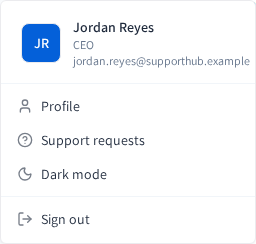
The menu shows your name, job title and email, then:
- Profile, your profile page;
- Support requests, if your role can see support requests to Productmind;
- Dark mode, or Light mode while dark mode is on;
- Install app, when your browser can install Productmind;
- Sign out.
To switch to dark mode
- Choose your avatar, then Dark mode.
The whole app switches to dark colors. Choose Light mode in the same menu to switch back. Productmind remembers your choice in this browser.
To install Productmind as an app
You can install Productmind from Chrome, Edge and other Chromium-based browsers. It then opens in its own window, with its own icon in your dock, taskbar or app launcher.
- Choose your avatar, then Install app. You can also use the install icon at the right of your browser's address bar.
- Confirm in your browser's dialog.
Productmind opens in its own window. Install app isn't shown once it's installed, or in a browser that can't install apps, such as Firefox or Safari.
On a small screen
On a screen narrower than 1024 pixels, the sidebar is hidden: choose the menu icon at the top-left to open it. A page's own tools join the activity panel's tabs in the icons along the top. Support center, PM agent, Notifications, Integrations and each page tool open as panels over the page. A page tool with nothing to show yet is grayed out.
In Notifications, Integrations and a page tool, choosing something that opens another page, such as a mention, closes the panel and shows that page.
Related topics
- Organizations and workspaces
- Dashboard
- Profile and notifications
- Support center
- How it all fits together