

Destroying an environment
When an application's environment deploys to a cloud account, its stack runs there: the app, its API, its database and its address. Destroy removes that stack through the repository's destroy workflow, keeping a snapshot of the database first. The environment stays attached, so you can deploy it again later, or detach it once its stack is gone.
Destroying environments is part of Cloud accounts, which is in early access.
Key concepts
Destroy. Productmind stops the environment's deploys, then runs the destroy workflow of the application's repository in the environment's cloud account. It takes a snapshot of the database first, when the stack has one, then removes the app, the API, their data and the address. It takes about half an hour.
The production wait. A Production environment's destroy waits 24 hours before it starts. Productmind tells the workspace's Owners and Admins, any of them can cancel it until then, and the environment keeps deploying meanwhile. Any other environment's destroy starts at once.
What stays. A destroy keeps:
- the database's snapshot, when the stack has a database;
- in a Production environment, the uploads bucket with its files;
- the deploy state and artifacts buckets and their key (the key about USD 1 a month);
- in an account Productmind manages, the account's network, about USD 38 a month plus its public address, billed with the storage of what stays until the account is deleted.
In your own AWS account, everything that stays is in that account. The repository keeps the environment and its settings, and the branch keeps its protection. A domain you own keeps its DNS zone and the DNS records you keep in Productmind, so its mail keeps working.
Deploy again. A destroyed environment stays attached, and nothing deploys to it. Deploy again builds it anew from its branch's newest commit, in the same account and at the same address. Its database starts empty: the snapshot of the destroyed one stays in the account.
Each environment's row shows its destroy:
| State | What it means |
|---|---|
| Destroy scheduled | A Production environment's destroy waits its 24 hours. The row says when it starts, and the environment keeps deploying until then |
| Destroying | Deploys are stopped and the destroy has started |
| Restoring | Productmind is putting the environment back in its deploys, after a cancel or Deploy again |
| Destroy failed | The destroy stopped. The row says why and what to do, and nothing deploys until you try again, cancel or detach it |
| Destroyed | The stack was removed. The row says when, and what stays |
The destroy at a glance
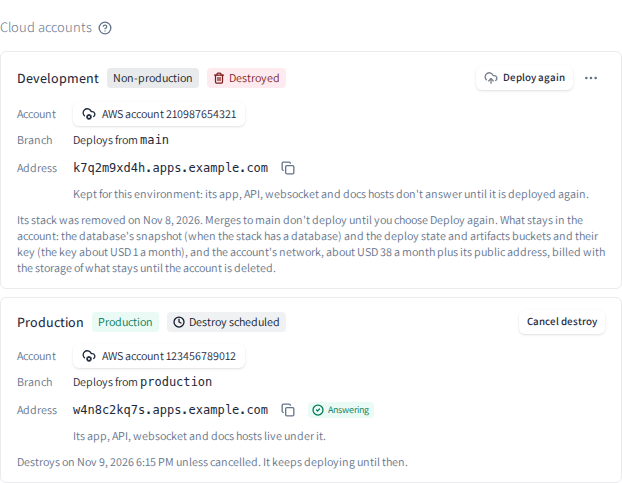
Destroy... is in the environment's row menu (the ...), above Detach..., while the environment is Active. Once a destroy is asked for, the row shows its state, with Cancel destroy, Try destroy again or Deploy again where they apply.
Destroying an environment
To destroy an environment
- Open the application and choose Source code.
- Under Cloud accounts, choose the ... on the environment's row, then Destroy....
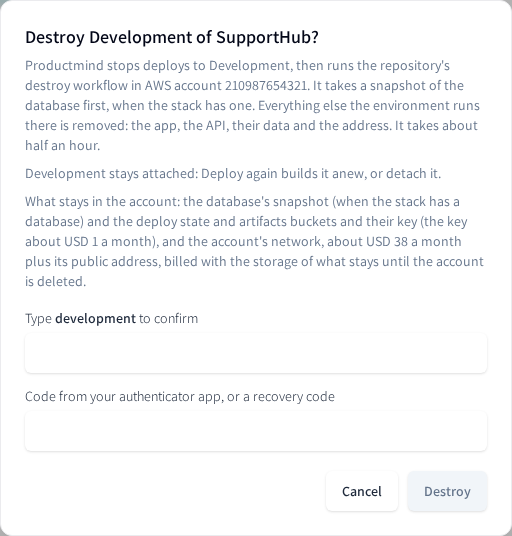
- Read what Productmind does and what stays in the account.
- Enter the environment's key, for example development, exactly as shown.
- If you have set up an authenticator app, enter a code from it, or one of your recovery codes.
- Choose Destroy, or Schedule destroy for a Production environment.
The row shows Destroying, then Destroyed. A Production environment's row shows Destroy scheduled and the time its destroy starts, then Destroying.
To destroy an environment, then detach it
When an environment's stack may still run in its account, Detach asks first what happens to it.
- Open the application and choose Source code.
- Under Cloud accounts, choose the ... on the environment's row, then Detach....
- Choose Destroy, then detach, then Continue.
- Confirm the destroy as in To destroy an environment.
Once its stack is removed, Productmind detaches the environment. To keep the stack running instead, choose Detach and keep it running: see Cloud accounts.
To cancel a destroy
- Open the application and choose Source code.
- Under Cloud accounts, choose Cancel destroy on the environment's row.
- Read what the cancel does, then choose Cancel destroy.
A scheduled destroy has removed nothing: the environment keeps deploying. A destroy under way stops and the environment goes back to deploying, unless its destroy job has already started: a destroy that has started can't be stopped. After a destroy that failed while changing the stack, Productmind also deploys the environment's branch to put back what the destroy changed. If the database was removed, the new one is empty: its data is in the snapshot.
To try a failed destroy again
- Open the application and choose Source code.
- Under Cloud accounts, choose Try destroy again on the environment's row.
- Enter the environment's key and, if you have an authenticator app, a code from it.
- Choose Destroy.
The destroy runs at once: a Production environment doesn't wait another 24 hours. Productmind reads the repository's destroy workflow again, so a changed workflow is the one that runs.
To deploy a destroyed environment again
- Open the application and choose Source code.
- Under Cloud accounts, choose Deploy again on the environment's row.
- Choose Deploy again.
The row shows Restoring, then Active, and its deploy appears under Deploys: see Deploys.
How destroys behave
A destroy asks you to confirm it. You type the environment's key, which proves which environment you mean. If you have set up an authenticator app, the destroy also takes a fresh code from it or a recovery code, which a stolen session can't give. A recovery code is used up once it is accepted: a destroy refused before your code is checked keeps it. Wrong codes count toward your account's limit, the same one as signing in.
What stops while a destroy is asked for. The environment's stack settings, its branch and its domain can't change while a destroy is scheduled, under way, restoring or failed. Once it is destroyed, its stack settings can change again and apply at Deploy again; its branch and its domain change once it is deployed again or detached. Retry deploy and Deploy now aren't offered from the moment the destroy starts until the environment deploys again. To detach it while its destroy is scheduled or under way, cancel the destroy first; once the row shows Active, detach it, or destroy it again choosing Destroy, then detach. A destroy whose job has started can't be cancelled: detach the environment once the destroy ends.
Who is notified. The person who asked and the workspace's Owners and Admins are told at each step: Destroy scheduled, Destroy started, Environment destroyed (with what stays), Destroy failed and Destroy cancelled; and when GitHub refuses a step Productmind takes for them, Deploy not started, Cancel didn't go through or Deploy again didn't start, each saying what to do. Each appears in the app and is emailed, or arrives as a Slack direct message instead when you have connected your Slack account (see How notifications reach you).
The rows keep themselves current. While an environment is Destroying or Restoring, its application's Cloud accounts rows refresh every 15 seconds.
Deploys show the destroy. The destroy's run appears in the environment's deploys, as Destroy by the person who asked.
Each destroy is recorded. Each destroy and each try again is recorded in the audit log, with who asked, as is each change of the destroy's state.
Permissions
| To | You need |
|---|---|
| See an environment's destroy and its state | Anyone who can open the application |
| Destroy an environment, cancel its destroy and try a failed destroy again | The Owner or Admin role, signed in to Productmind yourself |
| Deploy a destroyed environment again | The Owner or Admin role, signed in to Productmind yourself, and Cloud accounts in your plan |
Neither your plan nor the Cloud accounts rollout ever holds back destroying, cancelling or trying again. Only Deploy again, which builds an environment anew, needs Cloud accounts in your plan and turned on for your organization.
Limits
- A Production environment's destroy waits 24 hours before it starts.
- A destroy that has started can't be stopped.
- Productmind starts a destroy at most three times in all: when newer runs replace it before it starts, or its request runs out first, it starts it again. After the third time it fails, and you can try it again.
Troubleshooting
"That code is not right."
The code was wrong, or a code from your authenticator app was already used. Enter a new code, or one of your recovery codes.
"Too many incorrect codes have been entered for this account, so signing in is paused."
Too many wrong codes were entered. Try again after the time the message names. If you did not enter them, reset your password.
"The text typed isn't this environment's key, so nothing was destroyed."
Type the environment's key exactly as the dialog shows it, in lower case.
"Destroy works while the cloud account takes deploys"
The cloud account is frozen, being deleted or not ready, or your organization is suspended. Destroy the environment once its account takes deploys again and its row shows Active.
"Development's domain is changing"
A domain change is being prepared, or the environment moved to a new domain and hasn't deployed since. Cancel the change, or deploy once, then destroy it.
"The repository's destroy workflow isn't on main"
The repository's destroy workflow is missing from the environment's branch or from the repository's default branch. Restore it there, or contact Productmind support.
"A destroy that has started can't be stopped."
The destroy is already removing the stack. It finishes, or fails and can be tried again.
"Productmind can't tell yet whether this destroy has started."
Productmind is still finding out from GitHub whether the destroy has started. Try again in a few minutes.
"The recovery code you entered is used up"
The destroy was refused after your recovery code was checked, for the reason before these words. Use another recovery code when you try again.
"Wait for a new code from your authenticator when you try again."
The destroy was refused after your authenticator code was checked, for the reason before these words, and a code can't be used twice. Enter your authenticator's next code when you try again.
A destroy failed
The row says why. A few causes:
- The stack differs from main's newest commit or its stack settings: its protection is lifted only for a stack that matches them. Cancel the destroy, deploy, then destroy again.
- Part of the stack's protection was lifted and it still runs: choose Try destroy again to finish, or Cancel destroy to put the protection back.
- The destroy stopped partway: choose Try destroy again to finish it.
- The snapshot failed: nothing was removed. Choose Try destroy again.
- Productmind couldn't cancel the destroy: GitHub refused a change to the repository's deploy settings, so a destroy already dispatched may still run. Choose Cancel destroy again, or detach the environment.
"This repository left Productmind's hosting, so Productmind can't destroy its stack."
The application's repository is no longer hosted by Productmind. In an account Productmind manages, delete the account to remove what it runs; in your own AWS account, remove the stack there.