

Releases
A release ships code. You pick the applications going out, and Productmind compares each one's development branch with its production branch, lists the commits in between and opens a pull request for each. It drafts the release notes from those commits and works out which tasks, bug reports and sessions the release contains. When the checks pass, one button merges every pull request and tags the result, or you release the applications one at a time when they must go out in an order. Another button closes every pull request of the release at once, and you can re-open them later.
Key concepts
ID. Every release has an ID such as REL-4, numbered within your workspace. Its pull requests are titled with the ID, followed by the release's name once it has one, and the tag it creates is named with the ID. Productmind doesn't give your applications version numbers.
Name. A new release is named after its ID. When Productmind drafts the release notes, it also gives the release a name from what the commits contain, unless you have renamed it yourself.
Status.
| Status | Meaning |
|---|---|
| Planned | Created. New releases start here. |
| In Progress | Its pull requests are open, or some of its applications are released and the others aren't yet. Closing them with Close keeps this status. |
| Released | Every application has been merged, and the features it shipped turn Stable. The release shows the date it shipped. Its icon is a blue check. |
| Deployed | The deployment jobs of every merged application have finished without a failure: the release is live. Its icon is a green check. |
| Archived | Put away. Set it yourself. |
Branches. A release merges each application's development branch into its production branch. The pair comes from your workspace's Git workflow settings, and an application can use its own pair instead. See Applications.
Release notes. The text that goes into every pull request and tag when you release. Productmind drafts it from the commits, and you can edit it. These notes are for your team. The release notes you publish for your customers are written in Marketing, in a Marketing release: attach a release to one as a source, and Productmind drafts from the work it shipped, reading these notes as background and never changing them. A release can be attached to any number of Marketing releases, and creating or shipping a release adds nothing to Marketing by itself. Marketing waits for each attached release to show Released or Deployed before it publishes, approves or sends anything.
In this release. The tasks, bug reports and sessions the release contains, grouped by the feature they belong to. Productmind finds them in the commits: from the coding sessions that made the commits, and from IDs such as TASK-12 or BUG-3 that commit messages cite. You can add work by hand too.
The Releases page at a glance
In the sidebar, under Product, choose Releases.
The toolbar holds Create release (the + button), the search box, and Filters (Status and Tags), Sort (Name, Status, Released or Created) and Group by (Status). Each row shows the release's ID and name, its tags, its status as an icon (point at the row to see its name; see Status icons), and how many tasks, bug reports and sessions it shipped.
Choose a release to open it beside the list.
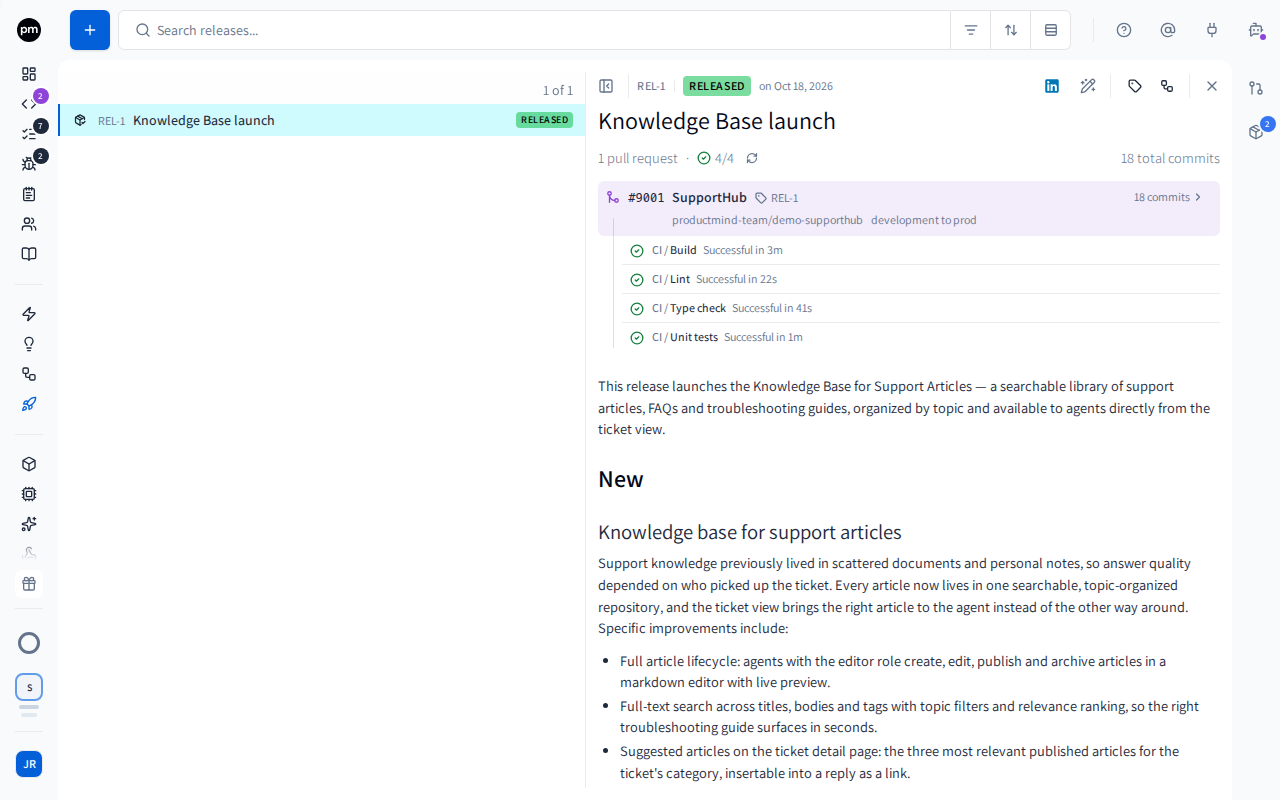
The header holds the ID, the status and the date the release shipped, then Share on LinkedIn, Draft release notes with AI (or Re-draft release notes) and Close. The name below it is editable. Tags and Lineage are in the rail on the right, with Pull requests and In this release.
Applications lists one row per application in the release. The heading counts the pull requests and sums their checks, such as 33/39 passed; choose the refresh button beside it to read every pull request's checks again. The total number of commits and lines changed sits at the right. Each row shows:
- its pull request's number, such as #9001, which opens it in your Git provider, and the application;
- the repository and the branches it merges, such as development to main, and, once shipped, the tag;
- the number of commits and the lines added and removed;
- its checks, listed under it. Each check shows how long it took, or how long it has been running.
Choose N commits to list the commits under the checks. The list shows the newest 20; for more, choose View the full PR.
Choose an application's row to read its changes in the Pull Requests panel. See Reviewing an application's changes.
The applications take at most two thirds of the page. When they need more room, for example a pull request with dozens of checks, they scroll on their own under the heading.
Refresh, Close and Release sit under the applications, until the release has shipped. Once some applications are released on their own, Release reads Release the rest. When every pull request is closed, Re-open takes their place. See Closing and re-opening a release.
The release notes follow.
The applications, the buttons and the notes share one column in the middle of the page, as wide as a coding session's.
In this release opens on the right when you choose it in the rail, right under Pull Requests. See Curating the work in a release.
What an application's colour means
A row's colour says whether the application can ship, and the line under it says why.
| Colour | Meaning |
|---|---|
| Green | Every check passed and the pull request can be merged. A repository with no checks at all counts as ready. |
| Amber | In progress: not prepared yet, being prepared, or a check is still running. |
| Red | Someone has to act: a check failed, the pull request can't be merged yet (for example because of a conflict or a required review), or something went wrong, such as a branch that doesn't exist. |
| Violet | Merged. |
| Grey | The pull request is closed, with Close or in your Git provider. The line under it says Pull request closed, and the release can't ship until it's re-opened. |
| No colour | The checks haven't been read yet, they are being read again for the pull request's latest commit, or your Git provider didn't let Productmind read them. The reason is under the row. |
A faded row says No changes to release: the development branch has nothing the production branch lacks, so the application sits out of the release.
Creating a release
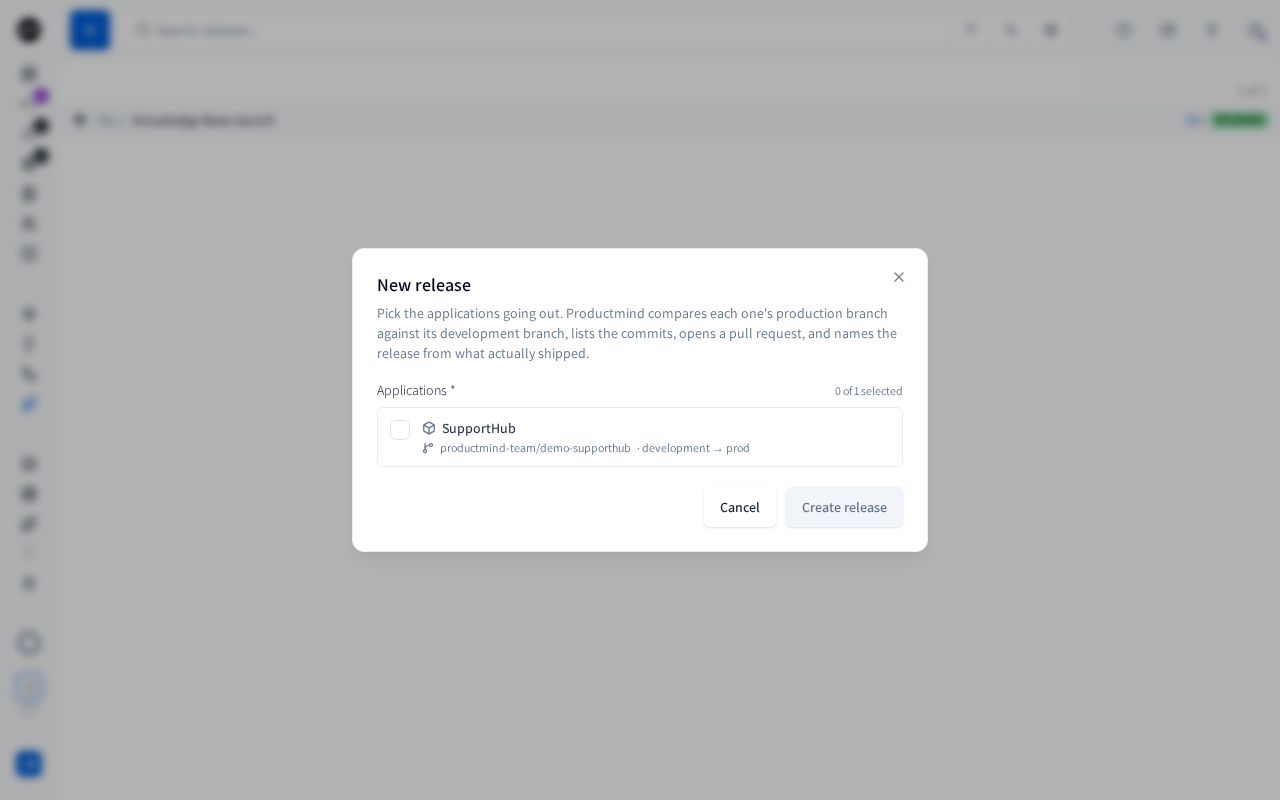
To create a release
- In the sidebar, choose Releases.
- Choose Create release (the + button).
- In New release, select the applications going out. Each one shows its repository and the branches it will merge. override marks an application that uses its own branches.
- Choose Create release.
The release opens and prepares itself. For each application, Productmind compares the branches, lists the commits and opens a pull request from the development branch into the production branch, or reuses one that is already open. It then drafts the release notes and finds the work the release contains.
A new pull request is opened as you when you've connected your own GitHub, GitLab or Bitbucket account and it can push to the repository: your Git provider shows you as its author. Otherwise your workspace's Git connection opens it. A pull request that was already open keeps its author.
A release can hold any number of commits. Productmind reads them newest first, and a very large release that takes too long to read keeps its newest commits: the commit list then says Showing how many of the total it lists, and work cited only by the oldest commits isn't found.
Only applications with a connected repository are listed. You choose the applications when you create the release. Later you can remove one, but not add one.
To bring a release up to date
The development branch keeps moving while you prepare a release.
- Open the release and choose Refresh.
Productmind compares the branches again, updates the commit list and finds the work again. It drafts new release notes and, if you have already written notes, offers the draft for review instead of replacing yours. A pull request that was closed, for example in your Git provider, is re-opened, or replaced by a new one when it can't be. Applications that are already merged are left as they are.
When a pull request now has a newer latest commit, or a different pull request, its earlier checks no longer apply. Productmind clears them and reads the checks again right away. Until they are read, the checks under the row say Refreshing checks for the latest commit..., and the release button waits (see To release).
When every pull request of the release is closed, Refresh gives way to Re-open. See To re-open a release.
To remove an application from a release
- Open the release and point at the application's row.
- Choose Remove from release.
The application disappears from Applications, and releasing no longer merges it. Its pull request stays open in your Git provider. A merged application can't be removed.
Writing the release notes
Choose the notes to edit them. They are what your team reads on every pull request and tag.
To draft the notes with AI
- Choose Draft release notes with AI, or Re-draft release notes if there are notes already.
- Wait while Productmind drafts them from the commits. Stop cancels the draft.
If the notes were empty, the draft fills them in. Otherwise a banner says AI re-drafted the release notes from the latest commits. Choose Review changes to compare the draft with your notes and apply it, or Dismiss to keep yours.
Curating the work in a release
In this release lists the tasks, bug reports and sessions the release contains, under the feature each belongs to. Choose In this release in the rail, right under Pull Requests, to open it on the right; the button shows how many items the release contains. Work that belongs to no feature is under Other. Each item that Productmind found shows the short ID of the commit it came from. Choose it to open the commit.
To add work by hand
- Open the release and choose In this release in the rail.
- Choose Add work.
- Choose tasks, bug reports or sessions, and select the item.
The item appears under its feature. Work you add stays on the release every time it is refreshed. To remove it, point at it and choose Remove from this release. Work that Productmind found in the commits can't be removed, because the next refresh would find it again.
To check the work again
Match the release's recorded commits against your work again, for example after you've fixed a task's parent, or when the release's Lineage shows its tasks but not the coding sessions that did them.
- Open the release and choose In this release in the rail.
- Choose Re-check work items, the refresh button before Add work.
The list of work is rebuilt from the same commits, and so are the coding sessions the release found in them, which its Lineage and each session's Release panel show. It doesn't compare the branches again or change the commit list, and it keeps the work you added by hand.
Reviewing an application's changes
You can read every change a release ships without leaving Productmind, and comment on it.
The Pull Requests panel opens on the right when you choose an application's row, or choose Pull Requests in the rail. From top to bottom it holds:
- the application's row, with its checks;
- how many comments are unresolved;
- Release followed by the application's name, to release this application on its own. See To release one application;
- the pull request's Description, the first thing in the list;
- Collapse all or Expand all, how many files are high risk, and how many you've marked viewed. This row stays in view as you scroll through the files;
- Not in the current diff: comments on files the pull request no longer changes;
- each changed file, folded: its path, whether it was added, deleted or renamed, its risk flag, how many lines it adds and removes, and how many comments it has. Open a file to read its diff.
The panel's Release merges this application's pull request only. The rail's Pull Requests button shows how many pull requests are open, and a dot when comments wait for you.
To review an application's changes
- Open the release and choose the application's row. Its number and its branch open the pull request in your Git provider instead.
- Start with the files flagged High risk, then Medium risk. Point at a flag to see the rules the file matched.
- Choose a file to open it and read its diff. Select Viewed on a file to fold it away once you've read it.
To read another application's changes, choose its row: the panel switches to it. When you close the panel, Pull Requests in the rail opens it again on the same pull request.
Every file starts folded, so a large release shows at once. A file's diff is prepared when you open it, and in the background while you read the others; until it is ready, the file shows grey placeholder lines. If a file's diff can't be shown, choose Retry on that file. A file with a very large change is shown without syntax colours. Your browser's find searches only the diffs on screen, so open a file to search it.
Your Viewed marks are kept in your browser. When a file you marked changes, the mark is cleared and the file opens again, so you read it again.
Deployment jobs under a merged application
Once an application is merged, its row lists the jobs of the deployment the merge started, under its own checks and a thin heading such as Deployment · Production. They are the same jobs Deployments shows for that merge: the jobs of the deploy run when the application deploys to one of your cloud accounts, otherwise every check that ran on the merged commit, your deploy workflows included. They move as the jobs move. Until the first job starts, the heading says Waiting for the deployment's checks to start....
These jobs never count towards the application's checks or towards whether it can be released: they run after the merge, on the merged commit.
When every merged application's jobs have finished without a failure, the release turns from Released to Deployed on its own. A failed or cancelled job keeps it Released, with the red job under the application; a successful re-run turns it Deployed. A release whose applications have no deployment jobs stays Released.
To edit a pull request's description
A long description shows its first 10 lines; choose Show more to read the rest.
- Choose the description. An empty one reads Add a description.
- Edit it, then choose anywhere outside it to save it to your Git provider. Press Esc to discard your changes instead.
From then on, releasing keeps this description: Productmind updates the pull request's title but doesn't write the release notes into it. The notes stay on the release. A line under the description says who edited it.
If someone changed the description in your Git provider while you were editing, nothing is saved and your text stays in the editor: save again to replace their version. A description that uses HTML, or a table with aligned columns, is shown with a link to edit it in your Git provider instead.
To comment on a line
- In the diff, choose the line number.
- Enter your comment in Leave a review comment.... Type @ and a name to mention a teammate: they're notified, with a link to the release.
- Choose Comment.
The comment stays on the line, and everyone who can see the release sees it. Reply to it, Resolve comment when it's dealt with, or Delete comment. Comments stay in Productmind: they aren't posted to your Git provider.
You can mention only people who can see the release. When you type @, people who can't are grayed out with No access, and you can't choose them. If a comment can't be saved, Productmind says why and keeps it in the box, so you can try again.
Shipping a release
To release
- Open the release and check that every application is Ready, No changes or Merged.
- Choose Release.
- Read the confirmation. It says how many commits from how many applications will be merged, and names the applications whose pull request description is kept.
- Choose Yes, release now.
While Productmind is still reading the checks of a pull request's latest commit, for example right after Refresh, the button reads Reading checks... and can't be chosen. It turns back into Release or Release anyway once the checks are read, or once Productmind stops trying.
For each application, Productmind writes the release notes into the pull request, merges it, and tags the merged commit with the release's ID. A pull request whose description someone edited in Productmind keeps that description: only its title is updated. Where your Git provider supports it, it also creates a release page carrying the notes. When every application is merged, the release becomes Released, and it becomes Deployed once every merged application's deployment jobs finish without a failure. See Deployment jobs under a merged application.
To release one application
Release one application without touching the others, for example when your production pushes must follow an order.
- Open the release and choose the application's row. Its pull request opens in the Pull Requests panel.
- Under the row, choose Release followed by the application's name, for example Release web.
- Read the confirmation. It says how many commits are merged and that only this application's CI/CD pipeline runs. The other applications are left as they are until you release them on their own or with Release the rest.
- Choose Yes, release followed by the application's name.
Productmind writes the release notes into the pull request, merges it and tags the merged commit with the release's ID, as Release does for every application. The row turns violet, and a message says how many applications are left to release. The release stays In Progress until every application is released: releasing the last one makes it Released.
The button follows the application's row:
- Release web anyway appears when the only thing holding the application back is its checks, failing or still running, or an earlier attempt that failed. The confirmation lists the checks that haven't passed, or why the last attempt failed. Your branch protection rules still apply.
- The button can't be chosen when your Git provider would refuse the merge, for example because of a conflict or a draft: point at it to see why. It also waits while the release is being refreshed, while the application's checks are being read, and while another release action is running.
- A merged application, a closed pull request, an application with no changes and one that isn't prepared yet have no button.
To release the rest
Once some applications are released on their own, the button under the applications reads Release the rest.
- Choose Release the rest, or Release the rest anyway when some of the remaining applications aren't ready.
- Read the confirmation. It names the remaining applications and the ones already released.
- Choose Yes, release now.
Only the applications that aren't merged yet are released.
Very long release notes are shortened to fit the pull request and the release page, and end with a line saying the full notes are on the release in Productmind.
Who merges the pull requests
Each pull request is merged as you when you've connected your own GitHub, GitLab or Bitbucket account and your Git provider lets that account merge it: the provider then shows you as the person who merged it. Otherwise your workspace's Git connection merges it. Either way, your workspace's connection approves the pull request and writes the release notes into it.
Once merged, each application says who merged it, for example "Merged as @octocat on GitHub" or "Merged by the workspace's GitHub connection". When the reason is one you can fix, it says so, for example that your account can't push to the repository. The audit log records the same for every merge, with you as the person who released it.
To merge your releases as yourself
- Connect your own GitHub, GitLab or Bitbucket account, as you would to open a session's pull requests as yourself. See To open your session's pull requests as yourself.
- Check that your account can merge into the production branch. Your branch protection rules apply to your account, so where only your workspace's connection may merge, it merges instead.
- Release as usual.
Merging to your production branches starts your deployment pipelines. It can't be undone from Productmind.
To release before the checks pass
When some applications aren't ready, the button reads Release anyway.
- Choose Release anyway.
- Read the applications that aren't ready, and why.
- Choose Yes, release now.
Productmind merges every pull request your Git provider accepts. Your branch protection rules still apply, so a merge the provider refuses fails and is reported on that application's row.
To share a release on LinkedIn
Turn the release notes into a post for your customers and prospects.
- Open the release and choose Share on LinkedIn. The button appears once the release has notes.
- Choose Generate post. Productmind writes a post from the release notes, the features the release shipped and your workspace overview.
- Edit the post. It can be up to 3,000 characters. Above that, the counter turns red and Open LinkedIn is unavailable.
- Choose Save to keep your edits with the release, or Open LinkedIn.
Open LinkedIn copies the post and opens LinkedIn with it filled in. If LinkedIn opens empty, paste the post. The next time you open Share on LinkedIn, the saved post is there; Regenerate writes a new one.
To archive a release
- Open the release and choose its status in the header.
- Choose Archived.
The release shows Archived.
To delete a release
- In the list, right-click the release and choose Delete.
- Choose Delete to confirm.
The release disappears from the list. Deleting a release removes it from Productmind. It doesn't close its pull requests or remove its tags. To close its pull requests, choose Close before you delete it. See To close a release's pull requests.
Closing and re-opening a release
You can close every open pull request of a release in one step, for example to put a release on hold, and bring them back later. Nothing is merged or deleted, branches included.
To close a release's pull requests
- Open the release and choose Close, between Refresh and Release under the applications. The Close in the header only closes the release's panel.
- Read the confirmation. It names the applications whose pull requests close. It also tells you when checks are still running, and when an application is on Bitbucket.
- Choose Close pull requests.
Your workspace's Git connection closes each application's pull request, one at a time, and each row turns grey with Pull request closed. Applications with no changes, and applications already merged, are left as they are. When every pull request is closed, Re-open takes the place of Close, and Refresh and Release are hidden until you re-open the release.
If your Git provider refuses to close a pull request, a message names the application and gives your provider's reason. It stays until you dismiss it. That pull request stays open, and Close stays too, so you can try again.
Closing doesn't cancel checks that are already running: they finish in your Git provider. The release keeps its status and its applications. While its applications are in it, they can't join another release: re-open the release, remove them from it, or delete it.
Bitbucket can't re-open a declined pull request. When you re-open a release, its Bitbucket applications get new pull requests instead.
To re-open a release
- Open the release and choose Re-open.
Productmind re-opens each application's pull request, with the same number and link, and then refreshes the release as Refresh does: it compares the branches again, updates the commit list, finds the work again and drafts new release notes. The rows turn green, amber or red again as their checks are read.
When a pull request can't be re-opened, Productmind opens a new one from the same branches in its place, and a message names it and says why. That always happens on Bitbucket. On GitHub and GitLab it happens when your Git provider refuses, for example because the development branch was deleted or rewritten after the close. When another pull request is already open for the same branches, the release uses that one.
When only some pull requests are closed, for example one closed in your Git provider, Close stays and Re-open doesn't appear. Choose Refresh to re-open the closed one, or Close to close the rest. Release comes back once no pull request is closed.
How releases behave
One release per application at a time. An application in a release that hasn't shipped yet can't join another one, because both would share one pull request. Finish or delete the first release.
Applications ship one by one. If one application's merge fails, the others still ship. The release stays In Progress, and releasing again ships only the applications that aren't merged yet.
You can release one application at a time. Releasing one application merges only its pull request, so only its repository's CI/CD pipeline runs. The other applications stay as they are, and the release stays In Progress until every application is released. Release the rest releases what's left.
Closing and re-opening go one application at a time too. One pull request your Git provider refuses doesn't stop the others, and the buttons follow the rows: Close stays while any pull request is open, and Re-open appears once none is.
A closed pull request can't be released. Release is hidden while any pull request of the release is closed, and Release anyway doesn't get around it either. Re-open the release first. Another application can still be released on its own: only its own pull request has to be open.
Your notes are never overwritten. A new draft of the notes replaces them only when they are empty. Otherwise it waits for your review.
A tag that fails doesn't stop the release. The code is merged before it is tagged, so a tag your provider refuses leaves the application Merged without a tag.
Checks refresh on their own. While checks are running, Productmind reads them again regularly. It also reads them again when you come back to the page after a while.
The sidebar counts releases in progress. Next to Releases in the sidebar, a violet number counts the releases In Progress that are ready to merge: every application still to release has an open pull request that can be merged, and Productmind has read its checks, with none failing or still running. An orange number counts the other releases in progress, still being prepared. Both count the whole workspace. Point at Releases to list them, the ones ready to merge first, and for each one being prepared, why it's waiting, such as Checks are still running, and for a release of several applications, how many are ready. The counts use the checks Productmind last read, so a release whose checks finish while nobody has it open stays orange until someone opens it. See Badges.
Long releases. Your Git provider may return only part of a long commit list. The application's commit list then says how many of the commits it shows. If the provider couldn't count every commit either, the commit count is a minimum and ends in a plus sign, for example 100+ commits.
Releasing moves work forward. When the last application is released, the release becomes Released and the features it shipped move from Planned or In Development to Stable.
Deployments finish the release. The release becomes Deployed once the deployment of every merged application has finished without a failure: its deployment jobs passed, its deploy run to your cloud account deployed, or your deployment pipeline reported it deployed to Productmind (see API access). When a release's applications are released one at a time, that waits until every application is released: one application reaching production doesn't finish the whole release while others are still waiting. On GitHub the release turns Deployed as soon as the last job finishes. On GitLab and Bitbucket it turns Deployed the next time someone opens the release after its jobs finished, or when your pipeline reports the deployment.
A release with no applications. A release you curate by hand has no pull requests to merge. A production deployment you record for it, or that your pipeline reports, makes it Deployed at once, and the features it shipped turn Stable.
Notifications. If your workspace posts events to a Slack channel, new releases and status changes appear there. See Profile and notifications.
Permissions
| To | You need |
|---|---|
| See releases, and review their applications' changes | Releases: Read |
| Comment on a pull request's lines, and reply to comments | Comments: Create |
| Resolve comments | Comments: Update |
| Delete your own comments | Comments: Delete |
| Create a release | Releases: Create, and Applications: Read to pick the applications |
| Refresh, edit notes, edit a pull request's description, curate work, remove applications, close and re-open pull requests, release, share | Releases: Update |
| Delete releases | Releases: Delete |
The Owner, Admin, Power User, Developer and Product Manager roles have every Releases permission, and also have Applications: Read to pick the applications. Viewer and Customer can see releases.
Merging also needs your Git connection to be allowed to merge into the production branch: your own account's when the merge is yours, your workspace's otherwise. See Roles and permissions.
Close, Re-open and Release work only when you're signed in to Productmind yourself. An AI assistant connected to Productmind, or an API key, can't use them. Closing and re-opening use your workspace's Git connection, and the audit log records who closed each pull request.
Troubleshooting
An application is missing from New release
It has no connected repository. Connect one on the application. See Applications.
New release says your role doesn't include Applications: Read
Your role can create releases but can't list applications, so there is nothing to pick. Ask an Owner or Admin of your organization for a role that includes Applications: Read. See Roles.
Creating the release fails because an application is in another release
The application is already in a release that hasn't shipped. Release, or delete, that release first.
An application shows Failed with a branch error
One of its branches doesn't exist in the repository. Fix the branch names in your Git workflow settings or on the application, then choose Refresh.
The Release button is missing
No application has an open pull request yet, a pull request of the release is closed, the release has already shipped, or your role doesn't include Releases: Update. If the release isn't prepared, choose Refresh to prepare it. If a row says Pull request closed, re-open the release, or choose Refresh when only some are closed.
In the Pull Requests panel, an application has no Release of its own once it's merged, when its pull request is closed, when it has no changes, or before the release is prepared.
A pull request couldn't be closed or re-opened
The message names the application and gives your Git provider's reason. It stays until you dismiss it. Often your workspace's Git connection can no longer reach the repository: reconnect it in Settings › Integrations, then choose Close or Re-open again. A pull request that couldn't be re-opened usually has a new one in its place already, and the message gives its number.
A merged application says the workspace's connection merged it
Your own Git account wasn't used for that merge. The row says why when you can fix it: connect or reconnect your account, ask for write access to the repository, or authorize your account for the organization's single sign-on. When your Git provider refused your account's merge, for example because only certain people or apps may merge into the production branch, ask a maintainer of the repository. See To merge your releases as yourself.
A release stays In Progress after reaching production
An application of the release isn't released yet. Release it on its own or with Release the rest, or remove it from the release: once no application is left to release, the release becomes Released and its features turn Stable. It becomes Deployed once every merged application's deployment has finished.
A release stays Released after its deployment finished
Open the release and look under each merged application:
- A red job failed or was cancelled. Fix it and run it again in your Git provider: a successful re-run turns the release Deployed.
- A job is still running, or Waiting for the deployment's checks to start... shows. Wait for it.
- Nothing shows under an application: no deployment job ran for its merge. The release stays Released. Your deployment pipeline can still report the deployment to Productmind (see API access).
Every check on the merged commit counts, not only the jobs that deploy, so a failing test workflow on the merge also keeps the release Released. On GitLab and Bitbucket, open the release after the jobs finish: that is when Productmind reads them.
The Release button says Reading checks...
Productmind is reading the checks of a pull request's latest commit, which it does right after a Refresh that found new commits. This usually takes a few seconds. If the checks still can't be read after a couple of minutes, Productmind stops trying and the button comes back.
An application shows Checks unavailable
Your Git provider refused to let Productmind read the checks, usually because a permission is missing. The row says why. This doesn't block the release, but Productmind can't confirm the checks passed.