

DNS records
When an environment deploys under a domain you own in an AWS account Productmind manages, the domain's DNS zone is in that account. DNS records is where you keep the domain's other records: its mail, the TXT records that prove the domain to other services, and the hosts your company runs elsewhere. You change them in Productmind, and only Productmind writes your records into the zone, within a minute or two.
DNS records are part of Cloud accounts, which is in early access. They serve a subdomain, such as
shop.example.com, and a whole domain, such as example.com, whose records you copy here before it
moves: see Whole domains.
Key concepts
Your records. The record sets you keep in Productmind for the domain: one for each name and type,
such as the MX records at the domain itself or the TXT record at _dmarc, each with its TTL and its
values. Productmind writes each into the zone and shows where it stands.
The zone's other records. Records Productmind lists but never changes: your app's own (its hosts, the validation of its certificates and its mail identity, written by its deploy), Productmind's (the zone's name servers and start of authority, for a subdomain the CAA record that lets Amazon issue your app's certificates, and the NS records of your other domains under it), and any other record in the zone.
Productmind's NS records for your other domains. When another environment's domain sits under this
one, such as staging.shop.example.com, Productmind adds its four NS records to this zone itself (see
Domains).
They lead Productmind's records, each Applying, In the zone, Removing or Held (held
up: Productmind is told), and can't be edited or deleted here. A record of yours can't sit at or under
their name, while they stand and for 15 minutes after Productmind removes them. While your own records
are all in the zone and only these are being written, the top of Records says what Productmind is
doing with them, or that one is held up.
A save. Your changes wait until you choose Save changes, then go as one. A save is refused, with nothing written, when someone else saved the domain's records since you began your changes. The page reads them again, says what changed and keeps your changes, and it does so as soon as it sees another save, before you choose Save changes.
Which domains have records here. A domain you own, a subdomain or a whole domain, whose zone Productmind made in an account it manages. A domain whose zone is in your own AWS account, adopted or made there, is edited in that account, in the Route 53 console; for a whole domain whose zone Productmind made there, the page compares your copy with its current DNS. Productmind's address has no records of yours.
Record types
You can keep A, AAAA, CNAME, MX, TXT, SRV and CAA records, each a simple
record: no alias, no routing policy and no health check. A * stands only as the whole first label of
a name, as in *.shop.example.com, and answers every name below that has no record of its own.
Not kept here: NS records (the zone's own, and those of your other domains under it, are Productmind's),
the SOA and DS records, the retired SPF type
(use a TXT record that starts with v=spf1), PTR, NAPTR, SSHFP, TLSA, HTTPS and SVCB records, and a
DNS provider's own record types, such as ALIAS, ANAME or URL redirects.
The names your app uses
Your app's deploy writes its own records under the domain, so these names can't hold a record of yours:
| Name | What the deploy writes there |
|---|---|
app, api, ws, and docs while the documentation site is on | Its hosts, whatever their type. The labels are the environment's stack settings |
| The domain itself, while the app stands there | Its A and AAAA records |
mail, the domain its mail bounces to | Its MX and TXT records, and no CNAME there |
Productmind keeps the zone's NS and SOA records and, at a subdomain's own name, its CAA record. At a whole domain's own name, CAA records are yours, and must let Amazon issue your app's certificates: a save that would stop it is refused. A name at or under another of your environments' domains is refused too: its records live in that domain's own zone.
To keep a record at one of the app's names, move that host first: change its label in the environment's stack settings. Stack settings in turn refuse a label one of your records holds.
Opening a domain's records
To open a domain's DNS records
- In Settings, open Cloud accounts and select the account.
- Under Domains you own, choose DNS records beside the domain.
From an application's Source code tab, the environment's DNS records dialog leads there too, with Manage records.
The domain's page has three tabs: Records, Name servers (the zone's four name servers and how to point the domain at them) and History (the changes to the domain and to its records over the last year, Productmind's own NS records' among them, by Productmind, for those who can read the audit log). Your changes on Records stay while you look at the other two.
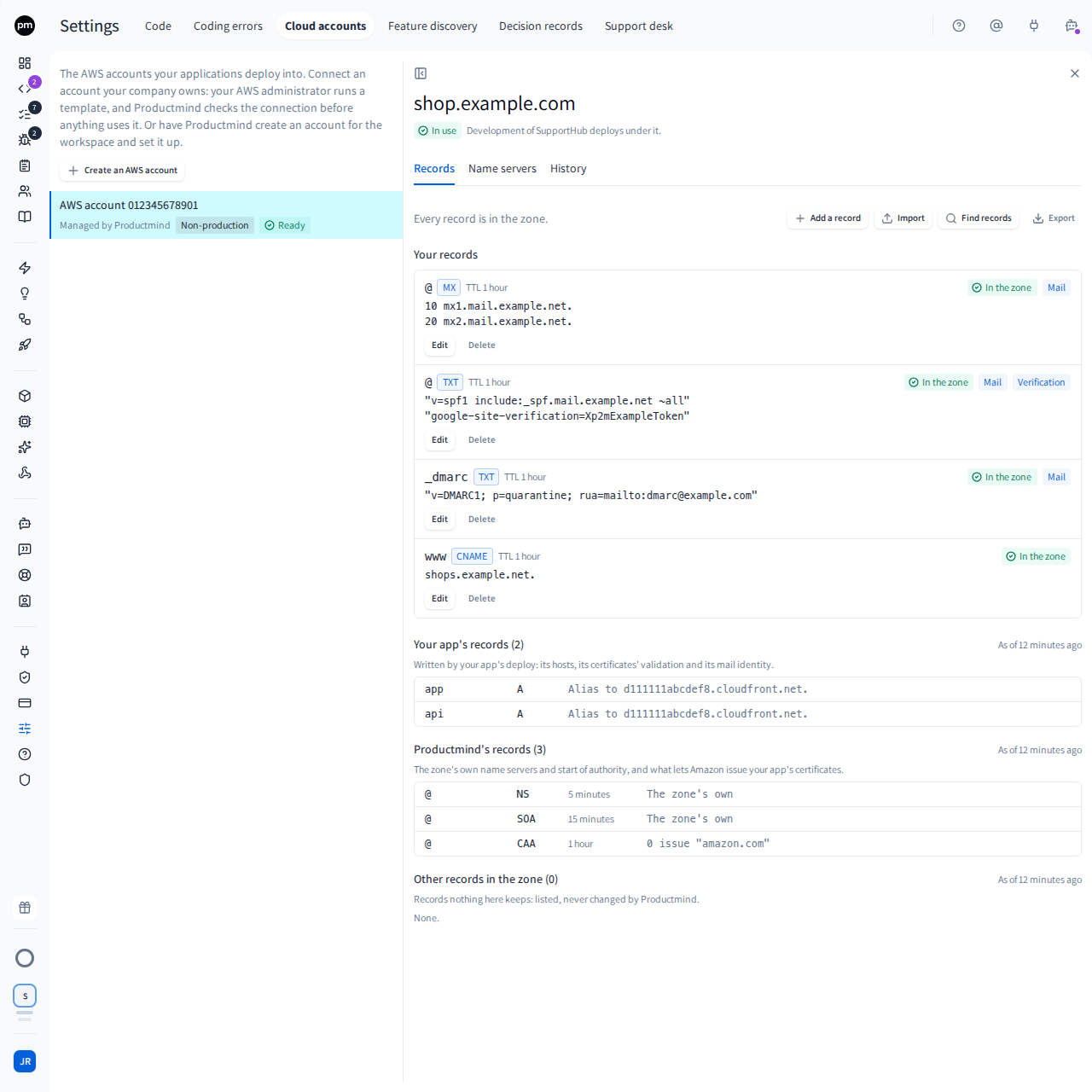
Adding, changing and deleting records
To add a record
- On the Records tab, choose Add a record.
- Type its Name under the domain, or
@for the domain itself, and choose its Type. - Type its TTL in seconds and its Values, one a line. Each value is checked as you type.
- Choose Add to changes. Add, change or delete others the same way.
- Choose Save changes.
Each record reads Applying until it is in the zone, then In the zone. A record the save refuses says why on its own line.
To change or delete a record
- Beside the record, choose Edit, change its TTL or values and choose Keep this change; or choose Delete.
- Choose Save changes. Before you save, Edit changes a change again, Undo takes it back, and Discard takes back all of them.
A record's name and type stay as they are: to rename one, delete it and add another. A record you deleted reads Deleting until Productmind has removed it from the zone. If Route 53 refuses to delete it, it reads Couldn't delete with Route 53's reason: Productmind tries again, and is told.
Mail records ask for the domain typed back
Changing or deleting a mail record (an MX record, the domain's SPF record, the _dmarc record or a
DKIM record under _domainkey), or deleting more than ten records in one save, asks you to type the
domain before Save changes. Every change Productmind applies is emailed to your organization's
other Owners and Admins, with the values before and after.
Importing records
Import your DNS provider's list of the domain's records rather than typing each one. Two formats are
read: a zone file, which most DNS providers export, and the Route 53 listing, the output of
aws route53 list-resource-record-sets --hosted-zone-id <zone> --output json, for a domain whose DNS
is in Route 53, which exports no zone file.
To import records
- On the Records tab, choose Import.
- Choose the format, then paste the file or pick it. It can be up to 512 KB and 1,000 records.
- Choose Preview. Nothing is written yet.
- Read the three lists: Ready to add, Needs your attention and Not copied. A line needing your attention, or not copied, says why.
- Tick each line under Needs your attention you want, with its fix.
- Choose Add N records. They are saved as one save. When a line replaces one of your mail records, type the domain first. A line the save refuses says why on the line.
An import is saved on its own: save or discard your other changes first.
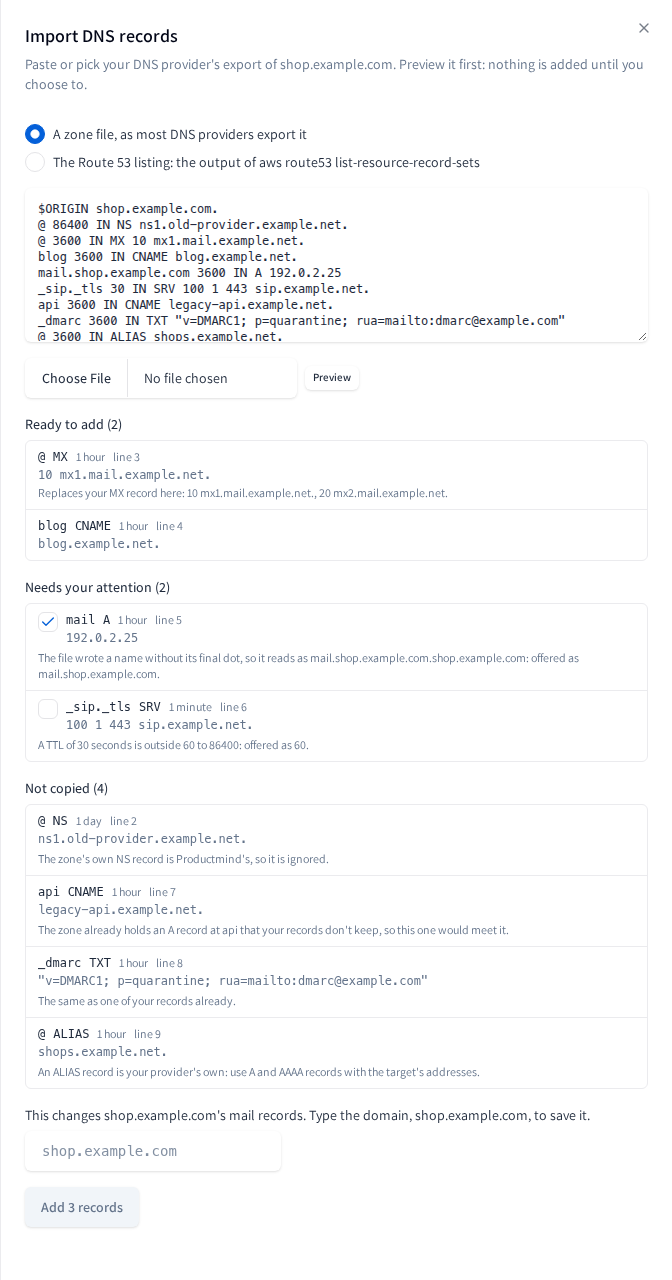
What the preview fixes, for you to tick:
- A name or target the export wrote without its final dot, so that
mail.shop.example.comwould read asmail.shop.example.com.shop.example.com: offered with the domain once. - A TTL outside 60 to 86,400 seconds: offered at the nearest of the two.
- A TXT string longer than 255 characters: offered split into several, the same text.
- A CAA record at a whole domain's own name that would stop Amazon issuing your app's certificates: offered with Amazon added.
A record of the SPF type is copied as a TXT record. The preview never copies the zone's own SOA and NS records, other NS or DS records, the types not kept here, a name outside the domain or under another of your environments' domains, or a record the zone already holds that you don't keep here. An NS record for a name under the domain is a delegation to another DNS provider, which stops once the domain points at the zone: its line says so, and that name's own records belong here first. A CAA record at a subdomain's own name is Productmind's, so it isn't copied either. A name your app uses, a record pointing at Productmind's own domains and a CNAME beside another record of its name show under Needs your attention, and can't be ticked.
A record the domain already holds with the same values is left out; one with other values is offered as a replacement.
Finding records
Find records asks the DNS servers that answer for your domain now for the names companies usually
carry: the domain's mail, SPF and verification records, www, _dmarc, the usual DKIM selectors, and
the names office suites, calendars and mail security use. In a minute or two, what it found that you
don't keep yet is listed under Found at your current DNS, each with Add, which adds it to your
changes with its TTL kept between 60 and 86,400 seconds. A record a save would refuse, such as one at a
name your app uses or one the zone already holds, is listed apart with why, and has no Add.
Public DNS can't list a whole zone, so Find records sees only names it can guess. Add the rest from your DNS provider's list, or import it.
Copying a whole domain's records first
A whole domain, such as example.com, moves all of its DNS to the zone when its registrar points
there. On an account Productmind manages, its name servers therefore show only once its records are in
the zone, checked and confirmed. Until then, Records shows Copy your DNS records first, and
Name servers shows the steps in place of the servers. What comes after is on
Whole domains.
To copy and confirm a whole domain's records
- Copy. Import your DNS provider's list, choose Find records, or add the records one by one, then choose Save changes. Wait until each reads In the zone.
- Check. The copy check runs by itself once every record is in the zone, and again after each save; Run the copy check, or Run again once it has run, asks for it now. Fix each difference it finds, or tick Acknowledged beside it.
- Confirm. Type the domain, then choose Confirm. Name servers then lists the zone's four, and Records keeps the check you confirmed with, under Copied and confirmed, with the name servers the domain used then, to switch back to: it is never run again.
The copy check asks the servers that answer for the domain now and the zone's own the same questions, for each record you keep and the names companies usually carry, and lists both answers, name by name, with the name servers the domain uses now, to switch back to. If the domain already points at the zone, the check says so instead, with the name servers a check before it found there, if one did. The usual names neither side answers fold into one count:
| It says | What to do |
|---|---|
| The same | Nothing |
| Missing from the new zone | Add the record, or acknowledge it when the domain no longer needs it |
| Different in the new zone | Correct your record, or acknowledge it when the new value is the one you want |
| Only in the new zone | Nothing: a record you added |
| Your app's deploy answers here after the move | The name is one your app uses, so what answers there now stops at the move. Acknowledge it, or move that host first |
| No answer: asked again at the next check | The current DNS didn't answer. Run the check again, or acknowledge it |
Once you save again, or when some records weren't in the zone yet as it ran, the check is out of date: run it again before you confirm. Until you confirm the records, if they use a name the deploy would take, Your app's hosts asks for another name for that host where your app lets you, saved with your next change, so your record stays where it is. After that, a host's name changes in Stack settings.
On your own AWS account, the page offers the same comparison as advice, under Compare with your current DNS: nothing to acknowledge and nothing to confirm.
Records changed in the zone
Productmind reads the zone every day, after every save, and after each deploy of its environment. What it finds there that differs from your records is never overwritten:
| Status | What happened | What you choose |
|---|---|---|
| Changed in the zone | Someone changed the record in the zone since Productmind wrote it | Keep the zone's, which makes the zone's values yours, or Put mine back |
| Changed in the zone, on a record you deleted | Someone changed it in the zone before Productmind deleted it | Delete the zone's, or Keep the zone's, which keeps the record after all |
| Held by another record | The zone holds another record at that name: one it held before Productmind wrote yours, or one never yours to keep (below) | Keep the zone's, or Remove mine; only Remove mine for one never yours to keep |
| Couldn't apply | The record couldn't be written as it stands; its words say why | Change it, or delete it |
Both sets show side by side. Some records in the zone are never yours to keep: an alias, a record with a routing policy, and a record of another type that can't stand beside yours, such as a CNAME at the name of your A record (a CNAME stands alone at its name). Productmind never writes over one: whenever the zone holds one at a record's name, even a record Productmind wrote that someone changed since, the record reads Held by another record and offers only Remove mine, which takes yours out and leaves the zone's record. A record of yours that is gone from the zone is put back. A CNAME whose target no longer exists in public DNS is marked Target gone: anyone who takes that name could serve your domain, so point it elsewhere or delete it. Productmind emails your Owners and Admins each finding once.
Exporting records
Export saves the records you keep here as a zone file, shop.example.com.zone, while the domain is
under its account's Domains you own, whatever state the account is in. Your app's records and the
zone's other records aren't in it; the NS records Productmind keeps for your other domains under it are,
after a comment line, so they move with your records. It isn't offered for a zone in your own AWS account, where no record
is kept here.
Before you remove a domain, export its records if you keep them: they go with its zone, and the domain's page goes with it. Remove offers the export too.
When records can't be edited
The Records tab says why, and what to do:
- The zone is in your own AWS account, made or adopted there: edit its records there, in the Route 53 console. Nothing is listed.
- Its zone is gone, or the account isn't taking changes (being deleted, frozen or handed over): the records are read-only. Export them to keep a copy. While the account isn't taking changes, a change saved before and the NS records Productmind adds for your other domains wait until it is back in use; the top of Records says so.
- The zone is still being made: try again in a minute or two.
- The zone is in another account: open that account's domains.
Permissions
| To | You need |
|---|---|
| See a domain's DNS records, its name servers and the zone's other records | The Owner or Admin role |
| Add, change, delete or import records, choose Keep the zone's or Put mine back | The Owner or Admin role, signed in to Productmind yourself |
| Choose Find records | The Owner or Admin role, signed in to Productmind yourself |
| Run the copy check, and confirm a whole domain's records | The Owner or Admin role, signed in to Productmind yourself |
| Export a domain's records | The Owner or Admin role |
| See a domain's History | The Owner or Admin role, and the audit log on your plan |
A downgrade of your plan never locks a domain's records: you can always change and export them.
Limits
- A domain keeps up to 1,000 record sets. A set holds up to 100 values and 16,000 characters of them.
- A TTL is 60 to 86,400 seconds, 3,600 unless you choose another.
- A TXT value holds up to 4,000 characters, in strings of up to 255.
- A domain's records can be saved 60 times an hour.
- Find records and the copy check each answer at most once a minute.
- An import reads up to 512 KB and 1,000 records.
Troubleshooting
"example.com's DNS records changed since you read them. Nothing was saved"
Someone saved the domain's records after you began your changes, or Productmind added or removed the NS records of another of your domains under it. The records are read again, and the message says what changed; your changes are kept, but a change to a record that is gone, or a choice the zone no longer needs, is dropped and named. Review them, then choose Save changes again.
"This domain has no such DNS record"
A record you changed was removed meanwhile. The records are read again and your change to it is dropped, by name. Review the rest, then save again.
"example.com's DNS records were saved 60 times in the last hour"
The message says how long to wait. Gather your changes into one save.
"Find records ran for example.com, or was asked to, less than a minute ago"
Wait a minute, then choose Find records again.
"This changes example.com's mail records. Type the domain, example.com, to save it"
Type the domain in the box, then choose Save changes. Deleting more than ten records asks the same.
"www already has a CNAME record here: change that one instead"
A domain keeps one record set for each name and type. Edit the one you have, or delete it first.
"api is where the API stands: its deploy writes the records there"
The name is one your app uses. Choose another name, or move that host in the environment's stack settings first. "Your app stands at example.com itself" means the same for the A and AAAA records of a domain your app stands at.
"The zone already holds a CNAME record at shop that these records don't keep"
The zone holds a record at that name that you don't keep here, listed under the zone's other records: a new one there would meet it. Choose another name.
"A CNAME can't stand beside another record at www"
A CNAME stands alone at its name. Delete the other records at that name, or use another name.
"... is at or under staging.example.com, another of your environments' domains"
That name's records live in that domain's own zone. Edit them under that domain.
"... is at or under staging.example.com, where Productmind's NS records hand the name to another DNS zone"
Productmind keeps NS records at that name for another of your organization's domains, so a record there wouldn't be answered. Choose another name. The words say so while Productmind is adding or removing them too; once they are removed, the name is free 15 minutes later, when resolvers have let them go.
"This record points at one of Productmind's own domains"
A company's records never point at Productmind's own hosts. Point it at your own target.
"This CAA record would stop Amazon issuing the certificates your app's addresses need"
A whole domain's CAA records must let Amazon issue your app's certificates. Add the value the message
names, such as 0 issue "amazon.com", to the record.
"... so Keep the zone's can't take it"
The zone's record at that name is an alias, has a routing policy, or is of another type. Choose Remove mine: the zone's record stays.
"A domain holds at most 1,000 DNS record sets here"
Delete records you no longer need before adding more.
A record reads "Couldn't apply"
Its words say why: a name your app uses now, a name under another environment's domain, or a refusal of Route 53's. Change the record or delete it. Productmind is told too.
Stack settings: "example.com has a CNAME record at web, where this would put the app"
A label you chose for a host is a name one of your records holds, on the domain the environment deploys under, the one a change moves it to, or one it can move back to. Delete or move that record here, then save the stack settings again. When the message says the domain's records can't be edited now, remove that domain under Domains you own if no environment uses it, or choose another label.
"The file is larger than 512 KB. Import it in parts"
Split the file, and import each part.
"2 of example.com's DNS records aren't in its zone yet, or need your attention"
A whole domain's records are confirmed once each is in the zone. Wait until each reads In the zone, or fix the ones whose line says why, then run the copy check and confirm. "Productmind is still changing the NS records it keeps in example.com's zone" is Productmind's own: wait until it is done.
"Run the copy check again: example.com's DNS records were saved since it last ran"
The check is out of date: your records were saved since it ran. Choose Run again, wait for it, then confirm. "Some of example.com's DNS records weren't in its zone yet when it last ran" means the same. Productmind's own NS records for your other domains changing never puts it out of date.
"The copy check found 1 difference between your current DNS and the new zone"
Fix each difference, or tick Acknowledged beside it, then confirm.
"The copy check ran for example.com, or was asked to, less than a minute ago"
Wait a minute, then choose Run again.
"example.com has no DNS zone Productmind made in this account to check"
The copy check compares a zone Productmind made in this account, and there is none to compare now: the zone is one of yours that Productmind uses, which already answers for the domain, or isn't made yet, or is gone; or the domain was removed, or its zone is in another account.
"example.com's DNS records are confirmed: the copy check you confirmed them with stays"
The check isn't run again once you confirm, so the name servers it lists stay the ones the domain used then, to switch back to. Read it on Records, under Copied and confirmed.