

Bug reports
Bug reports are where your team tracks defects: what's broken, how badly, who reported it, and which part of the product it affects. You triage each report, link it to the features and applications it touches, and then hand it to a bug fix session or convert it into backlog work.
Key concepts
ID. Every report has an ID such as BUG-12, numbered within your workspace. The AI Assistant knows it too: ask it about BUG-12, and it looks up that report.
Status. Where the report is in its lifecycle. New reports start as Open.
| Status | Means |
|---|---|
| Open | Reported, not triaged yet. |
| In Review | Being looked at or reproduced. |
| Confirmed | Reproduced and accepted as a bug. |
| In Progress | Someone, or a bug fix session, is fixing it. |
| Resolved | The fix is in, waiting to be checked. |
| Closed | Finished, or not worth pursuing. |
| Merged | Folded into another report. A merged report can't change status. |
You can only move a report to the statuses that make sense next, so the status menu lists only those:
| From | You can move to |
|---|---|
| Open | In Review, Confirmed, Closed |
| In Review | Open, Confirmed, Closed |
| Confirmed | Open, In Review, In Progress, Closed |
| In Progress | Resolved, Closed |
| Resolved | Open, Closed |
| Closed | Open |
Severity. How bad the defect is: Minor (the default), Major, Critical or Blocker.
Reporters. The people who ran into the bug: members of your workspace, or customers from your contacts. Each reporter can have their own details, such as the steps they took.
Interests. The customer conversations in which the bug came up.
Assignees. The people or teams leading the fix.
The Bug reports page at a glance
In the sidebar, choose Bug reports.
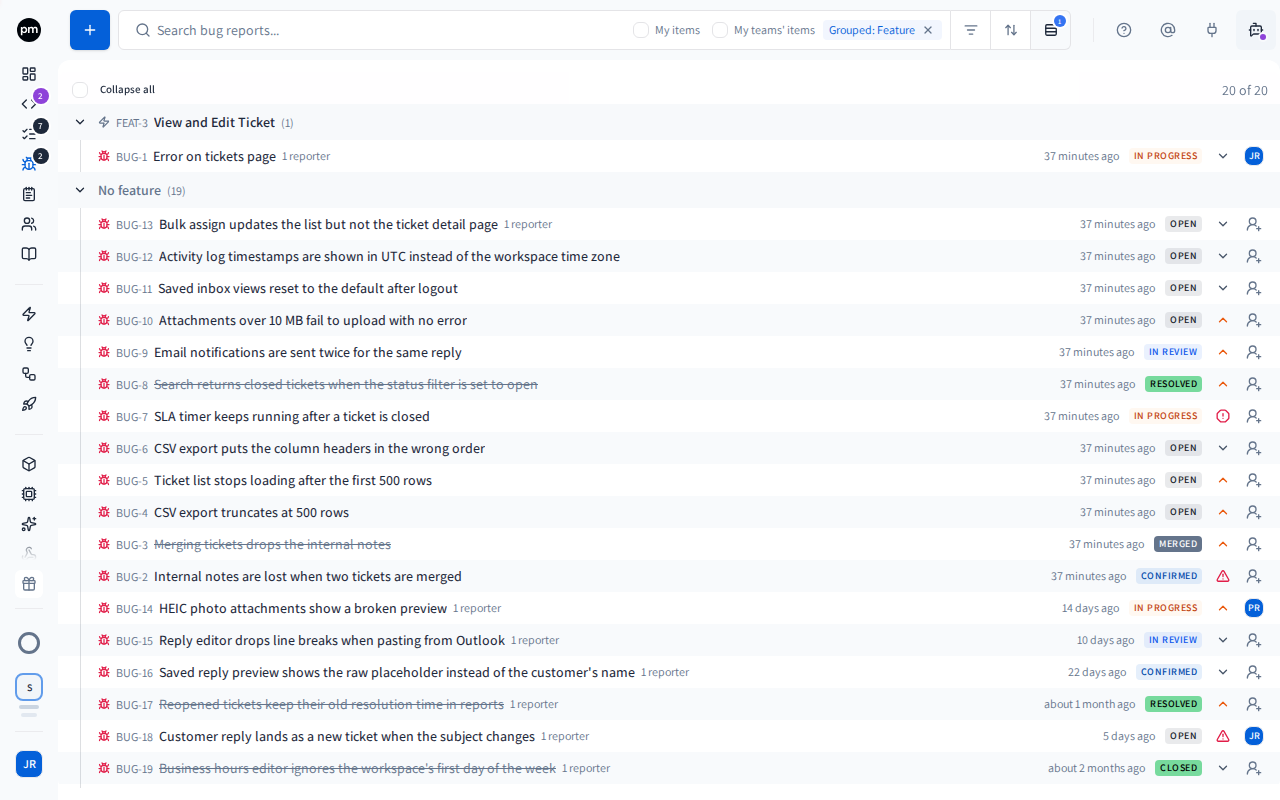
The toolbar holds:
- Add bug report (the +);
- the search box, which matches titles and descriptions;
- chips for the filters, sort and grouping in use;
- Filters, Sort and Group by.
| Control | Options |
|---|---|
| Filters | Assignee (For me, people, teams, or My teams), Team (a team, or My teams), Status, Severity, Tags, Application, Feature and Reporter |
| Sort | Bug ID, Title, Severity, Status, Report date or Last updated |
| Group by | Feature (the default), Application, Status, Assignee or Session |
Group by › Session puts each report under its current session, once: the newest session working on it now, otherwise the newest one still In Planning, otherwise the newest finished one. Sessions working on their reports come first, then sessions in planning, then finished ones, newest first in each, and reports that were never in a session are under No session, at the bottom. Each group header shows the session's ID, which opens it in a new tab, its name, how many reports it holds, and its status. When a session changes, or a report is added to one or removed from it, the list follows without a reload. Session is offered only if you can see coding sessions.
Select several assignees to see the reports of all of them.
For me, first in the Assignee filter, shows the reports assigned to you or to one of your teams, and the reports linked to a feature or task in your teams' areas: what Team shows for My teams, plus your own (see Team below). The line under it reads "Assigned to me, or in my teams' areas", and the chip reads Assignee: For me. The Bug reports count in the sidebar counts the open reports it shows, and that count's View all opens the list on it. For me is on the Bug reports page only, not on the dashboard's Bug reports tab.
While no assignee is selected, the search box offers two checkboxes, My items and My teams' items. Select one to see only the reports assigned to you, or to your teams. It turns into the chip Assignee: Me or Assignee: My teams. The checkboxes are hidden while any assignee is selected, from them or from Filters, and come back when you remove the chip. My teams' items appears only when your organization has teams. When the search box is too narrow for them, the checkboxes sit in the row of chips under the search box.
Team shows a team's whole area: the reports assigned to the team, and the reports linked to a
feature in its area (a feature assigned to the team, or any feature under one) or to a task in it.
Select several teams, or My teams, to see all of their areas together. Unlike My teams'
items, it doesn't need the report to be assigned to your team. It works with every other filter,
and the dashboard's Bug reports tab doesn't have it. To bookmark or share your teams' view, add
?team=my-teams to the list's address.
Each row shows, from left to right:
- a dot, if the report changed since you last looked at this list;
- the report's ID and title. The title is struck through once the report is Resolved, Closed or Merged;
- the item it was converted to, if any, how many reporters it has, and its tags in one chip, which you choose to add or remove tags without opening the report (see Tags). When the row is too narrow for all of them, they're hidden from the last one back, so the title stays whole;
- when it was reported, such as 3h, 4d or Nov 7. Point at it to see the full date and time;
- its status, as an icon. Point at the row to see the status's name. See Status icons;
- its assignees;
- its severity.
When you point at a row, Launch a bug fix session (the code icon) appears before the date. Once a report is in a coding session, that place shows the session's ID instead, such as SSID-12, all the time: choose it to open the session. Right-click a row for Open in new tab, Launch a bug fix session, Convert to..., Merge into..., Severity and Delete.
Filing a bug report
To add a bug report
- In the sidebar, choose Bug reports.
- Choose Add bug report (the +).
- Enter a title that names the symptom, and press Enter.
The report opens beside the list, with the status Open, the severity Minor, and you as its reporter. Press Escape instead to discard it.
Fill in the rest in the report:
- the description: what you did, what you expected, and what happened;
- screenshots, which Productmind can turn into a description;
- the severity and assignees;
- the features and applications it affects.
Other ways bug reports are created
- From a note. Convert a note into a bug report. See Notes.
- From a conversation. Ask the PM agent to file a bug report. The images you sent in the conversation are attached to it.
- From customer conversations. Summarizing a customer meeting, a support conversation or a feedback chat can surface bugs. A bug found in a feedback chat arrives with the screenshots the customer shared about it. See Customer meetings and Feedback widget.
Working with a bug report
Choose a report to open it beside the list.
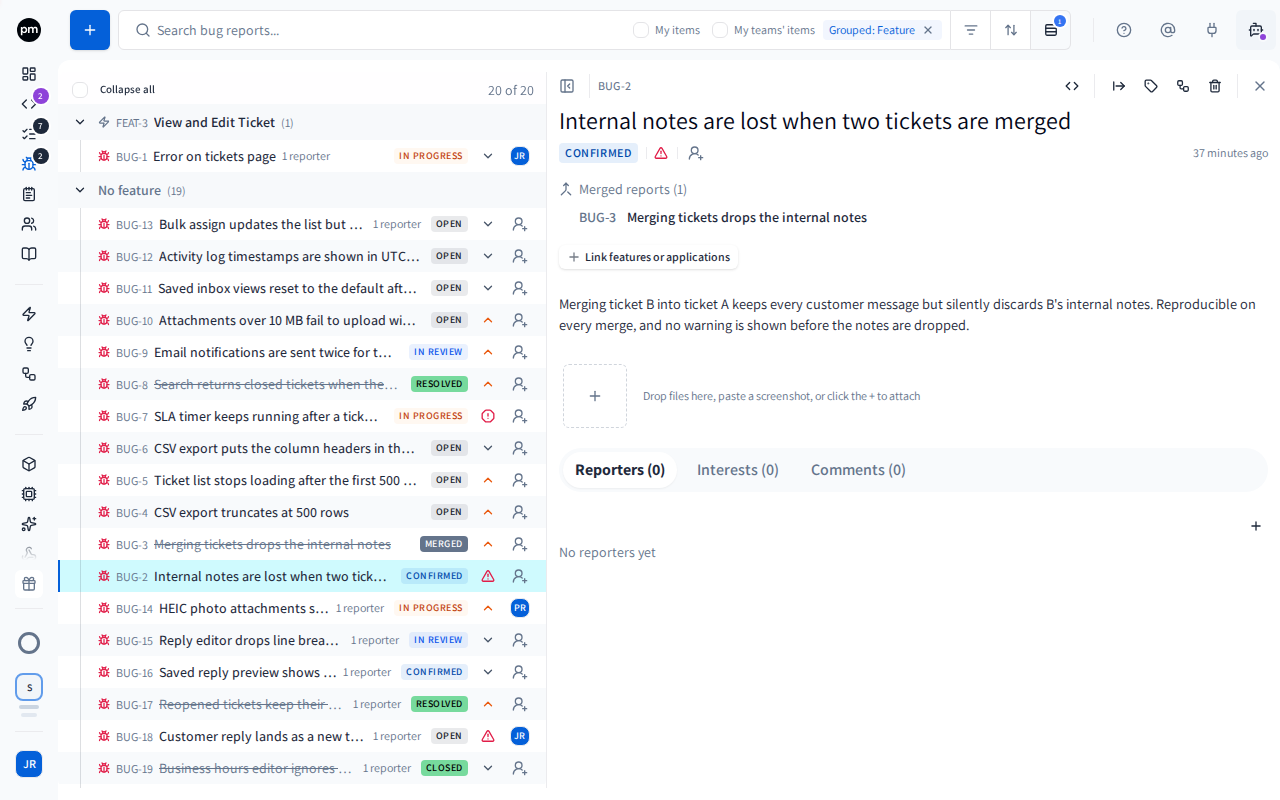
The header holds the report's ID, then Launch a bug fix session, Convert to..., Tags, Lineage, Delete bug report and Close. Lineage shows the customer conversations the bug came from, the sessions that worked on it and the releases they shipped in.
Below the title are its status, severity and assignees.
The body holds:
- Merged reports, if other reports were merged into this one, or Merged into on a merged report;
- Link features or applications, and the features, applications and tasks it's linked to;
- the description;
- the attachments. Drop files, paste a screenshot, or choose +;
- the tabs Reporters, Interests and Comments.
To describe a bug from screenshots
- Attach one or more screenshots: drop them, paste them, or choose +.
Productmind reads the screenshots, the title and the reporters' details, and writes a description. While it works, the report shows Reading your screenshots to describe the bug..., with Stop.
- If the description was empty, the new one is filled in for you.
- Otherwise a banner offers it: choose Review changes to compare it with yours and apply the parts you want, or Dismiss.
- If the screenshots don't show enough to describe the bug, nothing is written. A note says why, what Productmind saw in them, and what to try next.
The draft can also suggest features and applications to link. You review them in the same place. To ask again later, choose Describe from screenshots.
To link a report to features and applications
- Choose Link features or applications.
- Choose Features or Applications, search, and choose the ones the bug affects.
The links appear on the report, and let you filter and group the list by feature or application. Linking a feature also links the applications it depends on, and can assign the report. See How bug reports behave.
To add a reporter
- Open the Reporters tab and choose Add reporter (the +).
- Choose Member or Customer, and pick the person. You can create a contact for a customer who isn't in your contacts yet.
- Optionally, enter Details (optional): what they saw, the steps, the environment.
- Choose Add reporter.
To merge duplicate reports
- Select the duplicates in the list and choose Merge selected, or right-click one and choose Merge into....
- Under Merge into, search for the report to keep.
- Choose Merge.
The reporters, comments, attachments and interests of the duplicates move onto the report you kept, which lists them under Merged reports. The duplicates become Merged.
To convert a report into backlog work
Use this when a report turns out to be something else: work to schedule, a missing feature, or a request from customers.
- Open the report and choose Convert to..., or right-click its row.
- Choose Task, Feature or Feature Request.
| Convert to | You get |
|---|---|
| Task | A task with the report's title and description. Its priority comes from the report's severity: Minor gives Low, Major gives High, and Critical or Blocker gives Critical. If the report already has a higher priority, for example one set through the API, the task keeps that one. If the report is linked to a feature, the task goes under it. If it isn't linked to a feature but is linked to one application, the task goes under that application. |
| Feature | A top-level feature in the Backlog status, with the report's title and description. |
| Feature Request | A request with the report's title and description. Each reporter becomes an interest. If a reporter is a customer, the request's source is customer feedback. |
The report's attachments, such as screenshots, are copied to the new item, and the report keeps its own.
The report is closed, and a comment on it says what it became. The report shows Promoted to and the new item's ID, and the new item shows Created from bug report.
Only Open, In Review and Confirmed reports can be converted, one at a time, and a report can be converted only once. A conversion you didn't mean can be undone by hand: reopen the report, and delete the new item.
To fix a bug with a coding session
- Point at the report and choose Launch a bug fix session. For several, select them and choose Launch a bug fix session in the bar.
- On the session page, check the repositories, and draft the plan.
The reports are assigned to you, and those still being triaged move to In Progress. See Starting a session.
To delete a bug report
- Open the report and choose Delete bug report, or right-click its row and choose Delete. To delete several, select them and choose Delete selected.
- Confirm.
A deleted report disappears from every list and from search. You can't restore it.
How bug reports behave
Linking a feature assigns the report. When you link a feature to a report that has no assignee, the report is assigned to the feature's assignees, people and teams alike. If the feature has none, its parent feature's are used, and so on up. The new assignees are notified. This never replaces an assignee someone chose, and unlinking the feature doesn't unassign.
Bug fix sessions close their reports. When every pull request of a bug fix session is merged, its reports that are still open, in review, confirmed or in progress are Closed. Closing a pull request without merging leaves them as they are.
A report added to a running bug fix session moves forward. You can add a report to a bug fix session, or remove one from it, while its agent works. An added report moves to In Progress if it is still Open, In Review or Confirmed, and the agent is told about it. A removed report goes back to the status it had before the session moved it, as long as it is still In Progress and no other unfinished session holds it, and the agent is told to stop working on it. The report's history notes the removal either way. See Changing a session's scope.
A resolved report stays open for checking. Nothing moves a report to Resolved: set it yourself once the fix is in, then Closed once it's checked.
Changes appear live. The list and the open report update without a refresh when a teammate or a session changes them.
New activity is marked. A dot before a row means the report changed since you last looked at this list. Point at the dot to see "New activity since your last visit" and when the report was updated. Your first visit shows no dots. Changes you make while you're on the page don't get a dot, and opening and closing a report doesn't clear the dots.
Productmind reopens your last report. The Bug reports page opens the report you last had open. Choose Close to see only the list.
Permissions
| To | You need |
|---|---|
| See bug reports | Bug reports: Read |
| Add bug reports | Bug reports: Create |
| Change a report (status, severity, assignees, description, links, reporters), describe it from screenshots, merge and convert it | Bug reports: Update |
| Convert a report | Bug reports: Update, and permission to create the new item, such as Tasks: Create |
| Launch a bug fix session | Sessions: Create |
| Group reports by session, and see the sessions a report is in | Sessions: Read |
| Delete bug reports | Bug reports: Delete |
The Owner, Admin, Power User, Developer and Product Manager roles can do all of these. Viewer can see bug reports, and Customer can see and add them. See Roles and permissions.
Troubleshooting
I can't set the status I want
A report moves only to the statuses that follow its current one. For example, to resolve an Open report, move it to Confirmed, then In Progress, then Resolved. A Merged report can't change status.
Convert to... is missing
The report is already converted, it isn't Open, In Review or Confirmed, or you can't create any of the three kinds of item.
Launch a bug fix session is missing
You need Sessions: Create. A Merged report can't get a bug fix session: use the report it was merged into.
A bug fix session won't start: "BUG-N is already attached to SSID-M"
The report is already in another session that hasn't finished: one that isn't Completed, Rolled Back, Failed or Cancelled. Open that session to carry on there, or remove the report from it with the x on the report's chip, even while its agent works: its agent is told. The same applies when you add the report to a session with Add bug reports to the session.
A report was assigned to someone on its own
Someone linked a feature to it while it had no assignee, so it went to the feature's owner. Change the assignees on the report.