

Customer support
Customer support holds your support cases: conversations imported from your helpdesk, and ones you add by hand. When a conversation is summarized, Productmind turns what the customer asked for into feature requests and bug reports, so your product team hears what your support team hears. Productmind reads your conversations and never changes your tickets.
Key concepts
Support case. One helpdesk conversation, as it is kept in Productmind. The helpdesk's own record is the ticket: importing a ticket creates a support case.
Transcript. The ticket's opening message and its public replies, each with who wrote it. Internal notes are never imported. The transcript is in the support case's Case notes section.
Contact. The customer the conversation is with. When you import a ticket, Productmind links it to the contact whose email address matches the ticket's requester. See Contacts.
Participants. Everyone who wrote in the ticket, each marked Requester or Support agent.
Source. Where the case came from: the helpdesk, such as Freshdesk or Zendesk, Google Calendar for a case imported from your calendar, or Productmind for a case you added by hand.
Status. A case imported from your helpdesk is Completed, because the conversation has already happened. While it's being summarized, it's Processing. A case you add by hand starts as Draft. See Customer meetings for every status.
Customer support and Customer meetings are two views of the same kind of record, split by type. They share one permission, and a support case works exactly like a meeting once it's open.
The Customer support page at a glance
In the sidebar, under Feedback, choose Customer support.
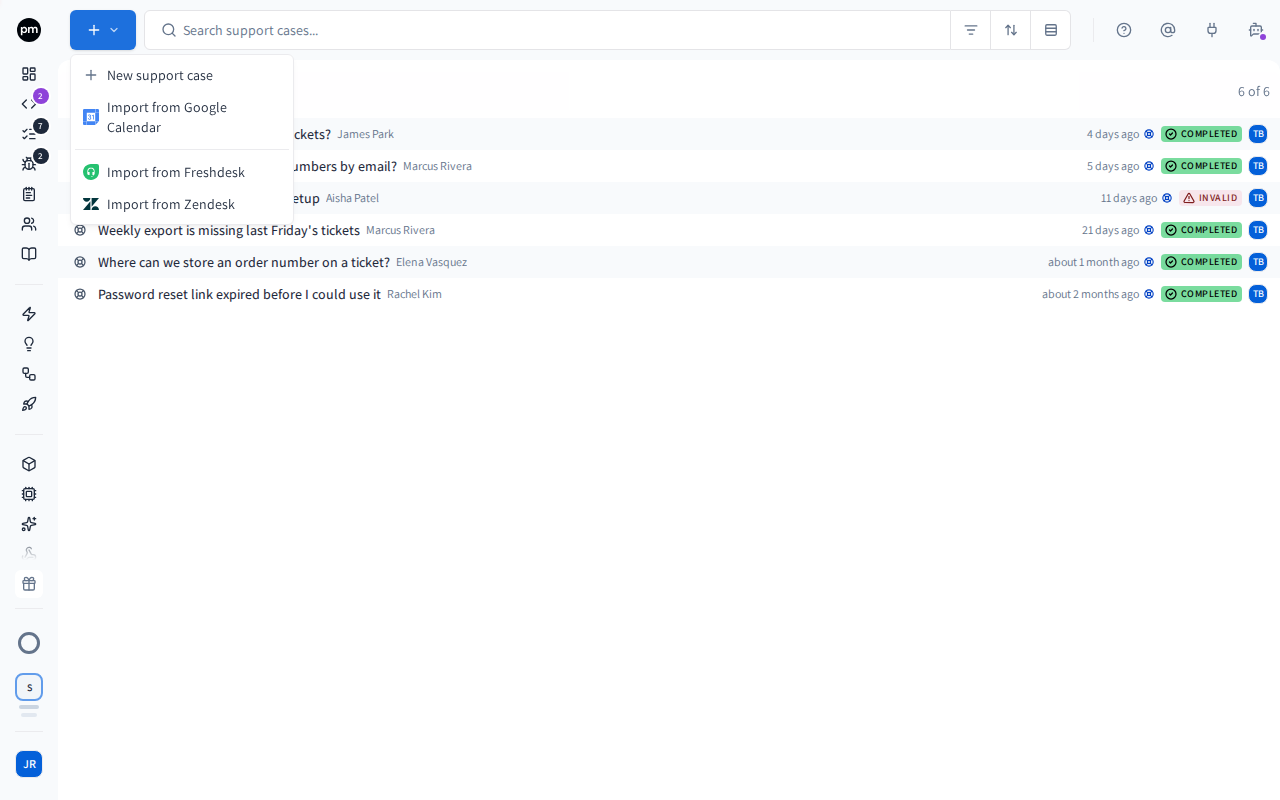
The toolbar holds Create (the + button), the search box, Filters, Sort, Group by and Show calendar. They work as on Customer meetings. Filter by Source to see the cases from one helpdesk, select several statuses to see the cases in any of them, or sort by Last updated to see recent changes.
Each row shows the case's title, which is the ticket's subject until it is summarized, its contact, the date of the conversation, its status as an icon (point at the row to see its name), the helpdesk it came from, its sentiment, and who imported or created it. Choose the helpdesk icon to open the ticket in your helpdesk. A dot before a row means the case changed since you last looked at this list.
Choose a case to open it beside the list. Its panel is the same as a meeting's: see The meeting. It uses the case's own words: its notes section is Case notes, and its delete button is Delete support case. You can't change a support case's status by hand. Cases imported from your helpdesk have no notetaker. A case you add by hand, or import from Google Calendar, has the same Notetaker switch as a meeting.
Getting support cases in
To import conversations from your helpdesk
- In the sidebar, choose Customer support.
- Choose Create (the + button), then Import from Freshdesk or Import from Zendesk.
- Connect: if your helpdesk isn't connected to this workspace yet, choose Connect Freshdesk or Connect Zendesk, and follow the prompts. See Freshdesk and Zendesk for what each one asks for. If it's already connected, the dialog skips this step.
- Browse: choose which tickets to fetch, then select the ones to import. The list shows 30
at a time: choose Load more at the end of it to see more.
- Status: Any status, Resolved, Closed, Open or Pending.
- Updated: Today, Last 7 days, Last 14 days (the default), Last 30 days, Last 3 months, Any time, or Custom range... to set From and To.
- To narrow the tickets already fetched, filter by subject, requester or ID, or by tag.
- Refresh conversations fetches the list again.
- Choose Next.
- Preview: check each conversation. Its card shows the requester, the opening message and
the replies, and what the import will do (see below). For each new conversation you can:
- in the menu at the top right of the card, choose Support case or Customer meeting;
- choose Change contact to link a different contact, or Create contact for the requester when nobody matched;
- choose Remove to leave it out.
- Leave Summarize with AI selected to summarize each conversation, or clear it.
- Choose Next to start the import.
- Import: each conversation reports Created, Updated, Skipped or Failed. Choose View to open one, or Done to close the dialog.
The support cases appear in the list. If you left Summarize with AI selected, each one is summarized in the background and updates in the list as it finishes.
What a preview card says:
| Badge | Means |
|---|---|
| Will link | A contact matched the requester's email address, or you picked one. |
| Unlinked | Nobody matched and you haven't picked a contact. The conversation is still imported, and you can link a contact afterwards. |
| Update | You've imported this ticket before. Its transcript is refreshed. It keeps its type (Keeps type). |
| Linked | A ticket you've imported before, already linked to a contact. The link is kept. |
A contact you pick applies to every selected conversation from the same requester.
Narrow the Updated range rather than paging back through a long history. Helpdesks limit how far a list can go, and a date range reaches older tickets more reliably.
To add a support case by hand
- Choose Create (the + button), then New support case. The case is created right away and opens beside the list, dated today, with the status Draft. It's named after the date, such as 2026-09-23 - Support case, with the name selected so you can type over it.
- Choose Select contact (the person icon), and pick the contact.
- On Case notes, paste the conversation.
- Choose Summarize this conversation (the circular arrows).
The case moves to Processing, and to Completed when the summary is ready.
Import from Google Calendar in the same menu works as on Customer meetings, and creates a support case. Its last button reads Create support case.
Receiving conversations automatically
Instead of importing by hand, your workspace can receive each conversation from your helpdesk when it is marked resolved (solved, in Zendesk) or closed. This is automated ingestion. An Owner or Admin turns it on, and sets which conversations to accept, on the helpdesk's page under Integrations. See Setting up automated ingestion.
Receiving conversations automatically is being rolled out gradually. If you don't see it on your helpdesk's page, it isn't enabled for your organization yet. Ask Productmind support to turn it on. Importing by hand is always available.
Working with a support case
A support case works like a meeting. See Working with a meeting for how to summarize it, add participants, describe it from screenshots and delete it.
Attachments on a ticket, such as screenshots, are imported with it and appear under the transcript.
To summarize a support case
- Open the case.
- Choose Summarize this conversation (the circular arrows). If it already has a summary, choose Re-summarize this conversation, then Re-summarize.
The case moves to Processing, and back to Completed when the summary is ready.
How customer support behaves
Summaries create feature requests and bug reports. Summarizing a support case works as for a meeting: what the customer asked for becomes feature requests and what they ran into becomes bug reports, linked back to the case, the contact and the contact's account. See How customer meetings behave.
Importing a ticket again updates it. Its transcript is refreshed, and its type and contact are kept, unless you pick another contact in the preview. Nothing is duplicated. Only a ticket from the same helpdesk account updates it: a ticket with the same number from another account shows Not imported in the preview, isn't imported, and its row says why.
New activity is marked. A dot before a row means the case changed since you last looked at this list. Point at the dot to see "New activity since your last visit" and when the case was updated. Your first visit shows no dots. Changes you make while you're on the page don't get a dot, and opening and closing a case doesn't clear the dots.
Summarizing is on by default. Whether Summarize with AI starts selected is a workspace setting: Summarize imported conversations, under Settings › Support desk. See Support desk. The same setting decides whether conversations that arrive through automated ingestion are summarized. When it's off, open a conversation and choose Summarize this conversation.
Notifications. When you import conversations with Summarize with AI selected, you get one notification for the whole import, such as "Summarizing 12 imported conversations". See Profile and notifications.
Permissions
| To | You need |
|---|---|
| See support cases | Customer meetings & support: Read |
| Import from a helpdesk, or add a support case | Customer meetings & support: Create |
| Change or summarize a support case | Customer meetings & support: Update |
| Delete support cases | Customer meetings & support: Delete |
| Change the Summarize imported conversations setting | The Owner or Admin role |
By default, the Owner, Admin, Power User and Product Manager roles can import and change support cases. Viewer and Customer can see them but not change them. Developer can't see Customer support. See Roles and permissions.
Limits
Conversations per import. You can import up to 100 conversations at a time. The dialog lets you select more, but the import then fails with "The import could not be started." Choose Back to selection, clear some, and import the rest afterwards.
Troubleshooting
A ticket I just solved isn't in the list
The list shows what your helpdesk returns for the filters you chose. Check Status and Updated, and choose Refresh conversations.
A conversation in the preview says it couldn't be loaded
Its messages couldn't be fetched from the helpdesk, so it will be left out of the import. Choose Retry, or Remove it from the selection.
Some conversations failed to import
The others were imported. Import again to retry only the ones that are missing.
A support case isn't linked to anyone
No contact had the requester's email address. Open the case, choose Select contact (the person icon), and pick or create the contact.