

Environments
Environments lists the places your workspace's applications deploy to. Every workspace has Development and Production, and you can add your own, such as Staging or QA. Each environment has a page of its own, with its settings and the deployments made to it.
Key concepts
Environment. A place your applications deploy to. Each application maps an environment to the branch it deploys from.
Key. An environment's short name, such as staging. Deployments use it, so it never changes
once the environment is added.
Tier. Whether an environment is Production or Non-production. A branch mapped to a production-tier environment is protected as your production branch is.
Built-in. Development and Production, which every workspace has. You can rename them, but they keep their key and tier, and they can't be deleted.
The Environments page at a glance
In the sidebar, choose Environments, under Engineering.
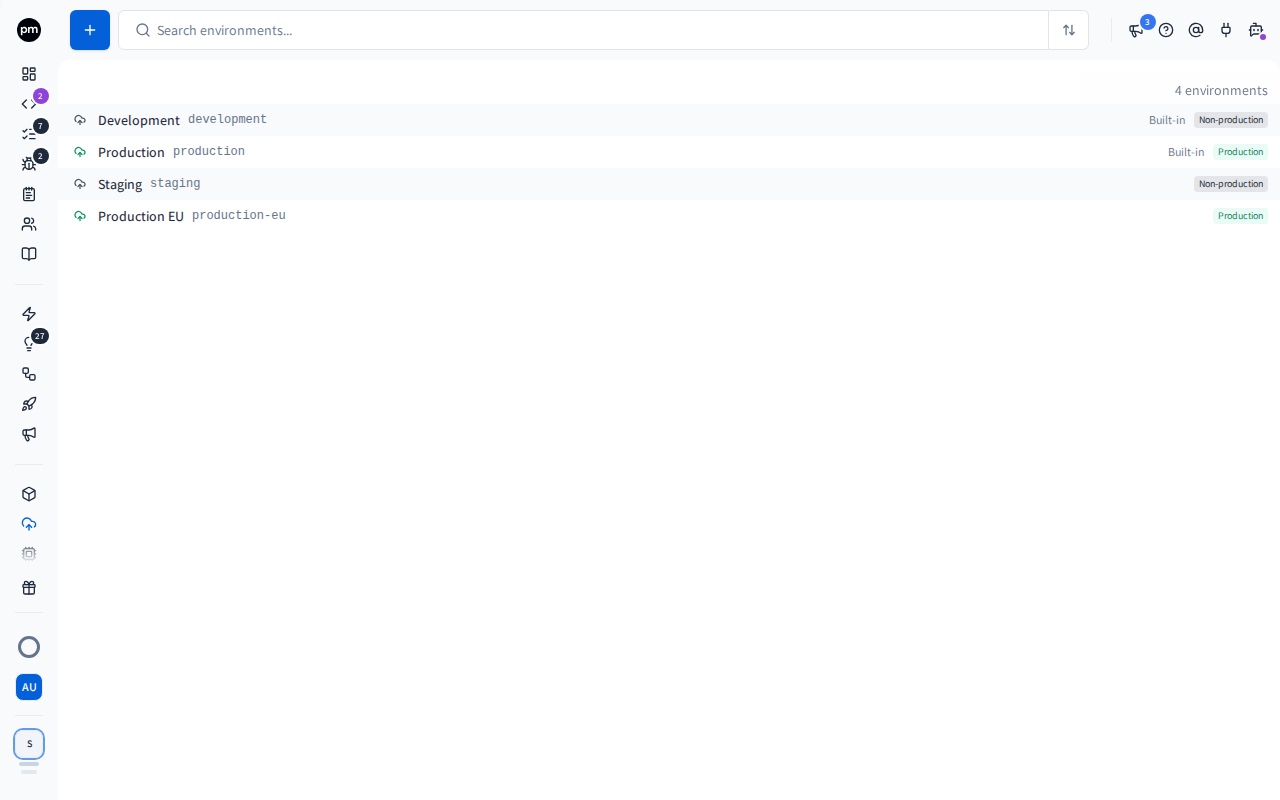
The list. Your workspace's environments, each with its name and key, then its tier. Development and Production come first, marked Built-in, then the ones your workspace added. A production-tier environment's icon is green. Search the list, or sort it by name or tier, at the top of the page. Owners and Admins add an environment with Add environment (the +) beside the search.
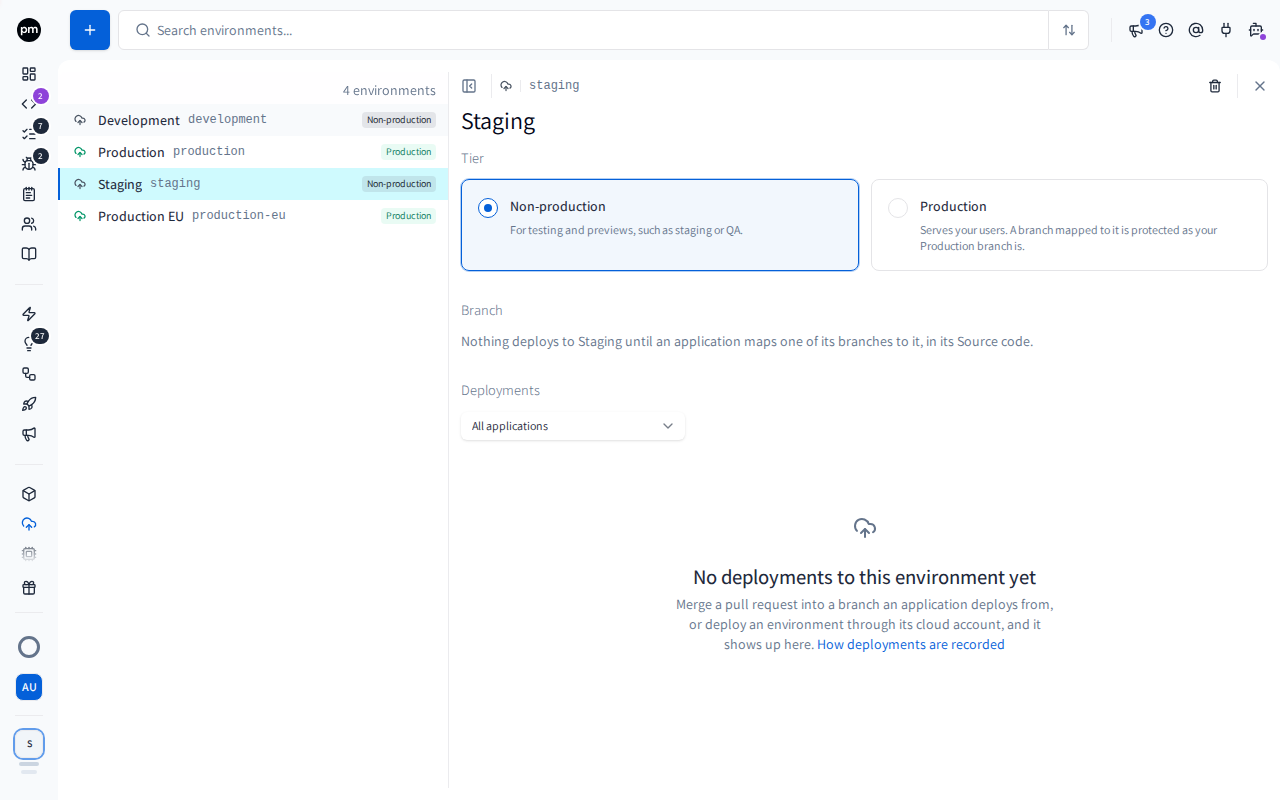
An environment's page. Choose an environment to open its page beside the list. Choose it again, or close the page, to go back to the list alone. Productmind remembers the environment you last opened. The page shows:
- The header: the environment's key, which never changes, above its name. Owners and Admins rename an environment right there. For your own environments, they also see Delete environment (the bin).
- Tier: one card for Non-production and one for Production, the environment's own selected. Owners and Admins change the tier of your own environments by choosing the other card.
- Branch: where the environment deploys from.
- Deployments: what was deployed to this environment, newest first, with what runs there now above the list. See Deployments.
Each change saves as you make it. Without the Owner or Admin role, the page reads the same, and nothing on it can be changed.
Managing environments
To add an environment
- In the sidebar, choose Engineering, then Environments.
- Choose Add environment.
- Enter a Name, for example
Staging. Productmind suggests a Key from it: change it if you want another one. - Under Tier, choose Non-production or Production.
- Choose Add environment.
The environment's page opens. The environment deploys nothing until an application maps a branch to it. See Applications.
A key is 2 to 16 lowercase letters, digits and hyphens. It starts with a letter, doesn't end with a hyphen, and never has two hyphens in a row.
To rename an environment
- In the sidebar, choose Engineering, then Environments.
- Choose the environment.
- Choose its name at the top of its page, and type the new one.
- Choose anywhere else on the page. The name is saved.
The key doesn't change. Development and Production can be renamed too.
To change an environment's tier
- In the sidebar, choose Engineering, then Environments.
- Choose the environment.
- Under Tier, choose Non-production or Production. The tier is saved.
Development and Production always keep their tier.
To delete an environment
- Unmap the environment in every application that maps a branch to it. See Applications.
- In the sidebar, choose Engineering, then Environments.
- Choose the environment.
- Choose Delete environment (the bin) at the top of its page.
- Productmind asks, for example, Delete Staging?. Choose Delete environment.
You're back on the list. Development and Production can't be deleted. You can add an environment with a deleted environment's key again later.
Deployments
An environment's page lists the deployments made to it, from every application: the merges into a branch an application maps to it, and the runs of its deploy workflow when it deploys to a cloud account. Running now above the list shows what runs in the environment now, one card per application.
Choose an application in the filter at the top to see only its deployments to this environment. Productmind remembers your choice. Each application's own deployments, to every environment, are on its Deployments tab.
For what each row shows and how deployments are recorded, see Deployments.
How environments behave
Development and Production follow your Git workflow. Their branch is the Development branch and the Production branch on the Git workflow tab, unless an application sets its own. See Applications.
Your own environments are mapped per application. An environment you add has no branch until an application maps one to it. Until then the application shows it as Not mapped.
A merge into a mapped branch records a deployment. When a pull request is merged into a branch
an application maps to an environment, the deployment is listed on the environment's page and on
the application's Deployments tab. A session's Deployments panel records it too, shown by
the environment's key, such as staging. When one branch is mapped to several environments, the
first of Production, Development, then your own environments in the order listed counts.
Coding sessions don't work on mapped branches. A branch an application maps to an environment can't be a session's branch, as the development and production branches can't.
An environment that deploys to a cloud account stays as it is. While an application's environment deploys to one of your cloud accounts, the environment can't be deleted and its tier can't change. Stop it deploying first.
A key keeps its history. Deployments are recorded by the environment's key. If you delete an environment and add one with the same key later, its page lists the deployments made under that key before.
Permissions
| To | You need |
|---|---|
| See the environments, their settings and their deployments | Applications: Read |
| Add, rename, change the tier of or delete an environment | The Owner or Admin role |
| Map an application's branch to an environment | Applications: Update. See Applications |
| See the coding sessions and the release a deployment shipped | Sessions: Read and Releases: Read as well |
Troubleshooting
"An environment keyed 'staging' already exists"
Your workspace already has an environment with that key. Choose another key, or rename the existing environment instead.
"1 application maps a branch to Staging. Unmap it first."
An application still maps one of its branches to the environment, so it can't be deleted. Open each application that maps it, unmap it on its Source code tab, and delete the environment again.
"Environments are being set up. Try again in a few minutes."
Productmind is finishing an update. Wait a few minutes, then choose Try again.
"Environment not found"
The environment was deleted, or the link belongs to another workspace. Choose Back to environments and pick it from the list.