

Features
Features is your product catalog: a tree of everything your product does. Each feature has a status, a priority and the people who own it, and a document where your team writes its specification together. Productmind can draft that specification with AI, or read your repositories and write it from the code. Tasks, feature requests, sessions and releases all connect back to the feature they belong to.
Key concepts
Feature catalog. The tree of features in your workspace. A feature can hold other features (its subfeatures), as deep as you need.
Kind. Every entry in the catalog is one of three kinds, and its ID says which:
| Kind | ID | Use it for |
|---|---|---|
| Domain | DOM-3 | A named group of features, such as Billing. A domain holds no code of its own. |
| Feature | FEAT-12 | A capability of your product, described in business terms. |
| Component | COMP-7 | The part of a feature that lives in your code: a screen, a service or a data store. A component can be marked View, API service or Data repository. |
The PM agent knows these IDs too: ask it about FEAT-12, and it looks up that entry.
An entry can't be broader than the entry it sits under: nothing sits under a component except other components, and a domain can't sit under a feature.
Status. Where a feature is in its life:
| Status | Use it for |
|---|---|
| Backlog | Not planned yet. New features start here. |
| Planned | Committed to, not started. |
| In Development | Being built. |
| Stable | Live and working. |
| Deprecated | Still in the product, but on its way out. Its title is shown dimmed. |
Priority. Low (the default), High or Critical.
Assignees. The people or teams who own the feature. A feature can have several.
Private feature. A feature that only the teams you choose can see, together with the people who manage the workspace. Everything under a private feature is private too. Any other feature is open: everyone in the workspace can see it. See Private features.
Can view and Can edit. What a team can do with a private feature. With Can view, its members can see the feature but not change it, whatever their role allows. With Can edit, they can also change it, even if their role is Viewer or Customer.
Specification. The feature's document: what it does, for whom, and the rules it follows. Your team edits it together, live.
Linked applications. The applications, and so the repositories, that implement the feature. Productmind needs at least one to read the feature's code.
Code surface. The files and entry points that implement the feature in one linked application, recorded by scans or added by you. A scan starts from it, and its draft is checked against it.
Business rules. The rules a component's code enforces, such as a limit or a condition, found by reading the code.
The Features page at a glance
In the sidebar, under Product, choose Features.
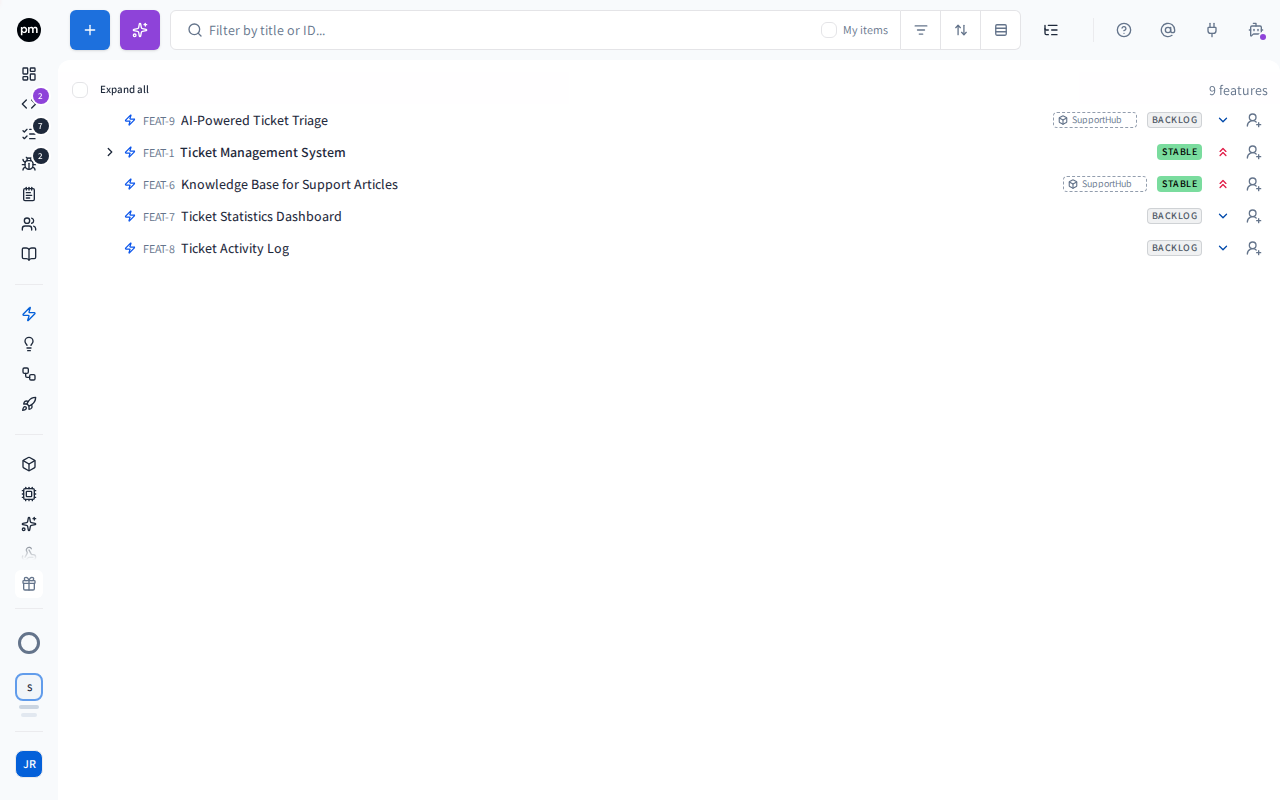
The toolbar holds, from left to right:
- Add feature (the + button);
- Run feature discovery (the sparkles button), which builds the catalog from your code;
- the search box, Filter by title or ID...;
- chips for the filters, sort and grouping in use;
- Filters, Sort and Group by;
- Feature map, which draws the catalog as a map.
The list shows the catalog as a tree. Choose the arrow on a row to open its subfeatures, or Expand all above the list to open every level. The count at the top right says how many entries the catalog holds.
Each row shows, from left to right:
- the kind, as an icon;
- the ID and the title, with a lock when the feature is private;
- an error mark after a scan failed, which you can choose to try again;
- for 24 hours after a scan drafts or writes the specification, a chip naming where it ran, such as Scan completed on Productmind cloud. A narrow list hides it;
- when you point at the row, Add subfeature (the +) after the title;
- toward the right, when you point at the row, Scan the code with AI to draft the feature specifications on an entry feature discovery found that has no specification yet. Pointing at it shows that the scan uses AI credits;
- its tags in one chip, such as billing · api: choose it to add or remove tags (on a row without any, point at the row for the tag icon). Then the linked applications in one chip, such as APP-4 billing-service · APP-1 web-app; point at a name for the paths and entry points recorded in that application. When you point at the row, a + in the chip adds an application (on a row without any, + Application). Short of room, the tags fold into 3 tags, then step back; then the applications fold into 4 apps, then step back;
- its status, as an icon. Point at the row to see its name. While something is happening to the entry, the icon shows that instead, with its words while the row has room: Ada scanning on Productmind cloud (an orange icon), Ada queued a scan on Productmind cloud (a grey dashed circle), Ada revising from comments on Productmind cloud, or Spec ready for your review (a violet dot; choose it to review the draft). While a scan is queued or running and you can stop it, pointing at the row turns the icon into a stop button (see To stop a scan). Afterwards the status shows again, and you can choose it to change it. See Status icons;
- its assignees and its priority.
When the row is too narrow, the title stays whole: the scan chip goes first, then the tags and the applications, and last a status's words give way to its icon.
The rows are striped, as in the other lists.
Choose a row to open the feature's document. Right-click a row for Open in new tab, Scan the code, Applications (a tick on each one linked), Add subfeature, Status, Priority, Move to... and Delete; during a scan, also View scan session. Status shows the feature's own status, even while a scan or a review shows on the row.
Filtering, sorting and grouping
Filters, Sort and Group by open one panel: filter the list by assignee, team, status, what a scan has done, a pending specification proposal or a code path, then sort or group it. Filtering keeps the tree, showing a matching feature with the features above it. See Filtering, sorting and grouping features.
Adding features
To add a feature
- In the sidebar, choose Features.
- Choose Add feature (the + button).
- Enter a title, and press Enter.
The feature appears at the top of the tree, in the Backlog status. The field stays open for the next one; Escape closes it.
To add a subfeature
- Point at the parent's row and choose Add subfeature (the + after its title), or right-click it and choose Add subfeature.
- Enter a title, and press Enter.
The subfeature appears under its parent. The field stays open for the next one; Escape closes it.
Only components can sit under a component, so a component's row has no Add subfeature. The button is also hidden while you search, filter, sort or group the list: it appears only in the tree.
Other ways features are created
- From your code. Feature discovery reads your repositories and builds the catalog. See Discovering features in your code.
- From a feature request. Promote a request into a new feature. See Feature requests.
- From a note or a bug report. See Notes and Bug reports.
- From Jira. Importing from Jira turns epics and stories into features. See Tasks.
- From a template. Starting an application from a template copies its feature specifications into your workspace. See Applications.
- Starter features. In a workspace with no features yet, once your Overview is drafted from your first knowledge base sources (such as the website you gave when you signed up), Productmind drafts starter features from it and writes a specification for each. See How features behave.
Discovering features in your code
Feature discovery indexes every application that has a repository, together, and builds the catalog from what the code does. It names each feature in business language, and records which applications each feature spans. How the catalog is shaped (grouped into domains, and how finely it is split) is set on the Feature discovery settings tab.
To scan only some of your applications, select them under Applications and start Feature discovery from Scan applications there. See Applications.
Feature discovery builds the catalog only. It doesn't write your features' specifications: you choose which features to read in depth, and when. See What deep reads cost.
To run feature discovery
- In the sidebar, choose Features.
- Choose Run feature discovery (the sparkles button next to +).
- Optionally add documents with your naming rules, then choose Run feature discovery.
The button shows a spinner while discovery runs, and the features it finds appear in the list. To stop it, see To stop a scan. Once your workspace has features of its own, discovery proposes its changes for you to review instead. See Re-scans and naming rules.
When indexing can't build a catalog
Sometimes Productmind can't index your code well enough to build a catalog, for example when a repository can't be installed. The scan then stops and says why, and Productmind offers to read the code with AI instead. It doesn't start that on its own: reading all of the code with AI is a separate run that uses its own AI credits, or one more user-hosted session when your Productmind agent runs it on your own machine.
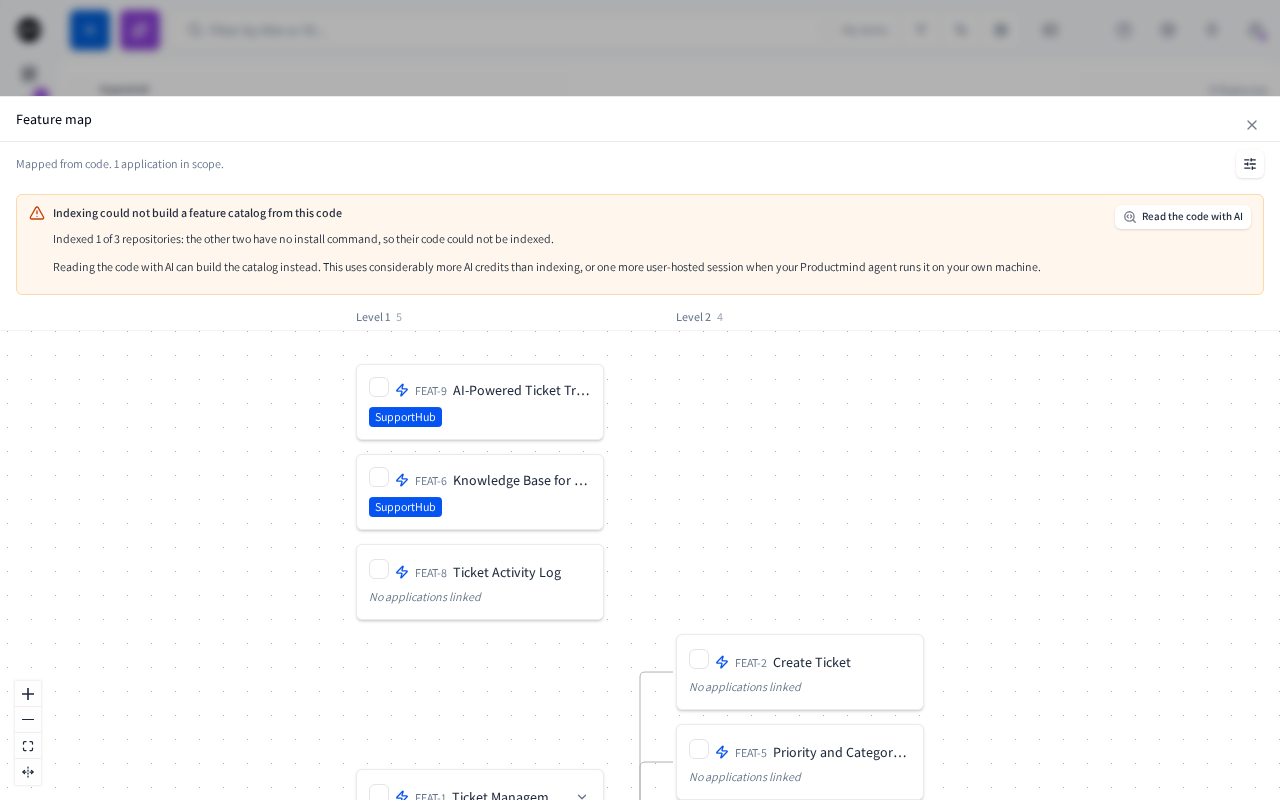
To read the code with AI
- On Features, choose Feature map. The panel shows Indexing could not build a feature catalog from this code, with the reason.
- Choose Read the code with AI.
Productmind reads all of the code with AI and builds the catalog, and the features appear as it finds them. You can also start it from Applications: choose Scan applications, then Read the code with AI on the Feature discovery row, which shows Not indexed.
The Feature map
Choose Feature map to see the catalog drawn as a tree, left to right, in a panel over the list. Each card shows the applications the feature spans. The map's columns (Level 1, Level 2 and so on) are depth levels: how far down the tree an entry sits. A card's ID shows its kind: DOM- for a domain, FEAT- for a feature and COMP- for a component.
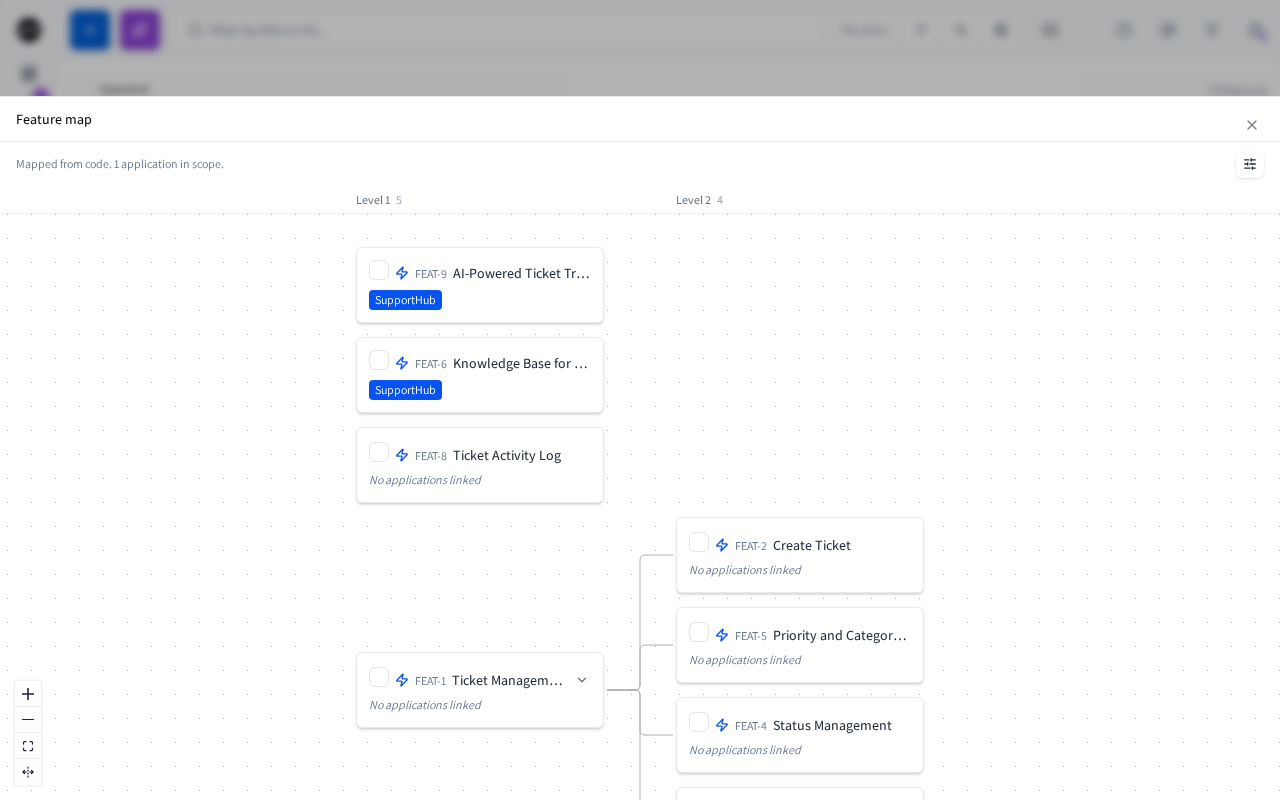
- The line at the top says when the catalog was last mapped and, if your role includes Applications: Read, how many applications are in scope.
- Dependencies shows which features build on which, when the scan has found any.
- Map settings sets the Density, what the Scroll wheel does, and how many levels (Depth) are open.
- Choose a feature's checkbox, then Deep scan N features, to have Productmind write the specification of each selected feature from the code. Each deep scan uses AI credits. A feature made of components is read component by component: when they finish, open the feature and choose Compose from components.
Close the map to go back to the list, as you left it.
Working with a feature
Choose a feature in the list to open its document.
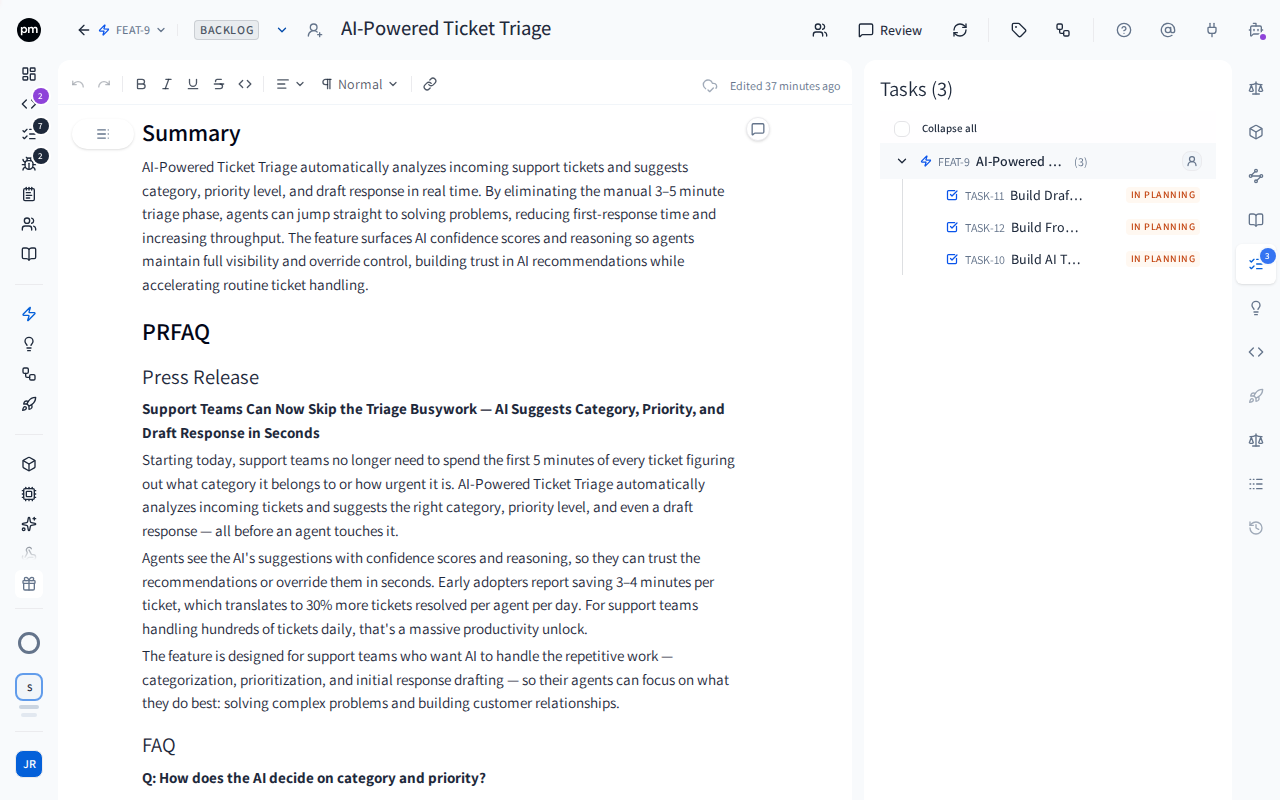
The header holds:
- Back to features;
- the kind icon, which changes the kind;
- the ID, which opens the list in a panel so you can switch to another feature;
- the status, the priority and the assignees;
- the title, which you can edit;
- Refresh description from code, Review, Tags and Lineage, and on a feature made of components, Compose from components;
- right after a scan's draft applies, audit: clean or audit: N findings, the result of Productmind's checks;
- Access (the people icon), which shows who can see the feature, and is where you make it private. A private feature also shows a lock in its header, and on its row in the list.
The document is a rich-text editor with a formatting toolbar. Everyone who has the feature open edits the same document and sees the others' changes as they type. Changes save as you go. Add images with Insert image, a paste or a drop (PNG, JPG, GIF or WebP, up to 10 MB); drag one to move it. Document outline (at the top left) lists the document's sections.
The panels on the right open from the icons along the edge:
| Panel | What it shows |
|---|---|
| Business rules | The rules the feature's components enforce, grouped by component |
| Applications | The linked applications, and under each one the services the feature lives in and its code surface |
| Related features | The features this one Uses, and the features it is Used by |
| Documentation | Knowledge base documents about the feature |
| Tasks | The tasks of this feature and its subfeatures |
| Feature requests | The requests promoted into this feature |
| Sessions | The coding sessions that worked on it, and your own Code chats |
| Releases | The releases it shipped in |
| Decisions | The decisions recorded for it |
| Logs | Its activity log |
| Document history | Saved versions of the document, starting with Created: the document as it was created, and who created it. A feature an agent created shows by Productmind agent for the person it worked for. Open a version and choose Restore this version to go back to it. |
Sessions, Releases and Document history are dimmed until they have something to show. A new feature's history always has its first version.
To write the specification with AI
When a feature's document is empty, it shows Let's get this feature started.
- In What do you want to build?, describe the feature in a sentence or two.
- Choose Brainstorm with AI.
The PM agent opens beside the document with your description, in the context of this feature, so you can work out the specification together.
To rework part of an existing document, select it and ask @pm in a comment: PM makes the change, and you can undo it.
When you ask the PM agent to change part of a specification, a sentence or one section, it changes only that passage and keeps the rest of the document as it is, however long the document is. Its approval card lists each passage it will replace and the new text. The previous version stays in Document history.
To comment on the specification
- Select the text you want to comment on. A menu opens below it when you let go.
- Choose Comment.
- Enter your comment. Type @ to mention someone.
The text stays highlighted, and the comment appears beside it. Everyone you mention is notified. You can mention only people who can see the feature: anyone else is grayed out with No access.
To change status, priority or assignees
- Choose the status, the priority or the assignees, on the feature's row or in its document's header.
- Choose the new value.
The row and the document show the new value.
To change several features at once
- Point at each feature's row and select its checkbox.
- In the bar that appears, choose Status, Priority or Move.
- Choose the new status or priority, or the new parent.
Every selected feature changes. The bar also offers Delete selected.
Your workspace can ask you to record a decision when a feature's status changes, or require one. If it does, a dialog asks for the decision when you change the status. See Decision records.
To change a feature's kind
- Choose the kind icon, at the start of the feature's row or in its document's header.
- Choose Domain, Feature or Component, or one of the three Component options that add a layer: View, API service or Data repository.
The ID changes with the kind, for example from FEAT-12 to COMP-12.
Kinds broader than the entry's parent aren't offered: under a feature there is no Domain, and under a component there are only the Component options.
To link an application
- Point at the feature's row and choose the + after its applications (+ Application when it has none). The same list opens as in the message box's + Application.
- Choose each application that implements the feature. Each one you choose is linked at once and ticked, and the list stays open.
The applications appear on the feature's row. You can also right-click the row and tick an application under Applications, or open the Applications panel in the feature's document and choose Link applications. To unlink one, choose it again in the list (it is ticked), clear its tick under Applications in the right-click menu, or choose Unlink (the x) in the feature's Applications panel.
To change a feature's code surface
Open the feature, open the Applications panel, choose the application, and choose Add code path. See Code surface.
To link a feature to a service
A repository can hold several services, such as a web front end, an API and a worker. Once your service architecture is mapped, the Applications panel shows, under each linked application, the services the feature lives in:
- Matched by folder (the folder icon). The feature's code sits in the service's folder. Productmind works these out each time you open the feature, so they follow the feature's code as scans and people change it. Point at one to see the folder and the file that matched.
- Added by hand (the service icon). Someone linked the service to the feature.
A folded application row shows how many services the feature lives in. Point at the number to see which.
- Open the feature, open the Applications panel and unfold the application.
- Next to Services, choose Add a service (the +).
- Select the services and choose Add N services, for example Add 1 service.
To remove a service you added, choose its x. A folder match can't be removed, because it comes from the code, but you can hide one that is wrong: choose its x. A hidden match stays hidden until you add it again from Add a service, where it's listed as Hidden.
Matching by folder needs the services' folders, which mapping the service architecture records. If the panel says Re-map the service architecture to match features to services by folder, re-map it from the Applications page. Services you add by hand don't need a folder.
To refresh the specification from the code
Productmind can read the linked repositories and propose an up-to-date specification. The feature needs at least one linked application with a repository. Each refresh uses AI credits.
- Open the feature and choose Refresh description from code (the refresh button in the header).
- Wait while Productmind reads the code. The button shows a spinner; point at it and choose it again to cancel. Only the person who started the refresh, or someone who manages the workspace, can cancel it. For anyone else, pointing at the spinner says who started it.
- When the draft is ready, the comparison opens, with the scan's summary and any audit findings above it. It shows each change against the current document. Choose Reject on any change you don't want, or Edit to rewrite the draft.
- Choose Apply N changes, for example Apply 3 changes, to apply the changes you kept (Apply, once you've edited the draft), or Dismiss to throw the draft away.
To keep the draft for later, choose Close review. Review changes in the header reopens it.
A draft that a coding session proposed reads Apply now (skips the merge) instead: once you apply it here, merging the session's Feature specifications pull request doesn't apply it again. See Pull requests and reviews.
These steps are for a component, or a feature that has no components. A feature made of components is written from its components instead: the refresh reads each component that has no specification yet. When they all have one, compose the feature from them. See To compose a feature from its components.
When new commits have landed in the linked repositories since the last refresh, the header shows a count such as 3 new commits. When nothing has changed, the refresh button is dimmed.
To compose a feature from its components
A feature made of components gets its specification from its components' specifications. Productmind doesn't write it when the components finish: you choose when.
- Open the feature.
- Choose Compose from components in the header.
Productmind writes the feature's specification from its components' specifications and applies it by itself, as long as nobody edited the document while it ran and the draft passes Productmind's checks. Otherwise the draft waits for your review. A component that has no specification yet, or whose scan failed, is named as a gap in the result. Composing uses AI credits, like a refresh. You can't compose while one of the feature's components is still being read.
To stop a scan
You can stop a scan you started. To stop a scan someone else started, you need to manage the workspace.
- Point at the row of the feature or component being scanned: its status says who is scanning it, or that it is queued, and its status icon turns into a stop button.
- Choose the stop button.
The scan stops, and the row shows its status again. You can also stop a scan from the feature's header, where Refresh description from code shows a spinner while it runs, and stop feature discovery from Run feature discovery.
If you can't stop a scan, its row has no stop button. Its status names who started it.
To break a feature into tasks
- Open the feature and choose the Tasks panel.
- If the feature has no tasks yet, choose Generate, or Add task (the +) to write one yourself. Otherwise, point at the feature's row at the top of the panel and choose Generate tasks (the sparkles icon).
See Tasks for how generated tasks are reviewed and created.
To move a feature
Drag the feature onto its new parent, or:
- Right-click the feature's row and choose Move to....
- Search for the new parent (exact title first) and choose it, or choose Top level (no parent).
The feature moves with its subfeatures. A drag into another domain asks first: Move to another domain? shows From: and To:; choose Move or Cancel.
To delete a feature
- Right-click the feature's row and choose Delete. To delete several features, select them and choose Delete selected.
- Confirm. For a single feature, the confirmation says how many subfeatures, at any depth, and how many tasks go with it, and warns you when the feature is In Development or Stable. Enter its title first.
The features disappear from the list.
Deleting a feature also deletes its subfeatures and their tasks. It can't be undone.
Making a feature private
A feature is open to everyone in your workspace until you make it private: then only the teams you choose, and the people who manage the workspace, can see it and everything under it, each team with Can view or Can edit. Open the feature and choose Access in its header. See Private features.
How features behave
Changes appear live. When a teammate, a scan or a coding session changes a feature, the list and the open document update without a refresh.
A first specification can apply itself. When feature discovery created an entry and no specification has been written for it yet, the first scan of its code writes one and applies it by itself, as long as nobody edited the document while the scan ran and the draft passes Productmind's checks.
A feature made of components is written from its components. Refreshing such a feature reads its components instead of the feature: each component that has no specification yet is scanned, and Productmind says how many it is reading. The feature's specification is written from its components' specifications when you choose Compose from components, or when you refresh it and there is nothing left to read. It then applies by itself, on the same two conditions. A component that already has a specification isn't scanned again. To update it, open the component and refresh it there, or use its scan button in the list. Reading a feature reads its components together, so it costs less than reading them one by one.
Every other refresh, on a component or a feature without components that already has a specification, waits for your review.
Nothing is read in depth unless you start it. Feature discovery builds the catalog, and deep reads, compositions and reading the code with AI are yours to start. See What deep reads cost.
Only the person who started a scan, or someone who manages the workspace, can stop it. This holds for every scan of your features (deep reads, compositions, feature discovery and reading the code with AI), wherever you stop it, including the Feature discovery row under Scan applications. Anyone else can watch the scan, but not stop it. The people who manage the workspace are an Owner or Admin of your organization, the workspace's owner, and its admins.
A teammate's scan shows up at once. Its dot appears on the row as soon as the scan starts or is queued. The name of the person who started it, and where it runs, follow within a few seconds.
Starter features come with their specifications. In a workspace with no features yet, indexing its first Overview drafts starter features, and Productmind writes a specification for each of them in the background. When they land, Productmind says how many it drafted, with Open Features. A starter feature shows Enriching while its specification is being written. If you open or edit one before then, Productmind keeps what you have and drops the Enriching badge instead of overwriting it. This runs once per workspace and uses AI credits, about 60,000 for a typical set of starter features with their specifications. The knowledge base dialogs say so before it starts. See Knowledge base.
Indexing waits when your organization can't pay for it. Features are indexed so the AI can find them. When your organization is out of AI credits, or its spending is paused, your changes are saved but not indexed yet, and you see a warning with the action that fixes it. Once your organization can pay again, everything changed meanwhile is indexed with no click.
Releases move features forward. When your deployment pipeline reports that a release reached production, the features it shipped move from Planned or In Development to Stable. See Releases.
Deleting a feature deletes what's under it. Its subfeatures and their tasks go with it. Move anything you want to keep first.
Notifications. You're notified when you're assigned a feature, or someone mentions you in its document or a comment. If your workspace posts events to a Slack channel, new features and status changes appear there. See Profile and notifications.
What deep reads cost
Every deep read, whether from a row's scan button, the header's refresh, Deep scan N features or Compose from components, runs an AI agent, and one choice can start several runs:
- Deep scan N features starts one run per selected feature.
- A feature made of components is read in runs of up to four of its components, so reading a feature with six components that have no specification starts two runs.
- Compose from components is one run.
In Productmind's cloud, each run uses AI credits. When your Productmind agent runs them on your own machine, they use none of your AI credits, and each run is one user-hosted session instead. Reading the code with AI, after indexing couldn't build a catalog, is a separate run with its own AI credits. See Usage.
Permissions
| To | You need |
|---|---|
| See features | Features: Read |
| Add features, run feature discovery, or read the code with AI | Features: Create |
| Change a feature (title, document, status, priority, assignees, kind, parent, links, services, code surface) | Features: Update |
| Refresh a specification from the code, deep scan, or compose from components | Features: Update |
| Stop a scan someone else started | To manage the workspace, and the permission that starts the scan |
| Delete features | Features: Delete |
| Generate tasks for a feature | Features: Update and Tasks: Create |
| Make a feature private, or change who can see it | Features: Update, and Can edit if the feature is already private; or to manage the workspace |
| Comment on a feature, and reply | Comments: Create. Resolve needs Comments: Update |
The Owner and Admin roles can do all of these. Power User, Developer and Product Manager can too, except stop a scan someone else started, unless they are the workspace's owner or one of its admins. To stop a scan you started, you need only the permission that starts it. Viewer and Customer can read features and their documents, but not change them. Linking an application and running feature discovery also need Applications: Read, so Productmind can list your applications. Every built-in role that can add features has it, and a custom role needs it too. See Roles and permissions.
A private feature's teams change this, on that feature and everything under it. See Private features.
Limits
Your plan can limit how many features a workspace holds. When it does, the list shows a counter beside the number of records, such as 32 / 100, which turns red at 90% of the limit.
- Features copied from a template don't count. When you start an application from a template, its feature specifications are yours, and they don't use up the limit.
- Every other feature counts, including the ones feature discovery creates. Feature discovery is never stopped by the limit, but adding a feature yourself is refused once the workspace reaches it.
- At the limit, choose the counter to see what your plan allows. An Owner or Admin can choose View plans to open the Plan tab; anyone else is asked to ask an Owner or Admin to upgrade.
See Plans and limits.
A private feature can list up to 50 teams.
A feature's or a component's specification can be up to 200,000 characters. The PM agent reads a specification of that length in full, and a change made through the PM agent or the API that would make a specification longer than that is refused, with a suggestion to split it. The same limit applies to the descriptions of tasks, bug reports and feature requests. Typing in the document is never refused: if a specification grows past the limit there, the feature shows This description is over 200,000 characters above the document until it is back under it.
Troubleshooting
Refresh description from code is missing
The entry is a domain, which holds no code of its own, or your role doesn't include Features: Update.
Refresh description from code is dimmed
The feature has no linked application with a repository. Link one in the Applications panel. If an application is linked, the specification is already up to date with its code.
Run feature discovery is dimmed
None of your applications has a repository, your role doesn't include Applications: Read (so Productmind can't list your applications), or Productmind is still mapping your service architecture. Point at the button to see which. See Applications.
I can't stop a scan
Someone else started it, and you don't manage the workspace. Only the person who started a scan, or someone who manages the workspace, can stop it. Point at the scan's dot, or at its spinner, to see who started it, and ask them, or someone who manages the workspace, to stop it.
A scan's draft didn't apply itself
Only a composition, or the first specification of an entry that feature discovery created, applies itself, and only if nobody edited the document during the scan and no finding blocks it. See Audit findings.
A feature says "This description is over 200,000 characters"
Its specification is longer than the PM agent reads in full, so the PM agent may miss what is at the end of it, and changes made through the PM agent or the API can only shorten it. Move parts of it into components under the feature, so each specification stays under 200,000 characters. You can keep editing the document while you do.
The PM agent removed part of a specification
Open the feature's Document history, open the version from before the change, and choose Restore this version. Every change the PM agent saves keeps the previous version there.
Compose from components is missing
The entry has no component directly under it, a scan of it is running or waiting for your review, or your role doesn't include Features: Update. Finish or dismiss the review first.
No services are shown for an application
The application's repository holds one service, which is the application itself, or its service architecture hasn't been mapped yet. Map it from Architecture map on the Applications page. See Applications.
Feature discovery finished without a catalog
Indexing couldn't build a catalog from your code. See When indexing can't build a catalog.
I can't make a feature a component
Only components can sit under a component, so an entry with features under it can't become one. Make those subfeatures components first, or move them.
Adding a feature fails with "reached its feature limit"
The workspace holds as many features as your plan allows, counting every feature except those copied from a template, so the number in the message can be lower than the number of features in the list. Delete features you no longer need, or upgrade your plan. See Plan.
A feature is missing, or I can't change it
The feature may be private. See Private features.
Related topics
- Re-scans and naming rules
- Filtering, sorting and grouping features
- Code surface
- New and changed features
- Review mode on specifications
- Code
- Lineage
- Feature discovery
- Teams