

Deploys
When an application's environment deploys to a cloud account, each pull request merged into its branch starts a deploy. Its row under Cloud accounts, in the application's Source code tab, shows what those deploys did: what runs now and at which address, the latest run and why it failed, with Retry deploy, Deploy now and the history of every run. Every run is also listed with the application's other deployments on the Deployments page and in the application's Deployments tab.
Deploys are part of Cloud accounts, which is in early access. A row shows them while its environment deploys to a cloud account, and keeps the last deploy once it stops.
Key concepts
Deploy. A run of the deploy workflow in the application's repository, which puts the commit at the head of the environment's branch into its cloud account. A merge into the branch starts one, and so does Deploy now.
Run and attempt. GitHub numbers each run, for example Run 412. Running a deploy again with Retry deploy is another attempt of the same run, on the same commit: attempt 2, then attempt 3.
Running now. The deploy that last deployed the environment: what its address serves now. A newer deploy that failed doesn't change it.
Latest run. The environment's newest run, whatever it did. It is shown under Running now when it isn't the run that runs now.
Live at. The address of the environment's app, once a deploy has deployed it and its address is ready. It follows the environment's domain and its own settings for its host names (see Domains), and goes once the environment's stack is removed.
Run reference. Each run shows Run 412 on GitHub. Only Productmind support can open GitHub runs while Productmind hosts your repository: quote the run when you ask support about a deploy.
Each run shows its state:
| State | What it means |
|---|---|
| Queued | Waiting to start: one deploy of an environment runs at a time |
| Deploying | The deploy is running |
| Finishing | The run ended, and Productmind is reading what it did |
| Deployed | The commit deployed. The newest deployed run is what runs now |
| Failed | The deploy failed. The row says in which job and at which step, once Productmind has read them from GitHub |
| Replaced by a newer run | A newer run of the environment, a deploy or a destroy, replaced it before it started |
| Not deployed | It ran, but deployed nothing to the environment: the environment wasn't set to deploy when the run started |
| Cancelled | It was cancelled before it finished |
| Unknown | Productmind couldn't read what the run did |
Destroy runs. When an environment is destroyed, the destroy's run is listed with its deploys, as Destroy by the person who asked: Destroying, then Destroyed, or Not destroyed when it removed nothing, for example once its request had expired. A destroy that a newer run took the place of reads Replaced by a newer destroy run once a later destroy run of the environment follows it. See Destroying an environment.
The Deploys part at a glance
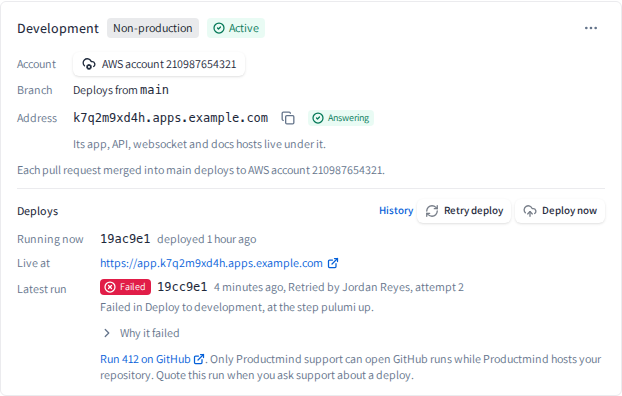
Each environment that deploys to a cloud account shows Deploys under its row:
- History, Retry deploy and Deploy now, each shown only to whoever can use it.
- Running now: the commit that runs now, when it deployed, and its attempt when a retry deployed it.
- Live at: the app's address, which opens it.
- Latest run: its state, its commit, when it ran, what started it (a push to the branch, Deploy now or a retry, with who pressed it when Productmind started it), what it did, Why it failed for a failed run, and the run reference.
An environment with no run yet says Nothing has deployed since this environment was attached, and which branch's next merge deploys it. History is still offered: it lists the runs of every account the environment deployed to before.
Working with deploys
To see why a deploy failed
- Open the application and choose Source code.
- Under Cloud accounts, on the environment's row, choose Why it failed under its latest run.
Productmind reads the failure from GitHub when you open it: each failed job, the step that failed, the errors it located and the end of its log. None of it is stored, and choosing Why it failed again closes it. It is offered on a failed run's latest attempt. If GitHub doesn't answer, Try again reads it again.
To retry a failed deploy
- Open the application and choose Source code.
- Under Cloud accounts, choose Retry deploy on the environment's row.
Retrying Development's deploy appears, with the run and its new attempt, and the latest run shows Queued, then Deploying. A retry runs every job of the environment's newest deploy again, on the same commit, with the environment's stack settings as they are now: fix a setting the deploy refused, then retry it.
Retry deploy is offered on the environment's newest deploy when it failed or was cancelled, within 30 days of its first attempt, while the environment is Active or its destroy is only scheduled. An older deploy is never run again: to go back to an earlier version, revert the change and merge it.
To deploy an environment now
- Open the application and choose Source code.
- Under Cloud accounts, choose Deploy now on the environment's row.
Deploying Development appears, with its run, and the latest run shows Queued, then Deploying. Deploy now deploys the newest commit on the environment's branch, and is offered while the environment is Active or its destroy is only scheduled. While your press is being answered, Deploy now stays off.
To see an environment's deploy history
- Open the application and choose Source code.
- Under Cloud accounts, choose History on the environment's row.
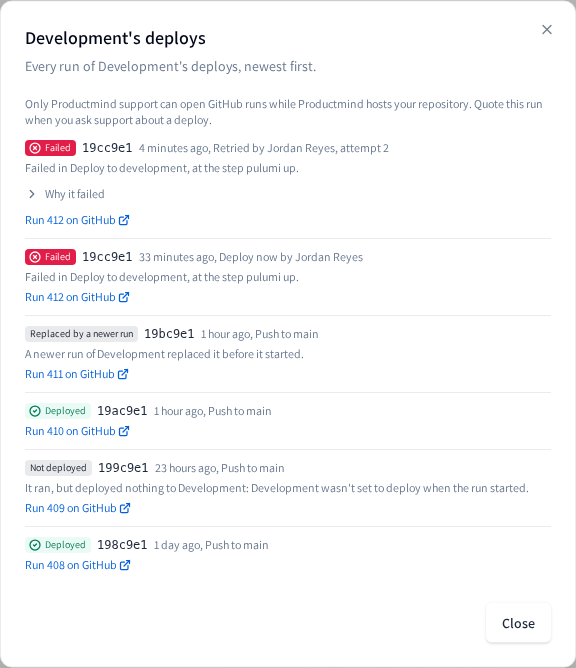
The dialog lists every run of the environment's deploys, newest first, including its runs to an account it was attached to before: each run's state, commit, when it ran, what started it and its attempt. A failed run's latest attempt offers Why it failed. Choose Show older runs to read further back.
To deploy after changing stack settings
A change to an environment's stack settings applies at its next deploy. When a save changed something while the environment is Active, the dialog says when the changes apply and offers Deploy now: choose it to apply them at once. Otherwise the dialog closes as before, with a message saying when the changes apply, or that nothing needed saving. See Stack settings.
How deploys behave
One deploy runs at a time. One deploy of an environment runs and one waits. A deploy started while another runs waits for it, and replaces a deploy already waiting, which then shows Replaced by a newer run. A replaced run is never retried, and nobody is notified of it.
A second Deploy now within 30 seconds starts nothing. Pressing Deploy now again within 30 seconds, once the first press's run shows, answers with that run: The earlier press's run stands: no second deploy started. If two deploys do start, for example when two people press at the same moment, the second waits for the first and deploys the same commit again.
The row keeps itself up to date. While a run is queued, running or finishing, while Productmind is still reading a failed run's jobs, and for a few minutes after a press whose run has not shown yet, the row is read again every 15 seconds. A recorded change shows sooner while the application is open.
Retry deploy is for the newest deploy. It runs every job of the environment's newest deploy again, on the same commit, never an older deploy, and only within GitHub's 30 days. If a newer deploy runs or ran since, Productmind says so and shows the newer one. While a retry is being answered, its Retry deploy shows that it is working, and a second press sends nothing.
A failed deploy notifies once. Deploy failed, with the application and the environment, its run, its commit, and the job and step that failed, reaches:
- the person who pressed Retry deploy or Deploy now for that attempt;
- the people responsible for each coding session whose merge was the failed commit: who started it, who it is assigned to and the person whose machine runs it;
- the workspace's Owners and Admins.
Each of them only while a member who can open applications. It appears in the app and is emailed, or arrives as a Slack direct message instead when you have connected your Slack account (see How notifications reach you). Each attempt notifies once. A cancelled, replaced or not-deployed run notifies nobody, and so does a failure Productmind learns of more than a day after it ended, or after a newer deploy already deployed.
Who sees why. Everyone who can open the application sees each run's state, its commit, and the job and step that failed. The end of a failed job's log can hold your app's own output, so only Owners and Admins read Why it failed; everyone else reads An Owner or Admin can see why it failed.
Coding sessions show the deploy of their commit. In a coding session's Deployments, a row for an environment that deploys to a cloud account shows its commit's deploy run under the commit, apart from the row's own Status: for example Deployed under Status, and Run 412 with Failed under the commit. Each environment is named as your workspace names it, and one the workspace no longer has shows its key in a pale badge.
A detached environment keeps its last deploy. When an environment stops deploying to an account, what runs there keeps running, unless its stack was destroyed first, and its row keeps showing its deploys. Retry deploy and Deploy now come back once it deploys to an account again.
When the repository leaves Productmind's hosting. Its environments' rows say This repository left Productmind's hosting: deploy records stop here. Their deploys stay listed, and nothing more is recorded, retried or started for them. An environment with no run recorded says No deploy was recorded before it left.
Permissions
| To | You need |
|---|---|
| See an environment's deploys, its address and its deploy history | Anyone who can open the application |
| Retry a deploy and deploy now | The Owner, Admin or Power User role, signed in to Productmind yourself |
| See why a deploy failed | The Owner or Admin role, signed in to Productmind yourself |
Limits
- A deploy can be retried within 30 days of its first attempt.
- The deploy history shows 20 runs at a time.
Troubleshooting
"This deploy can't be retried"
Only the environment's newest deploy can be retried, when it failed or was cancelled, within 30 days, while the environment is Active. Choose Deploy now to deploy the branch's head instead.
"This isn't the environment's newest deploy any more, so it can't be retried"
A newer deploy runs or ran since you opened the row. The row reads the environment's deploys again: retry the newest one if it failed, or choose Deploy now.
"GitHub is running this deploy again already, so it can't be retried yet"
Someone retried it moments ago, or GitHub is still running it. Wait until it ends.
"GitHub runs a deploy again only within 30 days of its first attempt"
The deploy is older than GitHub runs again. Choose Deploy now to deploy the branch's head.
"This environment can't be deployed now"
The environment isn't Active: it is being set up, changing branch, paused or detaching, or a step failed. It deploys once its row shows Active again. See Cloud accounts.
"GitHub can't find this environment's branch on the repository"
The branch the environment deploys from was deleted. Create it again, or change the environment's branch. See To change the branch an environment deploys from.
"The deploy workflow is turned off on the repository"
The repository's deploy workflow was disabled, so nothing can run. Contact Productmind support.
"This environment's repository can't be reached now"
Productmind couldn't find the repository the environment deploys from. Try again in a few minutes. If it stays, contact Productmind support.
"GitHub didn't accept this now"
GitHub didn't answer, or refused the press for a passing reason. Try again in a few minutes.
"Deploying to cloud accounts isn't available to your organization now"
Cloud accounts are in early access, and deploying through them is not turned on for your organization at the moment. The deploys stay listed. Contact Productmind support to ask about early access.
A run shows Not deployed
The run started while the environment wasn't set to deploy: it was paused, changing branch, still being set up, or its destroy had started. Once its row shows Active, choose Deploy now. While a destroy is scheduled, under way or failed, cancel it; while it reads Restoring, wait for Active; once the environment is destroyed, choose Deploy again. See Destroying an environment.
Related topics
- Deployments, every application's deploys and merges in one list
- Cloud accounts
- Domains
- Stack settings
- Profile and notifications