

Automations
An automation is a standing rule: when something happens in your workspace, and the conditions you set hold, run this agent. It's how work that would wait for someone to notice happens on its own, such as triaging a new critical bug or checking a new feature request. The Automations page holds your rules, and Runs shows every time one of them ran, what the agent was told and what it returned.
Key concepts
Automation. A rule that reads as one sentence: WHEN something happens, ONLY IF these conditions hold, DO run this agent with this input.
Trigger. What starts the automation. It has exactly one:
| Trigger | Starts the automation |
|---|---|
| A workspace event | When a feature, a feature request, a bug report or a task is created or changed. See Events. |
| On a schedule | Hourly, Daily or Weekly, at a time you choose in a time zone you choose. |
| Only by hand | Only when someone runs it from its Test panel. |
Conditions. Extra tests on the item an event is about, such as severity is Critical. Only automations with an event trigger have conditions.
Agent. What runs: one of your workspace's agent definitions. Only an agent that is automation-ready can run from an automation.
Custom input. Extra instructions for this automation, added to what the agent already gets: the trigger, the item it fired on, the workspace, and the agent's own instructions.
Run-as user. The person the automation acts as: the person who created it. The agent sees and changes only what this person is allowed to.
Enabled and Disabled. A new automation is always Disabled. It fires only once you enable it.
Run. One execution of the agent. Each run has a status:
| Status | Means |
|---|---|
| Queued | Waiting to start. |
| Running | The agent is working. |
| Succeeded | The agent finished and returned its output. |
| Failed | The agent didn't finish: it errored, it reached its turn or token limit, or the run never reported back. |
| Skipped | A guardrail, or your organization's spending, stopped the run before the agent started. The reason is on the run, with the action that fixes it when billing stopped it, and nothing was spent. A skipped run is not a failure. |
When an event doesn't meet an automation's conditions, nothing runs and no run is recorded.
Events
An automation can start on these events:
| Group | Events |
|---|---|
| Features | created a feature, updated a feature, moved a feature |
| Feature requests | added a feature request, updated a feature request, moved a feature request, promoted a feature request |
| Bug reports | reported a bug, updated a bug report, moved a bug report |
| Tasks | created a task, updated a task, assigned a task |
Moved means the item's status changed. Some changes start more than one trigger:
- an updated trigger also runs when the item is moved, and for a task when it's assigned;
- moved a feature request and updated a feature request also run when a request is promoted.
So if you have one automation on updated a bug report and another on moved a bug report, a status change runs both. To keep an updated automation to the changes you care about, add a condition such as Severity, changed.
When many features or tasks are created at once, for example by an import, an automation on
created a feature or created a task runs once for the whole batch, on the first item only.
Its {{entity.title}} is then the size of the batch, such as 12 tasks.
The Automations page at a glance
In the sidebar, under Engineering, choose Automations. The page has two tabs, Automations and Runs.
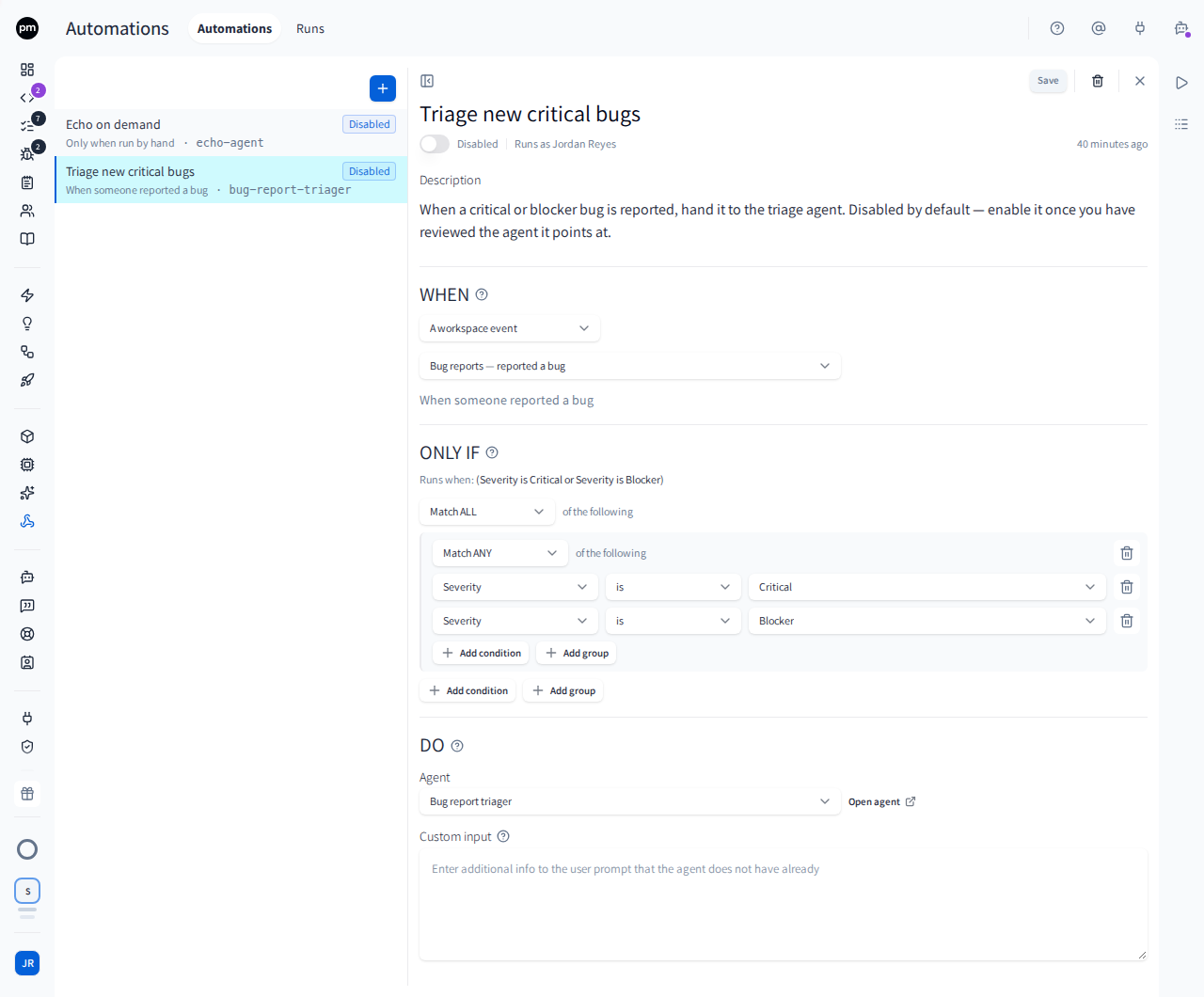
The Automations tab lists your automations. Each row shows the automation's name, its trigger in words, the agent it runs, Enabled or Disabled, and the status of its last run. New automation (the + button) is above the list.
Choose an automation to open it. The header holds Save, Delete automation and Close. Below the title are:
- the Enabled switch;
- Runs as, the run-as user;
- Description;
- WHEN, the trigger, with the rule in words below it;
- ONLY IF, the conditions, for an event trigger;
- DO, the Agent with Open agent, and the Custom input.
The side panel holds Test, to check and try the automation, and Runs, its five most recent runs with View all runs.
A red message at the top means the automation turned itself off, and says why.
The Runs tab
Choose Runs to see every run in the workspace, newest first.
Each row shows the run's status, the automation (or the agent, for a run with no automation), the item it ran on, and the tokens it used. In-flight runs update without a refresh.
The toolbar holds:
- the search box, which matches the item's ID and title, the agent, the rendered input, the error and the automation's name;
- Filters: status, trigger, automation and agent;
- Sort: Started, Finished or Status;
- Group by: automation, status, agent or trigger.
Choose a run to open it. It shows, from top to bottom:
- Why it was refused for a skipped run, or Error for a failed one. When billing refused the run, the action that fixes it is right under the reason: Top up, Activate pay-as-you-go, Open Usage or View plans. A member who can't take it reads who can;
- Warnings, such as a placeholder Productmind doesn't recognize;
- Trigger: the event, and the item it fired on as a link;
- Rendered input, the text the agent actually received, with every placeholder filled in;
- Output, what the agent returned, cut off at 100,000 characters. For a run stopped by its turn or token limit, it's what the agent wrote before it stopped;
- Steps, the tools the agent called;
- Details: the run's ID, the agent and its version, the automation, when it started and finished, and for a run caused by another run, its Causation depth and a link to that run.
To delete runs, choose Delete run on a run, or select several and choose Delete selected.
When an automation surprises you, read the run's Rendered input first. It's exactly what the agent read, and shows any placeholder that came out empty.
Creating automations
To create an automation
- In the sidebar, choose Automations.
- Choose New automation (the + button).
- Enter a Name that says what the automation is for, such as Triage new critical bugs.
- Under When, choose the trigger:
- A workspace event, then the event;
- On a schedule, then how often, the day for a weekly schedule, the hour for a daily or weekly schedule, and the minute, in steps of five. Enter the Time zone by name, such as Europe/Stockholm. It starts as your browser's time zone;
- Only by hand.
- Under Run, choose the agent.
- Choose Create.
The automation opens, Disabled, for you to add conditions and the agent's input. For an event
trigger, the Custom input starts as {{entity.title}}. The list shows the automation as
Disabled until you enable it.
To add conditions
- Open an automation with an event trigger.
- Under ONLY IF, choose Add condition.
- Choose a field, an operator and a value. For example: Severity, is, Critical.
- Choose Match ALL for every condition to hold, or Match ANY for one to be enough.
- To combine the two, choose Add group, and set the group's own Match ALL or Match ANY. Groups can be nested three levels deep.
- Choose Save.
The line Runs when: above the conditions spells the rule out as a sentence, with brackets where groups are. Read it to check that the rule says what you mean.
Which fields you can test depends on the event, so changing the event clears the conditions. Every field is read from the item as it is now, not only from what the event changed. So severity is Critical works on a new bug report as well as on a change of status.
The operators are is, is not, contains, is one of, is empty and is not empty. is one of takes a single value, so it works like is. On an event that changes something, such as an update, a status change or an assignment, you also get changed, changed to and changed from, which test the change itself.
To write the agent's input
- Open the automation.
- Under DO, check the Agent. Open agent opens its definition in a new tab.
- In Custom input, write what this automation adds to the agent's own instructions.
- Choose Save.
You don't need to repeat the item or the event: the agent gets both, and looks the item up itself as the run-as user. You can use these placeholders in the input:
| Placeholder | Becomes |
|---|---|
{{entity.key}} | The item's ID, such as BUG-123 |
{{entity.title}} | The item's title |
{{entity.status}} | The item's status |
{{event}} | The event that fired |
{{actor.name}} | The person who made the change |
{{changes.status.to}}, {{changes.status.from}} | A field's new and old value, on an event that changes it. Use the field's name, such as status or priority. |
An unknown placeholder becomes empty text, and the run records a warning. The run still goes
ahead. A placeholder with nothing to fill in, such as {{changes.priority.to}} when the priority
didn't change, or {{entity.key}} on a schedule, also becomes empty text, without a warning.
On a schedule or by hand there's no item. With no input, the agent is only told that it was started, so it has to find its work from its own instructions and tools. The page warns you when this is the case.
To test an automation
Test before you enable. The Test panel checks the rule against a real item, and can run it once.
- Open the automation and choose Test in the side panel.
- For an event trigger, under Run against, choose one of the most recently updated items. Its current values are shown below it.
- If the event is a change, select at least one field under Pretend these fields just changed. A real event always changes something.
- Optionally, write a Custom input for this run only. It replaces the automation's input for this test, and isn't saved. On a schedule or by hand, it's what tells the test run what to do.
- Choose Check conditions to see whether the automation would run. Nothing runs, and it checks the conditions on screen, including unsaved changes.
- Choose Test run to run the saved automation once.
Check conditions answers This automation would run or would not run, and marks each condition Passes, Fails or Could not be checked. A test only knows which fields changed, not what they changed from or to, so changed to and changed from conditions can't be checked and count as passing. So does a condition on a field that only a real event carries.
A Test run is a real run: it goes through the guardrails, runs as the run-as user, spends tokens, and appears in Runs. If the conditions don't hold for the item you chose, it doesn't run and shows why. Choose Run it anyway to run it regardless. If billing refuses it, Productmind shows the reason with the action that fixes it, such as Top up, or the Usage limit reached dialog, and the run appears in Runs as Skipped.
To enable or disable an automation
Turn on the Enabled switch below the automation's title. Turn it off to disable it.
When you enable an automation, Productmind checks the rule again, checks that the agent can run and that the run-as user still has access to the workspace, and arms the schedule. If a check fails, the automation stays disabled and says why. It can take up to a minute before an enabled automation fires everywhere.
Disabling stops new runs. Runs already queued still finish.
To delete an automation
- Open the automation and choose Delete automation (the trash icon).
- Choose Delete.
The automation stops firing. Its runs stay in Runs, no longer linked to it.
How automations behave
Guardrails. Automations run with nobody watching, so each run is checked first. When a check stops a run, the run is recorded as Skipped with the reason:
| Guardrail | What happens |
|---|---|
| Hourly limit | An automation runs at most 50 times an hour. Past that, triggers are skipped. |
| Chains | An agent's changes can trigger other automations. A chain stops after 3 steps, and an automation never runs again within its own chain. |
| Coding sessions | A change made by a coding session's agent never starts an automation. |
| Spending | A run is skipped if your organization has reached a daily, weekly or monthly AI credit limit, has used up its allowance, has paused pay-as-you-go spending, has used up its free allowance without activating pay-as-you-go, or its pay-as-you-go balance can't cover the run. This is checked again when the run is about to start, so a queued run can be skipped too. The run says why, with the action that fixes it. When an event or a schedule started the run, your Owners and Admins are also notified, at most once a day. See Billing notices. |
Automations turn themselves off when they can't work. If the run-as user loses access to the workspace, or the agent is deleted, disabled or no longer automation-ready, the automation is disabled the next time it fires, and says why. After 10 failed runs in a row, including runs stopped by the agent's turn or token limit, it's disabled too, and the run-as user gets a notification. Fix the cause, then enable it again. Skipped runs don't count toward the 10, and don't restart the count either: only Failed runs do, and a Succeeded run starts it again.
You're told when billing skips your run. If the spending check skips a run that your change or your Test run started, as the run is about to start, a pop-up says so, for example Triage new critical bugs did not run on BUG-7 and "It did not start: Pay-as-you-go spending is paused." If you can fix it, the pop-up offers the action that does, such as Open Usage, before View run.
Schedules are approximate. A scheduled automation fires within five minutes of its time. A time missed while Productmind was unavailable is skipped, not made up later.
Stuck runs fail. A run that doesn't report back within 30 minutes is marked Failed.
The menu shows activity. Automations in the sidebar shows two counts, for the whole workspace: in violet, the runs that failed in the last 24 hours, and in orange, the runs queued or running now. Both can show at once, and a skipped run isn't counted as failed. Point at Automations to see the runs behind them, the failed ones first, each with its automation, what it ran on and its status. Choose a run to open it, or View all to open Runs. See Badges.
Runs use AI credits. Every run that starts an agent counts toward your usage. See Usage.
Permissions
| To | You need |
|---|---|
| See automations and runs, check conditions and make test runs | Automations: Read |
| Create automations | Automations: Create |
| Change, enable and disable automations | Automations: Update |
| Delete automations and runs | Automations: Delete |
| Change the agents automations run | Agents access (under Administrative access on the Roles tab) |
The Owner and Admin roles can do all of these. Power User and Developer can see and test automations, but not create or change them. Product Manager, Viewer and Customer can't see automations. See Roles and permissions.
Limits
| Limit | Value |
|---|---|
| Conditions per automation | 10 |
| Group nesting | 3 levels |
| Custom input | 5,000 characters |
| Runs per automation per hour | 50 |
| Chain of automations | 3 steps |
Troubleshooting
My automation didn't run
Check, in this order:
- Is it Enabled? A new automation starts disabled.
- Did its conditions hold? Open Test, pick the item, and choose Check conditions. A condition that doesn't hold records nothing.
- Is there a Skipped run in Runs? Its reason says which guardrail stopped it, or why your organization's spending did, for example that pay-as-you-go spending is paused or the balance can't cover the run. For a spending reason, the run offers the action that fixes it, such as Open Usage or Top up. Only an Owner or Admin can resume spending or top up. See Usage.
An automation you just enabled can take up to a minute to fire everywhere.
It ran, but did the wrong thing
Open the run and read the Rendered input. Look for a placeholder that rendered empty, or an event broader than you meant: an updated trigger also runs when the item is moved, and for a task when it's assigned. See Events.
A run failed with "Stopped: turn limit reached"
The agent used every turn its definition allows before it finished the job. The run's Output holds what it wrote before it stopped, and its Steps show where the turns went. Raise the agent's Max turns, up to 50, or narrow the job in the Custom input or the agent's instructions so it needs fewer steps. See Definitions.
To find these runs, search Runs for limit reached. Ten failed runs in a row turn the automation off.
It turned itself off
Open it and read the red message at the top. Fix the agent or the rule, then turn Enabled on again.
Test run is disabled
Save your changes first: a test run uses the saved automation. For an event trigger, choose an item under Run against, and for a change, select at least one changed field. Point at the button to see what's missing.
The agent I want isn't in the list
An agent that isn't automation-ready is grayed out, and a disabled agent isn't listed. See Definitions.