

Customer meetings
Customer meetings holds the conversations you have with customers yourself: calls, demos, visits. Type or paste your notes, or invite an AI notetaker to join the video call and transcribe it. Productmind summarizes each meeting and turns what the customer asked for into feature requests and bug reports, linked back to the meeting and the customer.
Key concepts
Meeting. One conversation with a customer. The meetings you run yourself are listed here; the conversations an AI interviewer runs are under Agentic interviews, and conversations from your helpdesk are under Customer support.
Contact. The one person the meeting is with. The contact is what links the meeting to its account, and to the feature requests it produces. See Contacts.
Participants. The people who were in the conversation. A meeting imported from your calendar lists everyone on the invitation, you and the organizer included. Participants are for your information only: the meeting stays linked to its contact.
Notetaker. An AI notetaker that joins a Google Meet, Zoom or Microsoft Teams call at the meeting's time, records it and writes a transcript into the meeting notes. Productmind then summarizes the meeting.
Summary. What Productmind wrote from the meeting notes: an overview, Actionable insights, Notable quotes and the customer's sentiment (Positive, Neutral or Negative).
Status.
| Status | Means |
|---|---|
| Draft | Not held or not summarized yet. A meeting you create starts here. |
| Scheduled | Created for a time in the future, for example imported from your calendar. |
| In Progress | The notetaker is in the call. |
| Processing | Productmind is writing the summary. |
| Completed | The conversation has happened. Once it's summarized, the summary is on its Overview. |
| Invalid | The notes didn't contain a usable conversation, so there is nothing to summarize. |
| Failed | Writing the summary failed. You can start it again. |
| Cancelled | The meeting didn't happen. |
Source. Where the meeting came from: Productmind if it was created here, Google Calendar if it was imported from your calendar, or your helpdesk (Freshdesk or Zendesk) if a support conversation was imported as a meeting.
The Customer meetings page at a glance
In the sidebar, under Feedback, choose Customer meetings. Choose a meeting to open it beside the list.
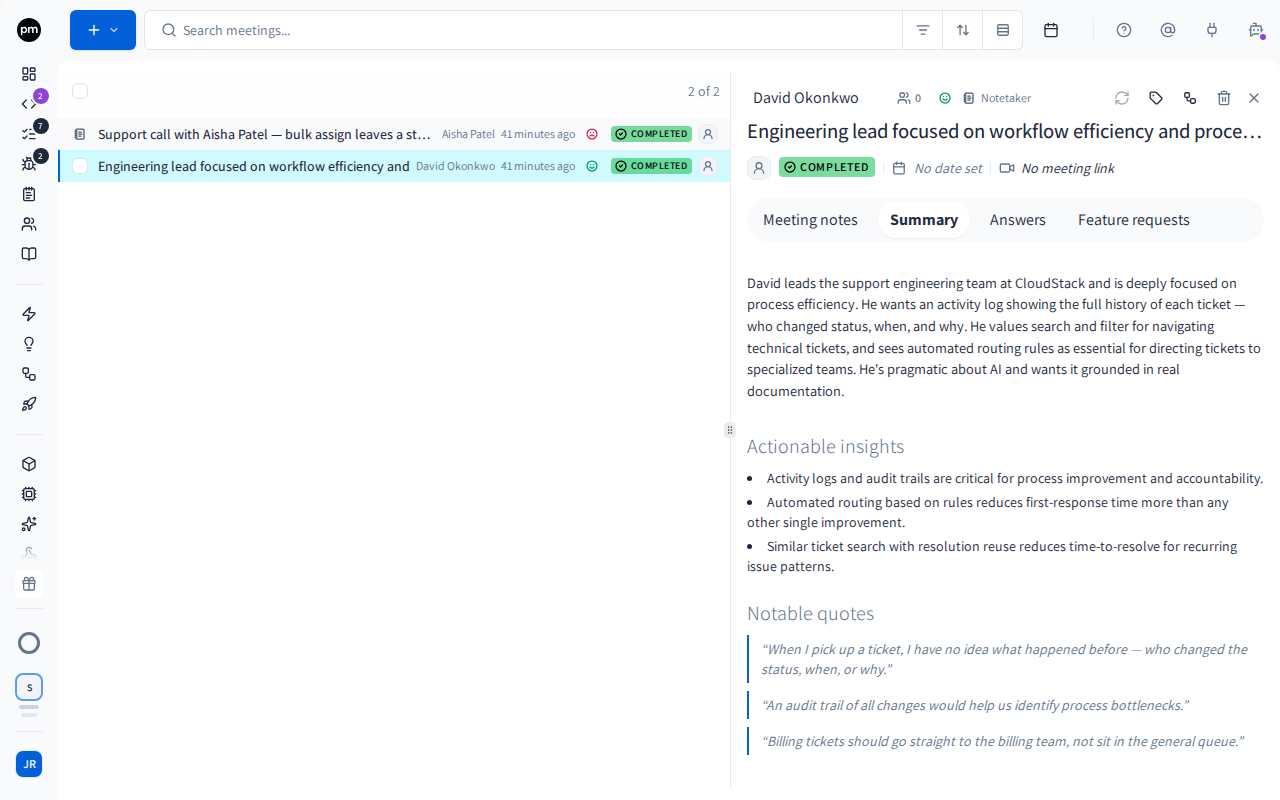
The toolbar holds, from left to right:
- Create (the + button), which adds a meeting or imports one;
- the search box;
- Filters, Sort and Group by;
- Show calendar (the calendar icon).
Each row shows, from left to right:
- a dot, if the meeting changed since you last looked at this list;
- the meeting's title and its contact;
- its tags, in one chip you choose to add or remove tags without opening the meeting (see Tags). When the row is too narrow for the contact and the tags, they're hidden from the last one back, so the title stays whole;
- its date, such as 3h, 4d or Nov 7. Point at it to see the full date;
- its status, as an icon. Point at the row to see the status's name. See Status icons;
- where it came from, when it was imported. Choose the icon to open the original;
- its sentiment;
- who created it.
The counter above the list (for example 2 of 2) shows how many meetings are loaded out of how many match. More load as you scroll. If the meeting open beside the list doesn't match your filters, it stays in the list and the counter adds +1 open. It isn't counted.
Filtering, sorting and grouping
Filters, Sort and Group by open one panel with three columns.
| Column | Options |
|---|---|
| Filters | Account (of the meeting's contact), Status, Source, and Tags once meetings have tags |
| Sort by | Title, Contact name, Status, Source, Sentiment, Date or Last updated |
| Group by | None, Account, Tag, Status or Source |
Select several statuses to see the meetings in any of them. Choose Done to close the panel, or Clear all to remove every filter.
The calendar
Choose Show calendar (the calendar icon) to see your meetings on a calendar instead of a list. Choose it again, now named Show list, to go back to the list.
- Month, Week and Day change the view. The arrows move to the previous or next period, and Today comes back to today.
- Each meeting is colored by its status. Point at one to see its details, and choose it to open it.
- Search and filters still apply. Sorting and grouping are off while the calendar is shown.
Productmind remembers whether the calendar is open, and in which view, in this browser.
The meeting
The header holds:
- the contact. Choose it to change it, or choose Select contact (the person icon) if there is none yet;
- the participants (the people icon, with a count). See To add or remove participants;
- the sentiment and the type;
- Notetaker, with a switch while the meeting is Draft or Scheduled;
- Summarize this meeting (the circular arrows), Tags, Lineage, Delete meeting and Close panel;
- the meeting's title, which you can edit.
Down the left of the meeting is a list of its sections. When the panel is narrow, the list shows only their icons; point at one to see its name.
| Section | What it holds |
|---|---|
| Overview | Who created the meeting, its status, its date and time and its meeting link, then the summary, Actionable insights and Notable quotes. You can edit the summary text. |
| Meeting notes | Your notes or the notetaker's transcript, and the attachments. After a recorded meeting, also View Recording. |
| Answers | Questions the summary answered, when there are any. |
| Feature requests | The feature requests created from this meeting. Appears when there are some. |
| Bug reports | The bug reports created from this meeting. Appears when there are some. |
A meeting that has a summary opens on Overview. Otherwise it opens on Meeting notes.
Creating meetings
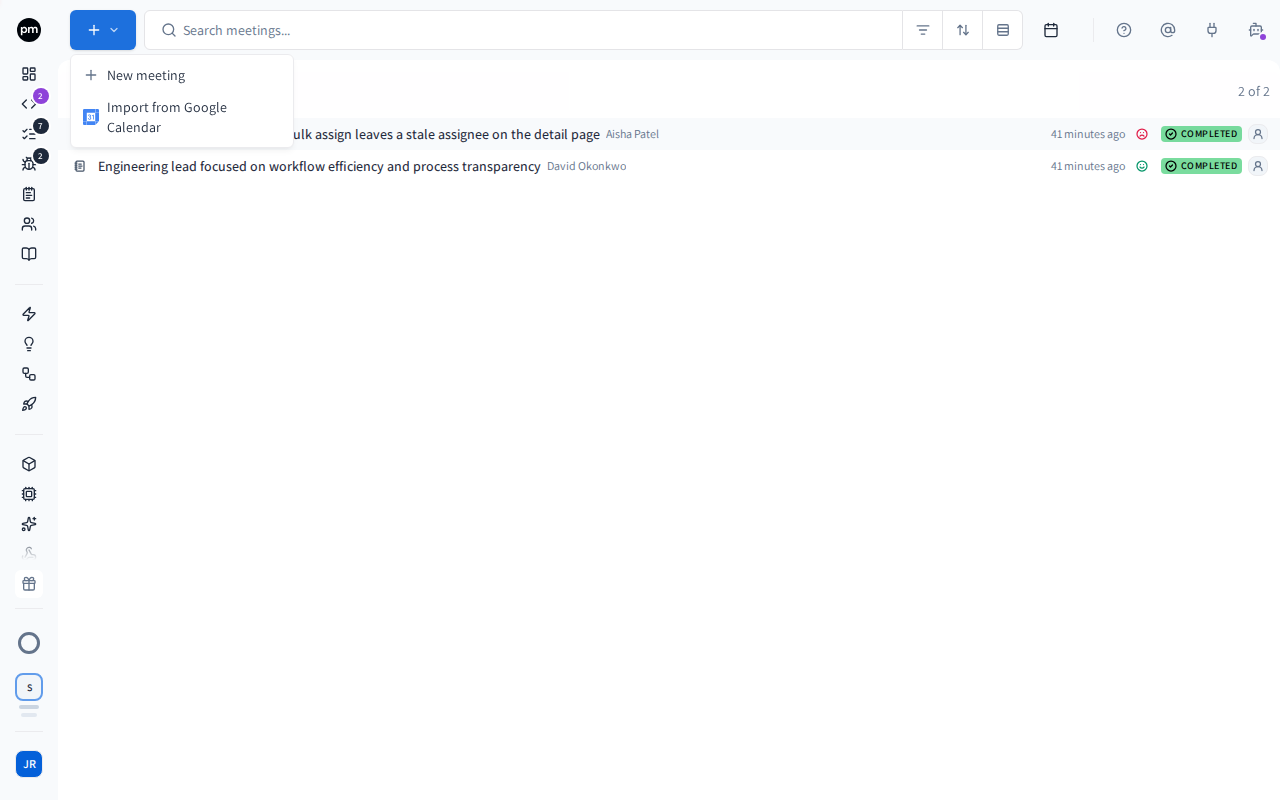
To create a meeting
- In the sidebar, choose Customer meetings.
- Choose Create (the + button), then New meeting.
The meeting is created right away and opens beside the list, dated today, with the status Draft. It's named after the date, such as 2026-09-23 - Meeting, and the name is selected so you can type over it. The new name is saved when you leave the field. Fill in the rest on the meeting, in any order:
- choose Select contact (the person icon) and pick the contact, or create one;
- choose the date to change it. To set a time, choose Add time and pick one; a Duration then appears. Choose Done;
- choose No meeting link and paste the link to the call;
- type or paste your notes on Meeting notes.
To add a meeting for a contact or an account
- Open the contact or the account on the Contacts page, and choose its Interactions tab.
- Choose Add customer meeting.
- For an account, choose which of its contacts the meeting is with, then choose Add meeting.
The meeting is created, linked to the contact, and opens on Customer meetings.
To import a meeting from Google Calendar
If the meeting is already in your Google Calendar, import it instead of typing it in again.
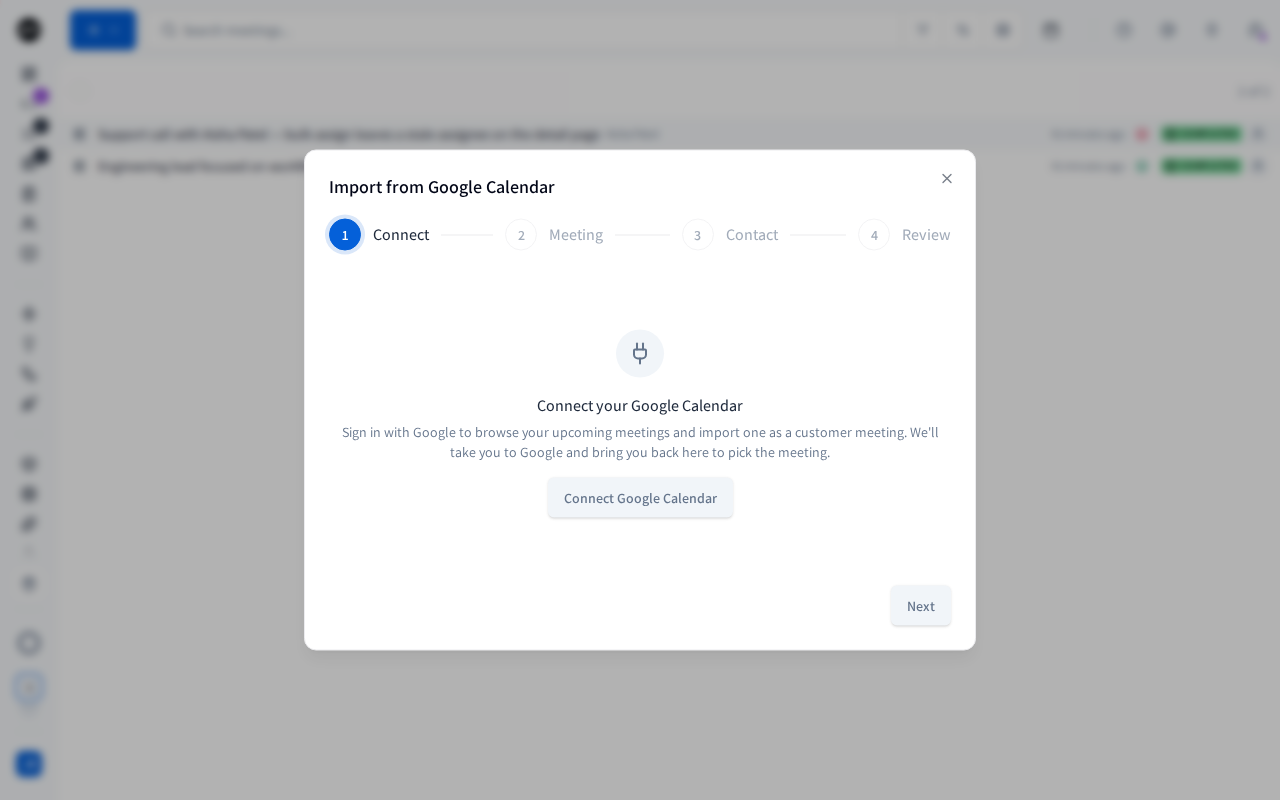
- Choose Create, then Import from Google Calendar.
- Connect: if your Google Calendar isn't connected yet, choose Connect Google Calendar. Google asks you to sign in, then brings you back to the dialog. If it's already connected, the dialog skips this step.
- Meeting: choose the meeting. Under Show meetings, choose how far ahead to look: Today, Next 7 days, Next 14 days or Next 30 days, or Custom range... to set From and To. If you've just added the meeting in Google, choose Refresh meetings. Choose Next.
- Contact: check who the meeting is with. Productmind matches the attendees to your contacts by email address, leaving out people on your own email domain. To pick someone else, choose another contact, or create one from an attendee under Attendees without a contact. You can't go on until a contact is picked. Choose Next.
- Review: check the Title, Date and time, Duration and Meeting link. The Notetaker is switched on when the meeting has a Google Meet, Zoom or Microsoft Teams link.
- Choose Create meeting.
The meeting opens. It keeps the calendar's attendees as its participants, and its source is Google Calendar.
Cancelled meetings and all-day events aren't offered, because they have no meeting time.
Working with a meeting
To summarize a meeting
- Open the meeting and add its notes on Meeting notes.
- Choose Summarize this meeting (the circular arrows).
The meeting moves to Processing, and to Completed when the summary is ready. The work continues in the background, so you can leave the page. You're notified when it's done.
To summarize again after you change the notes, choose Re-summarize this meeting, then Re-summarize. The new summary replaces the old one, with its insights and feature requests.
When the notetaker recorded the meeting, you don't need to do anything: the meeting is summarized as soon as the transcript arrives.
To invite the notetaker
The notetaker needs a Google Meet, Zoom or Microsoft Teams link, and a date and time that haven't passed. The switch is there while the meeting is Draft or Scheduled.
- Open the meeting, and set its date and time and its meeting link.
- In the header, turn on the switch next to Notetaker.
The header reads Notetaker scheduled. At the meeting's time the notetaker joins the call. If your call has a waiting room, admit it. While it works, the header shows what it's doing:
| The header reads | Means |
|---|---|
| Notetaker joining | It's joining the call. |
| Waiting to be admitted | It's in the waiting room. Admit it to the call. |
| Notetaker in call | It's in the call and not recording yet. |
| Transcribing live | It's recording. |
| Transcript processing | The call has ended and the transcript is being prepared. |
| Transcript completed | The transcript is in Meeting notes. |
| Transcription failed | Something went wrong. |
To stop the notetaker from joining, turn the switch off.
A meeting with no date at all doesn't stop you turning the notetaker on, and the notetaker then joins the call straight away. Set the date and time first, unless the call is already under way.
Changing the meeting's date, time or link moves the notetaker with it. If you clear the time, Productmind asks first, because clearing it turns the notetaker off: choose Clear and turn off.
To change the status
- Open the meeting and choose its status.
- Choose the new status.
You can move a meeting only to the statuses the menu offers. For example, a Completed meeting can go back to Draft or be Cancelled. The status can't be changed while a summary is being written.
To add or remove participants
- Open the meeting and choose the participants (the people icon).
- To add someone, choose Add participant, pick a contact, and choose Add participant. A participant needs an email address.
- To remove someone, point at them and choose Remove (the x) next to their name.
Choose a participant who is a contact to open their contact page. An address that isn't a contact yet shows a +: choose it to create the contact.
To describe a meeting from screenshots
Attach screenshots to a meeting, and Productmind reads them and drafts a section for your notes.
- On Meeting notes, drop images onto the notes or the attachments, or choose Add attachment (the +) under the notes.
- Choose Describe from screenshots.
- When the banner says the draft is ready, choose Review.
- Choose Add to notes, or Dismiss to leave your notes as they are.
The draft is added under a Screenshot analysis heading at the end of your notes. Running it again replaces that section rather than adding a second one.
If the screenshots don't show enough to add anything, your notes stay as they are. A note says why, what Productmind saw in them, and what to try next.
To delete meetings
- Open the meeting and choose Delete meeting, or right-click its row and choose Delete.
- Confirm.
To delete several, select them with the checkboxes that appear at the start of their rows when you point at them, choose Delete selected, type delete, and confirm.
Deleting a meeting can't be undone.
How customer meetings behave
Summaries create feature requests and bug reports. When a meeting is summarized, each thing the customer asked for becomes a new feature request, or is added to a request you already have with the same intent. Either way it's linked back to the meeting, the contact and the contact's account. Problems the customer reported become bug reports. Summarizing again updates these links rather than adding new ones.
The name comes from the summary. Each time a meeting is summarized, Productmind names it after the conversation, replacing the name it had.
A summary that seems stuck can be restarted. While a meeting is Processing, you can't start another summary. Once it has been processing for 45 minutes, the circular arrows can be chosen again, as This run looks stuck: choose them, then Start new run. Soon after that, Productmind also gives up on the run by itself: the meeting moves to Failed, or back to Completed if it already had a summary. You can then summarize it again.
New activity is marked. A dot before a row means the meeting changed since you last looked at this list. Point at the dot to see "New activity since your last visit" and when the meeting was updated. Your first visit shows no dots. Changes you make while you're on the page don't get a dot, and opening and closing a meeting doesn't clear the dots.
Opening Customer meetings reopens your last meeting. Choose Close panel to see only the list.
Notifications. When you summarize a meeting, you're notified when the summary is ready. When the notetaker recorded the meeting, everyone in the workspace with Customer meetings & support: Read is notified. See Profile and notifications.
Permissions
| To | You need |
|---|---|
| See meetings | Customer meetings & support: Read |
| Create or import meetings | Customer meetings & support: Create |
| Change a meeting, summarize it, invite the notetaker, add participants | Customer meetings & support: Update |
| Delete meetings | Customer meetings & support: Delete |
| Pick or change the contact | Customer meetings & support: Update and Contacts: Read |
| Create a contact from a meeting | Contacts: Create |
| See the Feature requests section | Feature requests: Read |
By default, the Owner, Admin, Power User and Product Manager roles can do all of these. Viewer and Customer can see meetings but not change them. Developer can't see Customer meetings. See Roles and permissions.
Limits
Notetaker minutes. Recorded meetings use minutes from your plan's allowance for the billing period, counted from when the notetaker joins the meeting until it leaves, including any time it waits to be let in. A notetaker that never joins uses nothing. The minutes are billed by the second. Customer meetings and internal meetings share it. If your plan includes none, inviting the notetaker fails with "The notetaker is not available on your current plan". If you've used them all and your organization doesn't allow overage, it fails with a message that says so. See Plans and limits and Usage.
Troubleshooting
The Notetaker switch is unavailable
Point at the switch to see why. The meeting needs a Google Meet, Zoom or Microsoft Teams link, and a date and time that haven't passed. The switch appears only while the meeting is Draft or Scheduled.
"The notetaker can only join Google Meet, Zoom, or Microsoft Teams meetings"
The meeting link isn't one the notetaker can join. Paste a supported link, or turn the notetaker off to keep this link.
"This meeting is already in progress or finished"
The notetaker has already joined or the meeting is over, so it can't be moved. Turn the notetaker off first if you need to change the meeting.
Summarize this meeting is unavailable
The meeting has no notes yet. Add them on Meeting notes. The button is also unavailable while a summary is being written.
"A recorded meeting must be scheduled at least 15 minutes from now"
You imported a meeting with the notetaker on, and the meeting starts in less than 15 minutes. Turn the Notetaker off on the Review step, or pick a later time.
A meeting doesn't appear in the Google Calendar import
If you've just created it in Google, choose Refresh meetings. If it's further ahead than the range, choose a longer range or Custom range....