

Feature discovery
When Productmind discovers the features in your applications' code, it indexes each repository, follows every entry point through the code, and groups what they reach into domains. It then uses AI only to name them. The Feature discovery tab shapes that pass: how the resulting catalog is nested, how finely it is split, which AI model names it, and which documents from your knowledge base every scan starts with as its naming rules.
Key concepts
Feature catalog. The tree of features Productmind builds from your code. See Features.
Domain. On this tab, a group of code that works together, such as Invoices. Each domain becomes a feature (FEAT) in the catalog. In the Grouped by product domain shape, related domains are grouped under a product domain, such as Billing, which becomes a feature too. Discovery creates entries of the Domain kind (DOM) you see on Features only in the Domains, features and capabilities shape. In the other shapes, you add those yourself.
Component. The part of a feature that lives in one repository and one layer, such as a view or an API service. Components sit under the feature they belong to.
Capability. A part of a domain. Productmind divides each domain it finds into the capabilities it is made of. In the Domains, features and capabilities shape, a capability is one entry that holds all its code paths, in every repository and layer it touches.
Decision. On this tab, a business rule Productmind finds in the code, such as a condition that decides what happens next. It isn't a decision your team records under Decision records.
The Feature discovery tab at a glance
In the sidebar, choose Settings, then Feature discovery.
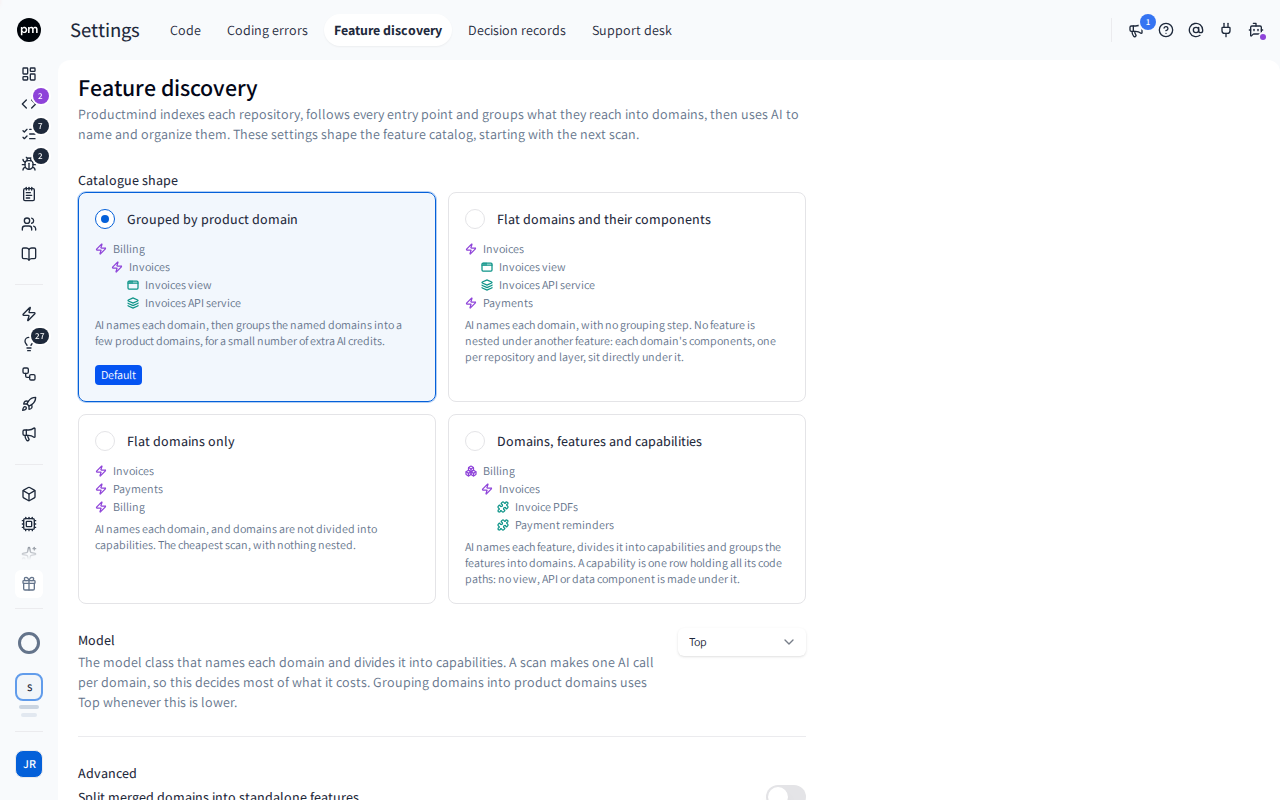
The tab starts with Model, then Catalogue shape, then Documents shared with the agents, then Advanced.
Model chooses the model class that names each domain and divides it into capabilities: Quick, Standard, Top (the default) or Ultra. A scan makes one AI call per domain, so this decides most of what it costs. Grouping domains into product domains uses Top whenever you choose a lower class. Which models each class runs on is set on Model classes.
Catalogue shape offers four shapes, each with an example tree:
| Shape | The catalog looks like |
|---|---|
| Grouped by product domain (the default) | Product domains, with the domains that belong to them under them, and their components below. For example Billing, then Invoices, then Invoices view and Invoices API service. |
| Flat domains and their components | Every domain at the top level, with its components directly under it. No feature is ever nested under another feature. |
| Flat domains only | A flat list of domains, with nothing nested. The cheapest scan. |
| Domains, features and capabilities | Three levels: a domain (DOM), such as Billing, then its features, such as Invoices, then each feature's capabilities, such as Invoice PDFs. A capability is one entry holding all its code paths. No view, API service or data repository component is created under it. Choose it when you want the hierarchy and don't need each capability pinned to a part of the stack. |
Documents shared with the agents holds your workspace's default documents: up to 10 from your knowledge base, such as your naming conventions, a glossary, or how your product divides into domains. Every Feature discovery start begins with them, and you can change them there for that run only. See Re-scans and naming rules.
Advanced holds three more settings:
| Setting | What it does | Default |
|---|---|---|
| Split merged domains into standalone features | Code that holds several product areas is grouped into one domain, named as a list, such as "Talent account, contracts and documents". Turn this on to make each part that is a product area of its own a top-level feature instead. It doesn't apply to Flat domains only. In Domains, features and capabilities, each such part becomes a feature in the same domain. | Off |
| Domains named at once | How many domains Productmind names in parallel, from 1 to 32. Each takes about two minutes, so a higher number makes a large scan finish sooner, up to what your AI model provider allows. | 10 |
| Decisions nominated per capability | How many of the decisions found in each capability are put forward as the ones worth reading, from 1 to 64. Every decision found is recorded either way. | 8 |
Changing how features are discovered
To choose the model
- In the sidebar, choose Settings, then Feature discovery.
- Choose Model, and pick a model class.
The next scan names its domains with that model class. A scan that is already running keeps the model it started with.
To choose a catalog shape
- In the sidebar, choose Settings, then Feature discovery.
- Under Catalogue shape, choose a card.
The card is selected, and the next scan builds the catalog in that shape.
To set the default documents
- In the sidebar, choose Settings, then Feature discovery.
- Under Documents shared with the agents, choose + and pick documents, or remove one from its chip.
Each change is saved at once as your workspace's default. Every Feature discovery start then begins with these documents, and a scan started without choosing documents uses them as they are: the scan that follows detecting your applications, and a scan started through the API or an AI assistant that doesn't name any.
Removing every document saves a default of no documents. To have each start begin with the documents the last run used instead, choose Clear the default.
To change an advanced setting
- On Feature discovery, under Advanced, turn the switch on or off, or enter a number.
The next scan uses the new value. To go back to the default for a number, clear the field: the default shows in it, grayed out.
How feature discovery behaves
Changes apply to the next scan. A catalog that was already built keeps its shape until you scan again. Once your workspace has features, the next scan proposes the new shape's changes for you to review, and never turns a feature you already have into a domain. See Re-scans and naming rules.
A shared component appears once. Some code has no screen of its own and is used across the product, such as a text editor or a data table. When Productmind finds one, it lists it once, as a feature of its own with its capabilities, and not under every feature that uses it. Small helper code that only supports other features isn't listed on its own: it stays with the features that use it.
On your own Productmind agent, the newest shape needs a recent version. If yours is too old
for Domains, features and capabilities, the scan stops and asks you to run pm update.
When indexing isn't enough. If Productmind can't index your code well enough to build a catalog, the scan stops and says why. Productmind doesn't read the code with AI on its own: it offers Read the code with AI, which you can choose from the Feature map or from Scan applications, and which is a separate run that uses its own AI credits. That pass builds the catalog its own way, and the settings on this tab, Model included, don't apply to it. Only Documents shared with the agents does: the reading pass groups your code by the same documents the indexing run used. See Features.
A default document can go out of date. When a document in the default is deleted from your knowledge base, the next scan skips it and runs with the others. Its chip disappears from the tab.
Permissions
| To | You need |
|---|---|
| See and change the feature discovery settings | The Owner or Admin role |
| See and change the default documents | The Owner or Admin role, and Knowledge base: Read |
| Run feature discovery, which builds the catalog | Features: Create. See Features. |