

Profile and notifications
Your profile is where you manage yourself rather than your workspace: your name and photo, your password and two-factor authentication, your invitations to other organizations and the organizations you belong to, where your notifications reach you, and the browsers and apps signed in to your account. Your notifications are listed in the Notifications tab of the activity panel.
Key concepts
Notification. A message from Productmind to you: someone mentioned you, gave you work, or a coding session needs you. Each one appears in the app, and some also reach you by email or Slack.
Mention. Someone wrote your name with @ in a comment, a description, a feature specification, a knowledge base document or a session document. A mention in a comment reaches you only if you can see what the comment is on.
Connected client. A browser, device or app that is signed in to your account, such as an AI assistant you connected over MCP.
Your profile at a glance
Choose your avatar at the bottom of the sidebar, then Profile.
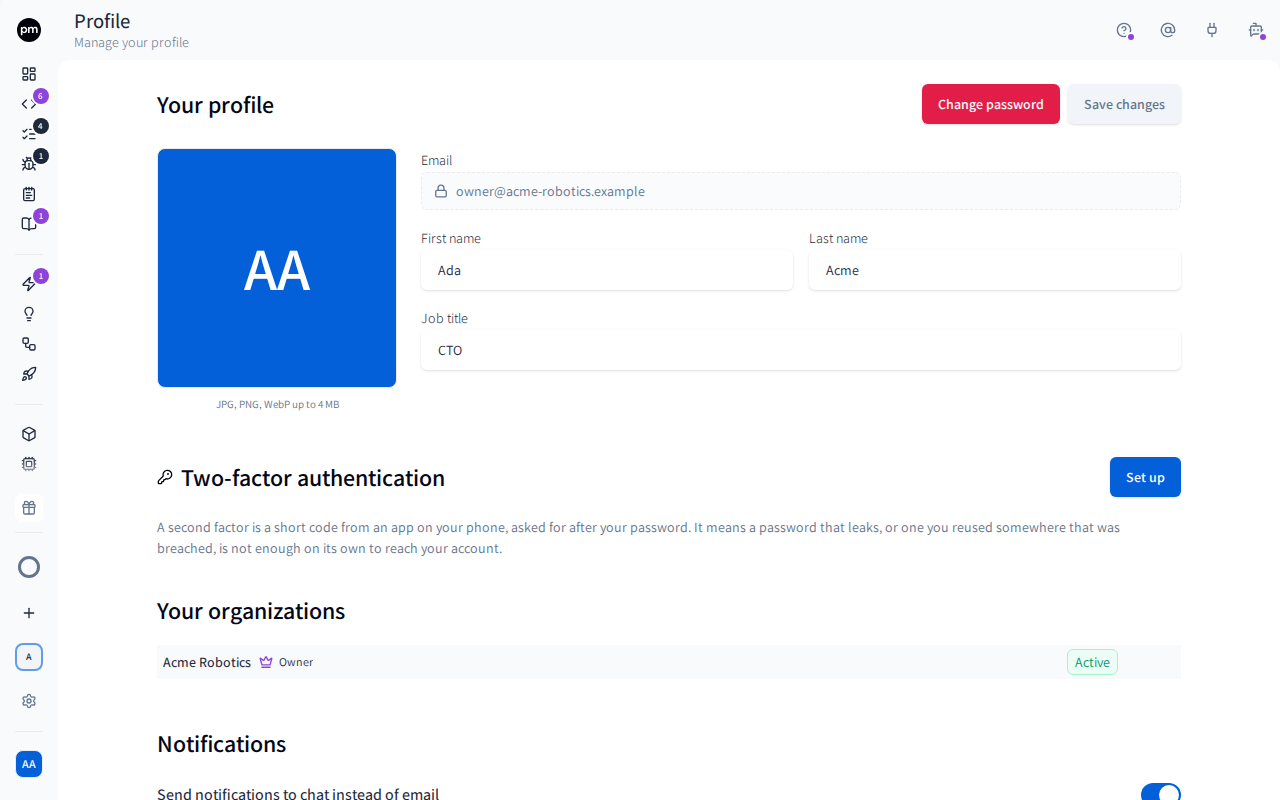
The page has five sections, and a sixth while someone has invited you to another organization:
| Section | What it holds |
|---|---|
| Your profile | Your photo, Email, First name, Last name and Job title, with Change password (or Set a password) and Save changes |
| Two-factor authentication | Whether you use an authenticator app, and your recovery codes |
| Pending invitations | The invitations waiting for you, with Accept and Decline. Shown only when you have one. |
| Your organizations | Every organization you belong to, your role in each, and Switch |
| Notifications | Your own Slack connection, and whether notifications go to Slack instead of email |
| Connected clients | The browsers, devices and apps signed in to your account |
Your email address can't be changed here.
Your profile menu
Choosing your avatar at the bottom of the sidebar opens your profile menu. Besides Profile, it has:
- Connect your Productmind agent: how to download, install and connect the Productmind agent, the local agent that builds coding sessions on your own machine. It opens a dialog with the install commands for your system, each with a copy button. Shown when you can start sessions. See Productmind CLI.
- Support requests: your organization's requests to Productmind support, when you can see them.
- Dark mode or Light mode.
- Install app, when your browser offers to install Productmind.
- Sign out.
Managing your profile
To change your name or job title
- Change First name, Last name or Job title.
- Choose Save changes.
Your teammates see the new name wherever you appear: on assignments, comments and mentions.
To change your photo
- Choose your photo, or Change photo.
- Choose a JPG, PNG, WebP or GIF image of up to 4 MB.
- In Position your photo, drag the image to position it, and use the slider to zoom.
- Choose Save photo.
Your photo replaces your initials across the app.
To remove your photo
- Under your photo, choose Remove photo.
Productmind confirms with Profile picture removed, and your initials come back everywhere your photo was shown. You can add a photo again at any time.
To change your password
- Choose Change password.
- Enter your Current password.
- Enter a New password of at least 8 characters, and enter it again under Confirm new password.
- Choose Change password.
Changing your password signs you out everywhere else: your other browsers and devices, and the apps connected to your account, such as AI assistants, the Productmind CLI and the browser extension. The browser you're using stays signed in. Each of the others has to sign in again, with the new password.
If you signed up with Google, you have no Productmind password yet, so the button reads Set a password instead. Choose it, and Productmind emails you a link to choose one. You can open the link in the browser you're signed in to. Setting the password signs you out everywhere, including that browser, so sign in again afterwards: from then on you can sign in with your email and that password, or with Google as before.
To set up two-factor authentication
- Under Two-factor authentication, choose Set up.
- Follow the steps in To set up an authenticator app.
The section then shows On, the authenticator you added, and how many unused recovery codes you have left. Two-factor authentication is what the Multi-factor tab calls multi-factor authentication.
To accept or decline an invitation
When someone invites you to another organization, Pending invitations lists it above Your organizations, with your role, who invited you and when the invitation expires. You don't need the invitation email.
- Under Pending invitations, find the invitation.
- Choose Accept to join the organization, or choose Decline, then Decline again to confirm.
Accepting adds the organization to Your organizations, with the role and the workspaces the person who invited you chose. You stay in the organization you're in: choose Switch to open the new one. Declining can't be undone: the link in the invitation email stops working, and only a new invitation can ask you again.
An invitation expires after 7 days, and then leaves the list. Ask an Owner or Admin of that organization to resend it.
To switch organization
- Under Your organizations, find the organization. The one you're in is marked Active.
- Choose Switch.
If you signed in through single sign-on, you can't switch: that sign-in opens only its own organization. The message under the list says how to sign in to the other one, and Sign in again signs you out so you can.
See Organizations and workspaces.
Connected clients
Connected clients lists every browser, device and app signed in to your account, most recently used first. Each row shows:
- the browser or app, and how it signed in, such as Web, Google, SSO, MCP for an AI assistant, or App for one of Productmind's own apps, such as the Productmind CLI;
- Last used;
- Expires, when that sign-in expires;
- This device for the browser you're using, or Revoke for any other.
To sign out one browser or app
- In Connected clients, find its row.
- Choose Revoke.
That browser or app loses access within 30 seconds, and has to sign in again.
To sign out your other browsers and devices
- In Connected clients, choose Revoke all sessions.
- Choose Revoke all sessions again to confirm.
Every other browser, device and app is signed out. The browser you're using stays signed in.
Notifications
What you're notified about
| When | Who is notified |
|---|---|
| Someone mentions you | You |
| Someone assigns you a task, bug report, feature, feature request or session | You, unless you assigned yourself. Assigning a team notifies each of its members. |
| A coding session has a plan ready for review | Everyone in the workspace, in the app. The people who started the session or are assigned to it are also emailed. |
| A coding session's agent asks a question | The person who started the session, the person whose machine runs it, its assignees and every member of a team it is assigned to, also by email. A member reached only through a team is emailed when they don't have Productmind open. If none of them is still in the workspace, everyone in it is notified. |
| A CI auto-fix attempt starts on a session's pull request, a billed build turn | The person who started the session, its assignee and the person whose machine runs it; emailed when they don't have Productmind open |
| A coding session opens its pull request, or fails | The person who started the session, its assignee and the person whose machine runs it, also by email. A session that opens several pull requests at once emails the first one. A failure says why, its email adds what to do when the error says it, and a run that billing refused offers Top up or Open billing. |
| A coding session's run goes on past an error or a warning, such as an install that failed while the agent worked without it | The same people, in the app only, once for each kind of error in a run: Problem in and the session's name. Opening it opens the session's Errors tab on that error. See Reading the session's errors |
| The checks on a session's pull request fail and CI auto-fix isn't fixing them: it's off, it has used its attempts, the session runs through your own coding agent, the same checks fail on the base branch, or billing refused the attempt | The same people, once for each commit whose checks fail; emailed when they don't have Productmind open. It says why auto-fix isn't fixing it, and that no AI credits are spent on it. |
| Someone outside your team comments on a session's live preview through its public link, or replies in their comment: Outside comment or Outside reply, with the session's name | The person who first turned on the link, the person who started the session, its assignees and the person whose machine runs it, in the app only, at most once an hour for each comment |
| A deploy of an environment to its cloud account fails: Deploy failed, with the application and the environment | The person who pressed Retry deploy or Deploy now for that run, the people responsible for each coding session whose merge was the failed commit, and your Owners and Admins, also by email, once for each attempt. See Deploys |
| An AWS account Productmind manages for your workspace reaches 80% of its spend cap, or its cap and is frozen over it | Your Owners and Admins, also by email, once a month for the warning and once for each hold. See Cloud account spend caps |
| A frozen account's spend cap hold lifts | Your Owners and Admins, in the app only |
| A month of an AWS account Productmind manages is charged | Your billing admins, in the app; billing admins and billing contacts also by email. See How a month is charged |
| An environment's destroy moves on: Destroy scheduled, Destroy started, Environment destroyed (with what stays), Destroy failed or Destroy cancelled, and when GitHub refuses a step, Deploy not started, Cancel didn't go through or Deploy again didn't start | The person who asked for the destroy and your Owners and Admins, also by email. See Destroying an environment |
| A customer conversation or an internal meeting has been summarized | The person who asked for the summary, or everyone who can read it when the conversation came in on its own |
| Productmind turned off an automation after it kept failing | The member the automation runs as |
| Billing refused work nobody was watching, such as your feedback widget's replies, an automation run, a CI auto-fix attempt or the indexing of your changes, or the free AI allowance is almost or wholly used up before your organization activates pay-as-you-go | Your Owners and Admins, in the Notifications tab of every workspace, under System. See Billing notices |
| Someone you referred accepts your referral and creates their Productmind account | You, in the Notifications tab of every workspace of the organization you referred them from, under System; emailed when you don't have Productmind open. View opens your referrals. |
| A Productmind support request changes | See Support center |
Nobody is notified when work is unassigned.
Billing notices
Some work runs with nobody watching it: your feedback widget's replies to visitors, agentic interviews, the indexing of knowledge base documents, automation runs that an event or a schedule starts, and CI auto-fix attempts on a session's pull request. When billing refuses that work, when the free allowance runs low before you activate pay-as-you-go, or when auto-recharge can't charge your card, Productmind tells your Owners and Admins:
| Notice | When | How often |
|---|---|---|
| AI work is being refused, followed by what was refused, such as AI work is being refused: your feedback widget | Billing refused unattended work: the balance can't cover it, pay-as-you-go isn't activated, spending is paused, or a usage limit is reached. The notice says why, what happened as a result, such as "Visitors' messages are still saved, but the widget cannot reply to them.", and what fixes it. | At most once a day, whatever was refused |
| Your free AI allowance is almost used up | About 80% of the free allowance is used, before you activate pay-as-you-go. It says how much is left. | Once |
| Your free AI allowance is used up | Your agents' AI work is refused until you activate pay-as-you-go. | Once |
| Auto-recharge could not charge your card | A recharge failed and will be tried again. It says why, names the card when known, and that making another card the default retries within 5 minutes. | Every failed recharge |
| Auto-recharge is paused | The third failed recharge in a row paused auto-recharge until you turn it back on. | Every pause |
Each notice appears in the Notifications tab of every workspace, under System, and pops up with View for an Owner or Admin who has Productmind open. The first three are also emailed every time, with Open Billing & Payments; the two auto-recharge notices aren't, since the failed recharge already sends its own email. None is sent to Slack. Choosing the notice, or View, opens Billing & Payments > Usage, or for an auto-recharge notice Payment & Billing details.
How notifications reach you
- In the app. A notification pops up at the bottom-right of the screen while you're using Productmind. Choose View to open what it's about. It's also listed in the Notifications tab.
- By email. Mentions, assignments, a CI auto-fix attempt starting, failing checks auto-fix isn't fixing, an accepted referral and a session's question that reaches you only through your team are emailed when you don't have Productmind open. A session that needs you, opens its pull request or fails, a billing notice (except the two auto-recharge ones, whose failure sends its own email) and some support request updates are always emailed. Summaries and a turned-off automation are only shown in the app.
- By Slack. If your workspace is connected to Slack and you have connected your own Slack account, the notifications that would be emailed to you arrive as a Slack direct message instead. Billing notices, accepted referrals and support request updates never go to Slack: billing notices are always emailed, an accepted referral is emailed when you don't have Productmind open, and support request updates are emailed as described in Support center.
Everyone connects their own Slack account here, under Notifications, whatever their role. You can do it once your workspace is connected to Slack. Until then, the section says so: an Owner or Admin connects the workspace on the Integrations page.
To connect your Slack account
- Under Notifications, choose Connect Slack.
- Sign in to Slack and allow Productmind to see who you are.
You come back to your profile, and Send notifications to chat instead of email appears, switched on. Your first direct message can take a few minutes to arrive.
To disconnect your Slack account
- Under Notifications, choose Disconnect Slack.
- Choose Disconnect.
Your notifications are emailed again, and Connect Slack is back. Direct messages can take a few minutes to stop.
To get notifications by email instead of Slack
- Under Notifications, turn off Send notifications to chat instead of email.
Notifications that would have gone to Slack are emailed to you instead. What you see in the app doesn't change. The switch appears once you've connected your own Slack account, and it's on by default.
If Slack can't be reached, Productmind emails you instead, so you never miss a notification.
Notifications
The Notifications tab in the activity panel lists your notifications in the workspace you're in, in two sections:
- Mentions comes first. Someone mentioned you, or someone gave you work. Each notification shows that person's photo, or their initials when they have none.
- System lists everything else Productmind tells you: a coding session that needs you, opened its pull request or failed, a deploy, a summary, a billing or support notice, and work that Productmind's agent gave you rather than a person.
In the list:
- All and Unread filter the list. Unread shows how many you haven't read.
- Each section shows how many notifications it holds. A section with none isn't shown.
- An unread notification is marked with a dot beside its title.
- A long notification shows its first two lines. Choose Show more to read the rest, and Show less to fold it again. Neither opens the notification or marks it as read.
The badge on the Notifications icon counts only your unread mentions. Work someone gave you is listed under Mentions but isn't counted by the badge, so the section can show more unread notifications than the badge does.
To open a notification
- At the top-right of any page, choose Notifications.
- Choose the notification.
Productmind marks it as read and opens what it's about.
To mark everything as read
- In the Notifications tab, choose Mark all read.
Every notification in this workspace is marked as read. Notifications in your other workspaces aren't changed.
Permissions
You can always manage your own profile and notifications. Nobody else can change them, or accept or decline the invitations sent to you.
Connect your Productmind agent is in your profile menu when your role has Sessions: Create.
Troubleshooting
I was invited to an organization but the email never arrived
If you already have a Productmind account, you don't need the email: under Pending invitations, choose Accept. See To accept or decline an invitation.
If the invitation isn't listed there, it may have expired, been revoked, or been sent to another address than the one you sign in with. Ask an Owner or Admin of that organization to resend it, or to invite the address you use.
I signed up with Google and have no password
Your account has no Productmind password until you set one. Keep signing in with Google, or under Your profile choose Set a password and follow the link in the email Productmind sends you. Setting it signs you out everywhere, so sign in again afterwards.
I'm not getting emails for mentions
Mentions and assignments are emailed only while you don't have Productmind open. If you were in the app, look in the Notifications tab.
I was mentioned in another workspace
The Notifications tab and its badge show the workspace you're in. Switch workspace to see the others. See Organizations and workspaces.
Notifications don't come to Slack
Look at Notifications on your profile. It tells you what's missing:
- Slack direct messages become available once an Owner or Admin connects this workspace to Slack. Your workspace isn't connected to Slack yet. Ask an Owner or Admin to connect it. See Integrations.
- Connect Slack is shown. You haven't connected your own Slack account. See To connect your Slack account.
- Send notifications to chat instead of email is off. Turn it on.
A Slack account you've just connected can take a few minutes to get its first direct message. If everything is in place and notifications are still emailed, your workspace's Slack connection may not be allowed to send direct messages. Ask an Owner or Admin to open the Slack page under Integrations: if it shows Direct messages unavailable, they reconnect Slack there.
Related topics
- Multi-factor
- Signing up and signing in
- Organizations and workspaces
- Integrations
- Finding your way around