

Feature requests
A feature request is something someone has asked your product to do. Productmind gathers them from your customer conversations, and your team adds its own. Each request keeps a record of who wants it and how strongly, so you can see the demand behind it. When you decide to build it, you promote it into a feature or a task, and it stays linked to the work it became.
Key concepts
ID. Every request has an ID such as PFR-12, numbered within your workspace. The AI Assistant knows it too: ask it about PFR-12, and it looks up that request.
Source. Where the request came from. Each request has one, shown as an icon before its ID:
| Source | Use it for |
|---|---|
| Internal stakeholders | Your own team. The default for requests you add. |
| Customer feedback | Your customers, usually through a conversation Productmind summarized. |
| Market signal | A trend in your market. |
| Strategic directive | A decision from your company's strategy. |
| Support pattern | A problem that keeps coming up in support. |
| Competitive intelligence | Something a competitor does. |
Status.
| Status | Meaning |
|---|---|
| New | Nobody has looked at it yet. New requests start here. |
| In Review | Being considered. |
| Promoted | Turned into a feature or a task. |
| Merged | Folded into another request. |
| Rejected | Not going to be built. |
Priority. Low (the default), High or Critical.
Interests. The evidence that someone wants the request. There are three kinds:
- Customer interest: a customer contact, with their Sentiment (Positive, Neutral or Negative) and what they said. Customer interests are grouped by the contact's account.
- Stakeholder input: someone on your team, with their Role and Position.
- Other input: competitive intelligence, a market signal, a strategic directive or a support pattern, with its Position.
A Position is Supporting, Neutral, Opposing or Conditional. A conditional position records the condition, such as "only if it ships with single sign-on".
Promotion. The decision to build. A request is promoted once, into a feature or a task.
The Feature requests page at a glance
In the sidebar, under Product, choose Feature requests.
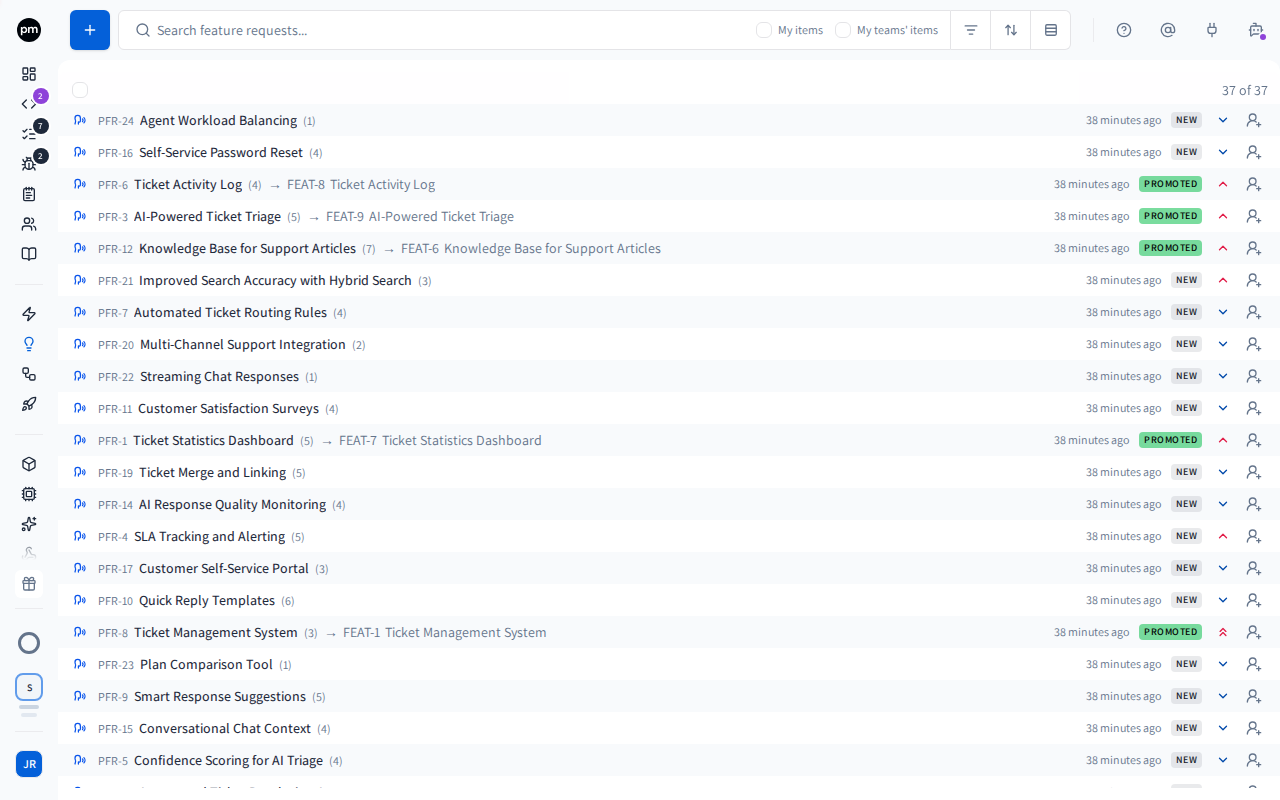
The toolbar holds Add feature request (the + button), the search box, and Filters, Sort and Group by.
Each row shows, from left to right:
- a dot, if the request changed since you last looked at this list;
- the source, as an icon;
- the ID and the title;
- for a promoted or merged request, an arrow and the feature, task or request it went to, with its icon, ID and title as its own list shows them;
- the number of interests, such as 3 interests;
- its tags, in one chip you choose to add or remove tags without opening the request (see Tags). When the row is too narrow for all of these, they're hidden from the last one back, so the title stays whole;
- when it was requested, such as 3h, 4d or Nov 7. Point at it to see the full date and time;
- its status, as an icon. Point at the row to see the status's name. See Status icons;
- its assignees;
- its priority.
On a computer, pointing at a row shows Launch a coding session (the code icon) before the date, when the request can start one. Once the request's task is in a coding session, that place shows the session's ID instead, such as SSID-12, all the time: choose it to open the session.
Choose a row to open the request beside the list. Right-click a row for Open in new tab, Launch a coding session, Promote to feature, Promote to task, Merge into..., Priority and Delete. The two Promote items appear while the request is New or In Review. Launch a coding session appears for those too, and for a request that was promoted to a task.
Right-click a row inside a selection of several requests to act on all of them: Launch a coding session, Promote selected to feature, Promote selected to task, Merge selected... and Delete. The same actions are in the bar that appears above the list when you select requests.
The counter above the list (for example 24 of 24) shows how many requests are loaded out of how many match. More load as you scroll. If the request open beside the list doesn't match your filters, it stays in the list and the counter adds +1 open. It isn't counted.
In the sidebar, the number next to Feature requests counts the open requests, New or In Review, in the whole workspace, whoever they're assigned to. Point at Feature requests to list them, the most recently updated first. View all opens this list with the Status filter set to New and In Review. See Badges.
Filtering, sorting and grouping
| Control | Options |
|---|---|
| Filters | Assignee (a person, a team, or My teams), Account, Status, Priority, Source, Tags, Application and Feature |
| Sort | Title, Request date, Priority, Status or Last updated |
| Group by | Account, Feature, Application, Status, Priority, Source or Tags |
Account lists the requests that the accounts you select have asked for. A request wanted by several accounts appears under each of them when you group by Account, and a request linked to two features appears under both when you group by Feature.
The search box matches titles and descriptions. Press Enter to ask the PM agent to search your requests for you.
While no assignee is selected, the search box offers two checkboxes, My items and My teams' items. Select one to see only the requests assigned to you, or to your teams. It turns into the chip Assignee: Me or Assignee: My teams. The checkboxes are hidden while any assignee is selected, from them or from Filters, and come back when you remove the chip. My teams' items appears only when your organization has teams. When the search box is too narrow for them, the checkboxes sit in the row of chips under the search box.
Looking at a request
Choose a request to open it beside the list.
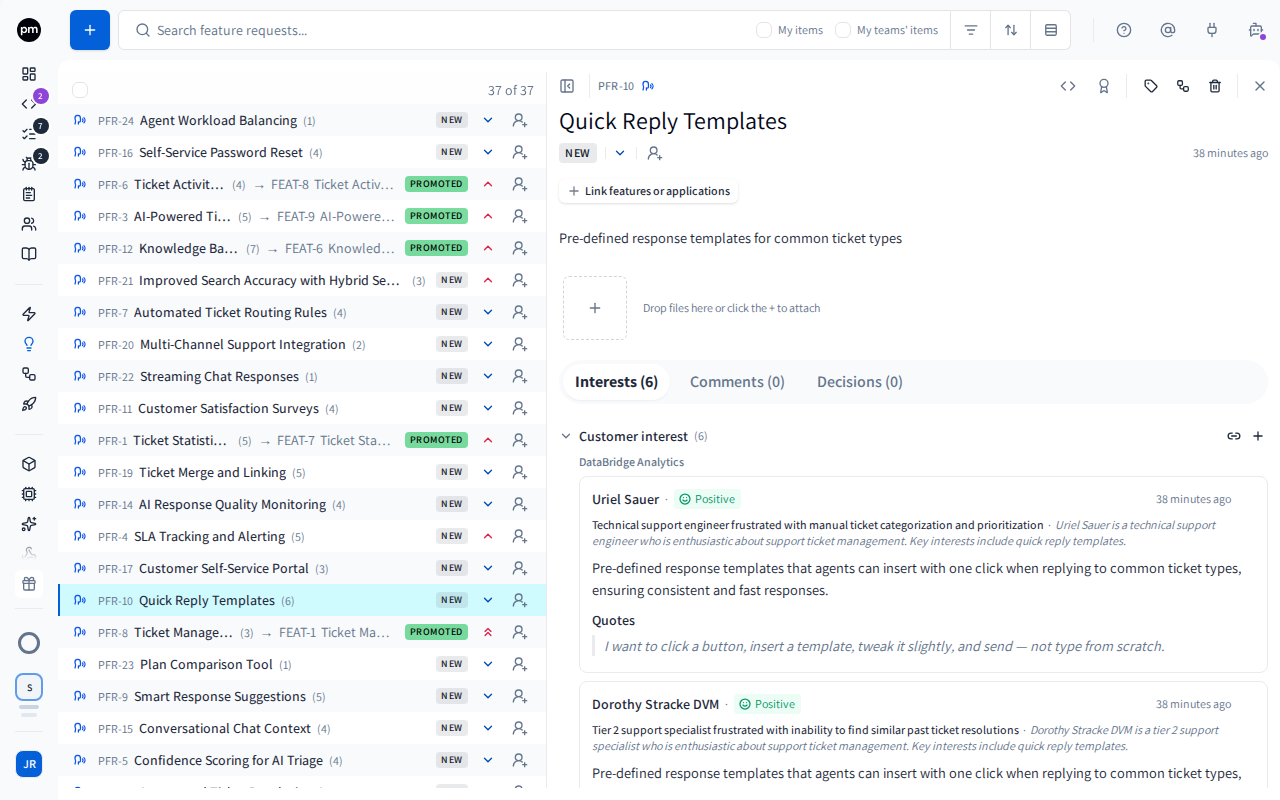
The header holds the request's ID and source, Launch a coding session, Promote, Tags, Lineage, Delete feature request and Close. For a request promoted to a task, it also shows the coding sessions working on that task, such as SSID-4. Choose one to open it in a new tab. While one of them is still running, it replaces Launch a coding session.
Below the title are its status, priority and assignees, and when it was last updated.
The body holds:
- Link features or applications, and the features and applications already linked;
- the description, which you can edit and where you can @mention people;
- the attachments. Drop files or paste a screenshot;
- Merged requests, when other requests were merged into this one.
A promoted request shows Promoted to and the feature or task it became. A merged request shows Merged into and the request it went to.
The tabs are Interests, Comments and Decisions.
Adding requests
To add a feature request
- In the sidebar, choose Feature requests.
- Choose Add feature request (the + button).
- Enter a Title and a Description.
- Choose a Priority and a Source. The source is Internal stakeholders unless you change it.
- Choose Create.
The request opens with the status New.
Other ways requests are created
- From customer conversations. When Productmind summarizes an agentic interview, a customer meeting, a support conversation or a feedback widget chat, it picks out what the customer asked for. Each ask is added to a request you already have with the same intent, or becomes a new one, with the customer's interest attached. A request found in a feedback chat arrives with the images the customer shared about it. See Agentic interviews, Customer meetings and Feedback widget.
- From a note. Convert a note from the notes wall. See Notes.
- From a bug report. Convert a report that is really a request. See Bug reports.
Recording who wants it
Open the request and choose the Interests tab.
To add a customer interest
- In Customer interest, choose Add customer interest.
- Choose the contact. You can create a new contact from the same list.
- Choose a Sentiment, and optionally enter why they want it.
- Choose Add interest.
The interest appears under the contact's account, and the count on the request's row goes up.
To use a conversation you already have instead, choose Link customer interaction, search for the conversation by title, contact or account, and choose it. Only completed conversations are listed.
To add stakeholder input
- In Stakeholder input, choose Add stakeholder input.
- Choose the stakeholder's Role, such as Leadership or Sales.
- Choose a member of your organization, or choose Use custom name instead and enter a name.
- Choose a Position. For Conditional, enter the condition.
- Optionally enter a Note, then choose Add input.
The input appears under Stakeholder input.
Add other input works the same way. Choose its Type (Competitive intelligence, Market signal, Strategic directive or Support pattern), optionally who reported it, and its Position, then choose Add note.
You can also ask the PM agent to record it. Name who asked, for example "Jane Doe at Acme wants this", and it finds the contact and adds their interest to the request, or files a new request with the interest already attached. It needs the same permissions as recording the interest yourself.
Deciding what to build
To link a request to features or applications
- Open the request and choose Link features or applications.
- Switch between features and applications, and select the ones the request is about.
The links appear above the description. Linking a feature also links the applications it depends on. To remove one, point at it and choose Unlink (the x on an application, the trash icon on a feature).
These links say what a request is about. They don't promote it.
To promote a request to a feature
Promote a request to a feature when it describes a capability of its own.
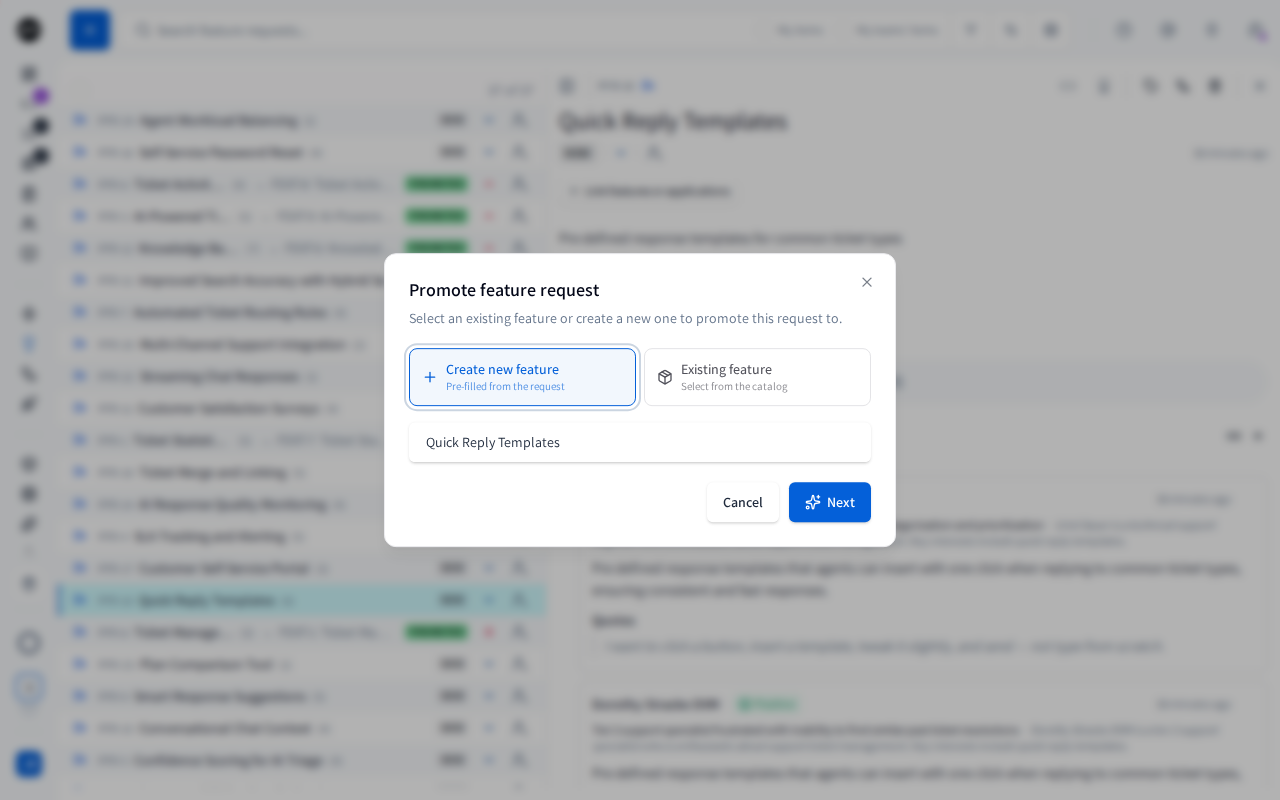
- Open the request, choose Promote (the award icon), then Promote to feature.
- Choose Create new feature and check its title, or Existing feature and search for it.
- For an existing feature, choose Add to activity log to keep its description, or Replace description. When adding to the log, choose Manual text or Generate text.
- Choose Next. If Productmind is writing the text, wait for it, or choose Skip to write it yourself.
- Review the description or note, and edit it if you need to. Select Record decision to record why.
- Choose Promote.
The request becomes Promoted and the feature opens. The request is listed in the feature's Feature requests panel.
To promote several requests into one feature, select them in the list and choose Promote selected to feature. Every selected request must be New or In Review, or the button is unavailable.
To promote a request to a task
Promote a request to a task when it is a piece of work inside a feature you already have.
- Open the request, choose Promote (the award icon), then Promote to task.
- Check the Title and the Task draft, which start from the request.
- Choose the Feature (optional) the task belongs to, or No feature. If the request is linked to a feature, that feature is chosen for you.
- Choose Promote to task.
The request becomes Promoted and the new task opens, with the status To Do and the request's priority.
To turn several requests into tasks, select them and choose Promote selected to task. Each request becomes its own task. Every selected request must be New or In Review, or the button is unavailable.
To launch a coding session
Launch a coding session when you're ready for the work to start. A coding session works on tasks, so the request becomes a task first, in the same step.
- Point at the request's row and choose Launch a coding session (the code icon). You can also right-click the row, or open the request and choose it in the header.
- If your workspace requires a decision when a request is promoted, record it and choose Launch.
The request becomes Promoted and the new coding session opens with the request's task in it, set to In Progress. The task takes the request's title, description and priority, and belongs to the feature the request is linked to (the most recently linked one, if there are several). A request that was already promoted to a task keeps that task: the session works on it, and no new task is made. The agent doesn't start yet: check the session, then draft its plan. See Starting a session.
To start one session for several requests, select them and choose Launch a coding session. Each request becomes its own task, and all the tasks go into the one session. Every selected request must be New or In Review, or promoted to a task, or the button is unavailable.
The session also works in the repositories of the applications the requests are linked to, directly or through a linked feature.
To merge requests
Merge requests that ask for the same thing, so their evidence is counted in one place.
- Right-click the request and choose Merge into..., or select several requests and choose Merge selected.
- In Merge into, search for the request to keep.
- Choose Merge.
Every interest of the merged requests is copied to the one you kept, and Productmind rewrites its description to cover all of them. The merged requests become Merged.
To reject a request
- Choose the request's status, on its row or below its title.
- Choose Rejected.
The request shows Rejected. If your workspace asks for a decision when a request's status changes, a dialog asks for it first.
To delete a request
- Open the request and choose Delete feature request, or right-click its row and choose Delete.
- Confirm.
Deleting a request deletes its interests, comments and attachments. A feature or task it was promoted to stays, but loses its link to the request. It can't be undone. To keep the record of a request you won't build, reject it instead.
How requests behave
Promotion is once. A request is promoted to one feature or one task. Setting the status to Promoted by hand doesn't link the request to anything; use Promote instead.
Only a New or In Review request can be promoted. To promote a rejected request, set it back to In Review first. A merged request's interests were copied to the request it was merged into, so promote that request instead.
A coding session works on the request's task. Launching a coding session promotes a New or In Review request to a task first, and a request promoted to a task launches on that task. A request promoted to a feature, merged or rejected can't start a coding session: launch one from the feature's tasks instead.
Your workspace can set rules for promotion. It can require evidence before a request is promoted to a feature: a minimum number of interests, feedback from a customer, or a supporting voice from a stakeholder role. When a request falls short, the promote dialog lists what is missing and Promote stays unavailable. Promoting to a task doesn't check evidence. Your workspace can also ask for, or require, a decision when a request's status changes. See Decision records.
Opposing voices don't count as evidence. An interest with the position Opposing never counts toward the evidence a promotion needs.
Describe from screenshots. Attach a screenshot to a request, and Productmind drafts a description from it. See Bug reports for how the draft is reviewed. If the screenshots don't show enough, a note says why, what Productmind saw in them, and what to try next.
Changes appear live. When a teammate or Productmind changes a request, the list and the open request update without a refresh.
New activity is marked. A dot before a row means the request changed since you last looked at this list. Point at the dot to see "New activity since your last visit" and when the request was updated. Your first visit shows no dots. Changes you make while you're on the page don't get a dot, and opening and closing a request doesn't clear the dots.
Notifications. You're notified when you're assigned a request, or someone mentions you in its description or a comment. If your workspace posts events to a Slack channel, new requests, status changes and promotions appear there. See Profile and notifications.
Permissions
| To | You need |
|---|---|
| See requests | Feature requests: Read |
| Add requests | Feature requests: Create |
| Change a request, record stakeholder or other input, merge or promote it | Feature requests: Update |
| Add a customer interest | Feature requests: Update and Contacts: Read, plus Contacts: Create to add a new contact from the list |
| Link a customer interaction | Feature requests: Update and Customer meetings & support: Read |
| Delete requests | Feature requests: Delete |
| Create the feature a promotion makes | Features: Create |
| Write the feature's description when promoting (a new feature, or Replace description) | Features: Update |
| Add the promotion note to the feature's activity log | Logs: Create |
| Have Productmind write the promotion text | Feature requests: Create |
| Launch a coding session from a request | Sessions: Create and Feature requests: Update |
The Owner, Admin, Power User and Product Manager roles can do all of these. The Developer role can do everything except record customer interests, because by default it can't see contacts or customer conversations. Viewer can see requests. Customer can see requests and add new ones. See Roles and permissions.
Limits
Promoting a request into a new feature counts toward your plan's limit on features. See Plans and limits.
Troubleshooting
Promote is missing from a request
The request is already Promoted, Merged or Rejected, or you don't have Feature requests: Update. Promote is offered only while a request is New or In Review, everywhere it appears: the request's page, its row's right-click menu, its node on a lineage map, and the + on a feature's Feature requests panel. When you select several requests, Promote selected to feature and Promote selected to task are unavailable until every selected request is New or In Review.
Launch a coding session is missing from a request
The request was promoted to a feature, merged or rejected, so it has no task to work on, or you don't have both Sessions: Create and Feature requests: Update. When you select several requests, Launch a coding session is unavailable until every selected request is New or In Review, or promoted to a task. For a request promoted to a task, the header shows the session already working on it instead, until that session finishes.
Launch a coding session fails for a request
The request's task is in another session that is still working on it, and the message names it, for example "TASK-12 is already in SSID-4 (In Progress)". Choose Open session in the message to continue the work there, or remove the task from that session first. If the request had to be promoted first, it stays promoted with its new task, and the next launch uses that task.
Promote is unavailable in the promote dialog
Your workspace requires evidence before a request becomes a feature, and the dialog lists what the request is missing. Record the interests it needs, or promote it to a task instead.
A request I promoted doesn't appear in the feature's panel
Its status was set to Promoted by hand, so it was never linked. Set it back to In Review, then use Promote.