

Agentic interviews
With agentic interviews, an AI interviewer talks to your customers for you. You set up a research with the objectives you want to explore and the questions you want answered, then invite contacts. The AI emails each person, follows up on their answers and can offer a voice conversation instead. Every finished interview is summarized, and you can summarize the whole research to see the themes that come up again and again.
Key concepts
Research. A study with a title, an optional description, objectives and questions. Every agentic interview belongs to one research, and so does every conversation from the feedback widget, and every AI conversation about a comment on a shared live preview. A new workspace starts with one research already created, called General.
Objectives. What you want to learn, such as "Understand why users abandon onboarding". The AI interviewer steers each conversation toward them.
Questions. The concrete questions the AI interviewer asks each participant, in order. It then asks follow-up questions based on the answers.
Interview. One conversation with one person. Its type is shown as an icon on its row:
| Type | What it is |
|---|---|
| AI Email | The AI interviewer emails the participant and follows up by email. The email can also offer a voice conversation. |
| AI Voice | A spoken conversation with the AI interviewer, from a link in the participant's browser. An AI Email interview becomes AI Voice when the participant takes the voice conversation. |
| Feedback widget | A conversation someone started in the feedback widget on your website or app, or by commenting on a shared live preview whose AI replies are on. |
Status. Where an interview is:
| Status | Means |
|---|---|
| Draft | Created, and nothing has happened yet. |
| Invited | The first email has been sent to the participant. |
| In Progress | The participant has replied or the conversation is under way. |
| Processing | Productmind is writing the interview's summary. |
| Completed | The summary is ready. |
| Invalid | The conversation didn't contain a usable interview, so there is nothing to summarize. |
| Failed | Writing the summary failed. |
| Cancelled | The AI interviewer stopped or never started, for example because the conversation stalled, or because billing refused the interview before it started. The interview's panel then says why under its status. |
Sentiment. Each summarized interview is Positive, Neutral or Negative. The research shows how many interviews have each.
The Agentic interviews page at a glance
In the sidebar, under Feedback, choose Agentic interviews.
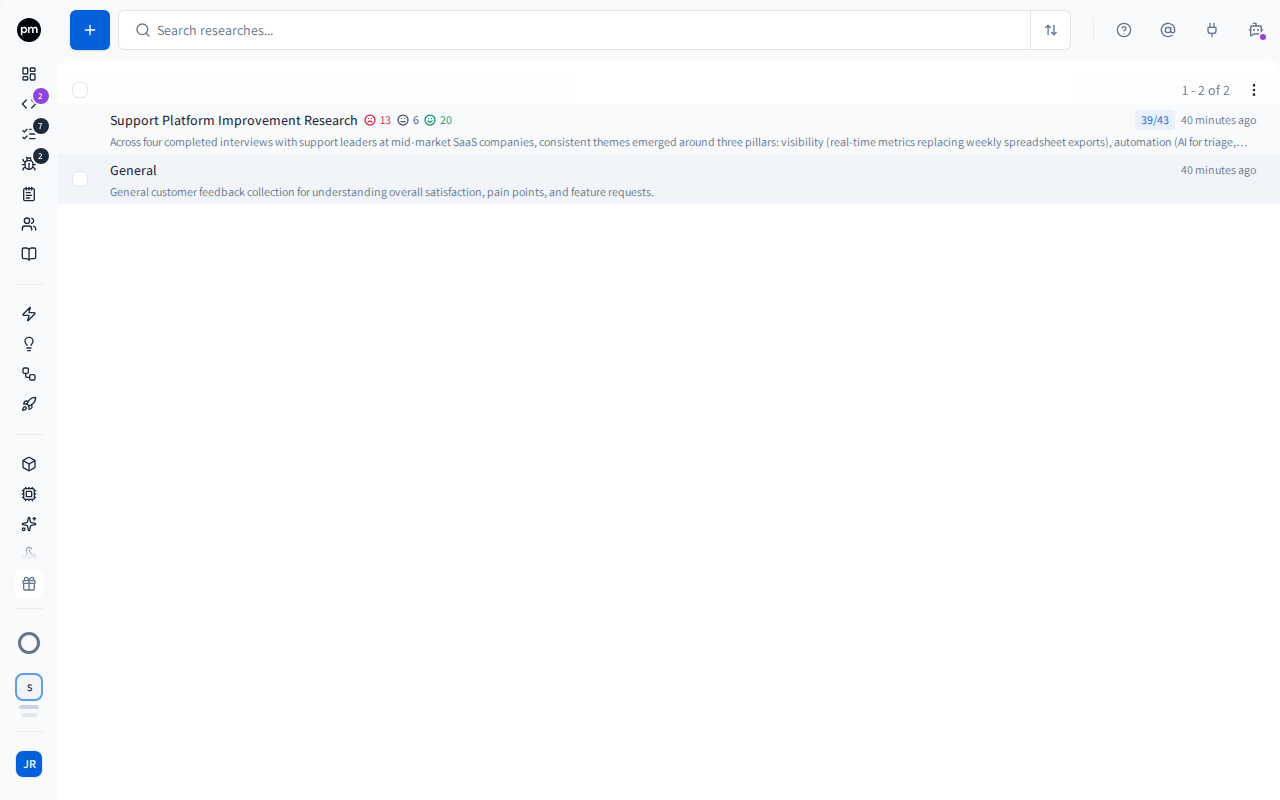
The toolbar holds New research (the + button), the search box and Sort, which orders the list by Date or Title.
Each row shows:
- the research's title;
- how many interviews are negative, neutral and positive;
- how many interviews are completed out of how many there are, such as 39/43. The badge turns green when all of them are completed;
- when the research was last updated;
- the research's summary or, until it has one, its description.
Choose a research to open it beside the list. Choose it again, or Close (the X), to close it. Right-click a research to open it in a new tab or to delete it. To delete several researches at once, select them with the checkboxes that appear when you point at a row, then choose Delete selected.
The research page
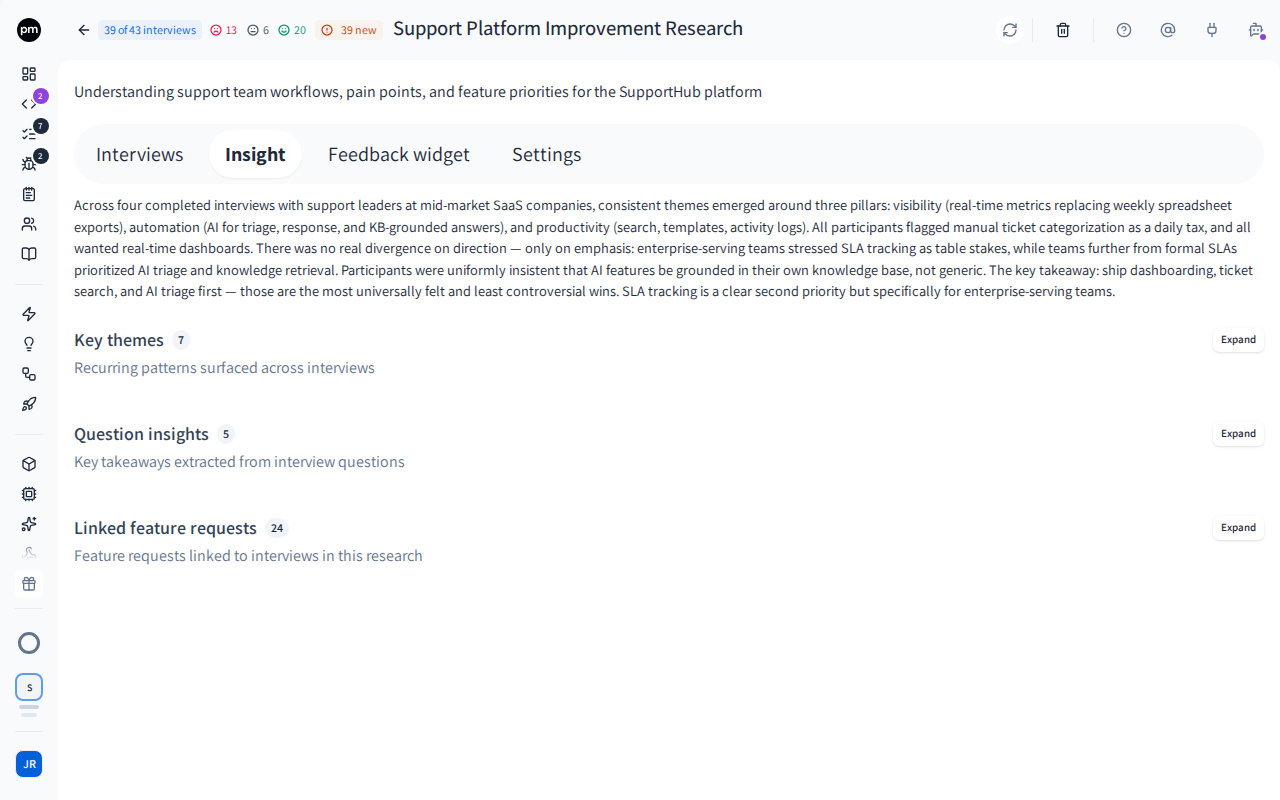
The header shows how many interviews are completed (39 of 43 interviews), the sentiment counts and the research's title, which you can choose to edit. Once the research has a summary, Refresh summary (the circular arrows) writes a new one. A badge such as 3 new says how many interviews were completed since the last summary. Delete research (the trash icon) deletes the research. The icon at the header's left shows or hides the list of researches.
Down the left of the research is a list of its sections. When the research has little room, the list shows only their icons; point at one to see its name.
| Section | What it holds |
|---|---|
| Overview | The research's description, which you can choose to edit, and its summary. The research opens here. |
| Interviews | Every interview in this research. See Reading an interview. |
| Feedback widget | This research's feedback widget: its welcome message, a playground to try it, the widget key and the embed code. See Feedback widget. |
| Settings | The research's objectives, questions and the opening message for voice interviews. |
Setting up a research
To create a research
- In the sidebar, choose Agentic interviews.
- Choose New research (the + button).
- Name: enter a Research title and, if you like, a Description. Choose Next.
- Objectives: enter an objective and press Enter. Add as many as you need, then choose Next.
- Questions: enter a question and press Enter. Add as many as you need.
- Choose Create research.
The research opens. Each step needs at least one entry before you can go on.
Ask open questions ("How do you prioritize requests today?") rather than yes-or-no ones, and one thing at a time. The AI interviewer asks follow-up questions on its own, so a short list of good questions goes a long way.
To change objectives and questions
- Open the research and choose Settings.
- Choose Expand next to Research objectives or Questions to ask participants.
- Change the list:
- choose Add, enter the text and press Enter;
- choose an item to edit it;
- drag an item by its handle to reorder it. The AI interviewer asks the questions in this order;
- point at an item and choose Remove item to delete it.
Each change is saved as you make it.
To set the opening message for voice interviews
The opening message is the first thing a participant hears when a voice interview starts.
- Open the research and choose Settings.
- Choose Expand next to Opening message for voice AI agents.
- Choose the message and enter your own.
You can personalize it with {{customer_name}}, {{company_name}} and {{product_name}}. Leave
it empty to use the default message.
Running interviews
To invite people to an interview
The people you invite must be contacts with an email address.
-
Open the research and choose Interviews.
-
Choose Add interview (the + button).
-
Select the contacts you want to interview. Search by name, email or account. To add someone who isn't a contact yet, choose Create contact. The new contact is selected for you.
-
Choose Next.
-
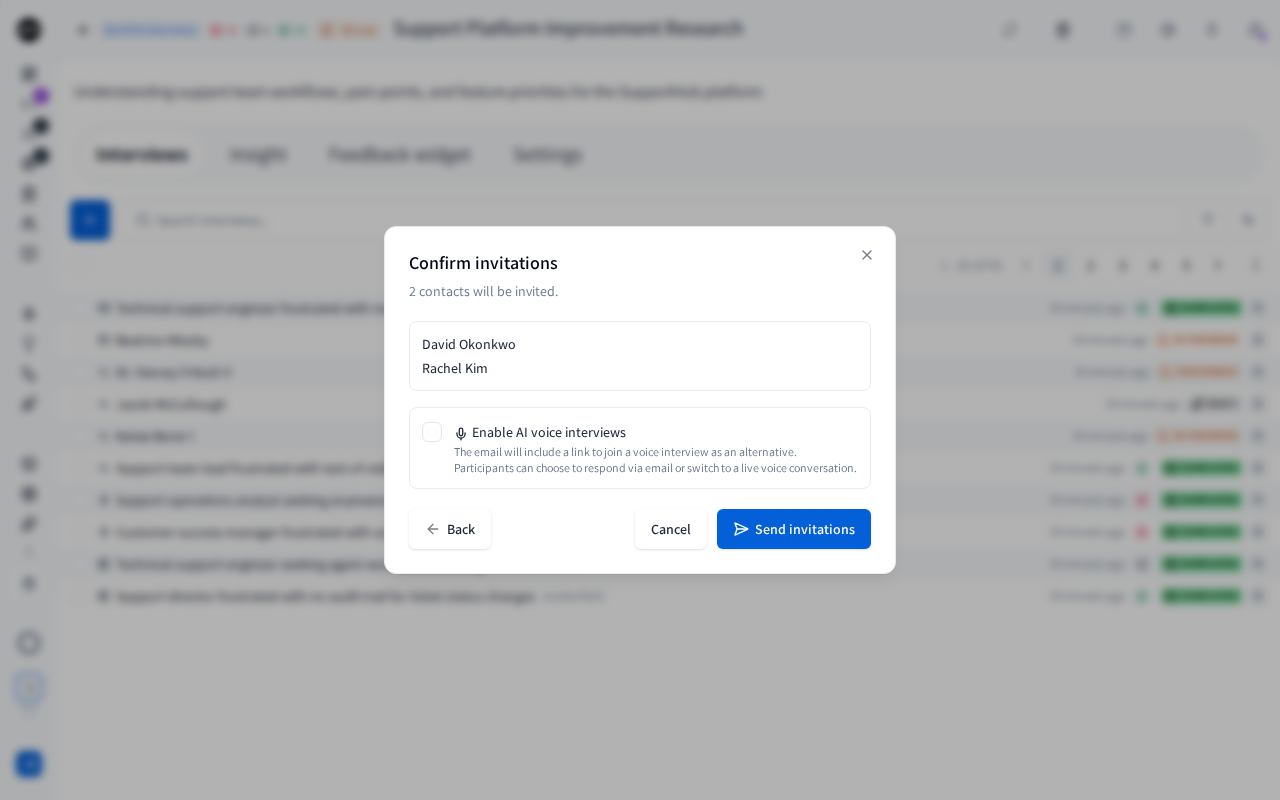
Check the list. To let participants talk to the AI interviewer instead of writing, select Enable AI voice interviews.
-
Choose Send invitations.
An interview is created for each contact, and the AI interviewer writes and sends each one an invitation email. The interview moves to Invited once the email is sent.
If billing refuses the invitation, because your organization's Pay-as-you-go balance can't cover the AI interviewer, pay-as-you-go isn't activated, spending is paused or a usage limit is reached, the interview isn't created. The dialog stays open with the reason, for example "Your Pay-as-you-go balance is EUR 0.12, and AI work needs at least EUR 0.78 available. Top up to continue.", and Productmind shows the action that fixes it, such as Top up, or the Usage limit reached dialog. Once it's fixed, choose Send invitations again.
The research needs at least one objective and one question before you can invite anyone. Until it has both, Invite to interview says so and offers Open Settings.
How an email interview runs
- The AI interviewer emails the participant, based on your objectives and questions.
- When the participant replies, it reads the answer and sends a follow-up, until it has what it needs. The interview is In Progress.
- When the interview is finished, the AI interviewer sends a thank-you email and Productmind summarizes the conversation. The interview moves to Processing, then Completed.
If you selected Enable AI voice interviews, the invitation also contains a link to a voice interview. The participant opens it in their browser, allows the microphone and chooses Start Interview. When the conversation ends, Productmind summarizes it.
Reading an interview
In the research's Interviews section, choose an interview to open it beside the list. While an interview is open, the list of researches folds away to make room, and comes back when you close the interview.
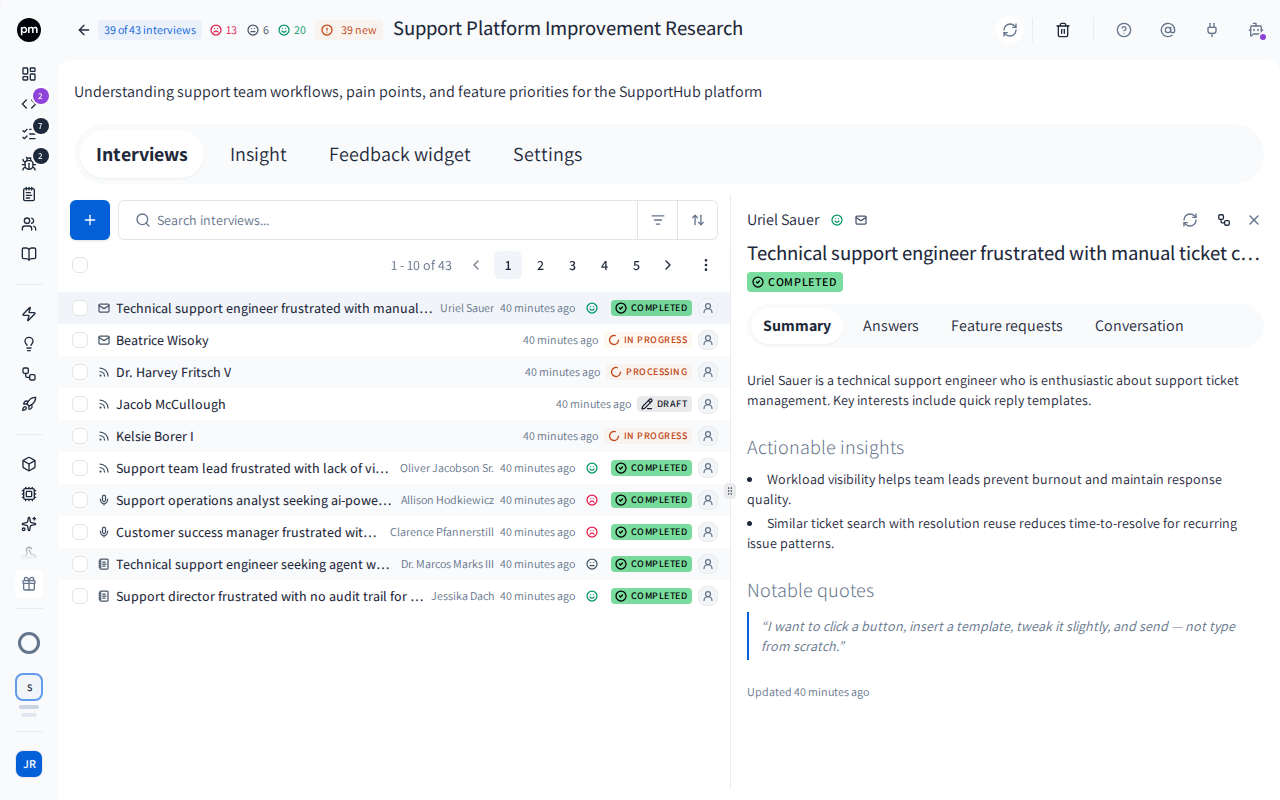
The list can be searched by title, summary, contact name, email or account. Filters narrows it by Status, Type and Sentiment, and Sort orders it by Title, Contact name, Type, Status, Sentiment or Date.
Each row shows the interview's type, its title and contact, its date, its sentiment and its status. Until an interview is summarized, its title is the contact's name.
The panel shows the contact, the sentiment and the type, then the interview's title, which you can edit, and its status. Once the interview is summarized, the panel has these tabs:
| Tab | What it shows |
|---|---|
| Summary | What the participant said, the Actionable insights and Notable quotes. For an AI Voice interview, also the interview link, with Copy. |
| Answers | Each of the research's questions, with the participant's answer, or "Not addressed in this interview." |
| Feature requests | The feature requests created from this interview. Appears when there are some. |
| Bug reports | The bug reports created from this interview. Appears when there are some. |
| Conversation | Every message in the conversation. |
Before an interview is summarized, the panel shows its raw content instead.
To summarize an interview again
The button is on an interview that has been summarized, and on one that is still In Progress.
- In the interview's panel, choose Re-summarize this interview (the circular arrows). On an interview that is still In Progress, the button reads Interview still in progress.
- Choose Re-summarize.
The new summary replaces the old one, with its insights and feature requests. The work continues in the background, so you can leave the page.
If the interview is still In Progress, the summary uses the conversation so far, and the interview moves out of In Progress.
To delete interviews
- Select the interviews with the checkboxes at the start of their rows.
- Choose Delete selected.
- Type delete, and confirm.
To delete one interview, you can also right-click it and choose Delete.
Deleting an interview can't be undone.
Summarizing a research
A research's summary brings every completed interview together.
To summarize a research
- Open the research. It opens on Overview.
- Choose Summarize this research (the circular arrows).
- Choose Summarize.
You need at least one completed interview. You can summarize at any time, even while more interviews are still in progress. The work continues in the background.
The summary has four parts:
- an overview of what the interviews found;
- Key themes: the patterns that recur across interviews, each with how many interviews mention it and supporting quotes;
- Question insights: the key takeaway for each of your questions;
- Linked feature requests: the feature requests that came from this research's interviews, with how many times each was mentioned.
Choose Expand to open a part.
To refresh the summary
- In the research's header, choose Refresh summary.
- Choose Re-summarize.
The new summary replaces the old one, with its question insights and linked feature requests.
Deleting a research
To delete a research
- Open the research and choose Delete research (the trash icon).
- Enter delete, and choose Delete.
The research is deleted and the Agentic interviews page opens.
You can also delete a research from the Agentic interviews page: right-click it and choose Delete. To delete several at once, select them with the checkboxes that appear when you point at a row, then choose Delete selected. Either way, enter delete to confirm.
Deleting a research also deletes all of its interviews, and its feedback widget stops working on every site that embeds it. It can't be undone.
How agentic interviews behave
Summaries create feature requests and bug reports. Summarizing an interview works as for a customer meeting: what the participant asked for becomes feature requests and what they ran into becomes bug reports, linked back to the interview, the contact and the contact's account. See How customer meetings behave.
Summaries are written in the background. A summary can take a few minutes. The page updates on its own when it's ready.
A summary that seems stuck can be restarted. While an interview is Processing, you can't start another summary. Once it has been processing for 45 minutes, the circular arrows can be chosen again, as This run looks stuck: choose them, then Start new run. Soon after that, Productmind also gives up on the run by itself: the interview moves back to Completed if it already had a summary, or to Failed if it didn't.
Billing is checked before the AI interviewer starts. Once when you send the invitations, and again when the AI interviewer starts, unless the interview runs on your organization's own model provider key, which uses no AI credits. If that second check refuses an interview, for example because the balance ran out in between, the interview moves to Cancelled and nothing is spent on it. Its panel says why under its status, such as Not enough Pay-as-you-go balance, with the action that fixes it: Top up, Activate pay-as-you-go, Open Usage or View plans. A member who can't take the action reads who can, for example "Ask an Owner or Admin to top up the Pay-as-you-go balance." Your Owners and Admins are also notified, at most once a day. See Billing notices.
Comments on a shared live preview become interviews. When a session's live preview has a public link with AI replies to comments on, the AI interviewer answers each comment an outside viewer leaves, guided by the research the link names (General unless someone chose another). Each comment's conversation is saved in that research as an interview of the Feedback widget type, under a contact for the email the viewer gave. It ends when your team resolves the comment, when the link or its AI replies are turned off, when your workspace turns off public preview links, or after 24 hours without a new message. Productmind then summarizes it, and turns what the viewer asked for into feature requests and the problems they met into bug reports, as for any interview. The replies use your organization's AI credits.
Notifications. When a voice interview or a feedback-widget conversation is summarized, everyone in the workspace with Customer meetings & support: Read is notified. See Profile and notifications.
Permissions
| To | You need |
|---|---|
| See researches and their summaries | Agentic interviews: Read |
| Create a research | Agentic interviews: Create |
| Rename a research, edit its objectives and questions, summarize it | Agentic interviews: Update |
| Delete a research | Agentic interviews: Delete |
| See the Interviews section | Customer meetings & support: Read |
| Invite people | Customer meetings & support: Create |
| Rename or summarize an interview | Customer meetings & support: Update |
| Delete interviews | Customer meetings & support: Delete |
| See the Feature requests tab of an interview | Feature requests: Read |
By default, the Owner, Admin, Power User and Product Manager roles can do all of these. Viewer and Customer can see research and interviews but not change them. Developer can't see Agentic interviews. See Roles and permissions.
Limits
- Researches per workspace. Your plan can limit how many researches a workspace has. When the limit is reached, creating one fails with "This workspace has reached its customer research limit".
- Voice interview minutes. Voice interviews use minutes from your plan's allowance for the billing period, billed by the second. If your plan includes none, inviting with voice interviews fails with "Voice interviews are not available on your current plan". If you've used them all and your organization doesn't allow overage, it fails with a message that says so.
See Plans and limits and Usage.
Troubleshooting
Next is unavailable in Invite to interview
A contact you selected has no email address. The dialog names the contact, or says how many contacts have none when there are several. Add an email address to the contact on the Contacts page, or clear it from the selection.
Next is also unavailable while the research has no objectives or no questions. The dialog says so: choose Open Settings and add at least one of each.
"AI interviews require objectives and questions"
The research has no objectives or no questions. Add at least one of each in its Settings section, then invite again.
An interview stays in Processing
Summaries run in the background and can take a few minutes. Once it has been processing for 45 minutes, choose the circular arrows (This run looks stuck), then Start new run. If you leave it, Productmind gives up on the run soon after, and the interview moves to Completed or Failed.
An interview shows Failed
Productmind couldn't write the interview's summary. An interview in Failed can't be summarized again from its panel: the circular arrows aren't shown there. The panel still shows the conversation's raw content.
An interview shows Cancelled
The AI interviewer stopped or never started. If billing refused the interview, its panel says why under the status, with the action that fixes it. Other reasons appear under Why it was cancelled. A cancelled interview doesn't start again by itself: once the cause is fixed, invite the contact again. See How agentic interviews behave.
Send invitations is refused with a billing message
Billing refused the invitation, so no interview was created. The dialog shows the reason, and Productmind offers the fix: Top up, Activate pay-as-you-go, Open Usage, or the Usage limit reached dialog. Only an Owner or Admin can top up, activate pay-as-you-go or turn spending back on. See Usage.
The Interviews section is missing
You need Customer meetings & support: Read to see interviews. Ask an Owner or Admin of your organization.