

Working in a session
Once a session is running, you work with the agent from the session page. You review its plan before anything is built, answer the questions it asks, send it corrections, and stop it when it heads the wrong way. Everything the agent does, and everything you tell it, appears in the session's conversation. To stop, cancel, retry or restart a run, see Stopping and restarting a run.
Key concepts
Run. One stretch of work by the agent: drafting the plan, building it, or handling a message you sent. While a run is in progress, the session's status icon in the Code list is orange, with a soft light circling it.
Conversation. The session's transcript: the agent's messages, each step it takes (such as reading a file or running a command), its questions, and your messages and answers. It is in the PM agent panel, or in the session's document while the plan is drafted and in a Code conversation. A session started from What shall we build today? carries on the conversation you started there.
Plan review. When the plan is ready, the agent waits for you to approve it, or to ask for changes with comments on the plan. Before you decide, you can ask it about the plan in a comment that mentions @pm.
Question. The agent can stop to ask you to choose between options, or to add a repository it needs: while it plans, and while it builds, until it opens its pull requests. When the agent has a preferred answer, it is marked Recommended and already picked: submit to accept it, or pick another answer, including Other to write your own.
Scope. The repositories, tasks and bug reports the session works on. You can change them while the agent works, and the agent is told about each change.
Error. Something that went wrong in a run, such as an install that failed or a repository that couldn't be cloned. Each error says what happened, why and what to do. An error that stopped the run failed it; other errors and warnings didn't, and the run went on past them.
The conversation
Choose PM agent at the top right of the page to open the session's conversation.
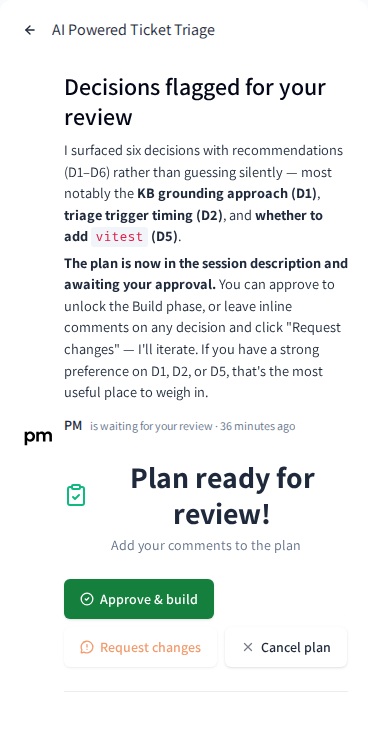
The panel shows:
- the agent's messages and, for each step it took, a row you can expand to see what went in and came out;
- under each of the agent's runs, how long it took, for example Worked for 4m 12s or Stopped after 2m 3s. Time a run spends waiting for a runner isn't counted;
- cards for the plan review and for the agent's questions, which you can answer right there;
- your messages, and your answers to its questions;
- the composer, when the session can take a message.
While the agent drafts the plan, and in a Code conversation, the conversation is the document itself, with the box to answer the agent under it: you follow every step where the plan will appear, and the PM agent panel shows your list of conversations. When the plan is ready, it takes the document's place, and the conversation moves to the PM agent panel beside it. To stop and correct the draft, see To stop the current step and correct the agent.
Reviewing the plan
When the plan is ready, the session's status is Plan Ready for Review and the document opens with Plan ready for review!
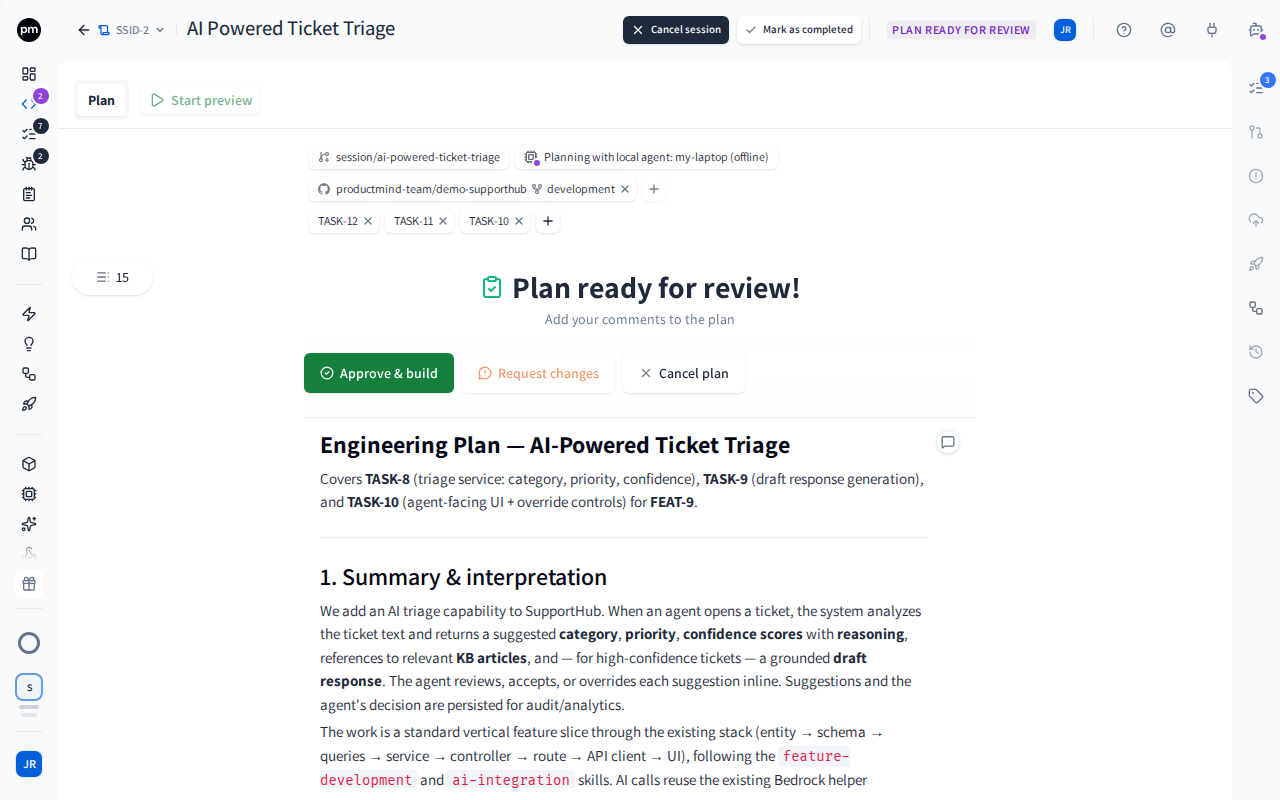
To approve the plan
- Read the plan.
- Choose Approve & build.
The agent starts building the plan straight away, and the status becomes Building. The document's Plan tab reads Implementing the plan with a spinner, followed by how long the build has run and what the agent is doing right now, for example 6m 4s · thinking · 8.8k tokens · 1m28s. Until the agent's first step, it says what is being set up, such as Provisioning build sandbox.... When the build is done, the agent opens pull requests, and the status becomes PR Ready for Review. See Pull requests and reviews.
Under Plan ready for review!, a line says what you are about to pay for: what the session has cost so far, what the build costs by your plan (such as the sandbox's price per hour plus the AI credits it uses, or the fee for a session on your own machine), and how many AI credits a typical coding session in Productmind's cloud uses, at your plan's price. Members who manage billing see the amounts in money; everyone else sees AI credits. It's an indication, not a quote: the build is charged for what it actually uses.
If your organization's Pay-as-you-go balance can't pay for the build, the bar says so before you choose anything: The build can't start yet, with what the build needs and what your balance holds, and Approve & build and Request changes are grayed out until it can. Choose the action beside it, such as Top up, which opens with the amount to add. Once the top-up arrives, both buttons come back by themselves. See Usage.
If Productmind can't push to one of the session's repositories, Approve & build is grayed out and the bar shows The build can't start until Productmind can push. For each repository, it says why, such as an account that can only read it or a branch rule, and what to do. Once that's done, choose Check again. Build, Retry of a build and Submit answer while the agent builds are held the same way. A notice that says A branch rule may refuse some of the agent's changes only warns. When your workspace pushes as the session's creator, a line for each repository also says which account pushes it, and with The session creator's account only the build is held while the creator's own account can't push. See Who pushes a session's code.
To ask for changes to the plan
- Select the text you want changed, and add a comment. For a change that isn't about one passage, enter it in Add a general comment, at the top of the comments beside the plan, and choose Comment.
- Repeat for everything you want changed.
- Choose Request N changes.
The agent reads your open comments, general comments included, revises the plan, and asks for your approval again.
While a comment is open, Approve & build is unavailable: resolve the comment, or send it with Request changes. Comments from an earlier round don't hold up the next one.
To ask PM about the plan
You can ask PM, the session's agent, about its plan before you decide on it: why it chose an approach, or what a step touches in the code. PM reads the code and answers in the comment's thread. It doesn't change the plan, its tasks or the code, and the session stays Plan Ready for Review.
- Select the text you want to ask about and add a comment. For a question about the whole plan, use Add a general comment.
- Enter @pm, choose pm (Ask this session's agent about the plan), then write your question.
- Choose Comment.
The thread is marked Question for PM, and PM is reading the code to answer... shows under it. PM's answer appears as a reply in the thread. To ask a follow-up, reply in the thread: every reply there goes to PM, so you don't need to mention it again.
While PM answers, Approve & build and Request changes wait for its answer. To stop it, choose Stop in the thread. Questions you or your teammates ask while PM is answering are answered next, together. PM's answers are charged like the agent's other work on the session.
A question isn't a change request: it doesn't count toward Request N changes, and it doesn't hold up Approve & build. If the answer shows the plan should change, choose Make it a change in the thread, then Request changes. The agent revises the plan knowing what you discussed.
If PM couldn't answer, the thread says why. Choose Ask again to send the question again.
@pm is offered only while the plan waits for your review, and only to people who can approve it. It isn't offered on a session that an AI coding assistant works over MCP.
To cancel the plan
- Choose Cancel plan.
- Leave Also discard the drafted plan selected to clear the plan, or clear it to keep the plan in the editor and change it yourself. A discarded plan is saved to Document history first.
- Choose Cancel plan.
The session becomes Cancelled. Its sandbox and plan can be edited again, and Draft a new plan starts over. Its repositories, tasks and bug reports never locked: see Changing a session's scope.
Answering the agent's questions
When the agent needs a decision, the session's status becomes Awaiting User Input. The agent needs your input opens for the people the session waits on: the person who started it, the person whose machine runs it, its assignees, and every member of a team it is assigned to. For everyone else it stays closed, and they can still answer.
To answer a question
- Select the option that fits, or select Other and type your answer in Your answer.
- Choose Submit answer. With several questions, use Next, then Submit answers.
The agent carries on from where it stopped, with your answer. You can also answer from the card in the conversation. If you close the question, or it didn't open for you, choose Answer under the header to open it.
The agent can also ask while it builds, before it opens its pull requests, when only you can make
the call: for example whether to keep or redo work it has already done, or what to do where the
approved plan and the code disagree. While the question waits, its work so far is saved to the
session's working branch, and the session shows Work in progress saved where its pull requests
will appear. Once you answer, it carries on building and opens its pull requests when it's done. If
the session runs on a computer whose Productmind agent is too old to carry on a build with your
answer, a message says so when you choose Submit answer: run pm update on that computer, then
answer again. See Productmind CLI.
If your Pay-as-you-go balance can't pay for the agent's next step, Submit answer is grayed out and the question says Your answer can't be sent yet, with the action that fixes it, such as Top up. Your answer stays as you left it: once the top-up arrives, choose Submit answer.
Sending messages to the agent
The composer at the bottom of the conversation takes a message when the session can act on one:
| When | Your message |
|---|---|
| A live preview is running | changes the running application. See Live preview. |
| A pull request is open | is applied and pushed to the open pull request. If the change makes the pull request's title or description out of date, the agent rewrites them. |
| You chose Stop turn while the agent was planning or building | is a correction: the agent picks up where it stopped. |
| A change you asked for in the conversation failed | is the next change: send the same message again, or a new instruction. The agent continues from the work the failed change saved. |
| The agent is working | waits, and is sent when the agent is free. |
Comments you leave on a running preview in Review reach the agent the same way: tagging @pm, or
choosing Send N to PM, puts one message in the conversation ("Please address these 3 comments on
the preview"), which waits its turn like any other. The agent replies in each comment's
thread. See Review mode on the live preview.
The placeholder tells you which: for example Tell the agent what to change - it picks up where it stopped... after a stop, and The last turn failed - press Up to send your message again, or type a new one... after a change that failed. You can attach images with Upload image (the picture icon). Unsent words and images stay in the composer when you reload or come back.
To send a message
- Type your message.
- Press Enter. Press Shift+Enter for a new line.
The message appears in the conversation at once, marked Sending... until the agent has it, and the agent starts on it. An image can still be uploading when you press Enter: the message shows its progress and is sent once the upload finishes.
To reuse a message you sent before, press the Up arrow in the empty composer.
To format a message, with bold text, a list or a block of code, use the formatting bar above the text or the shortcuts in The PM agent.
To send a message while the agent works
- Type your message and press Enter.
The message waits at the end of the conversation, marked Queued, and is sent when the agent finishes its current step. To take it back, choose Discard (the x). To stop the agent's turn and send it now, choose Send now: it stops the turn, not the session.
Queued messages are sent one at a time, in order, with their images. You can queue up to 10 messages: when the queue is full, your text stays in the composer. Queued messages are kept only in your browser tab, so reloading the page drops them.
If a message can't be delivered, it stays where you wrote it, marked Not sent, with the reason:
- Try again sends the same message again. If the first attempt did reach the agent, it isn't sent twice.
- Edit puts the words, images and references back in the composer.
- The x discards it.
A message that was still being sent when you closed or reloaded the page comes back marked Not sent: it is never sent again on its own. If an image couldn't be uploaded, the message offers Send without it.
Messages still queued when the session is cancelled are never sent: each shows Not sent, with The session was cancelled., and no Try again, because a cancelled session takes no message.
If the agent's step fails, the message you queued isn't sent on its own: it's marked Not sent, with The agent's turn failed before this was sent. Choose Try again to send it. After a change you asked for in the conversation, it goes at once. After a plan or a build, retry the run first: a message sent before then comes back Not sent again.
Changing a session's scope while the agent works
You can add and remove a session's repositories, tasks and bug reports at any time until it is Completed or Rolled Back, while the agent plans or builds too. You don't need to stop or cancel the session: an added repository is copied next to the agent's work, a removed one leaves when the current step ends, its unsaved changes pushed to its working branch first, and the agent is told about every change. The agent can also ask you to add a repository it needs. Only the sandbox stays as it was once the agent has started. See Changing a session's scope.
Reading the session's errors
When something goes wrong in a run, the session says what happened, why and what to do. Each error shows in up to three places:
- in the conversation, in the run it happened in, with View details;
- above Retry and Cancel session, when the error stopped the run (see To recover a failed run);
- in the Errors tab of the rail, which lists every error of the session.
A button held because Productmind can't push shows in the Errors tab too, once for each repository and reason. If Productmind couldn't check, nothing is held, and the run goes ahead with the warning Couldn't verify push access.
To read an error
- In the rail, choose Errors. Or choose View details on an error in the conversation, or under a failed run.
- Choose the error to expand it. View details opens the tab with its error already expanded.
- Read what happened and what to do, and under Output, what the program printed.
- To copy the output, choose the copy button beside Output.
The output shows at once. A long output shows its last lines first, and all of it once it has loaded.
To fix an error in its own session
On the error, choose Launch a bug fix session, then review the bug fix session that opens with a bug report made from the error. The error then offers Open bug fix session, or Retry bug fix session if only the report was made.
The Errors tab at a glance. At the top are Expand all or Collapse all, and how many errors the session has, for example 5 errors - 1 stopped the run. Then come the errors, newest first. Each one shows a mark for how serious it was (a cross when it stopped the run, a circled exclamation mark for an error, a triangle for a warning), its title, where in the run it happened (such as Install or Coding agent), the repository and application it concerns, the run (such as Build) and when it happened. A CI job that failed on one of the session's pull requests is listed too, marked CI check (see Pull request checks).
The Errors button in the rail counts the session's errors, and is red when the last run stopped on one. It's grayed out while the session has none.
Who sees an error's output. Reading it needs Logs: Read. Without it, you see each error's title, what happened and what to do, and a note that its output is hidden.
You're told when you're not watching. When a run goes on past an error, the person who started the session, its assignee and the person whose machine runs it get a notice in the app: Problem in and the session's name, once for each kind of error in a run. Opening it opens the session's Errors tab on that error. A run that stops on an error sends Session failed, by email too, and the email adds what to do when the error says it.
The errors of every session in the workspace are also counted in Settings > Coding errors, for Owners and Admins, and in each application's Coding errors view. See Coding errors.
Following the agent's sub-agents
The agent can hand part of its work to sub-agents. Follow them in the Sub agents tab: see Following the agent's sub-agents.
How a running session behaves
The agent keeps you informed. Its progress shows in the document, the conversation and the session's status, and on every page through the sidebar's Code list.
A finished turn ends within a minute. Anything the agent started in the background and left running, such as a database or a file watcher for its tests, is stopped a minute after the agent finishes, and the session's timeline names what was stopped, for example "Stopped 1 background process left running a minute after the agent finished: npm run watch". The agent is asked to stop what it starts itself.
Every run is timed. While the agent works, the conversation and the document's tabs count the run up, for example 1m 5s · thinking after the Plan tab, and the finished run shows how long it took. When the session ends as Completed, Cancelled or Rolled Back, the end of its conversation and a chip among the session's chips show two totals: the time the agent spent working across all its runs, and the time from its first run to its end. For example: 1h 52m of agent time across 5 turns · 2d 3h end to end. A Failed session shows no total, because you can still retry it, or continue it with a message. Two kinds of session show run times but no total: one that ran before run times were recorded, which shows times for its later runs only, and one where a run was interrupted without a clean end.
What the session has cost is on its page. Once the session has started its first run, a chip among the session's chips shows what it has cost so far, such as €20.88 · 522.05k AI credits, and reads so far while the agent works. Members who manage billing see the money, as charged to your Pay-as-you-go balance; everyone else sees the AI credits. From 1,000 AI credits up, the chip shortens the count with k (thousands), M (millions), B (billions) or T (trillions); hover over the chip to see the exact count. Choose the chip to see each run of the agent (Plan, Build, Documentation and so on) with what it was charged, the sandbox time, and the fee for a session on your own machine. Time a live preview is still running is charged when it stops, so it's added then. If part of the cost is billed on your organization's invoice, or a run ended before it could report everything it used, the chip says so.
Anyone can answer. When a plan is ready for review, everyone in the workspace is notified. A question notifies only the people the session waits on, as described in How sessions behave. Anyone who can update the session can answer or approve.
A button that starts a paid step says so before you click. Draft a plan, Re-plan, Build, Approve & build, Request changes and Submit answer each start a coding step that may be paid from your organization's Pay-as-you-go balance. When the step can't start, because the balance is too low, pay-as-you-go isn't activated, spending is paused or a usage limit is reached, the button is grayed out with the reason beside it and the action that fixes it: Top up, Activate pay-as-you-go, Open Usage or View plans. If you can't manage billing, it says who can. The button comes back by itself once the fix arrives. A step that runs on your own machine is never held for the AI credits it doesn't use. When the step can start but the coding sessions running now may together need more than your balance, it warns you instead: Running work may exceed your balance, with the button still available. If your workspace has turned off Productmind cloud sessions, these buttons are also held while none of your Productmind agents is online, with "Cloud sessions are turned off for this workspace. Connect your Productmind agent to run it here." and Connect your Productmind agent. See Settings > Coding sessions.
Sessions running at the same time can outspend your balance together. Each coding step checks your Pay-as-you-go balance when it starts, on its own: nothing is set aside for the steps already running, so two sessions can each start while your balance covers one step. When that may happen, you are warned: see Running work may exceed your balance.
The plan is locked while the agent works. You can edit the plan text yourself while the session is In Planning, Cancelled or Failed. At other times you comment on it.
Cloud sessions run on a runner of their own. Each step of a session that builds on the cloud runs on a runner: a machine in Productmind's cloud that serves only that session, never another session or another organization. When the session has no runner yet, the session says Waiting for a runner. Your run starts as soon as one is free. while it waits its turn, then Starting a runner. This can take a few minutes., both above the plan and in the conversation. Starting a runner usually takes about three minutes. The runner stays with the session for about five minutes after each step, and for as long as its live preview runs, so a step that starts in that time doesn't wait for a new one. The wait for a runner uses no sandbox hours.
If AI credit spending is turned off while a cloud session runs, the session says what happens to it. When an Owner or Admin turns off AI credit spending, or overage for AI credits, after the session's step was accepted, the session shows AI credit spending was turned off above the plan:
- while the session still waits for its runner, or the runner is starting: This run was accepted before spending was turned off, so it will not start: when its runner is ready, it stops and waits for billing. Turn AI credit spending back on before then to let it run. If spending is still off when the runner is ready, the session shows Waiting for billing, nothing is charged, and Resume runs the step once spending is back on.
- once the step is running: Spending was turned off while this run was already running. It finishes, and what it uses is charged as if spending were still on. Cancel the session to stop it now.
Anyone who can change the switches also gets Open Usage, which opens the tab where they are. See Usage. No notice shows when nothing is charged for the step, for example when your included AI credits still cover it.
If no runner is free in time, the run stops with Retry. A run that waits more than 15 minutes stops with No runner became available for this session in time. Retry in a few minutes., and one whose runner can't be started stops with A runner could not be started for this session. Retry in a few minutes. Choose Retry to run it again.
If the runner stops during a run, Productmind starts a new one, once. The run moves to the new runner, and the session notes what happened to it:
- a plan continues: The runner for this session stopped, so the run continues on a new one.
- a build moves to the new runner, and the changes it had not pushed yet are made again: The runner for this session stopped, so the run moved to a new one. Changes that had not been pushed yet are made again.
- a change you asked for in the conversation, or a fix for review comments, continues, and the note adds that changes it had not pushed yet did not carry over.
A live preview that was running has to be started again. If the new runner stops too, the run stops with The runner for this session stopped again, so the run was stopped. Retry to run it again.
A session whose agent goes offline continues by itself. If the machine running the session's
agent goes away in the middle of a run, for example because the Productmind agent on it was quit,
the session's status is Agent offline, and a notice says which machine, for example:
my-laptop went offline in the middle of a run. Start pm agent on that machine and the session
continues where it left off. When a cloud runner stopped, the notice says The cloud runner
stopped in the middle of a run. The session continues on a new runner by itself. In the
conversation, the run ends with, for example, Agent went offline after 10m 4s. To stop waiting,
choose Cancel session in the notice or the page header: the confirmation then says The
session won't continue when the agent comes back.
You can also move a session whose agent is offline to another of your Productmind agents, or to the Productmind cloud: choose the chip that says where the session runs, then choose where to move it under Move this session. The run continues there, and the conversation notes the move. Changes the agent hadn't pushed stay on that computer. If the run can't start where you move it, for example because your Pay-as-you-go balance is too low, the session stays Agent offline and you see why. If the agent comes back online first, the session resumes on it instead.
Connection problems don't stop the agent. If your browser loses its connection, the session reads Reconnecting... live updates are paused. The agent keeps working. Choose Reconnect now to try again straight away.
Read-only repositories
A repository can be read-only in a session. The agent clones it and reads its code for context, but Productmind never commits to it, pushes to it or opens a pull request on it, and a push the agent tries itself is refused. Use it for a repository the work needs to understand but must not change, such as a shared library or another team's service.
A repository is read-only in a session when:
- an application on it has Read-only turned on, in the application's Source code tab. It is then read-only in every session, including the ones already open. See Applications;
- or the session marks it read-only, on the repository's chip.
A read-only repository shows a lock on its chip. Hover over the lock to see why.
A session can only add read-only, never remove it: a repository its application makes read-only stays read-only, and its chip says Read-only in application settings. To let sessions push to it again, turn Read-only off in the application.
If the agent changes files in a read-only repository anyway, nothing is committed or pushed, and the session's pull requests list shows a Read-only repository row for it saying how many files were left unpublished. The rest of the session publishes as usual. A session whose repositories are all read-only opens no pull request: once you have what you need, choose Mark as completed.
To make a repository read-only in a session
- Open the session, and on the repository's chip choose Repository actions (the ...).
- Choose Make read-only. A lock appears on the chip.
To let the session push to it again, choose Allow pushes in the same menu. Like a repository's base branch, this can't be changed while a run is in progress, or once the agent has started until the session is cancelled or fails. A Live session's repositories, and a repository you added after the agent started that hasn't been copied yet, stay open to both changes. See Changing a session's scope.
Permissions
| To | You need |
|---|---|
| Follow a session | Sessions: Read |
| Read the conversation | Sessions: Read and Logs: Read |
| See the session's errors in the Errors tab | Sessions: Read |
| Read an error's output | Sessions: Read and Logs: Read |
| Comment on the plan, or on a running preview in Review | Comments: Create |
Send preview comments to the agent (@pm, Send N to PM) | Sessions: Update |
| Ask PM about the plan, ask again, make a question a change | Comments: Create and Sessions: Update |
| Approve, request changes, cancel the plan, answer questions, send messages, stop a turn or a preview, restart, retry or cancel a run, resume a cancelled session | Sessions: Update |
| Make a repository read-only in a session, or allow pushes to it again | Sessions: Update |
| Add or remove a session's repositories, tasks and bug reports, keep a removed repository or remove it without saving, answer the agent's request for a repository | Sessions: Update |
Troubleshooting
Approve & build is grayed out
A comment on the plan is still open. Resolve it, or choose Request changes to send it to the agent.
If PM is answering a question on the plan, both buttons wait for its answer and come back when it lands. To go on without it, choose Stop in the question's thread.
If The build can't start yet shows under the heading, your organization's billing can't pay for the build right now: the notice says why. Choose its action, such as Top up, or ask an Owner or Admin. Both buttons come back by themselves once it is fixed, and Cancel plan stays available.
If The build can't start until Productmind can push shows, do what it says for each repository it names, then choose Check again.
Request changes is grayed out
Leave at least one comment on the plan first: select some text and add a comment, or enter one in Add a general comment beside the plan. A question to PM doesn't count: choose Make it a change in its thread to send it. If The build can't start yet shows under the heading, billing is holding it too, and while PM answers a question both buttons wait for it: see above.
A question to PM says the Productmind agent is too old
The session runs on a computer whose Productmind agent is a version that can't answer questions on the plan, so your comment wasn't added. Update the CLI on that machine as described in Updating the CLI, then ask again.
Submit answer is grayed out
Select an option first, or type an answer under Other. If Your answer can't be sent yet shows above the button, your organization's billing can't pay for the agent's next step: choose the action beside it, such as Top up, or ask an Owner or Admin. Your answer is kept. If Your answer can't be sent until Productmind can push shows, do what it says, then choose Check again.
"Running work may exceed your balance"
The coding sessions running now may need more than your organization's Pay-as-you-go balance holds, at about one coding step each, for example: "2 coding runs are in progress. At about €6.24 each they may need €12.48, more than your €10.35 balance." The warning shows on the session you are about to continue, beside its button, and on Billing & Payments > Usage. Choose Top up in it: the dialog opens with the amount that covers them. It is a warning, not a limit: the sessions keep running, and one is stopped only if its step takes your balance below zero by more than the cost of one coding step. A build saves its work first. The estimate counts a whole step for each session, so near the end of a step it can warn when your balance would have been enough. Sessions on your own machine never count, and it never shows when your organization pays by invoice.
There is no composer in the conversation
The session can't take a message right now: for example the agent is waiting for your plan approval or your answer, or the session is finished. Answer the question or review the plan first.
A message came back as Not sent
The agent couldn't take it. The message shows the reason. A Productmind agent on your machine may need updating: update the Productmind CLI as described in Updating the CLI, then choose Try again. If the reason is The session was cancelled., the session was cancelled while the message waited in the queue, so it was never sent, and it can't be sent again: choose Edit to put it back in the composer, or discard it with the x.
A run stops because an application's dependencies didn't install
The application has Require dependencies to install on, and its install failed, took longer than 10 minutes or couldn't run, so the agent wasn't started. The session says which application, the line of the install's output that shows why, and what to do. Choose View details to read the install's full output, fix the install command or the lockfile, then choose Retry. See Applications.
An error says "The full output wasn't saved."
The error's full output is no longer in storage. Its last lines, what happened and what to do are still shown. An output that couldn't be saved when the error happened ends with (The full output couldn't be saved.) instead.
A run says the Productmind agent is too old to enforce "Require dependencies to install"
An application of the session requires its dependencies to install, and the Productmind agent on the machine that would run the session is a version that can't enforce it, so the run didn't start. Update the CLI on that machine as described in Updating the CLI, then try again.
A run says the Productmind agent is too old to work with read-only repositories
A repository of the session is read-only, and the Productmind agent on the machine that would run the session is a version that doesn't know read-only repositories, so the run didn't start. Update the CLI on that machine as described in Updating the CLI, then try again.
"Allow pushes" is refused for a repository
An application on the repository has Read-only turned on, so no session can push to it. Turn Read-only off in the application's Source code tab, if the repository may be changed.
A run stops with "No runner became available for this session in time"
Productmind's cloud had no runner free for the session within 15 minutes, so nothing ran. Choose Retry in a few minutes. To build without waiting, build the session on your own machine with the Productmind agent. See Starting a session.
A run stops with "A runner could not be started for this session"
Productmind couldn't start a runner for the session, so nothing ran. Choose Retry in a few minutes.
A run stops with "The runner for this session stopped again"
The session's runner stopped during the run, and so did the new one Productmind started for it. A runner can stop when the work runs out of memory, for example. Choose Retry to run it again. If it keeps happening, choose a larger size for the session's sandbox. See Sandboxes.
Related topics
- Starting a session
- Changing a session's scope
- Stopping and restarting a run
- Live preview
- Pull requests and reviews
- Coding errors
- Productmind CLI