

Roles
A role decides what a member can do. Every member has one role in the organization, and can get more through team roles. The Roles tab shows every role in your organization and exactly what it allows.
The built-in roles
| Role | Can |
|---|---|
| Owner | Full access to everything, including billing, member roles, and ownership transfer. |
| Admin | Manages the workspace, members, and settings, plus full access to all product work. |
| Power User | Product, Engineering, Feedback and General. Everything except Settings, for someone who works across the whole product. |
| Developer | Product, Engineering and General. For engineers who build features, with no customer feedback or Settings. |
| Product Manager | Product, Feedback and General, and can read applications. For people who run the product process, with no other Engineering access and no Settings. |
| Viewer | Read-only access across all product work. |
| Customer | Reads product work, and can comment and submit feature requests. |
Your organization may also have Custom roles, made for you, and Customized versions of a built-in role. The list's Type column marks both, and says Built-in for every other role.
The Roles tab at a glance
In the sidebar, choose Identity & Access, then Roles. Choose a role to see its permissions. The search box above the list matches a role's name and description, and Productmind remembers your search in this browser.
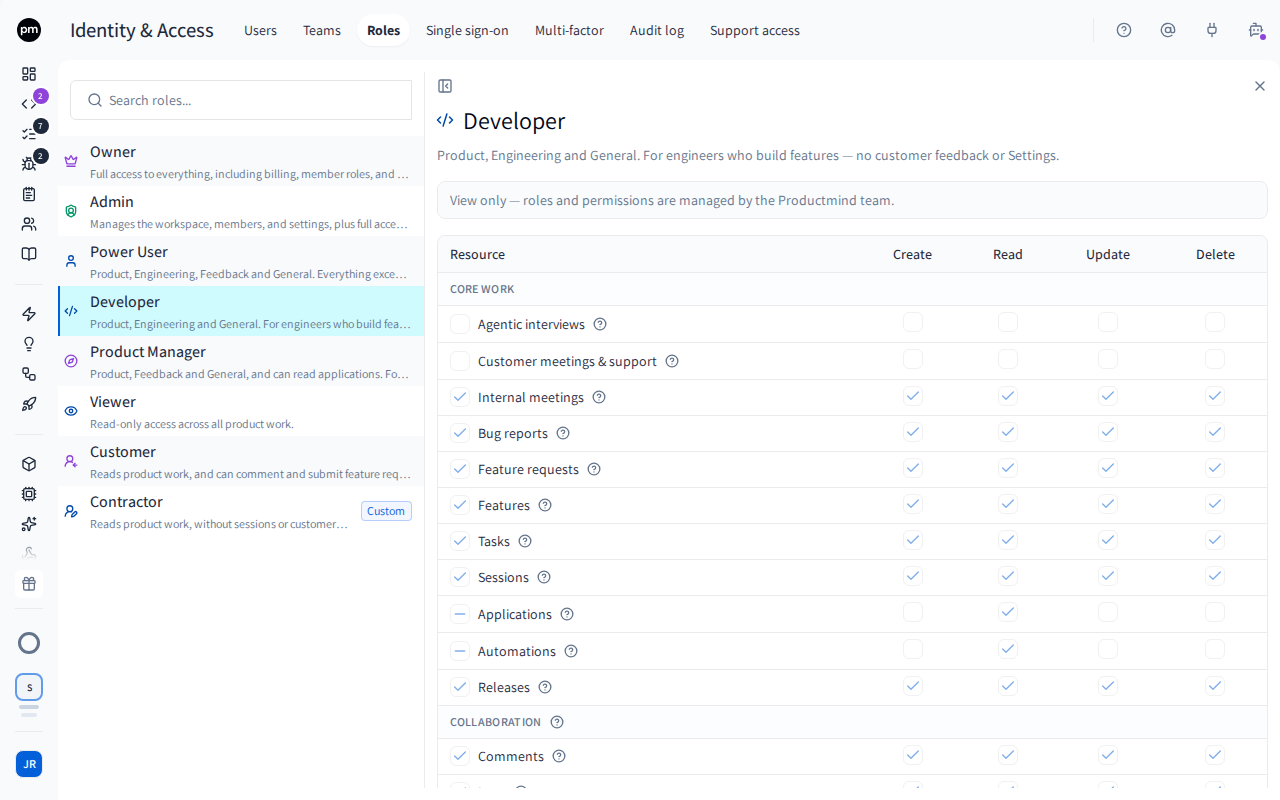
The permission grid has a row for each kind of record and a column for each action: Create, Read, Update and Delete. A check means the role can do that. Choose the ? next to a row to see what it covers. The rows are grouped:
| Group | Rows |
|---|---|
| Core work | Agentic interviews, Customer meetings & support, Internal meetings, Bug reports, Feature requests, Features, Tasks, Sessions, Applications, Automations, Releases, Marketing |
| Collaboration | Comments, Logs, Decisions, Attachments, Tags. These apply on every record above. |
| Workspace resources | Notes, Knowledge base, Accounts, Contacts, Chat, Audit log, Productmind support requests |
Rows for features your organization doesn't use aren't shown.
Marketing covers your customer release notes: Read sees them, Update flags releases and drafts and edits the notes, Create approves and publishes them, and Delete isn't used. The Owner, Admin, Power User and Product Manager roles hold all four, and Developer, Viewer and Customer hold none. See Marketing.
Administrative access appears under the grid for a role that holds any of it. The Owner and Admin roles hold all of it. The Power User and Developer roles hold only the Engineering area, so their panel lists Sandboxes and Agents.
| Area | Access |
|---|---|
| Members & roles | Invite & manage members, change member roles, view roles & permissions, manage teams |
| Organization | Edit organization, manage billing, transfer ownership (owner only) |
| Workspace settings | Create workspaces, general settings, integrations |
| Engineering | Sandboxes, agents |
Throughout this guide, a permission is written as its row and column, for example Tasks: Update. Chat has a single switch instead of columns, so it's written Chat: Enabled. Administrative access is written by its label, for example Agents access.
How roles behave
Roles can't be edited here. The Roles tab is view-only for every organization. To get a role that fits a job the built-in roles don't, contact Productmind support.
New permissions reach the built-in roles on their own. When Productmind adds a permission, such as Marketing, the built-in roles that should have it get it. Custom roles and Customized versions of a built-in role don't: contact Productmind support to add it to them.
Changing a member's role happens on the Users tab, and takes effect right away.
Related topics
- Roles and permissions: every role's permissions in one table
- Users
- Teams