

Multi-factor
Multi-factor authentication (MFA) asks for a second proof of identity after the password or Google sign-in: a 6-digit code from an authenticator app on the member's phone. On the Multi-factor tab you see how many of your members have set one up, and you can require it for everyone.
The Multi-factor tab at a glance
In the sidebar, choose Identity & Access, then Multi-factor.
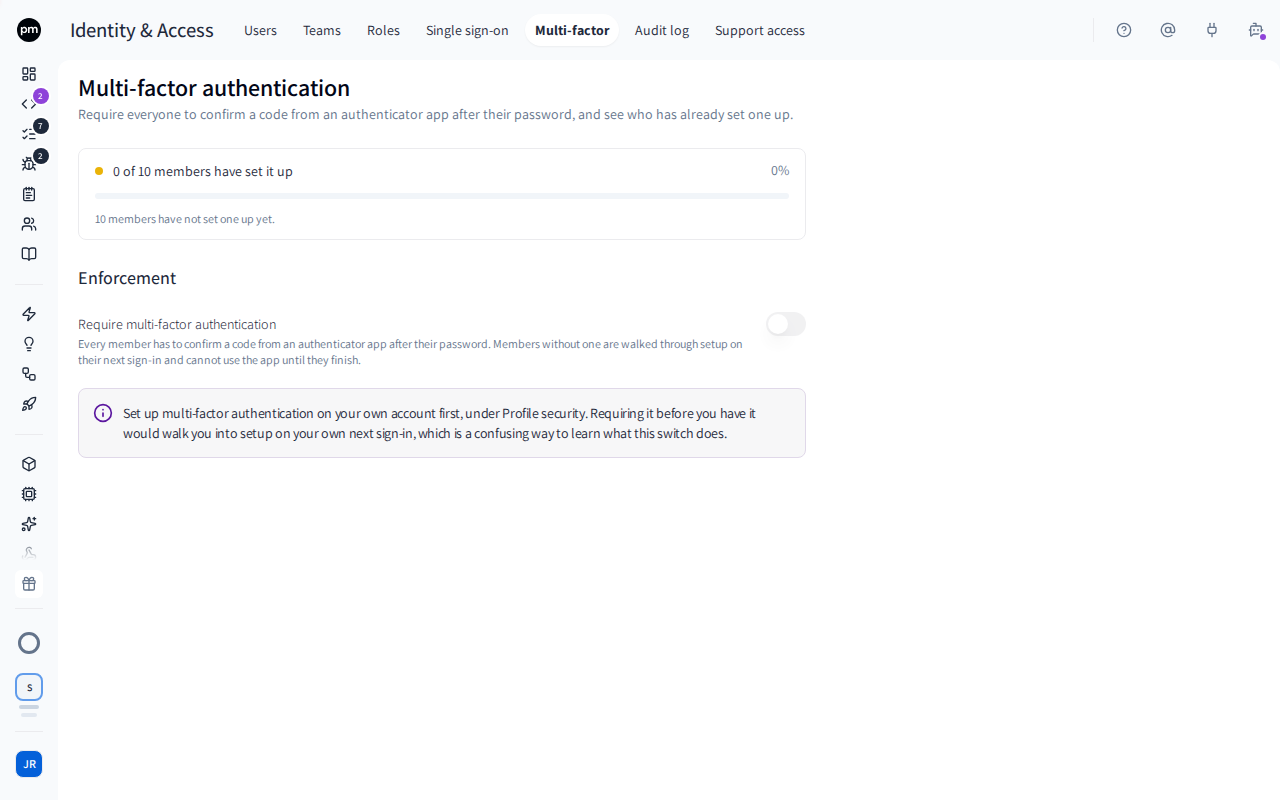
At the top, the Require multi-factor authentication switch turns the requirement on and off.
Under Adoption, the tab shows how many members have set up an authenticator, for example 7 of 10 have set it up, and what that means for the rest.
To see exactly who has set it up, choose View in Users: the Users tab's Multi-factor column says Set up or Not set up for each member, and its Multi-factor filter lists only one or the other.
Setting up your own authenticator
Every member sets up MFA for themselves, on their profile.
To set up an authenticator app
- Choose your avatar, then Profile.
- On Two-factor authentication, choose Set up.
- Scan the QR code with an authenticator app, or enter the setup key it shows.
- Enter the 6-digit code from the app, then choose Turn on.
- Save the 10 recovery codes: choose Download .txt or copy them. They're shown only once.
- Choose I have saved them.
Your profile shows On, and your other browsers and devices are signed out. From now on, Productmind asks for a code every time you sign in, with your password or with Google. If you lose your phone, sign in with Use a recovery code instead. Each recovery code works once. Choose Regenerate on your profile to get a new set.
Requiring multi-factor authentication
To require MFA for everyone
You need an authenticator set up on your own account first. Until you have one, the switch can't be turned on, and Set it up beside it takes you to your profile.
- Turn on Require multi-factor authentication.
- Choose Require it.
Members who haven't set up an authenticator are signed out at once. The next time they sign in to your organization, with a password or with Google, Productmind walks them through setting one up before they can use the app. A member who also belongs to other organizations can land in one of those when they sign in. When they then switch to your organization, Productmind tells them to set up an authenticator on their profile first, then sign in again. Members who already have one stay signed in, and so do members who signed in through your organization's single sign-on. Older single sign-on sessions, started before Productmind counted single sign-on toward this requirement, are the exception: they're signed out once, and after the member signs in through single sign-on again, they stay signed in. New members who accept an invitation set one up as soon as they have created their account.
To stop requiring MFA
Turn off Require multi-factor authentication. Members who have set up an authenticator keep being asked for a code.
How multi-factor authentication behaves
Nobody is exempt. When MFA is required, the owner has to use it too.
A member with an authenticator is asked for a code every time they sign in with a password or with Google, whether or not your organization requires MFA.
Five wrong codes end the attempt. The member has to sign in again.
Too many wrong codes pause signing in. After 10 wrong codes in 15 minutes, or 30 in a day, across any number of sign-ins, signing in to that account is paused for a while, and the member is told when to try again. Codes entered to remove an authenticator or regenerate recovery codes count too. Wrong codes keep counting for up to a day, even after a successful sign-in.
Switching to an organization that requires MFA needs a sign-in that used a code, or that organization's own single sign-on. If your sign-in doesn't qualify, Productmind tells you what to do: set up an authenticator on your profile if you haven't, then sign out and sign in again with your password or Google, and enter a code. If that organization has its own single sign-on, you can sign in through it instead, and when it requires single sign-on, members have to. After signing in through another organization's single sign-on you can't switch at all, and Productmind tells you the same steps, see If you signed in with single sign-on.
Removing your last authenticator isn't possible while your organization requires MFA. Removing one, or regenerating recovery codes, asks for your password or a code first.
Permissions
| To | You need |
|---|---|
| See the Multi-factor tab and require MFA | The Owner or Admin role, with MFA set up on your own account |
| Set up MFA on your own account | Nothing: every member can |
Troubleshooting
The Require multi-factor authentication switch is locked
Set up an authenticator on your own profile first.
"That code was not accepted"
Codes change every 30 seconds. Wait for the next code and enter it straight away. If it keeps failing, check that your phone's clock is set automatically.
A member lost their phone
They can sign in with one of their recovery codes. If they have none left, contact Productmind support.