

Payment & Billing details
The Payment & Billing details tab holds who Productmind bills and how. Billing profiles are the companies or entities your organization is invoiced as: each has a name, an address and a VAT number, which appear on the invoices billed to it. Payment methods are the cards and bank mandates your subscription, member changes on a per-user plan and auto-recharge are charged to.
Key concepts
Billing profile. A company or entity your organization is invoiced as, with its company legal name, address, billing country, VAT number, Chamber of Commerce number, phone and billing contacts. Every invoice is billed to one profile and carries its company legal name. You can keep several, for example to bill top-ups to another company or entity.
Default billing profile. The one profile that pays your automated payments: auto-recharge, every new subscription, and the first top-up that activates pay-as-you-go. Billing emails go to its billing contacts. There is always exactly one default.
Billing contact. An email address, with an optional name, that a billing profile's invoices, receipts and billing emails go to. Each profile has its own list of up to 10. The first contact in the list is the primary contact: Stripe's receipt for a card or iDEAL payment goes to it alone. See Who gets what.
Billing country. The country a billing profile is billed in. It decides which VAT applies to what is billed to that profile.
Payment provider. Stripe, the company that takes payments for Productmind, whatever your billing country. You pay on Stripe's secure page: Productmind never sees or stores your card or bank details. Stripe calculates the VAT on each payment from the billing address and VAT number of the profile it is billed to.
Payment method. How a payment is made. At checkout you pay by card, or with iDEAL where Stripe offers it, for example in the Netherlands: Stripe's page shows the methods available where you are. Paying with iDEAL saves a SEPA Direct Debit mandate: the renewals of that subscription, and charges for members you add, are then collected from your bank account by SEPA Direct Debit, which takes a few business days. Auto-recharge charges a saved card only. Each payment method is saved on one billing profile.
VAT number. A billing profile's VAT registration number. For an EU business outside the Netherlands, it is what lets you be charged no VAT. Productmind checks each profile's number with the EU VIES service.
The Payment & Billing details tab at a glance
In the sidebar, choose Billing & Payments, then Payment & Billing details.
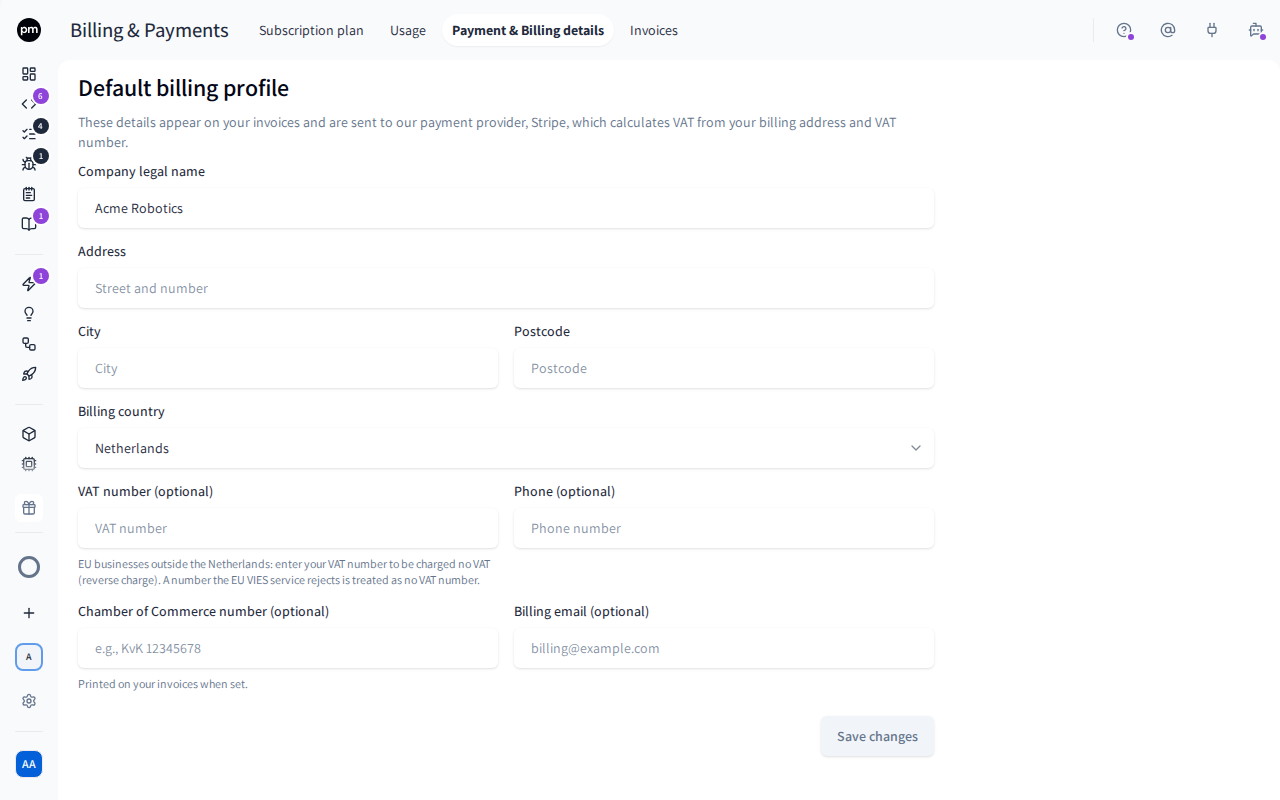
Default billing profile is a form with your default profile's details, in these fields:
| Field | Notes |
|---|---|
| Company legal name | Required. |
| Billing country | Required. Decides your VAT. |
| City, Address, Postcode | Required. |
| VAT number (optional) | For example NL123456789B01. EU businesses outside the Netherlands: enter it to be charged no VAT. Once the EU VIES service has checked a saved number, EU VIES check under it shows Verified, Could not be verified yet or Rejected. |
| Chamber of Commerce number (optional) | Your company's registration number, for example KvK 12345678. When it's set, it's printed on your invoices. |
| Phone (optional) | |
| Billing contacts (optional) | Who this profile's invoices, receipts and billing emails go to: up to 10 contacts, each an email address and an optional name. The first is the primary contact. If your organization pays by invoice, every contact gets each invoice; with none, invoices go to the organization Owner's email. Stripe's receipt for each card or iDEAL payment goes to the primary contact only. Every contact gets the low-balance, below-zero and auto-recharge emails, and the email that confirms each change to your plan, alongside your Owners and Admins. See Who gets what and Managing billing contacts. |
Under the fields, Billing contacts (optional) lists the profile's contacts, the primary first. Each row has an email field, a Name (optional) field, and an actions menu (the more icon) with Make primary and Remove. The first row carries the Primary badge, and its Make primary is unavailable. Add contact adds a row. With no contacts, it says "No billing contacts: invoices go to the organization Owner's email." See Who gets what.
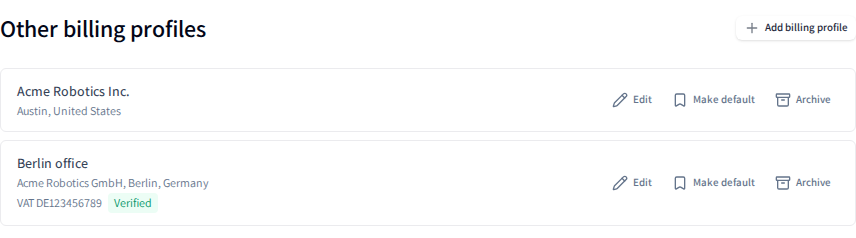
Other billing profiles lists your other profiles. Each shows its profile name, its company legal name, its city and country, and its VAT number with the result of its EU VIES check, and has Edit, Make default and Archive. Add billing profile adds one. Until you add one, it says "Add a billing profile to bill top-ups to another company or entity." If your organization pays by invoice, the tab has no Other billing profiles: see Paying by invoice.
Payment methods, with Add a card beside its heading, lists your payment methods. Your subscription, and changes to your plan or members, are charged to the payment method it was paid with. Each method shows:
- a card shows its brand, its last four digits and when it expires;
- a SEPA Direct Debit mandate, saved when you paid with iDEAL, shows SEPA Direct Debit and the last four digits of your bank account. It has no expiry date.
Each has Remove payment method (the delete icon). A profile's default payment method is marked Default, and each other one has Set default. The default card of your default billing profile is the one auto-recharge, and a paid plan you start on the Plan tab, are charged to: beside its Default badge, it is labelled Used for auto-recharge and new subscriptions. When auto-recharge has just failed on a card, choosing Set default on another card of your default billing profile retries it on the new card within 5 minutes. Setting a default doesn't move a subscription you already pay: it stays on the payment method it was paid with. With nothing on file, the section says "No payment methods on file. Add a card to change to a paid plan or to turn on auto-recharge."
Once more than one of your billing profiles has been used to pay, by a top-up billed to it or a card added to it, a Billing profile select above the list picks whose payment methods you see and manage. It starts on your default profile. A profile with nothing on file says "No payment methods on file for this billing profile."
Managing billing profiles
To change your default billing profile
- In the sidebar, choose Billing & Payments, then Payment & Billing details.
- Change the fields under Default billing profile.
- Choose Save changes.
Productmind shows "Billing details updated". The details are also passed to Stripe, so its checkout page is filled in for you and your VAT is calculated from them.
Fill in your default billing profile before your first payment: Stripe calculates your VAT from it. If you change its billing country later, the VAT on your next payments follows the new country.
To add a billing profile
- On Payment & Billing details, under Other billing profiles, choose Add billing profile.
- In Add billing profile, you can enter a Profile name (optional): it is shown when you choose who to bill, and defaults to the company legal name.
- Enter the company's details: Company legal name, Billing country, City, Address and Postcode, and, if it has them, VAT number (optional), Chamber of Commerce number (optional) and Phone (optional).
- Under Billing contacts (optional), add the contacts its receipts go to: see To add a billing contact.
- Choose Save.
Productmind shows "Billing profile added", and the profile is listed under Other billing profiles. If you entered a VAT number, Productmind checks it with the EU VIES service, and the profile shows the result. You can also add a profile while you top up: see To top up your balance.
To edit a billing profile
- Under Other billing profiles, on the profile, choose Edit.
- In Edit billing profile, change the fields, and choose Save.
Productmind shows "Billing profile updated". The profile shows its new details, and what is billed to it from then on carries them. If you changed its VAT number or its billing country, Productmind checks the number with the EU VIES service again. A profile named after its company legal name takes the new name when you change the legal name; a name you gave it stays.
Your default profile's details are edited under Default billing profile. To rename it, choose Edit on it under Bill to when you top up.
To make another profile the default
- Under Other billing profiles, on the profile, choose Make default.
- Productmind asks whether to make that profile the default and says what changes: auto-recharge and new subscriptions will use it and, if you have a running subscription billed to another profile, that it keeps billing that profile. Choose Make default.
Productmind shows "Default billing profile changed". The profile becomes your Default billing profile, and your previous default is listed under Other billing profiles. From then on, auto-recharge and new subscriptions are billed to the new default and charged to its cards, so make sure it has one (see To add a card), and billing emails go to its billing contacts. Each profile keeps its own billing contacts: your previous default keeps its list, and the new default brings its own. A subscription that is already running doesn't move: see How billing profiles behave.
To archive a billing profile
- Under Other billing profiles, on the profile, choose Archive.
- Productmind asks whether to archive that profile and says "It is no longer offered when you top up. Its invoices stay listed." Choose Archive.
Productmind shows "Billing profile archived". The profile is no longer offered when you top up, and it no longer counts toward your limit. Its invoices stay listed under Invoices. You can't archive your default profile, or a profile that pays your running subscription.
Archiving can't be undone: an archived profile can't be edited, made the default or restored. To bill that company again, add it as a new profile.
VAT
Every price in Productmind excludes VAT. What is added depends on the billing country and the VAT number of the billing profile you are billed to:
| Billing country | VAT |
|---|---|
| The Netherlands | Dutch VAT (21%) is added. Price notes show the amount, and invoices show the net amount, the VAT with its rate, and the total. |
| Another EU country, with a VAT number | None is charged: VAT is reverse charged, and you account for it yourself. Invoices cite Article 194/196 of Council Directive 2006/112/EC. |
| Another EU country, without a VAT number | Your country's VAT is added, calculated at checkout. Invoices show the net amount, the VAT with its rate, and the total. |
| Outside the EU | None is charged: the service is outside the scope of EU VAT. Invoices cite Article 44 of Council Directive 2006/112/EC. |
For the Netherlands, the note under each price on Plan shows the VAT amount. For every other country, it says that VAT is calculated at checkout from your billing address and VAT number, or, if you pay by invoice, why no VAT is charged.
- A VAT number the EU VIES service rejects is treated as no VAT number. Correct it on the profile, under Default billing profile or with Edit, to be charged no VAT again.
- VAT follows the billing profile. Each profile's VAT number is checked on its own, and each payment's VAT is calculated from the profile it is billed to.
- Stripe's checkout doesn't ask for a VAT number. Enter it on the billing profile before you pay. The invoice carries the profile's company legal name, never the name on the card.
- Paying by invoice from an EU country outside the Netherlands requires a verified VAT number. See Paying by invoice.
Managing billing contacts
Each billing profile has its own Billing contacts (optional): under Default billing profile for your default, and in Edit billing profile (or Add billing profile) for any other. You change them like the profile's other fields, and they are saved when you save the profile.
To add a billing contact
- On Payment & Billing details, find Billing contacts (optional): under Default billing profile, or, for another profile, choose Edit on it under Other billing profiles.
- Choose Add contact.
- In the new row, enter the email address, and, if you like, a name in Name (optional).
- Choose Save changes under Default billing profile, or Save in the dialog.
Productmind shows "Billing details updated" for your default profile, or "Billing profile updated" for another one, and the contact is listed under Billing contacts (optional). If the profile had no contacts, the new one is its primary contact.
To edit a billing contact
- In Billing contacts (optional), change the contact's email address or Name (optional).
- Choose Save changes under Default billing profile, or Save in the dialog.
Productmind shows "Billing details updated" or "Billing profile updated", and the contact shows its new details.
To make a contact the primary
- In Billing contacts (optional), on the contact's row, open the actions menu (the more icon), and choose Make primary.
- Choose Save changes under Default billing profile, or Save in the dialog.
The contact moves to the top of the list, with the Primary badge. From then on, Stripe's receipts for payments billed to that profile go to it.
To remove a billing contact
- In Billing contacts (optional), on the contact's row, open the actions menu (the more icon), and choose Remove.
- Choose Save changes under Default billing profile, or Save in the dialog.
The contact disappears from the list, and gets nothing more as a billing contact of that profile. If you removed the primary contact, the next one in the list becomes the primary. If you removed the last contact of your default profile, invoices go to the organization Owner's email.
Managing payment methods
To add a card
Add a card adds a card. You need one on your default billing profile to turn on auto-recharge, and to start a paid plan on the Plan tab.
- On Payment & Billing details, under Payment methods, if the Billing profile select is shown, select the profile the card is for.
- Choose Add a card, beside the Payment methods heading.
- Enter your card on Stripe's secure page.
You return to Payment & Billing details, which shows "Payment method added. Your card will appear here once the provider confirms." Your card appears under Payment methods once Stripe confirms it. The first card you save on a profile becomes its default.
If you go back from Stripe's page without adding a card, you return to Payment & Billing details, which shows "Payment method setup canceled." No card is added.
Activating pay-as-you-go also saves your payment method on your default billing profile, in the same checkout as your first top-up: your card, or, if you pay with iDEAL, a SEPA Direct Debit mandate. See To activate pay-as-you-go.
To remove a payment method
- If the Billing profile select is shown, select the profile the payment method is saved on.
- On the card or the SEPA Direct Debit mandate, choose Remove payment method (the delete icon).
- Choose Remove.
Productmind shows "Payment method removed", and it disappears from Payment methods.
If you remove the only payment method of the profile your subscription is billed to, your next renewal fails, and so do charges for members you add on a per-user plan. If you remove the only card on your default billing profile, auto-recharge stops.
Paying by invoice
Some organizations pay by invoice under an agreement with Productmind, instead of by card. An organization billed in an EU country outside the Netherlands can pay by invoice only with a VAT number the EU VIES service has verified. For these organizations, Payment methods is replaced by Payment method, which says "Your subscription is billed by invoice." and shows the terms of the agreement:
| Field | Shows |
|---|---|
| Method | Invoice |
| Payment terms | Due on receipt, or how many days you have to pay |
| Billed | Monthly or Annually |
| Amount per period | Including VAT |
| Agreement | When it started, and when it ends, or that it's open-ended |
On a per-user plan, Price per user (excluding VAT), Members billed (your active members today) and Estimated per period (including VAT) replace Amount per period: each invoice bills the members who are active when it is drafted, for the whole period.
When each invoice is issued, it is emailed to every billing contact of your default billing profile (to the organization Owner's email if it has none), and listed under Invoices with a PDF. Payment reminders for an invoice go to the same contacts. To change your plan or these terms, contact your account manager. A change to the terms applies from your next invoice: invoices already issued don't change.
An organization that pays by invoice has its default billing profile only: its agreement bills those details. The tab has no Other billing profiles.
How billing profiles behave
The default pays your automated payments. Auto-recharge and every new subscription, including one you choose during setup, are billed to your default billing profile. When they charge a saved card, it is that profile's default card. Your first top-up, which activates pay-as-you-go, is billed to it too, and saves the card those payments use. If none of the default profile's cards is its default, for example because its default is a SEPA Direct Debit mandate, its oldest card is charged and made the default.
A running subscription keeps its profile. Making another profile the default doesn't move a subscription that is already running: its renewals, and its plan and seat changes, are still billed to the profile it started on, which the Plan tab names. Only auto-recharge and new subscriptions move to the new default.
A top-up is billed to the profile you choose under Bill to when you top up, except your first, which is billed to the default. Its VAT follows that profile, and its invoice carries that profile's company legal name. See To top up your balance.
Who gets what
Each kind of billing mail goes to its own recipients:
| Goes to | |
|---|---|
| Each invoice, if your organization pays by invoice | Every billing contact of your default billing profile. With none, the organization Owner's email. Payment reminders go to the same contacts. |
| Stripe's receipt for each card or iDEAL payment | The primary contact of the profile the payment was billed to. Its other contacts don't get it. |
| The low-balance, below-zero and auto-recharge emails, and the email that confirms each change to your plan | Your Owners and Admins, and every billing contact of your default billing profile. Each address gets one copy, even when it is both. With nobody, the organization Owner. |
So only your default profile's contacts get invoices by email and billing emails. The contacts of your other profiles get Stripe's receipts for payments billed to those profiles, and start getting billing emails if you make that profile the default.
Permissions
| To | You need |
|---|---|
| See and change billing profiles, their billing contacts and payment methods | The Owner role |
Limits
An organization can keep up to 10 billing profiles, the default included. Archived profiles don't count.
A billing profile can have up to 10 billing contacts. At 10, Add contact is unavailable, and the list says "Up to 10 billing contacts."
Troubleshooting
Save changes stays grayed out
You haven't changed anything yet. Change a field, and Save changes becomes available. If a required field is empty or invalid, the form says which one needs attention.
"Could not save your billing details. Please try again."
The details weren't saved. Try again in a moment.
"Enter a valid email address"
A billing contact's email isn't a valid email address. Correct it in its row, and save again.
"Enter an email address"
A billing contact's row has no email, for example one you added with Add contact and left empty. Enter the email address, or remove the row, and save again.
"This email is already a billing contact."
The profile already has a contact with that email. Two emails are the same even when they differ only in capital letters or spaces before or after them. Remove one of the two rows, or change its email, and save again.
"A billing profile can have up to 10 billing contacts."
The profile already has 10 contacts. Remove one you no longer need, then add the new one.
My new card doesn't appear
Stripe hasn't confirmed it yet. Reload the tab after a moment. If the Billing profile select is shown, check that it shows the profile you added the card to. If the card still doesn't appear, add it again.
"Card verification is temporarily unavailable"
Productmind couldn't reach Stripe to open its page for adding a card. Nothing was charged. Try again in a few minutes, or choose Contact support in the message.
"Check your billing details"
Stripe couldn't set up a payment with the details of the billing profile you are paying with: a card, a top-up or a plan change didn't start, and nothing was charged. The message says "We could not set up payments with your billing details. Check them under Billing & Payments > Payment & billing details and try again.", or, when Stripe couldn't calculate VAT from them, "We could not use your billing address or VAT number to calculate tax." Choose Open billing details, check the profile's company legal name, address, postcode, billing country and VAT number, save them, and try again. An Admin is asked to have the Owner update the billing details instead.
"The payment provider refused the request"
Stripe refused to start the payment. The sentence under it is Stripe's own, and says why. Correct what it names and try again, or choose Contact support in the message.
"An organization can keep up to 10 billing profiles. Archive one you no longer use first."
Your organization already keeps 10 billing profiles, the default included. Archive one you no longer use, then add the new one.
"An archived billing profile cannot be made the default."
The profile has been archived, for example by someone else since you opened the tab. An archived profile can't be restored: add the company as a new profile, then make that one the default.
"The default billing profile cannot be archived. Make another profile the default first."
Your default profile pays your automated payments. Make another profile the default, then archive this one.
"This billing profile pays your running subscription. You can archive it once that subscription has ended."
Your running subscription started on this profile, and its renewals and changes are still billed to it. A subscription doesn't move to another profile, so you can archive this one once the subscription has ended.
"Your organization is billed by invoice under its agreement, which uses your default billing details. Contact support to change how you are invoiced."
Your organization pays by invoice, and its agreement bills your default billing profile only, so you can't add another profile, make one the default or archive one. Contact support to change how you are invoiced.
"End the current subscription before moving your billing country outside the Netherlands."
Your organization has a subscription with our previous payment provider, which can bill only organizations in the Netherlands. Cancel your subscription, then change your billing country. Your next payment goes through Stripe.
"Your organization has a subscription with our previous payment provider. End it by switching to the Pay-as-you-go plan under Billing & Payments, then try again."
Your organization still has a subscription with the payment provider Productmind used before Stripe. Until it has ended, you can't add a card, start or change a paid plan, top up, or make another billing profile the default. Cancel your subscription: it ends straight away, with no refund for the rest of the period. Then try again: your payment goes through Stripe.
"We could not use your billing address or VAT number to calculate tax."
Stripe couldn't calculate VAT from the details of the billing profile you were paying with when you started a paid plan, switched plans or topped up your Pay-as-you-go balance. Check the profile's address, billing country and VAT number, save them, and try again.