

Usage
The Usage tab shows how much of your plan your organization has used this billing period: the AI credits your agents and coding sessions used, then every limit of your plan. It is also where you decide what happens when a monthly allowance runs out: stop, or keep going and pay for the extra from your Pay-as-you-go balance.
Key concepts
AI credits. The unit AI usage is measured in. Every model's tokens use AI credits in proportion to what they cost, so the same work uses more AI credits on a larger, more capable model than on a lighter one. A coding session that runs in Productmind's cloud also uses 500 AI credits for each web search its agent makes. Coding sessions on your own machine use none of your AI credits. Productmind's agents and your coding sessions and scans draw on the same AI credits, with one price and one switch.
User-hosted session. A coding session the Productmind agent runs on your own machine, on your own Claude Code or Codex account. Its AI uses none of your AI credits. If your plan charges for sessions on your own machine, each one is charged once, at your plan's per-session rate, the first time it runs there (its plan, its build, its scan, or its first change in a Live session), and never again for that session. Previews on your machine stay free. Sessions your own coding assistant claims over MCP are counted, never charged.
Sandbox hours. How long live previews and coding sessions run in Productmind's cloud, counted per sandbox size (Small, Medium or Large) and measured by the second. Each size has its own price per hour. The time a session or a preview waits for a runner isn't counted, and runs on your own machine never count them. See Sandboxes.
Cloud allowance. The euros your plan includes each billing period for time in Productmind's cloud. Every sandbox size draws on it by the second at its own price per hour.
Allowance. How much of something your plan includes each billing period, such as its Included AI credits or voice interview minutes. Allowances reset at the start of each period, and what you don't use doesn't roll over: the next period starts from zero.
Billing period. Your month, counted from your subscription date rather than the calendar: it starts on the day and at the time of day your subscription started. On the plan with no monthly fee, it counts from the start of the day your organization was created. The tab shows its dates.
Cap. A limit on how many of something you can have, such as workspaces, users or a workspace's features, or on how many referrals each person can send. Some caps count across your whole organization, such as Max Workspaces and Users. Others count in each workspace, such as Features per workspace, or for each person, such as Personal referrals.
Limits. The most AI credits agents and coding sessions can use together in a day, a week or a billing period: the Daily AI credit limit, the Weekly AI credit limit and the Monthly AI credit limit. They protect your organization from runaway use, and Productmind sets them in each plan. A plan that doesn't set one has no such limit. Unlike an allowance, a limit counts the AI credits you pay for too, and it is never billed: past it, work stops until it resets, whatever the overage switch says and whatever your Pay-as-you-go balance holds. A day starts at your subscription's time of day, which isn't necessarily midnight. A week is always 7 days, counted from the start of your subscription, and it runs on from one billing period into the next, so a week can start in one period and end in the next. The monthly limit resets when your next billing period starts. A Sandbox hours limit caps one sandbox size the same way, per billing period.
Overage. Usage beyond a monthly allowance, such as your Included AI credits. With overage on, Productmind keeps working and charges the extra to your Pay-as-you-go balance at your plan's rate, for AI credits its price per 1M AI credits. With overage off, work that needs more stops until the next period. Overage never lifts a limit.
Pay as you go. An allowance your plan includes none of. Every unit is charged to your Pay-as-you-go balance at your plan's rate, from the first one. Instead of Overage on or Overage off, its switch reads Spending on or Spending paused.
Activate pay-as-you-go. On the plan with no monthly fee, pay-as-you-go needs a first top-up of at least EUR 10, billed to your default billing profile, whose checkout saves your card or, with iDEAL, a SEPA Direct Debit mandate. Until then, agents draw on a small free allowance of AI credits, which your first top-up pays back. See Before you activate pay-as-you-go.
Auto-recharge. Tops up your Pay-as-you-go balance from a card saved on your default billing profile when it falls below an amount you choose. It charges a card only, never a SEPA Direct Debit mandate. It is off until you turn it on.
Low-balance email. An email to your Owners and Admins, and to every billing contact of your default billing profile, when the balance falls below an amount you choose (EUR 10 if you choose none). A separate email follows when the balance falls below zero.
Pay-as-you-go balance. A prepaid balance, in euros, that your usage is paid from. It is money, not usage: AI credits measure what your AI work used, and the balance pays for any of it beyond your allowance, or for all of it on a pay-as-you-go allowance.
The Usage tab at a glance
In the sidebar, choose Billing & Payments, then Usage.
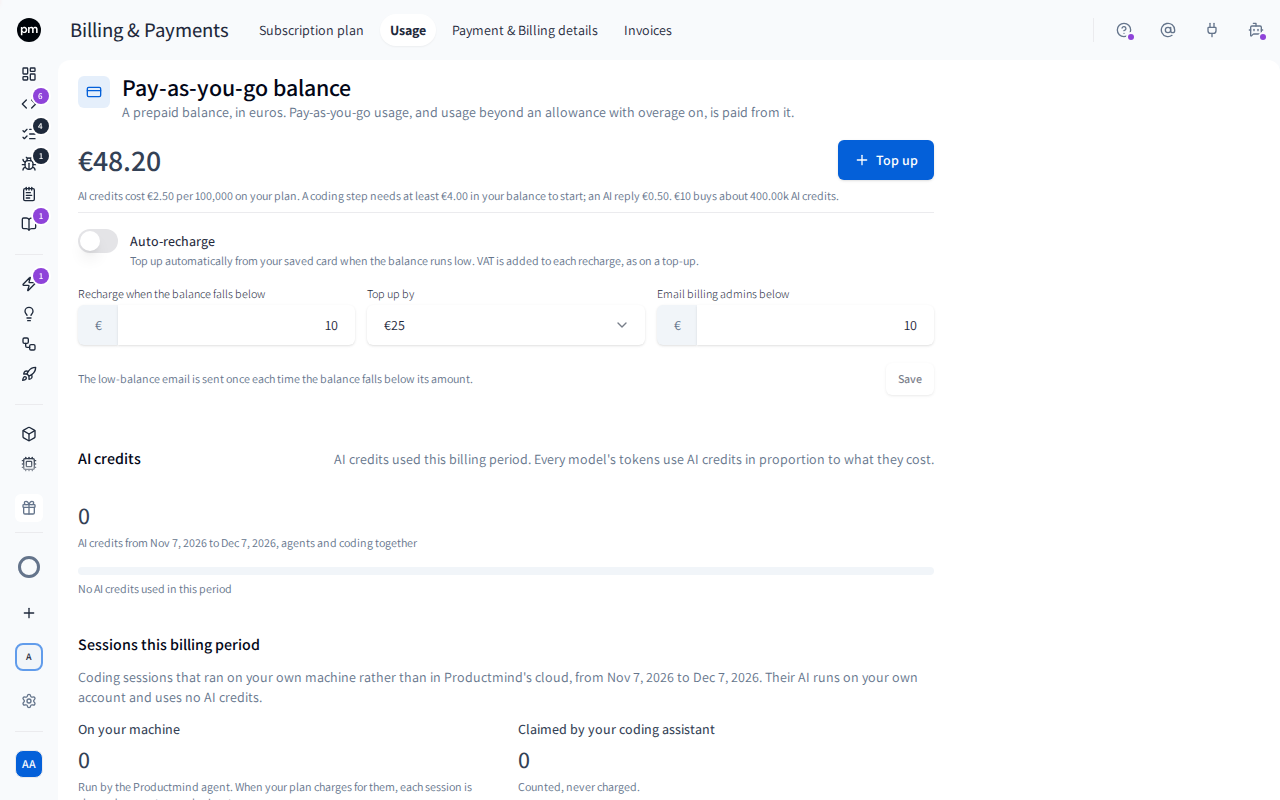
The tab has three parts, from top to bottom. Each leads with its figures: point to the info icon beside a heading or a row to see how it works.
Pay-as-you-go balance shows Top up, or Activate pay-as-you-go until you have activated it, with Auto-recharge beside it on the left, and your Balance on the right. What your usage cost this period is on the This billing period card below it. When your plan prices AI credits, the info icon beside the card's name shows their price, what a coding step and an AI reply need in your balance to start, and about how many AI credits EUR 10 buys. The card also shows:
- since when pay-as-you-go is active, once it is;
- until then, how much of the free allowance your agents can still use. See Before you activate pay-as-you-go;
- a payment not yet in your balance, with its amount: being applied, or processing at your bank. While your first top-up is on its way, the button reads Activation in progress;
- when your balance is short of what new work needs, what is refused and how much to top up. See When your balance is short;
- a warning with Top up when the coding sessions running now may need more than your balance. See Working in a session;
- once pay-as-you-go is active, Auto-recharge beside Top up: its switch, with one line that says what auto-recharge is doing, and Change amounts, which opens Recharge when the balance falls below, Top up by and Email billing admins below. See Auto-recharge.
If your organization pays by invoice, there is no Pay-as-you-go balance card: you have no balance, no Top up and no Auto-recharge, and the This billing period card says that your organization pays by invoice.
This billing period is one card. Its top shows the period's dates and how many days are left, then the period in up to three figures:
- Total usage: what everything you used was worth at your plan's prices;
- Covered by your plan: how much of that your allowances took, when they took some;
- Charged from your Pay-as-you-go balance or, if your organization pays by invoice, Due, charged on your next invoice: what is left to pay. If your organization pays by invoice, Due also includes the Productmind support hours and the other charges your next invoice carries for usage (see Other charges), so it is what that invoice will charge for usage. Your subscription and its member changes are not usage, so they are not in it.
Below come two sections, AI, then Cloud, which show where those figures come from. Each reads like a statement, one block per allowance, valued in euros at your plan's prices, from top to bottom:
- each use, with how much and what it is worth, as a charge, such as Coding agents 20.4M credits, -€510.00;
- Total usage, the uses added up, when there is more than one;
- Allowance, what your plan includes, such as 40M credits, +€1,000.00;
- Balance, the allowance minus the consumption. A positive balance, such as +€260.00, is what is Left in your allowance; a negative one went past it, so it is Charged from your balance or, if your organization pays by invoice, Due on your next invoice.
When your plan includes none of a kind of usage, so you pay as you go for all of it, its block has no allowance and no balance: the uses are followed by one Total usage line, what they were worth, Charged from your balance or Due on your next invoice. If some of that use was never charged, for example because it ran while spending was paused, a Not charged line says how much, and Total usage is what was charged. Covered by your plan at the top of the card then includes it, and says so.
Under an allowance your plan includes some of, a bar shows how much of it you have used, such as 74.0% used, 29.6M of 40M. One your plan leaves unlimited says Unlimited, and one it sets to zero Not included. If your plan does not price a kind of usage, its lines show the amount used without euros. Beside each block's name is its switch (see Managing overage and your balance).
| Section | Its blocks |
|---|---|
| AI | AI credits, used by Assistant agents (chat, specifications, the knowledge base, interviews, the feedback widget and generated content) and Coding agents (coding sessions and scans that run in Productmind's cloud). Voice interviews and AI notetaker, in minutes, charged by the second and shown rounded up to the next whole minute. |
| Cloud | Sandboxes: how long live previews and cloud coding sessions ran on Small sandboxes, Medium sandboxes and Large sandboxes, each at its own price per hour, against the Included cloud allowance. Times are whole minutes under an hour, such as 9 min (< 1 min under a minute), then hours to one decimal. Runs on your own machine are not counted. Sessions: On your machine, sessions the Productmind agent ran on your own machine, each charged once at your plan's per-session rate, scans included, and Claimed by your coding assistant, sessions your own coding assistant claimed over MCP, each counted once and Free. Neither uses AI credits. AWS spend, if your organization pays from its balance: see AWS spend. |
A daily, weekly or monthly AI credit limit, or a sandbox hours limit, is a line under its block, such as "Daily AI credit limit, used 40K of 75K, resets Tue 14:37", with the time in your own time zone. A limit is never billed and nothing lifts it: work that needs more stops until it resets.
Other charges
If your organization pays by invoice, an Other charges section follows Cloud when your next invoice also charges for usage besides what went past your allowances:
- Productmind support hours, the time Productmind Architects logged on your support requests that were settled this period;
- each charge Productmind recorded for your organization, worded as it is on the invoice, such as Support hours (manual): 40 h, 1 Oct - 31 Oct 2026. A charge for an earlier period that hasn't been invoiced yet is listed too.
Its Total line is marked Due. These charges count toward Total usage and Due at the top of the card, never toward Covered by your plan: no allowance covers them. AWS spend is the exception: it counts toward Due alone, since it isn't usage at your plan's prices, and Due then says AWS spend included. The section doesn't appear when there are none.
AWS spend
If your organization pays from its balance and has AWS accounts Productmind manages, the Cloud section ends with an AWS spend block, after Sandboxes and Sessions, when a month of an account was taken from your balance in this period, or given back to it. It lists each one by its month and account, such as October 2026, AWS account 111122223333, with its amount. A month Productmind corrected after taking it in this period shows Voided, given back and counts for nothing; the corrected month is its own line. A month taken in an earlier period and corrected in this one shows Given back, with its amount back in your balance, and counts for nothing here either. The block's Total, what this period's takings still come to, counts toward Charged, which then says AWS spend included, never toward Total usage or Covered by your plan: AWS spend isn't usage at your plan's prices. If your organization pays by invoice, each month of AWS spend is in Other charges instead, as its invoice line reads. See Cloud account costs.
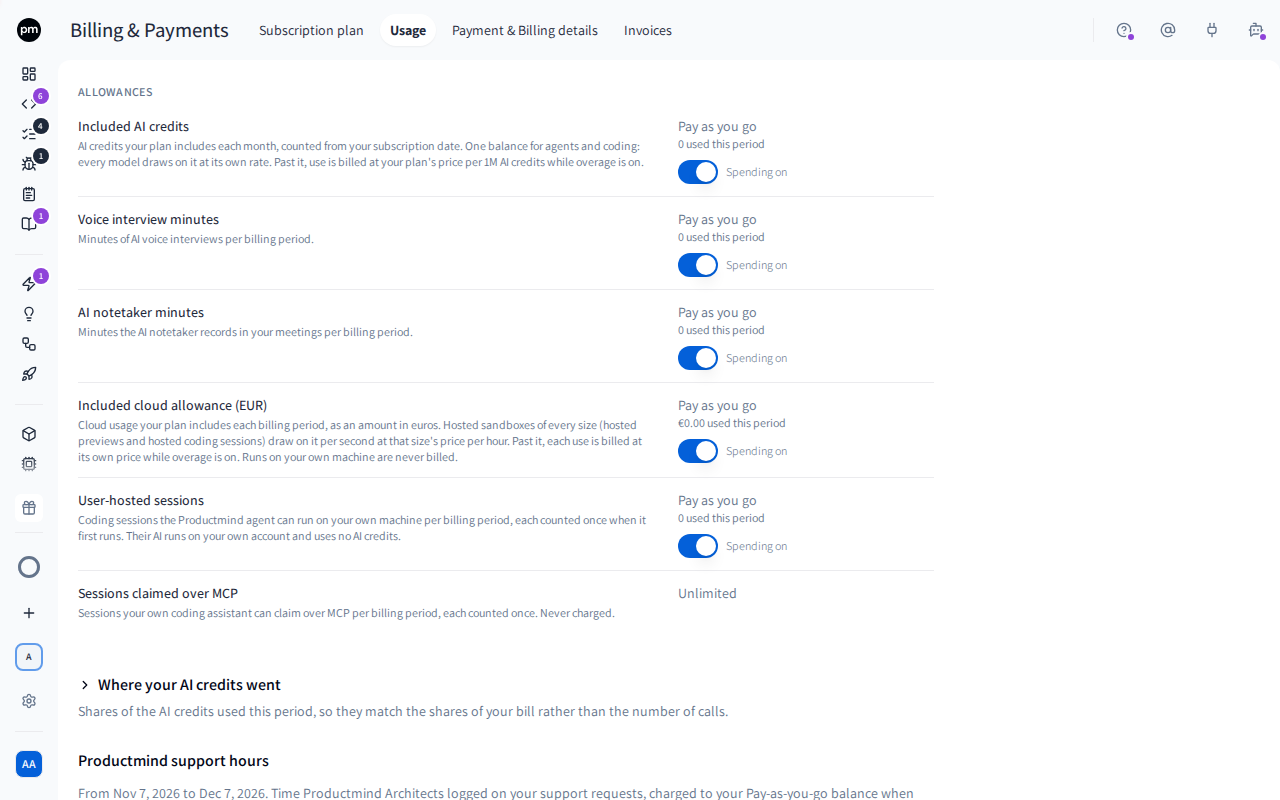
What else your plan sets, such as Max Workspaces and Users, is not on this tab: it is in your plan's column on Plan, with how much of each you use.
Productmind support hours appears when your organization can buy Productmind support time, or once it has been charged for some. It lists the time Productmind Architects logged on your support requests, charged to your Pay-as-you-go balance when each request is settled, with the hourly rate each was billed at. A lower rate your plan offers for a larger review is named under the rate. Productmind reviews are being rolled out gradually. See Support center.
Managing overage and your balance
To turn overage on or off
- In the sidebar, choose Billing & Payments, then Usage.
- In the AI or Cloud section, beside the allowance's name, such as AI credits or Sandboxes, turn the switch on (Overage on) or off (Overage off).
The change applies to your whole organization right away. Turning overage off stops new work once the allowance is used up, and so does a coding session step that was accepted but is still waiting for a runner or starting: its session waits for billing instead. Work that is already running, such as a live preview or a coding session step that has started, finishes, and what it uses past the allowance is charged. A coding session that is running when you turn off overage for AI credits says so. The Sandboxes switch covers every sandbox size.
If the switch can't be turned on, your plan doesn't include pay-as-you-go for that allowance. Point at the info icon beside it to see "Your plan does not include pay-as-you-go for this. Upgrade to enable."
Overage is paid from your Pay-as-you-go balance. With overage on and no balance, work that goes over the allowance still stops, so top up before you need it.
To pause or resume pay-as-you-go spending
- In the sidebar, choose Billing & Payments, then Usage.
- In the AI or Cloud section, beside the pay-as-you-go allowance's name, turn the switch off (Spending paused) or on (Spending on).
The change applies to your whole organization right away. While spending is paused, new work that uses the allowance can't start, because your plan includes none of it. Neither can a coding session step that was accepted before you paused but is still waiting for a runner or starting: when its runner is ready, the session waits for billing, nothing is charged, and Resume starts it once spending is back on. Work that is already running when you pause, such as a live preview or a coding session step that has started, finishes and is charged. A coding session that is waiting or running when you pause AI credits shows a notice saying which of the two applies. See Working in a session.
To top up your balance
- On Usage, under Pay-as-you-go balance, choose Top up.
- In Top up your Pay-as-you-go balance, under Bill to, select the billing profile to bill: your default first, marked Default, then your others. Edit changes a profile's details, and New billing profile adds one and selects it.
- Select an amount, or enter a whole number of euros under Amount in euros: at least EUR 10, and at most EUR 5,000. When your balance is short of what a coding step needs, the amount that covers it is already entered. Above the amounts, the dialog states your plan's AI credit price and what work needs in your balance. Amounts exclude VAT. A top-up pays back a balance below zero first, so each amount then shows the balance it leaves, such as balance becomes €6.55. Under the amounts, the dialog says what you pay: for a profile billed in the Netherlands, one total with the VAT in it, such as "You pay €12.10 incl. 21% VAT (€2.10)."; otherwise the amount plus VAT, calculated at checkout.
- Choose Continue to checkout, and pay on Stripe's secure page, by card or, where Stripe offers it, with iDEAL.
You return to Productmind, which shows where your payment stands: see After you pay a top-up. The amount you chose is added to your balance, and the invoice carries the profile's company legal name. If the checkout can't start, Productmind says why: see Troubleshooting.
A refusal's Top up or Activate, such as in a message that says your balance can't cover the work, opens the same dialog on the page you're on. When the refusal names what the work needs, the amount that covers it is already entered: what your balance is missing, including anything it is below zero, rounded up to whole euros, and at least EUR 10. Otherwise a first top-up opens with EUR 10. A top-up started from the setup steps, or to fund a scan, also opens with an amount already entered: what the scan is expected to cost, or what your balance is missing, rounded up to whole euros, and you return to where you started. You can always change the amount.
A scan that paused because your balance ran out continues by itself once the top-up has settled. See Applications.
Every top-up also appears under Invoices.
To change the low-balance email
- On Usage, under Pay-as-you-go balance, choose Change amounts under Auto-recharge.
- Enter the amount in Email billing admins below, and choose Save.
How usage behaves
When a monthly allowance runs out:
| Overage | What happens |
|---|---|
| Off | Work that needs more stops. Productmind shows, for example, "Overage is off for AI credits and your allowance is used up. Turn overage on under Billing & Payments > Usage to continue.", and its Open Usage action takes you to this tab. It can also continue in the next billing period. |
| Off, and the switch can't be turned on | Your plan has no pay-as-you-go for the allowance. Work that needs more stops, with Usage limit reached. For AI credits, Productmind says "Your plan's included AI credits for this month are used up. Please upgrade your plan." It can continue in the next billing period, or on a larger plan. |
| On, enough in your balance | Work continues, and the extra is charged to your Pay-as-you-go balance at your plan's rate, up to any daily, weekly or monthly limit your plan sets. |
| On, not enough in your balance | Work stops. Productmind says what your balance holds and what the work needs, for example "Your Pay-as-you-go balance is EUR 4.57, and a coding step needs at least EUR 6.24 available. Top up to continue.", and its Top up action opens the top-up dialog with the amount that covers it already entered. |
| On, no monthly fee, pay-as-you-go not activated | Productmind's agents continue until the free allowance is used up. Coding sessions and scans, which use the same AI credits, and other work stop with the activate pay-as-you-go message. See Before you activate pay-as-you-go. |
| On or Off, and your plan's Monthly AI credit limit is reached | Work that needs AI credits stops until your next billing period starts, whatever the switch says and whatever your balance holds. Productmind says, for example, "Monthly AI credit limit reached. Please try again after it resets, or move to a plan with a higher limit.", and Usage limit reached says when it resets. |
On a pay-as-you-go allowance, there is no allowance to run out, so every unit is charged:
| Spending | What happens |
|---|---|
| Paused | Work that uses the allowance stops. Productmind shows, for example, "Pay-as-you-go spending is paused for AI credits. Turn it back on under Billing & Payments > Usage to continue.", and its Open Usage action takes you to this tab. |
| On, enough in your balance | Work continues, and every unit is charged to your Pay-as-you-go balance at your plan's rate, up to any daily, weekly or monthly limit your plan sets. |
| On, not enough in your balance, or pay-as-you-go not activated | As in the table above. |
Work that has started isn't cut off, with two exceptions. Productmind checks your balance and limits before each piece of work starts, such as an AI reply or the next step of a coding session. A coding session step that is already running can take your balance below zero, but only by about the cost of one typical coding step at your plan's rate: past that, Productmind stops the session. It also stops every coding session running in its cloud within about a minute of a daily, weekly or monthly AI credit limit being reached. A stopped build first saves its work in progress to its branch, and the session says why, with Top up or See plans. Send a message in the session to continue once your balance covers its next step, or the limit has reset. A scan is checked before it starts, against what it is expected to cost; if the balance runs out between its steps, it pauses instead of failing. See Applications.
The switches work the same way: turning overage off, or pausing spending, stops new work and the coding session steps still waiting for a runner or starting, and work that is already running finishes and is charged. Work that started while overage was off isn't charged for going past the allowance, unless you turn overage on while it runs.
When your balance is short
Work paid from your Pay-as-you-go balance needs a little in it before it starts: about the cost of a typical coding step for the next step of a coding session, and much less for an AI reply. When your balance falls short of what a coding step needs, the card under Pay-as-you-go balance says what it still funds and how much to top up. For example:
| It says | What it means |
|---|---|
| "Agents used €3.45 of AI credits before you activated pay-as-you-go. Your first top-up pays it back first." | Your agents used part of the free allowance before you activated. Your first top-up pays it back. |
| "Your balance is €4.57: enough for AI replies, but a coding step needs at least €6.24 available. Top up €10 to start sessions." | AI replies still run, but a coding session can't start its next step. |
| "Your balance is -€19.65, so new sessions and AI replies are refused until you top up. A coding step needs at least €6.24 available; top up €26 to continue." | The balance is below what even an AI reply needs, for example because a coding session step that was already running finished past zero. New work is refused. |
Nothing waits for your top-up: work that was refused doesn't start again by itself, except a scan that paused, which continues once the top-up settles. Choose Top up on the card, or Activate pay-as-you-go before you have: the dialog opens with the amount that covers a coding step already entered. Then start the work again, for example with Resume on a session that is waiting for billing.
The low-balance email
When your balance falls below Email billing admins below, Productmind emails your Owners and Admins, and every billing contact of your default billing profile: "your credit balance is below" the amount. If you haven't set an amount, it says the balance is below EUR 10.00, "our default warning level". It also says how much a new coding session needs available to start. It is sent once each time the balance falls below the amount, and at most once a day. It isn't sent while auto-recharge is on and working, before you activate pay-as-you-go, or if your organization pays by invoice. Before you activate, the free allowance notices take its place. See Billing notices.
When your balance falls below zero, Productmind sends a separate email: "your credit balance is below zero". From then on new work is refused until you top up, so the email names how much to top up to start coding again: enough to cover what is owed and what a coding session needs available, for example EUR 26.00 at a balance of EUR -19.65. It is sent once each time the balance drops below zero, even if a low-balance email went out earlier that day, and not again until a top-up brings the balance back to zero or above. When both apply at once, you get this email only. The same exceptions apply as for the low-balance email.
When a daily, weekly or monthly limit is reached, work that needs more AI credits stops until the limit resets, whatever the overage switch says and whatever your Pay-as-you-go balance holds, coding sessions already running in Productmind's cloud included. Productmind says "Daily AI credit limit reached. Please try again after it resets, or move to a plan with a higher limit.", and the same for your week or month; how it ends depends on the plans that raise the limit. Usage limit reached then says when the limit resets, as the limit's row on this tab does, and offers the plans that raise it, or Contact us when none does. See Plans and limits.
When several things stop the work at once, Productmind names the one that waiting won't fix: the monthly limit first, then your used-up Included AI credits (with overage off, with no pay-as-you-go on your plan, or with a balance too low to pay), then the week, then the day. So you are never told to wait for your week to reset when your included AI credits are used up as well.
Caps have no overage. When you reach the cap on workspaces, users, or a workspace's features, knowledge base sources or studies (the researches on Agentic interviews), you can't create more until you remove some or move to a larger plan. Once you have sent all your Personal referrals, you can't send another.
What is never billed. The AI of coding sessions you run on your own machine counts toward no AI-credit allowance and is never charged. If your plan charges for sessions on your own machine, each session pays your plan's per-session rate once, and nothing more. Live previews that run on your own machine count no sandbox hours and aren't billed, and neither are sessions your own coding assistant claims over MCP.
Invoiced organizations don't draw overage from a Pay-as-you-go balance. It is added to the next invoice instead, and they don't need to activate pay-as-you-go. The overage switch still decides whether work continues.
After you pay a top-up
Back from Stripe's page, Productmind shows where your top-up stands, with its reference:
| The page shows | What it means |
|---|---|
| Confirming your top-up... | Stripe has not confirmed the payment yet. This can take up to a minute. |
| Top-up complete, or Pay-as-you-go is active | The amount is in your balance. Below what a coding step needs, the title adds but your balance is still short: see Troubleshooting. |
| Payment received | Stripe has your payment, and Productmind is applying it, usually within a minute. |
| Payment processing | Your bank is still processing it. It's applied as soon as it arrives. |
| Checkout not completed | Nothing was charged. |
| Top-up canceled | You left Stripe's page without paying. No payment was taken. |
Payment received also has Check again, which asks Stripe again, and Contact support, which opens a support request titled "Top-up not applied yet" with the reference and the amount filled in: use it if your balance hasn't updated within 15 minutes. You can close the page at any point.
Permissions
| To | You need |
|---|---|
| See usage, turn overage or pay-as-you-go spending on or off, activate pay-as-you-go and top up your balance | The Owner or Admin role |
| Turn auto-recharge on or off, change its amounts and the low-balance email | The Owner or Admin role |
Troubleshooting
"Usage limit reached"
You used a whole allowance your plan has no pay-as-you-go for, or reached a daily, weekly or monthly limit. Wait for it to reset (for a limit, the dialog and the limit's row say when), or move to a larger plan. For a limit, the dialog lists the plans that raise it, and Open Usage opens this tab. When no plan you can switch to raises it, the dialog says so: choose Contact us to ask Productmind to raise it. Overage and your Pay-as-you-go balance never lift a limit.
"Your Pay-as-you-go balance is ..., and ... needs at least ... available"
Your balance can't cover the next piece of work, beyond your allowance or on a pay-as-you-go allowance. The message names your balance and what the work needs, such as a coding step, AI work, this scan or an hour of a sandbox. Choose Top up in the message: the top-up dialog opens with the amount that covers it already entered. Or top up on this tab.
"Payment received, but your balance is still short"
Your top-up arrived, but the balance it left is still below what a coding step needs, for example because it first paid back a balance below zero. The page says how much more you need: choose Top up with that amount to pay it, or Back to Usage. See When your balance is short.
"Overage is off"
You used a whole allowance, and its overage is off. Choose Open Usage in the message, and turn the allowance's switch to Overage on (and top up your balance if it is low), or wait for the next period. Only an Owner or Admin can.
"Stopped: the organization ran out of AI credit"
A coding session's running step took your Pay-as-you-go balance below zero by more than the cost of one typical coding step, so Productmind stopped the session. A build saves its work in progress to its branch first, and its pull request opens when the build continues. Top up your balance, then send a message in the session to continue. See To top up your balance.
"Pay-as-you-go spending is paused"
Spending is paused on a pay-as-you-go allowance, which your plan includes none of. Choose Open Usage in the message, and turn the allowance's switch to Spending on. Only an Owner or Admin can.
"Checkout is temporarily unavailable"
Stripe couldn't be reached, and nothing was charged. Try again in a few minutes, or choose Contact support in the message. Other checkout messages: see Payment & Billing details.
"Your organization has a subscription with our previous payment provider. End it by switching to the Pay-as-you-go plan under Billing & Payments, then try again."
Your organization still has a subscription with the payment provider Productmind used before Stripe, and you can't top up until it has ended. Cancel your subscription, then top up again: the payment goes through Stripe.
My top-up says "Payment received"
Stripe has your payment, and Productmind is applying it to your balance: don't pay again. See After you pay a top-up.