

Users
The Users tab lists everyone in your organization: active members, pending invitations and disabled members. From here you invite people, choose their role and which workspaces they can use, and disable members who leave.
Key concepts
Owner. Every organization has exactly one owner. Nobody else can be made owner, except through transferring ownership. The owner can't be disabled.
Status.
| Status | Means |
|---|---|
| Active | A member who can sign in. |
| Invited | An invitation was sent and hasn't been accepted yet. The row reads Waiting to accept the invitation. |
| Deactivated | A disabled member. They can't sign in, and their row stays in the list, grayed out. An invitation that was revoked, or that the person declined, is deactivated too, and its row reads Invitation not accepted. |
Workspace access. Owners and Admins get every workspace: the ones that exist when they join or become an Admin, and every workspace created later. Every other member uses only the workspaces you give them, here or on a workspace's own Permissions tab. See Organizations and workspaces.
Workspace admin. A member made an admin of one workspace on its Permissions tab, in Workspace settings. They manage that workspace, including who can open it, without being an Owner or Admin of your organization. The Users tab doesn't show who is a workspace admin: the workspace's Permissions tab does.
The Users tab at a glance
In the sidebar, choose Identity & Access, then Users, the first tab under Overview, in the People group.
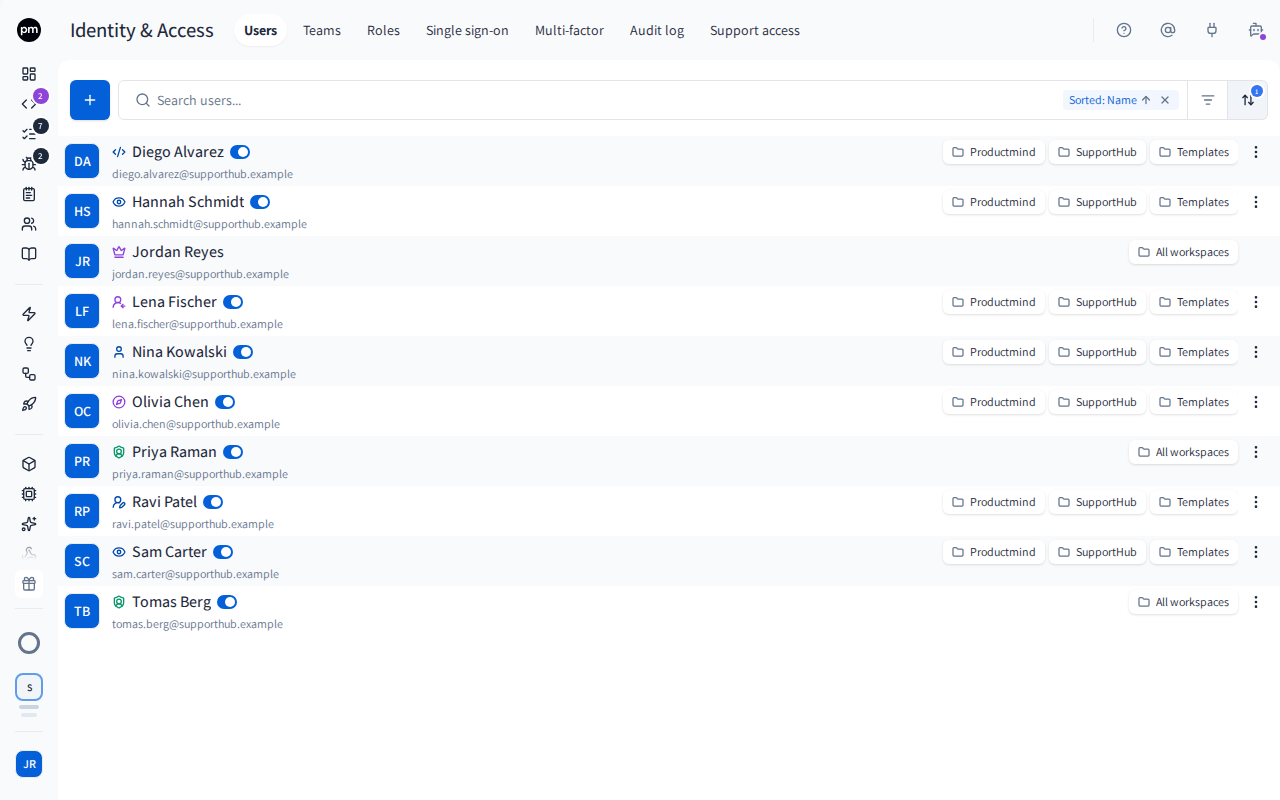
The toolbar holds:
- Invite user (the +);
- the search box, which matches names and emails;
- the filter and sort controls.
If your plan limits the number of people, a counter such as 8 / 10 under the toolbar, at the right, shows how many seats are taken out of your plan's limit. It turns red once 90% of the seats are taken. It's the same limit that stops an invitation when every seat is taken. With no limit on your plan, there is no counter.
On a per-user plan, Billed members beside it shows how many members you are billed for: your active members only. If you pay by card or SEPA Direct Debit, right after a change it can also say that your subscription is moving to the new count, which happens within a few minutes. If you pay by invoice, it can say how many members your last invoice counted instead: the change counts from your next invoice. See Member limit and billed members.
Filters narrow the list by Role, Status (Active, Invited, Deactivated) and Multi-factor (Set up, Not set up). Sort orders it by Name, Role, Status or Multi-factor.
The list has a column for each of these:
- Member: their name and email, and You on your own row;
- Role: the member's role;
- Workspaces: the workspaces they can use, or All workspaces;
- Multi-factor: Set up or Not set up, for whether they have set up multi-factor authentication. It's empty for an invitation that hasn't been accepted yet;
- Status: Active, Invited, Deactivated or Not accepted, with a switch that disables or enables them.
Each row ends with User actions (the ⋮ menu). Your own row and the owner's row have no switch and no actions.
Inviting people
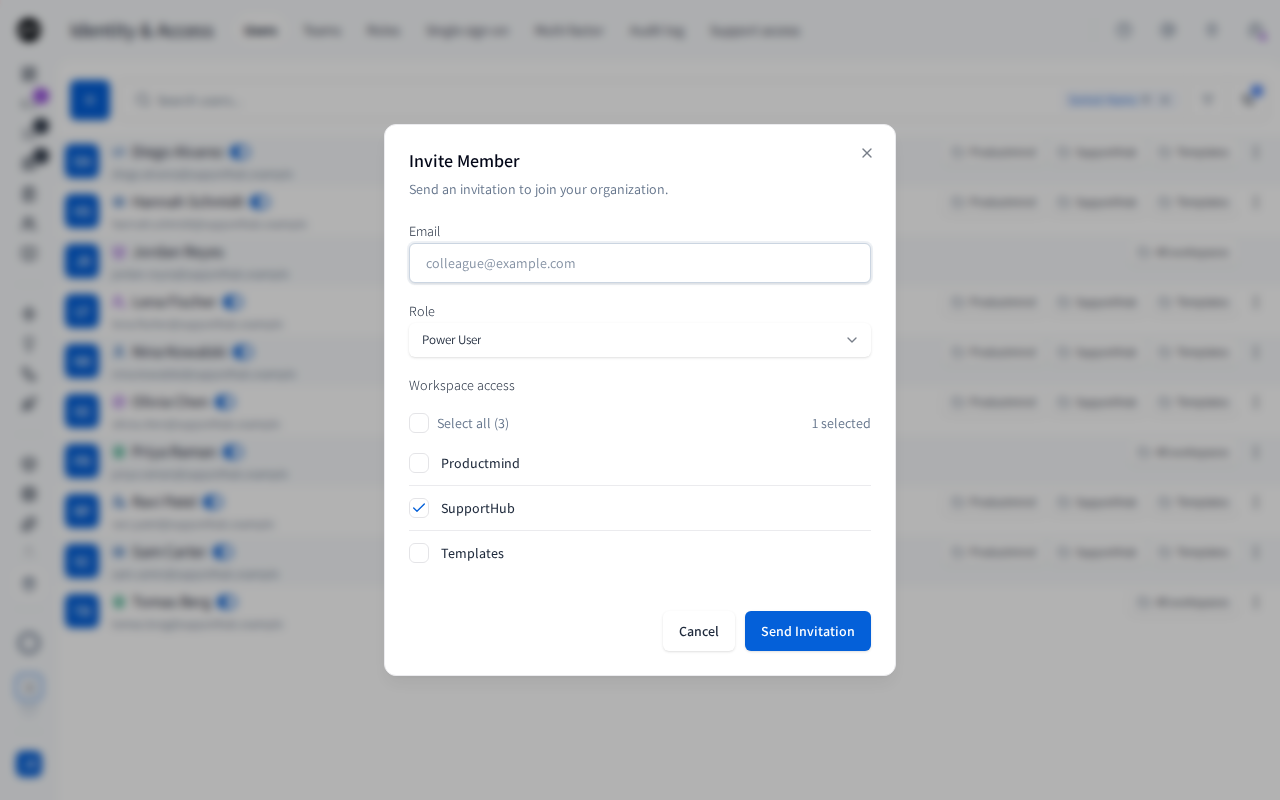
To invite a member
- In the sidebar, choose Identity & Access, then Users, then Invite user (the +).
- Enter the person's Email. You invite one person at a time.
- Choose their Role. It starts on Power User, and every role except Owner is available. On a per-user plan, the dialog reminds you when the person is billed: from when they accept, pro rata for the rest of the billing period, or, if you pay by invoice, on your next invoice, from the day they accept. It also says what each member costs per month or per year on your billing cycle, excluding VAT, and in the Netherlands including VAT too. Nothing is charged until they accept.
- Under Workspace access, select the workspaces they can use. The workspace you're in is already selected. An Admin gets every workspace, so the list isn't shown.
- Choose Send Invitation.
The person appears in the list as Invited, and they get an email with a link to join. The link works for 7 days. Someone without an account creates one from the link. Someone who already has one chooses Accept invitation, or accepts it from their profile, under Pending invitations, without the email. See Signing up and signing in.
If the email can't be sent, Productmind says so: the invitation is still created and keeps its seat, and you can choose Resend invitation to try the email again.
To resend or revoke an invitation
- On the invited member's row, choose User actions (⋮).
- Choose Resend invitation to send a new email with a fresh 7-day link, or Revoke invitation and confirm to cancel it.
Productmind confirms that the email was sent, or says that it couldn't be sent, in which case try again in a few minutes. Either way, the link in an earlier email stops working.
An invitation that has expired still takes a seat, and the address can't be invited again, until you resend or revoke it.
Managing members
To change a member's role
- On the member's row, choose User actions (⋮), then Change role. You can also choose their role in the Role column.
- Choose the new role.
The change takes effect right away. You can change the role of active and invited members, but not the owner's or your own.
To change which workspaces a member can use
- On the member's row, choose their workspaces.
- Under Access to workspaces, select or clear workspaces. Select all gives every workspace.
Each change is saved as you make it. A member who is an admin of a workspace stays one while that workspace stays selected. The same access can also be changed one workspace at a time, on that workspace's Permissions tab in Workspace settings, where its owner and its admins can change it too.
To disable a member
- On the member's row, turn off the switch, or choose User actions (⋮), then Disable user.
- Choose Disable.
The member can no longer sign in. They lose access to every workspace and are removed from their teams. Productmind has no separate "delete member": disabling is how you remove someone. On a per-user plan, the confirmation also says that their seat stops being billed, and how your payment provider handles it.
To enable a member again
- On the disabled member's row, turn on the switch, or choose User actions (⋮), then Enable user.
- On a per-user plan, Productmind asks first, because the member is billed again. Choose Enable.
The member can sign in again and takes a seat again. Owners and Admins get every workspace back. Other members get no workspaces back: give them their workspaces again, and add them back to their teams.
A row that reads Invitation not accepted has no switch: nobody joined through that invitation, so it can't be enabled. Invite the person again instead.
To transfer ownership
Only the owner can do this.
- On the new owner's row, choose User actions (⋮), then Transfer ownership.
- Choose Transfer ownership.
The member becomes the owner, and you become an Admin. The new owner must be an active member.
How members behave
Seats. Active and invited members each take a seat. Inviting someone, or enabling a disabled member, fails when every seat is taken: "You have reached your user limit". Upgrade your plan or free a seat by revoking an invitation or disabling a member. See Plan and Plans and limits.
Member limit and billed members
Your plan's member limit and what a per-user plan bills count different people:
| Member limit (the counter) | Billed members (per-user plans) | |
|---|---|---|
| Active members | Counted | Billed |
| Pending invitations | Counted | Not billed |
| Disabled members | Not counted | Not billed |
So inviting someone takes a seat under the limit straight away, and adds to the bill only once they accept. Enabling a disabled member adds to the bill, and disabling one takes them off it. If you pay by card or SEPA Direct Debit, Productmind updates your subscription a few minutes after members change. If you pay by invoice, members are counted when each invoice is drafted. How each change is charged depends on how you pay: see How a per-user plan is billed.
Single sign-on. If your organization requires single sign-on, members sign in through your identity provider rather than with a password or Google. The owner can still use a password. Someone who doesn't have a Productmind account yet, invited at an address on one of your domains, can join by signing in through your identity provider, with the role and workspaces in the invitation. Everyone else accepts the invitation from its email first, then signs in with single sign-on.
The invitation email names only whether the person joins as an admin or a member. Their actual role is the one you chose.
Permissions
| To | You need |
|---|---|
| See the Users tab | The Owner or Admin role |
| Invite members, resend and revoke invitations, change workspace access, disable and enable members | The Owner or Admin role |
| Change a member's role | The Owner or Admin role |
| Transfer ownership | The Owner role |
Troubleshooting
"An invitation is already pending for this email"
The person already has an invitation, which may have expired. Resend or revoke it from their row.
"User is already a member of this organization"
They're already in the list. If they're disabled, enable them instead.
"They never accepted the invitation. Invite them again."
The invitation was revoked, or the person declined it, so there is no member to enable. Invite them again, which sends them a new invitation.
The invitation email didn't arrive
Choose Resend invitation on their row. If the person already has a Productmind account, they don't need the email: they can accept the invitation from their profile, under Pending invitations.
"You have reached your user limit"
Every seat is taken. Revoke unused invitations, disable members who have left, or upgrade your plan.
A member who was enabled again can't see anything
Enabling a member gives Owners and Admins every workspace, but gives other roles none. Choose the member's workspaces and select the ones they need.