

Teams
A team is a group of members you can assign work to as a whole: a task, a bug report, a session, a feature or a feature request assigned to a team reaches everyone in it. Each member also gets a team role in the team, which can add permissions to what their organization role allows.
Key concepts
Team role. Each member of a team has a role in it, such as Developer or Admin. A team role only adds permissions: a member can do everything their organization role allows, plus everything each of their team roles allows. Nothing is ever taken away, and Owner is never a team role.
Private features. A feature can be made private to some teams, each with Can view or Can edit. Only their members, and the people who manage the workspace, can see it. This is set on the feature, not by the team role: Can edit lets a member change that feature even if their role can't, and Can view keeps it read-only for them even if their role could change it. See Private features.
My teams. The teams you belong to. Lists across Productmind offer My teams as a filter, and the dashboard can show your teams' work.
A team's area. The work assigned to a team, plus everything under a feature assigned to it,
at any level. The Team filter on the Features, Tasks, Bug reports and Code lists
shows a team's area, so assigning a team to a domain is enough to see all the work beneath it.
The Assignee filter, and its My teams' items checkbox, show only the work assigned to
the team itself. To bookmark or share your teams' view of a list, add ?team=my-teams to its
address. See Filtering, sorting and grouping features.
The Teams tab at a glance
In the sidebar, choose Identity & Access, then Teams.
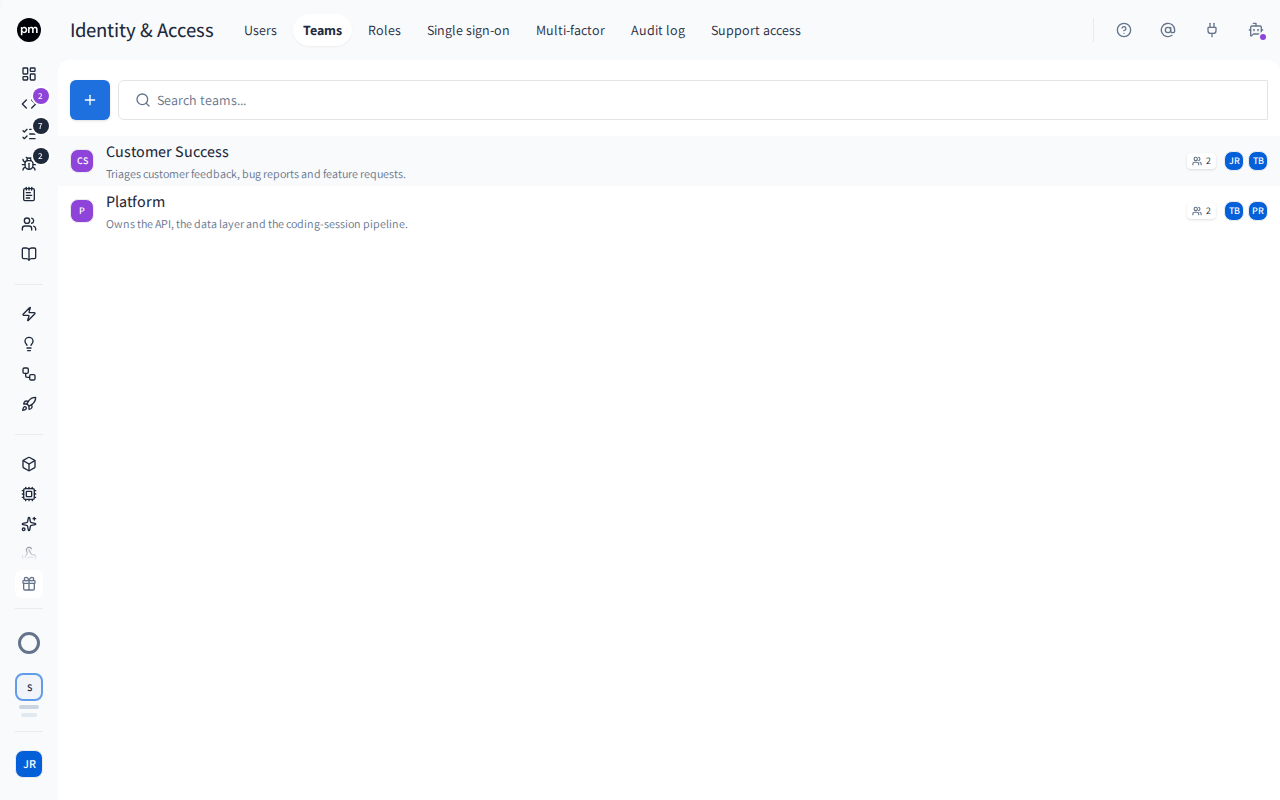
Each team shows its name, its description, how many members it has, and their avatars. Choose a team to open it beside the list: its name and Description are editable there, and Members lists everyone in it with their team role. The search box above the list matches a team's name and description, and Productmind remembers your search in this browser.
Managing teams
To create a team
- On the Teams tab, choose New team (the +).
- Enter a Name, and optionally a description of what the team owns.
- Choose Create team.
The team opens, ready for you to add members.
To add a member to a team
- Open the team and choose Add member.
- Choose the member. Only active members who aren't in the team yet are listed.
- Choose their Team role. It starts on Power User.
- Choose Add member.
The member's new permissions apply within about 30 seconds.
To change a member's team role
In the team's Members, choose the member's role icon and pick another role.
To remove a member from a team
In the team's Members, choose Remove from team (the x) on the member's row. The member is removed at once, without a confirmation.
To delete a team
- Open the team and choose Delete team.
- Choose Delete.
The team is removed everywhere. Work that was assigned to it keeps its other assignees, and a private feature that listed it stays private. This can't be undone.
With the assistant
You can also ask the PM agent to create a team, add someone to a team, change a member's team role or remove someone from a team. For example: "Create a team called QA Guild and add Jane to it as a Developer."
- It needs the same role as in the app. Owners and Admins can manage teams. If you can't, the assistant tells you so and changes nothing.
- You choose the team role. The assistant uses the team role you ask for. If you don't say which one, it asks you before it adds someone or changes their role.
- It makes the change without asking. The assistant works autonomously, so its reply says what it did, including the team role.
The assistant can also tell you who is in a team, and assign work to a team for you. When it changes a feature's assignees, it changes only that feature: to change the work under it as well, use the app.
Assigning work to a team
Wherever you pick assignees (on tasks, bug reports, sessions, features and feature requests), the picker has People and Teams. Choose Teams and select a team.
Every member of the team is notified, except the person who made the assignment.
Assigning a feature that has work under it
When you add or remove an assignee on a feature (a person or a team) and the work under the feature could change too, Productmind asks what should happen to that work before it changes anything. The question names how many subfeatures, tasks and coding sessions the change could reach.
- When you add an assignee, choose one of these:
- Keep their assignees to assign only the feature.
- Add, followed by the new assignee's name and to all sub-items, no changes to existing assignments, to also assign the new assignees to every subfeature, task and sub-task under it. Their current assignees stay, and work that already has the new assignees is left as it is.
- Replace their assignees to make the new assignees the only assignees of every subfeature, task and sub-task under it. Their current assignees are removed.
- When you remove an assignee, choose Only from, followed by the feature's name, to leave the work under it as it is, or From everything under it too to also remove them from its subfeatures, tasks, sub-tasks and coding sessions. Their other assignees stay.
The first choice is always selected, so the work under the feature only changes when you say so. To change it, type Confirm in the box, then choose Assign, Remove or Save. Cancel changes nothing, not even the feature.
A subfeature, task or sub-task can have at most 20 assignees. If adding the new assignees would give any of them more, nothing changes, not even the feature, and Productmind tells you why.
Only the feature's new assignees are notified, once. Work you can't change keeps its assignees, and so does anything under a private feature you can't see. If nothing under the feature would change, Productmind doesn't ask and applies the change to the feature at once.
Assigning a team to a feature is enough for the Team filter to show everything under it, even when the work keeps its own assignees.
How teams behave
Disabling a member removes them from every team. Enabling them again doesn't add them back.
Team roles add real permissions. A member gets everything their team roles allow. Give team roles as carefully as organization roles.
Permissions
| To | You need |
|---|---|
| See, create, edit and delete teams, and change their members | The Owner or Admin role |
| Assign work to a team | Permission to change that piece of work |
| Change the assignees of the work under a feature, with the feature's | Permission to change the feature, and to change each subfeature, task or coding session it reaches |
Troubleshooting
"A team with this name already exists"
Team names are unique within your organization. Choose another name.
A member doesn't appear in Add member
They're already in the team, or they're not an active member of the organization. Check their status on the Users tab.
Adding an assignee to the work under a feature is refused
The message says an item under the feature would have more than 20 assignees. Adding the new assignees to every subfeature, task and sub-task under the feature would give at least one of them more than the 20 it can have, so nothing was changed, not even the feature. Remove some assignees from that work first, or choose Keep their assignees to assign only the feature.