

Plan
The Plan tab shows the plan your organization is on: what it includes and how much of it you use. Change plan compares every plan you can choose, column by column, with what usage costs on each, and is where you switch plans. The tab is also where you cancel your subscription.
Key concepts
Current plan. The plan your organization is on. The tab shows it under Your plan, and in Change plan its column is marked Current plan.
Paid plan. A plan with a price. A paid plan renews every month or every year, on your billing cycle.
Plan with no monthly fee. The plan whose price reads Pay-as-you-go: it has no subscription, and you pay only for what you use, from your Pay-as-you-go balance. Canceling a paid subscription moves you to it at the end of your billing period.
Per-user plan. A plan priced per user: you pay the plan's price for each billed member of your organization. A plan with one price for the whole organization shows its price per month only.
Billed member. An active member of your organization, whatever their role. Pending invitations and disabled members are not billed. See Users.
Annual billing. Paying for 12 months ahead, at 20% off the monthly price. Every paid plan you can choose here offers it.
Pay as you go. A row your plan includes none of, and charges per unit from the first one, at the unit price the cell shows. It is paid from your Pay-as-you-go balance.
AI credits. The unit every AI task is measured in. Agents and coding draw on the same AI credits, and each plan has one price per 1M AI credits for them. See Plans and limits.
Prices change from time to time, so this guide doesn't list them. The tab always shows the current ones.
The Plan tab at a glance
In the sidebar, choose Billing & Payments, then Plan, in the Usage & plan group.
Your plan shows the plan your organization is on, in one column: its name and price, and every row the plan comparison has, with how much of each limit you use (see The rows below). What your AI and cloud use cost this period is on Usage.
Under Your plan, while a subscription bills your plan, you see your billing cycle and when your plan renews, for example "Billed monthly, renews on Oct 28, 2026.", and Billed to, followed by the name of the billing profile your subscription is billed to. If your organization is on a plan that is no longer offered, a line says so; choose Change plan to move to one that is. If your plan is agreed with Productmind, or you pay by invoice, a line says so instead, with a contact Productmind link, and there is no Change plan: such a plan isn't changed here (see Plans you can't choose here). If you have a discount, a banner names the code, how much it takes off and for how many more months.
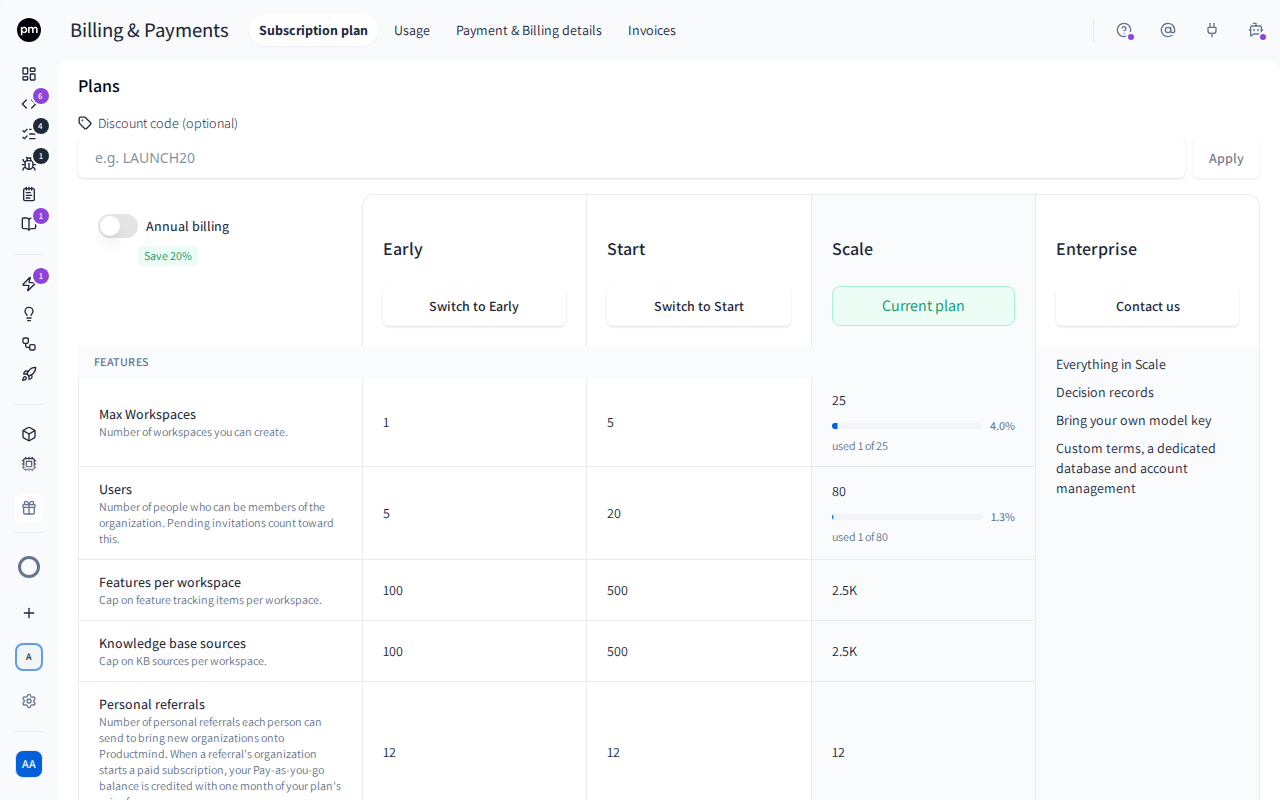
Change plan, beside Your plan, opens every plan compared. The plans are listed from the cheapest to the most complete, and your current plan is shaded where it stands. On a phone, the table scrolls sideways under the row names.
Each plan's column shows:
- the plan's name and price per month, or Pay-as-you-go on the plan with no monthly fee, and its price per 1M AI credits. A per-user plan shows its price per user / month (or per user / year on annual billing), with a line that multiplies it by your billed members, for example "3 users x" the price, and the total. With a discount code, the line takes the discount off the total, as it is charged. Prices exclude VAT. The note under the price names the VAT on the total you are charged: for an organization billed in the Netherlands, the VAT amount that is added. For any other country, it says that VAT is calculated at checkout, or, if you pay by invoice, why no VAT is charged. See VAT;
- Current plan, or Switch to followed by the plan's name. On a paid plan, choosing the plan with no monthly fee cancels your subscription instead: see To cancel your subscription;
- on your current plan, while a subscription bills it, Switch to annual billing (save 20%), or Switch to monthly billing if you pay yearly.
The rows list what each plan includes, grouped under headings such as Software and AI: for example the number of workspaces and users, AI credits, and interview minutes. A check mark means the plan includes a feature, a dash that it doesn't, and Unlimited that there is no limit. A row that is the same on every plan with nothing to tell them apart, such as a limit no plan sets, is left out. None, pay as you go means the plan includes none of it and charges every unit, with the unit price under it, such as a price per minute or per hour. The Included AI credits row shows no price of its own: it is the price per 1M AI credits under the plan's name. The Included cloud allowance row shows the amount in euros a plan includes for time in Productmind's cloud, such as €20.00 included, or None, pay as you go when every second is charged at each sandbox size's price per hour, which What usage costs lists. In your current plan's column, a bar shows how much you have used of each limit your plan sets that counts across your whole organization: the AI allowances, the daily, weekly and monthly AI credit limits, and your workspaces and users. A limit counted in each workspace or for each person, such as Features per workspace or Personal referrals, shows its value only. The Usage tab shows the same bars.
The Enterprise column, the last one in Change plan, lists what Enterprise adds to the other plans, and has no price: its terms are agreed with each organization. Choose Contact us to email Productmind. If your organization is on a plan agreed with Productmind, this column is shaded and marked Current plan.
What usage costs, under the table in Change plan, compares the plans' usage prices:
- AI credits, the price per 1M AI credits;
- Typical tasks: what a chat message, a background draft, a coding session in Productmind's cloud, a feature deep read and the scan of one repository usually cost, each with its AI credits. They are measured medians, rounded up to the cent as they are charged; the scan of one repository is the middle of the estimate a scan is checked against before it starts. A task can cost more or less;
- Unit prices: a session on your own machine, an hour of each sandbox size, a minute of voice interviews and of the AI notetaker, and Productmind support hours, an hour of a review by a Productmind Architect.
Annual billing, in Change plan (with the saving it gives, Save 20%), switches the prices to annual billing. It appears while no subscription bills your plan. On annual billing, each price also says how much is billed each year. While a subscription bills your plan, switch cycle from your plan's column instead; see To switch between monthly and annual billing.
Discount code (optional) appears above the table in Change plan while no discount is active and paid plan changes are available. Enter a code and choose Apply to check it.
If paid plan changes are temporarily unavailable, a banner at the top of the tab says so and the table can't be changed. The billing cycle line and the discount code field are hidden. Existing subscriptions keep billing normally, and you can still cancel, unless you pay by invoice.
Changing your plan
To switch to another plan
If you're not on a paid plan yet, you need a card on your default billing profile first: your first paid plan is billed to that profile and charged to its default card. See To add a card. On a paid plan, a change is billed to the profile your subscription started on, and charged to the payment method your subscription is paid with, even if you have made another profile the default since.
- In the sidebar, choose Billing & Payments, then Plan.
- Choose Change plan.
- If you're not on a paid plan yet, turn on Annual billing to pay yearly.
- In the plan's column, choose Switch to followed by the plan's name.
- Productmind shows what the change costs before anything is charged. On a per-user plan, it
also shows how many users you are billed for and the price per user.
- On your first paid plan: the full charge for the billing cycle. For an organization billed in the Netherlands it is one total with the VAT in it, such as "You'll be charged €60.49 incl. 21% VAT (€10.50), billed monthly."; for any other country, the charge excluding VAT, with a note that VAT is calculated at checkout.
- On a paid plan: the credit for the rest of your current billing period, when the change leaves one, what your next invoice comes to (with its VAT), and the next renewal date. A change that adds users, and a switch between monthly and annual billing, are charged straight away instead, so it shows what is charged today.
- With a discount code applied: the code and its terms, for example "20% off for 3 months", and the charge with the discount taken off. If the code can no longer be used, for example because all its spots have been claimed since you applied it, it says why and shows the price without the discount.
- Choose Confirm switch, or Subscribe for your first paid plan.
Change plan closes, and the change either applies at once or takes a little longer:
- When it applies at once, Productmind says "Your plan has changed.", and Your plan shows the new plan straight away.
- When it takes longer, for example while a first payment is still processing at your bank, Productmind says "Plan change in progress. It can take up to a minute to show." A banner says "Applying your plan change. The plans update as soon as your payment provider confirms it, which can take up to a minute.", and Change plan is unavailable until Your plan shows the new plan. If it hasn't after 75 seconds, it works again and a warning says the change isn't confirmed yet: see "Plan change not confirmed yet".
If you applied a discount code, the change uses it: a banner under Your plan then names your discount, in place of the Discount code (optional) field.
To switch between monthly and annual billing
You need to be on a paid plan that offers annual billing.
- On Plan, under Your plan, choose Switch to annual billing (save 20%), or Switch to monthly billing.
- Check what the switch costs, and choose Confirm switch.
The switch is invoiced straight away, with a credit for the unused time on your current billing cycle. The line under Your plan then shows your new billing cycle.
The plan change email
Each change you make to your plan or billing cycle here, your first paid plan included, is confirmed by email to your organization's Owners and Admins and to every billing contact of your default billing profile. The email names the plan you were on and the plan you are on now, for example "Start, billed monthly", when the change was made and who made it. Any prorated amount appears on an invoice under Invoices. When you move to the plan with no monthly fee, it also says that any paid subscription has ended. Canceling your subscription doesn't send this email.
To cancel your subscription
- On Plan, choose Cancel subscription under your plan, or, in Change plan, Switch to in the column of the plan with no monthly fee. Cancel subscription appears only while a subscription bills your plan, and not when you pay by invoice: your invoicing agreement is ended through Productmind.
- Read what happens, and choose Cancel subscription.
Your plan stays active until the end of the current billing period. Then you move to the plan with no monthly fee, which the dialog names. You get no refund for the rest of the period.
Until your subscription has ended, you can't switch to another paid plan or change your billing cycle. Once you're on the plan with no monthly fee, you can switch to another plan again.
A subscription with the payment provider Productmind used before Stripe ends straight away instead, and the dialog says so: you move to the plan with no monthly fee as soon as you confirm, with no refund for the rest of the period.
How your plan behaves
Limits are enforced as you work. When you reach a limit, Productmind stops you with Usage limit reached and offers View plans. For a daily, weekly or monthly AI credit limit, the dialog also says when the limit resets, and lists the plans that raise it. When no plan you can switch to raises it, for example because your plan is agreed with Productmind or you pay by invoice, the dialog offers Contact us instead of View plans. See Plans and limits. What you can do about each limit is on the Usage tab.
Plans you can't choose here. Some plans are agreed with Productmind directly, such as Enterprise. They don't appear in the comparison. If your organization is on one, Your plan shows it by its name, and the line under it names your plan. If you pay by invoice, your plan is set by your invoicing agreement, and the line says so. In both cases there is no Change plan and no cycle switch. To change such a plan, choose contact Productmind in that line.
How a per-user plan is billed
Who is billed. Every active member of your organization, whatever their role. Pending invitations and disabled members are not billed, although your plan's user limit still counts invitations. The Users tab of Identity & Access shows Billed members beside the limit.
Member changes are grouped. If you pay by card or SEPA Direct Debit, Productmind updates your subscription a few minutes after your members change, so several changes made together count as one. Until then, Billed members says that your subscription is moving to the new count. If you pay by invoice, a change counts from your next invoice, and until then Billed members also says how many members your last invoice counted.
How a change reaches your bill depends on how you pay:
| You pay | When you add members | When you remove members |
|---|---|---|
| By card, iDEAL or SEPA Direct Debit | They are charged pro rata for the rest of the billing period, on an invoice straight away. | They are credited pro rata on your next invoice. Nothing is refunded. |
| By invoice | They are counted when your next invoice is drafted, for the whole period. | They are no longer counted from your next invoice. |
Each prorated charge is its own invoice, marked Plan or seat change (prorated) under Invoices. It is charged to the payment method your subscription is paid with: your card, or, if you paid with iDEAL, your bank account by SEPA Direct Debit, which takes a few business days.
Permissions
| To | You need |
|---|---|
| See plans, switch plan, cancel your subscription | The Owner or Admin role |
Troubleshooting
"Add a card before changing your subscription"
You're starting a paid plan and your default billing profile has no card. A first paid plan chosen here is charged to a card on that profile: a SEPA Direct Debit mandate saved by an iDEAL payment can't start one. Add a card to your default billing profile, then switch again.
"Your organization has a subscription with our previous payment provider. End it by switching to the Pay-as-you-go plan under Billing & Payments, then try again."
Your organization still has a subscription with the payment provider Productmind used before Stripe, and a paid plan or billing cycle can't be changed until it has ended. Cancel your subscription: it ends straight away, with no refund for the rest of the period. Then switch again: your new plan is paid through Stripe.
"Your subscription is set to end on ..."
Your paid subscription is set to end at the end of its current billing period, on the date the message names. Either you canceled it, or Productmind set it to end because its plan is no longer offered, which Productmind tells you about by email beforehand. A subscription that is ending can't be switched to another paid plan or billing cycle. Wait until the date in the message: your organization then moves to the plan with no monthly fee, and you can switch to the plan you want.
Change plan or the Switch to buttons are grayed out
Either a plan change you just made is still being applied (the banner at the top of the tab says so, and they return once Your plan shows the new plan, or after 75 seconds if it doesn't), or paid plan changes are temporarily unavailable, and the banner says that instead. If a subscription bills your plan, you can still cancel it, unless you pay by invoice.
"Plan change not confirmed yet"
A plan change you made hasn't shown up after 75 seconds. The warning names the plan you chose, for example "Your change to Start (Monthly) isn't confirmed yet. Your plans update by themselves once your payment provider confirms it. If nothing has changed in a few minutes, contact us." Change plan works again.
Wait a few minutes: once the change is confirmed, Your plan shows the new plan and the warning goes away. If nothing has changed, choose Contact us. It opens a new support request in the Support center, titled "Plan change not confirmed", with the plan you chose, the plan shown now and when you asked already filled in: check it, and send it. If your role can't open support requests, Contact us starts an email to Productmind support instead. Dismiss hides the warning, and so does starting another change.
I paid for a plan, but it isn't my current plan
Rarely, a subscription is paid for while your organization's plan hasn't moved to it. Switch to that plan again: Productmind puts it right and moves your organization to the plan, with no new charge and no second subscription.
My plan doesn't appear in Change plan
Your organization is on a plan agreed with Productmind, or on a plan that is no longer offered, and a line under Your plan says which. A plan agreed with Productmind has no Change plan: choose contact Productmind in that line to change your plan. For a plan that is no longer offered, choose Change plan, then one of the plans to move to it.
There is no Change plan
Your organization's plan is agreed with Productmind, or you pay by invoice, and the line under Your plan says which. Such a plan isn't changed on this tab: choose contact Productmind in that line to change it.