

Single sign-on
Single sign-on (SSO) lets your members sign in to Productmind through your own identity provider (IdP): Google Workspace, Microsoft Entra ID, or any SAML 2.0 provider such as Okta or OneLogin. You can let your identity provider add new people automatically, and require everyone except the owner to sign in this way.
Key concepts
Connection. Your organization's link to your identity provider. An organization has one.
Email domains. The domains, such as acme.com, whose people are offered SSO when they sign
in. A domain can belong to only one Productmind organization, and public email providers can't
be claimed.
Just-in-time members. With Allow every identity-provider user on, anyone your identity provider signs in on one of your domains joins your organization automatically.
Require SSO. Members can no longer sign in with a password or Google. The owner is always allowed to, so the organization can't lock itself out.
If your plan changes. If your organization moves to a plan without single sign-on, the tab shows a lock and a note naming the plan that includes it. Members can no longer sign in through your identity provider, but an Owner or Admin can still see the connection and remove it. See Features that depend on your plan.
The Single sign-on tab at a glance
In the sidebar, choose Identity & Access, then Single sign-on.
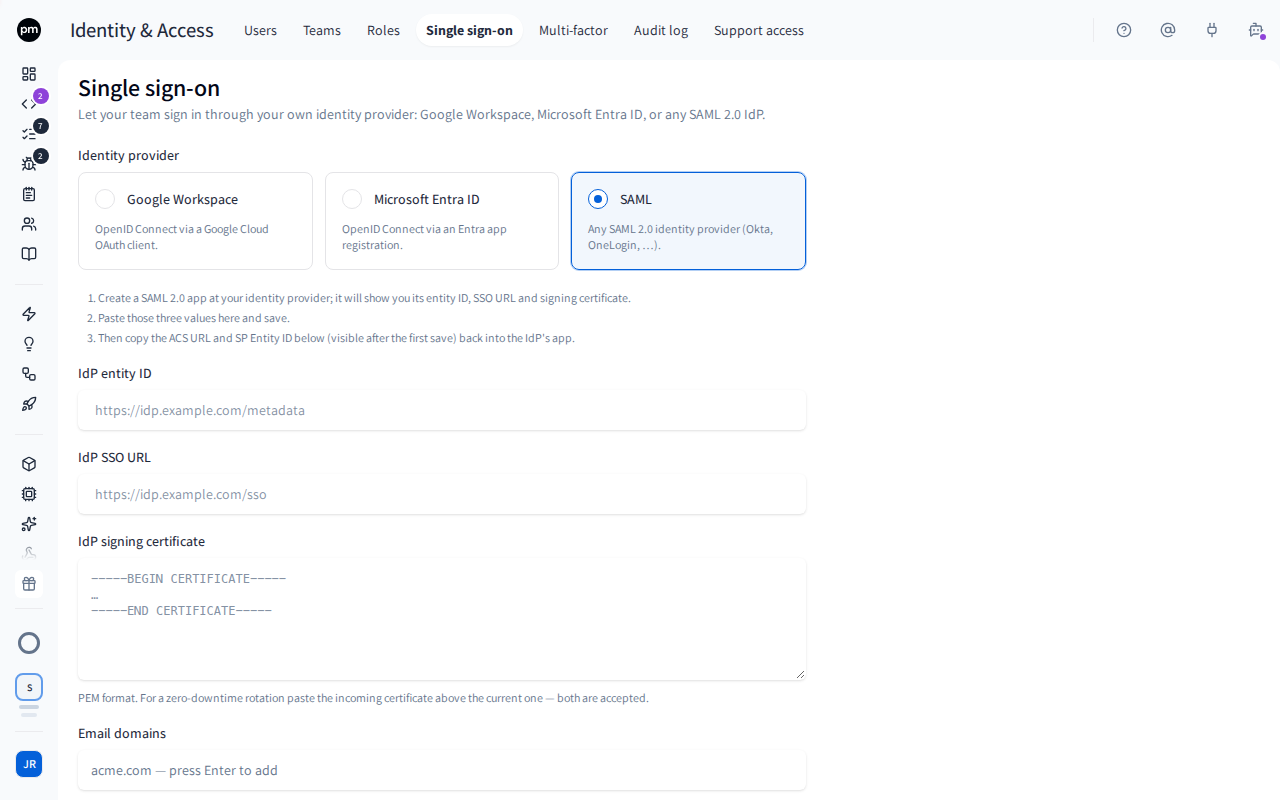
Before you connect, the tab shows the connection form. Once connected, it also shows:
- a status line and an Enabled switch;
- Test SSO;
- Values for your identity provider;
- Sign-in policies.
Setting up single sign-on
To connect your identity provider
-
In the sidebar, choose Identity & Access, then Single sign-on.
-
Under Identity provider, choose Google Workspace, Microsoft Entra ID or SAML, and follow the numbered steps the page shows for it.
-
Fill in what your identity provider gives you:
Provider Fields SAML IdP entity ID, IdP SSO URL, and the IdP signing certificate in PEM format Google Workspace, Microsoft Entra ID Issuer URL, Client ID and Client secret. For Entra ID, use your tenant's own issuer URL. -
Under Email domains, type each domain your members use and press Enter.
-
Choose Save and activate.
-
Copy the values under Values for your identity provider back into your identity provider:
- for SAML, the ACS URL, the SP Entity ID, or the SP metadata URL;
- for Google and Entra ID, the Redirect URI.
To rotate a SAML signing certificate without downtime, paste the new certificate above the current one. Productmind accepts both until you remove the old one.
To test the connection
- Choose Test SSO.
- Sign in at your identity provider.
When it works, Productmind shows SSO connection verified. Test before you require SSO: you can't turn Require SSO on until one SSO sign-in has succeeded.
To add new people automatically
- Under Sign-in policies, turn on Allow every identity-provider user.
- Choose the Role for new members.
- Under Workspaces for new members, choose All workspaces, or Selected only and select at least one workspace.
With this off, SSO works for people who are already members, and for people you invite at an address on one of your domains who don't have a Productmind account yet. Anyone else you invite accepts the invitation from its email first.
To require single sign-on
- Under Sign-in policies, turn on Require SSO.
- Choose Require SSO.
Members can no longer sign in with a password or Google. The owner still can.
How single sign-on behaves
Signing in. Your members enter their email on the sign-in page. For one of your domains, Productmind offers Continue with SSO. While SSO isn't required they can still choose Continue with password authentication. Each connection also has a Sign-in link, shown with the values for your identity provider, that you can bookmark or add as a tile in your identity provider.
Invitations still work. Someone invited to your organization can accept the invitation even when SSO is required. Someone who doesn't have a Productmind account yet, invited at an address on one of your domains, can instead sign in through your identity provider, and joins with the invitation's role and workspaces. Everyone else, including anyone who already has a Productmind account, accepts the invitation from its email first. After that, they sign in with SSO.
Seats. A just-in-time member takes a seat. When every seat is taken, their sign-in fails.
Your organization only. Signing in through your identity provider opens your organization and no other. A member who also belongs to other organizations can't switch to one of them, or connect an AI assistant, the Productmind CLI or the browser extension to one, until they sign in again with a password or Google, or through that organization's own single sign-on. Productmind tells them which works there. The sign-in is still the member's own account, so from it they can manage their own two-factor authentication and sign out their other sessions, as from any sign-in.
Turning the connection off (the Enabled switch) stops SSO sign-ins, and also turns Require SSO off. Saving the connection form turns the connection back on.
Removing the connection keeps your members and their accounts. You must turn Require SSO off first.
Permissions
| To | You need |
|---|---|
| See and remove the connection | The Owner or Admin role |
| Set up or change single sign-on | The Owner or Admin role, on a plan that includes single sign-on |
Troubleshooting
The Single sign-on tab is missing
Only an Owner or Admin sees the tab. Ask one of them to set up single sign-on.
The Single sign-on tab shows a lock
Your organization's plan doesn't include single sign-on. The tab names the plan that includes it. See Features that depend on your plan and Plan.
"The domain is already claimed by another organization"
Each email domain can belong to only one Productmind organization. If it should be yours, contact Productmind support.
Require SSO can't be turned on
Complete one successful SSO sign-in first. Choose Test SSO.
A member sees "Ask your admin for an invite"
They signed in through your identity provider but aren't a member, and Allow every identity-provider user is off. Invite them, or turn that policy on.
Someone sees "You have an invitation to this organization that single sign-on can't accept for you"
Single sign-on accepts an invitation only for someone who doesn't have a Productmind account yet, invited at an address on one of your domains. Ask them to accept the invitation from its email. After that, they sign in with SSO.
A member sees "Your membership in this organization was deactivated"
They were disabled. Enable them on the Users tab.