

Templates
The Templates tab lists every template Productmind's agents follow in your workspace. Some set the shape of what an agent writes, such as a feature specification or a task. Others are the instructions for a job an agent does, such as a scan of your code or a coding session's plan. You can rewrite any of them for your workspace, and pick how capable a model and how much reasoning each job gets.
Key concepts
Document template. The shape of something an agent writes. The agent follows its headings and guidance when it drafts that kind of document.
Instructions. What an agent does in one kind of job. Productmind adds the details of each run below them, such as the session's description or the application being scanned.
Custom and default. A template you haven't edited shows Using default and follows Productmind's current version, including later improvements. Once you edit it, it shows Custom and keeps your version until you restore the default.
Model. How capable a model the job runs on:
| Model | Means |
|---|---|
| Quick | The fastest and cheapest. Suits light, mechanical passes. |
| Standard | Balanced cost and capability. |
| Top | The strongest generally available model. |
| Ultra | The most capable model Productmind can reach. Falls back to Top where it's not available. |
Effort. How much the model reasons before it acts: Low, Medium, High, Extra high or Maximum. More effort is slower and costs more. A coding session runs at the lower of the job's effort and the model's effort level on Model classes.
Defaults. Until you choose another model or effort, instructions run on Top at Maximum, except these:
| Instructions | Model | Effort |
|---|---|---|
| Feature deep read, Component read, Application technical documentation, Code chat | Standard | High |
| Feature discovery | Standard | Extra high |
| Feature composition, Feature revision from comments | Top | High |
Instructions have a model and an effort, except Pre-PR documentation drafting, which runs with the model and effort of Engineering build. A document template shapes an output, so it has neither.
The templates
| Template | What it is |
|---|---|
| Feature description | The shape of a feature specification: what the feature does, for whom, under which rules. New features start from it, and the AI follows it when it writes a feature's description. |
| Component specification | The shape of a component's specification: a screen, a service module, a worker or shared code, described from its own code. |
| Feature technical document | The shape of the technical document written alongside a specification, for a feature that has no components. |
| Feature request description | The shape of the feature requests that Productmind extracts from customer meetings. |
| Task description | The shape of a task. The AI follows it when it generates tasks from a feature, and when an agent creates a task. |
| Feature discovery (one application - legacy) | Instructions for the older scan that read one application's code and created its features directly. Feature discovery (this application) now runs Feature discovery on that application and follows the Feature discovery instructions. |
| Feature deep read | Instructions for reading a feature's code and writing its full specification, including when you refresh a feature's description. |
| Component read | Instructions for reading a component's code and writing its business rules and specification. |
| Feature composition | Instructions for writing a feature's description from its components' specifications and rules. It reads no code. |
| Feature revision from comments | Instructions for Send to agent in Review mode: the agent revises a feature's or a component's specification from its open comments, changing only the passages they point at, replies under each comment, and proposes the result for review. See Review mode. |
| Feature discovery | Instructions for the feature discovery that reads all your repositories together and builds your feature catalog. |
| Application technical documentation | Instructions for the Documentation scan, which writes and updates an application's technical documentation. |
| Pre-PR documentation drafting | Instructions for what a coding session proposes before it opens a pull request: updates to the feature specifications and documents its changes affect. When the session has an approved plan, Productmind also proposes the first specification of each feature that plan names. That step is always added and isn't part of this template. |
| Engineering plan | Instructions a coding session reads when it drafts a plan. By default, the agent sizes the work first and writes a plan to match: a short summary, the files to change and how the change will be verified for a small task, and the full plan only for large work. Below your instructions, Productmind always adds a step that makes every plan say which features the work belongs to, and propose a new feature when none fits. You can't edit or remove that step here. |
| Engineering build | Instructions a coding session reads when it builds: your coding style, branch policy, pull request format and anything it must not touch. It also holds the CI failure auto-fix settings. Below your instructions, Productmind always adds a step that creates the new features an approved plan names. |
| Code chat | Instructions the agent follows in every message of a Code conversation: how it answers from the code without changing it, how it proposes a correction to a feature's specification for review, and how it creates and updates tasks, features and bug reports when you ask. A version your workspace saved before the agent could create items keeps its own wording, which may tell it to only read: restore the default, or edit it, to give the agent the current rules. See Code conversations. |
The Templates tab at a glance
In the sidebar, choose Agents. Templates is the first tab.
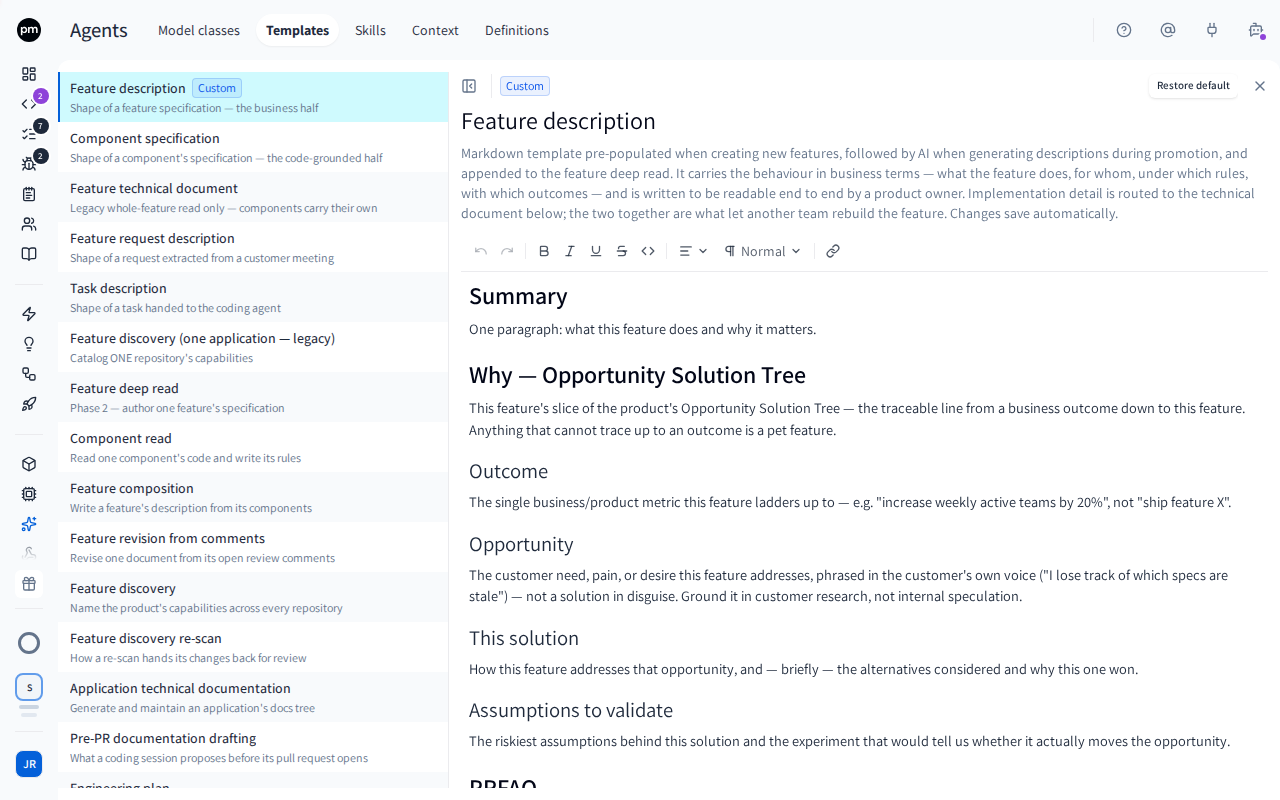
The list shows each template with a one-line summary, and Custom on the ones you've edited. Choose one to open it beside the list.
The header of an open template holds Model and Effort when the template has them, the save status, and Restore default on a template you've edited. Above the title, Custom or Using default says which version is in use. Below it are a description of the template and the editor.
Editing templates
To edit a template
- In the sidebar, choose Agents, then Templates.
- Choose the template.
- Edit it in the editor.
- Move out of the editor.
The template saves as soon as you leave the editor: the header shows Saving and then Saved, and the template shows Custom. The next agent run that uses it follows your version.
To choose the model and effort for a job
- Open the template.
- Choose Model, and pick a model.
- Choose Effort, and pick a level.
Each choice saves straight away and applies from the next run.
To restore the default
- Open the template and choose Restore default.
- Choose Restore default again to confirm, or Keep custom to cancel.
Your version is discarded and the template shows Using default again. This can't be undone.
To set up CI failure auto-fix
When a pull request that a coding session opened fails its checks, Productmind can fetch the errors, post them on the pull request as review comments, and resume the session so the agent can judge whether its own changes caused them. When a failure has nothing to do with the change, such as a flaky test or an outage, the agent says so and changes nothing.
- Open Engineering build.
- Under CI failure auto-fix, turn Fix failing checks on the pull requests this agent opens on or off. It's on by default.
- In Attempts per session, enter how many extra build turns one session may spend fixing its checks, across all its pull requests. The default is 2, and the maximum is 5.
A session makes at most one attempt per commit. Set Attempts per session to 0 to stop auto-fix without turning the switch off.
Each attempt is billed like any build turn, including one where the agent decides a failure isn't caused by its changes and changes nothing. A session that runs in Productmind's cloud uses AI credits and sandbox time, or only sandbox time when your organization uses its own model provider key. A session that runs on a developer's machine uses no AI credits.
Failures that are also failing on the base branch don't start an attempt. Before an attempt, Productmind compares each failing check with the same check on the head of the pull request's base branch, job by job. When every failing check is also failing there, no attempt starts for that commit, and the session says so. Fix the checks on the base branch and re-run the pull request's checks, and auto-fix looks again.
When billing refuses an attempt, the session stays in review. The failures are still posted as review comments, the pull request's checks area shows what to do about billing, and the refused attempt doesn't count toward Attempts per session. Productmind doesn't try the same commit again on its own: once billing allows it, choose Apply code revisions to send the failures to the agent.
The session's people are told when an attempt starts. The person who started the session, its assignee and the person whose machine runs it get a notification, emailed when they don't have Productmind open. See Profile and notifications.
How templates behave
Templates apply to this workspace only. Each workspace has its own versions.
Productmind adds the run's details. The session's description, the application's details or the feature being read are added to the instructions for each run, so you don't write them into the template.
Changes apply from the next run. Runs read the template when they start.
Permissions
| To | You need |
|---|---|
| See and edit templates, models and effort | Agents access (under Administrative access on the Roles tab) |
The Owner, Admin, Power User and Developer roles have it. See Roles and permissions.
Troubleshooting
My changes weren't saved
A template saves when you leave the editor. Move out of the editor, and check that the header shows Saved. Save failed means the change didn't reach Productmind: copy your text, reload the page and try again.
Restore default is missing
The template already uses the default. Restore default appears only on a template you've edited.