

Skills
A skill is a short, named procedure that tells an agent how to do one job your way, such as creating a feature or reviewing a feature request. Agents load a skill only when the job comes up, and you can run one yourself in the PM agent by typing / and its name. Productmind comes with a set of standard skills that you can adapt, and you can add your own.
Key concepts
Name. How the skill is called, for example create-feature, which you run as /create-feature. Names use lowercase letters, digits, dashes and underscores, and are unique in the workspace.
Description. One line that says what the skill does. It appears in the skill picker, and it is how an agent decides whether a skill fits the job.
Instructions. The procedure itself, in Markdown: when to use the skill, then the steps.
Standard skill. A skill Productmind provides in every workspace, marked Standard. You can edit it for your workspace and reset it later. Until you edit it, your workspace gets Productmind's improvements to it automatically. The standard skills are:
| Skill | What it does |
|---|---|
| /create-feature | Creates or fleshes out a feature following your workspace's feature description template. |
| /create-task | Creates a clear, actionable task, then optionally starts a session to work on it. |
| /coding-session-handoff | Hands a scoped piece of work from a conversation to a coding session. |
| /search-knowledge-base | Searches the workspace knowledge base and cites what it finds. |
| /review-feature-request | Reviews a customer feature request and decides how to act on it. |
| /generate-tasks-from-feature | Breaks a feature into tasks and creates the ones you approve. |
Skills or context. Context is background that the PM agent, the interview agent and the generators always get. A skill is a procedure that is loaded only when its job comes up. Put what is always true in the context, and step-by-step procedures in skills.
The Skills tab at a glance
In the sidebar, choose Agents, then Skills.
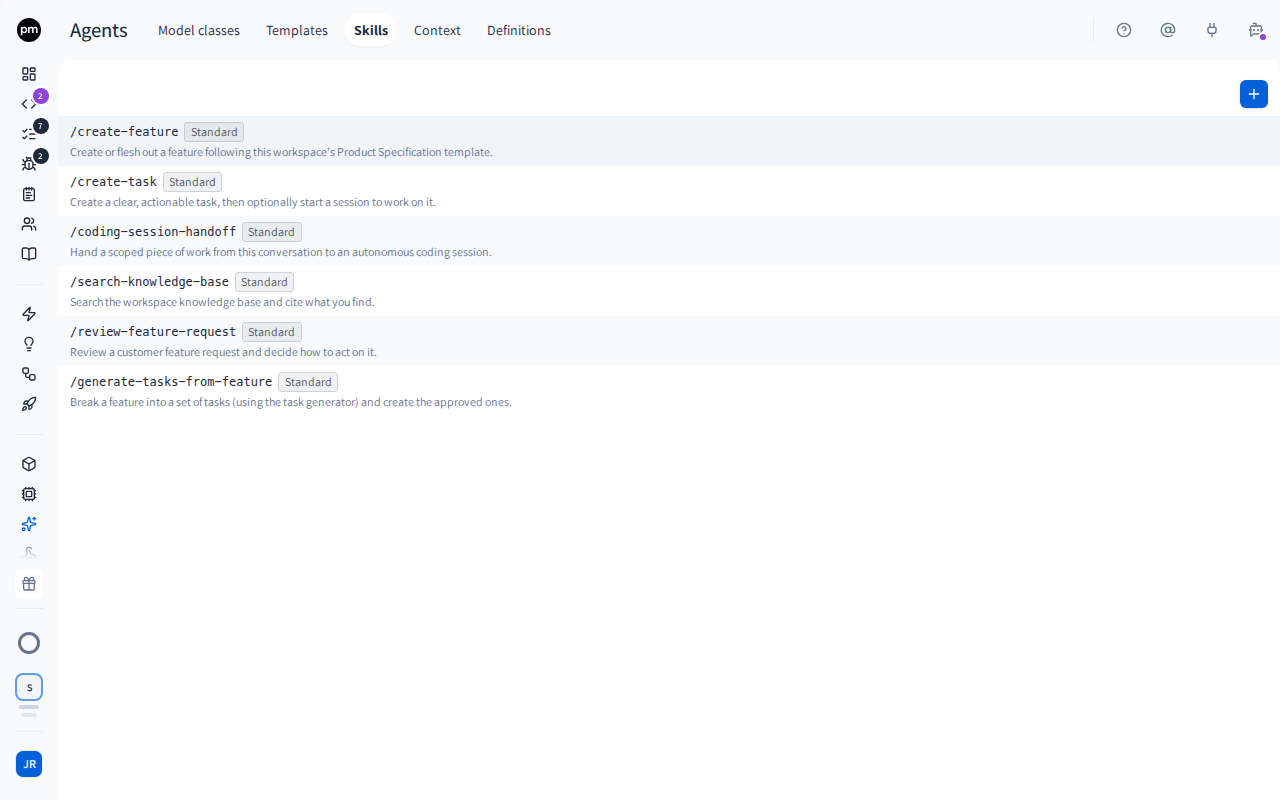
The list shows each skill's name, Standard on the standard skills, and its description. Add skill (the + button) is above the list. Choose a skill to open it beside the list.
An open skill shows its name as the title, its Description and its Instructions, with the save status in the header. A standard skill you've edited has Reset to standard. A skill you created has Delete skill.
Working with skills
To add a skill
- In the sidebar, choose Agents, then Skills.
- Choose Add skill (the + button).
- Enter a Name, such as triage-bug.
- Enter a one-line Description.
- Write the Instructions: when to use the skill, then the steps.
- Choose Create skill.
The skill opens. Within about five minutes, the PM agent knows about it, and loads it when its job comes up or when you run it.
To edit a skill
- Open the skill.
- Change the Description or the Instructions. To rename a skill you created, choose its title and enter the new name.
- Move out of the field.
The change saves when you leave the field, and the header shows Saved. Editing a standard skill makes a version for your workspace. A standard skill can't be renamed.
To use a template in a skill
A skill's instructions can include {FEATURE_TEMPLATE} or {TASK_TEMPLATE}. When an agent loads
the skill, Productmind replaces them with your workspace's current feature description or task
description template. The skill then always follows
your latest template.
To reset a standard skill
- Open the standard skill and choose Reset to standard.
- Choose Reset to standard again to confirm, or Keep customizations to cancel.
Your version is discarded and the skill follows Productmind's standard again. This can't be undone.
To delete a skill
- Open a skill you created and choose Delete skill (the trash icon).
- Choose Delete skill to confirm.
Deleting a skill can't be undone. Standard skills can't be deleted, only reset.
To run a skill in the PM agent
In the PM agent's message box, type / and the start of the skill's name, and choose the skill from the list. You can also choose Use a skill, under the message box or in its + menu. The assistant loads the skill and follows it for that message.
How skills behave
Agents load skills on their own. When the job a skill covers comes up, the PM agent loads it and follows it. For example, it loads /create-feature before it drafts a feature, so the feature matches your template.
New skills reach the PM agent within about five minutes. So do changes to a skill's name or description. The assistant reads a skill's Instructions fresh each time it loads the skill, so an edit to them applies straight away.
Coding sessions get your skills too. When a coding session plans or builds, it receives your workspace's skills, so the work follows the same procedures you used when you scoped it. A skill you delete stops reaching sessions.
A skill's instructions guide the agent, and never override its safety rules. With Ask approval on, the assistant still asks you before it creates or changes anything, whatever the skill says.
Permissions
| To | You need |
|---|---|
| Add, edit, reset and delete skills | Agents access (under Administrative access on the Roles tab) |
| Use a skill in the PM agent | Chat: Enabled |
The Owner, Admin, Power User and Developer roles have Agents access. See Roles and permissions.
Troubleshooting
The name turns red, or Create skill stays disabled
Names can't contain capitals, spaces or other characters: the hint under the name turns red. Use dashes instead of spaces, such as triage-bug.
"A skill named ... already exists in this workspace"
Skill names are unique in a workspace, whatever their capitalization. Choose another name, or edit the existing skill.