

Definitions
A definition describes an agent: who it is and how it works, which model it runs on, and which tools it may use to read and change your workspace. Productmind provides a standard agent, and you can customize it or create agents of your own. An automation then runs one of these agents whenever something happens in your workspace, or on a schedule.
Key concepts
Instructions. The agent's system prompt: who it is and how it works. They are the same on every run. What to work on arrives with each run, so don't write it into the instructions.
Slug. The agent's ID, such as bug-report-triager. Automations refer to the agent by its slug, so it can't be changed once the agent is created. The name can.
Tools. What the agent may read and do. An agent with no tools can reason and answer, but it can't read or change anything in your workspace. Tools come in groups:
- Built-in, the agent's own tools, such as searching features, bug reports or the knowledge base;
- Productmind API (MCP), your workspace's data through Productmind's MCP server;
- one group for each MCP server you attach from your integrations.
A tool marked writes changes data.
Automation-ready. An automation runs with nobody watching, so it can only run an agent whose tools can't update, delete, merge or bulk-edit records, start sessions or navigate the app, and whose attached MCP servers each have their tools picked. An agent that doesn't qualify is marked direct runs only on the offending tools, and a warning names them. Agents that read, and that create things such as comments, qualify.
Standard, Customized and Custom. Each agent carries a badge:
| Badge | Means |
|---|---|
| Standard | An agent Productmind provides in every workspace. You can edit it. |
| Customized | A standard agent you've edited. You can reset it to the standard version. |
| Custom | An agent you created. You can delete it. |
Until you edit a standard agent, your workspace gets Productmind's improvements to it automatically. The standard agent today is Bug report triager: it reads a bug report, looks for likely duplicates and the feature it belongs to, and posts a short triage note as a comment on the report.
The Definitions tab at a glance
In the sidebar, choose Agents, then Definitions.
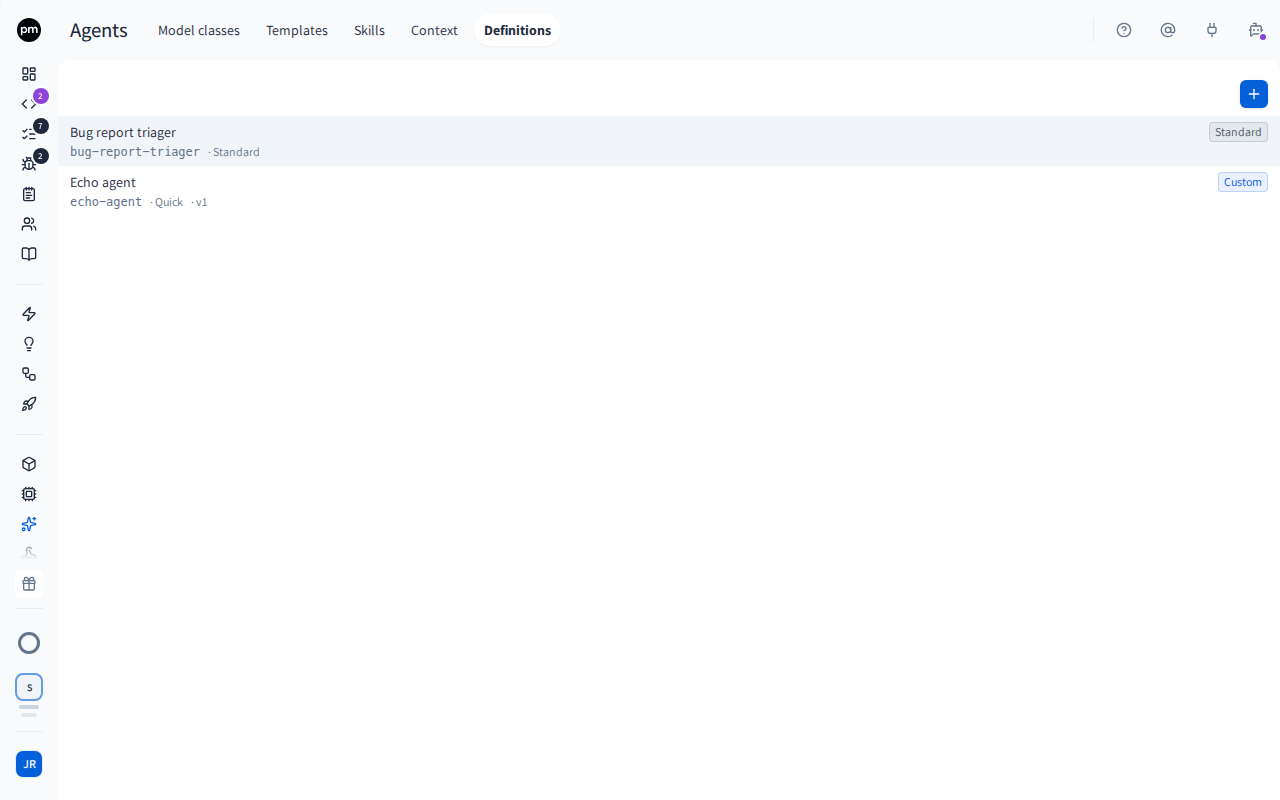
The list shows each agent's name, its slug, its model, its version and its badge. A custom agent has a version from v1, and a standard agent once you've customized it. Add agent (the + button) is above the list. Choose an agent to open it beside the list.
An open agent shows:
- its name as the title, its badge, and a note that its slug is fixed;
- Description;
- Instructions (system prompt);
- Model: Quick, Standard, Top or Ultra. See Templates for what they mean;
- Max turns, how many times the agent may loop over its tools in one run. Leave it empty for 20. A run that reaches it before the agent finishes fails;
- Enabled. A disabled agent refuses to run;
- Tools;
- Knowledge base filters.
The header holds the version number when the agent has one, Reset to standard on a customized agent, Save, Delete agent on a custom agent, and Close.
Working with definitions
To create an agent
- In the sidebar, choose Agents, then Definitions.
- Choose Add agent (the + button).
- Enter a Name. The Slug is filled in from it. Change the slug now if you want another one: it uses lowercase letters, digits and single dashes, and it can't be changed later.
- Enter a one-line Description.
- Write the Instructions (system prompt).
- Choose Create agent.
The agent opens, with the badge Custom. Pick its tools next.
To choose an agent's tools
- Open the agent.
- Under Tools, select the tools it needs. Use the search box to find a tool, and All or Selected to see every tool or only the ones you picked. Each group shows how many of its tools are selected.
- To give it tools from one of your integrations, choose Attach MCP server and pick the integration, then select its tools. To add an integration first, choose Connect a new MCP server in the same menu. While you have no MCP integration to attach, the button reads Connect an MCP server.
- Choose Save.
Select the tools of an attached MCP server. Until you do, the agent would get every tool that server has, so automations can't run it. A server that needs you to sign in sends you to its provider, so save your other changes first.
To remove an attached server, choose Detach this MCP server on its group. A tool turned off on the integration itself shows disabled on the integration, and can't be selected here.
To narrow what the agent finds in the knowledge base
- Open the agent.
- Under Knowledge base filters, pick document tags:
- Always hide documents tagged: the agent never gets documents with these tags, and can't override it. Untagged documents always pass.
- Prefer documents tagged: the agent searches these documents by default, but may search wider when a question calls for it.
- Choose Save.
To change an agent
- Open the agent.
- Edit its Instructions, Model, Max turns, Enabled, tools or filters.
- Choose Save.
The version number goes up by one. The name and the description save on their own as soon as you leave them. Editing a standard agent makes a customized version for your workspace.
To reset a customized agent
- Open the agent and choose Reset to standard.
- Choose Reset to confirm.
Your changes are deleted and the workspace uses the standard agent again. This can't be undone.
To delete an agent
- Open a custom agent and choose Delete agent (the trash icon).
- Choose Delete to confirm.
Deleting an agent can't be undone. Automations that run it stop working: the next time one fires, it turns itself off and says why.
How definitions behave
A run is told what happened, not everything about it. When an automation runs an agent, the agent gets the kind of item, its ID and the event, plus the automation's custom input. It looks the item up itself with its tools.
Your workspace context isn't added to its instructions. The agent runs on exactly the instructions you see here: the workspace agent context isn't added to them. Write anything the agent must always know about your product into its instructions.
An agent acts as a person. Every run carries the identity of the automation's run-as user, so the agent sees and changes only what that person is allowed to.
The version is a counter, not a history. You can't view or restore an earlier version. If two people edit the same agent at once, the second save is refused rather than overwriting the first.
A run that reaches its limit fails. If the agent uses all its Max turns before it finishes, the run stops and is marked Failed, with an error such as "Stopped: turn limit reached (20)". A token limit set through the API (see the API Reference) stops a run the same way, with "Stopped: total token limit reached" and the limit. Whatever the agent wrote before it stopped is kept as the run's output, and the tokens it used count toward your usage. For an automation, each of these runs counts toward the 10 failed runs in a row that turn it off.
Changing an agent affects its automations straight away. If a change makes the agent no longer automation-ready, or you disable it, the automations that run it turn themselves off the next time they fire, with the reason.
Permissions
| To | You need |
|---|---|
| See, create, change, reset and delete agents | Agents access (under Administrative access on the Roles tab) |
The Owner, Admin, Power User and Developer roles have it. See Roles and permissions.
Limits
| Limit | Value |
|---|---|
| Max turns | 1 to 50 |
| Token limit per run, set through the API | Up to 2,000,000. It counts the same tokens that Runs shows for a run, not the AI credits your plan counts. |
| Instructions | 32,000 characters |
| Attached MCP servers | 10 |
Troubleshooting
The Definitions tab is missing
Automations aren't enabled for your organization yet. Ask Productmind support to turn them on.
"This definition was changed by someone else"
Someone saved the agent after you opened it. Reload the page, and apply your changes again.
The agent can't be chosen for an automation
If the agent is grayed out in the automation's Agent list, it isn't automation-ready. Its Tools section shows a warning that it can't run on a schedule or a trigger, and names the tools or servers responsible. Remove those tools, or select the tools of each attached MCP server, and save.
If the agent isn't in the list at all, it's disabled. Select Enabled, and save.