

MCP Workflow Skill
When an AI coding assistant such as Claude Code connects to Productmind's MCP server to work on your tasks, it first reads the workflow skill: instructions for how to pick up tasks, group them into a session, report progress and hand in the pull request, so that Productmind stays up to date as the work goes on. The MCP Workflow Skill tab shows the skill your workspace serves, and lets you adapt it.
Key concepts
Workflow skill. Markdown instructions that an external AI assistant reads before it works on your tasks. It explains how tasks and sessions work in Productmind and which of Productmind's MCP tools to use at each step.
Default and custom. Until you edit it, your workspace serves Productmind's default skill, and the tab shows Status: Using default skill. Once you edit it, it shows Custom skill, and your version replaces the default completely. The default grows as assistants can do more, for example sharing their conversation with a session. A custom skill keeps your text as it is, so add such instructions to it yourself, or restore the default.
Workspace details. The default skill includes your workspace's ID, its production and development branches, its session branch prefix, and the repositories your sessions work on. When you haven't customized the skill, the editor shows it with these details already filled in.
The MCP Workflow Skill tab at a glance
In the sidebar, choose Agents, then MCP Workflow Skill.
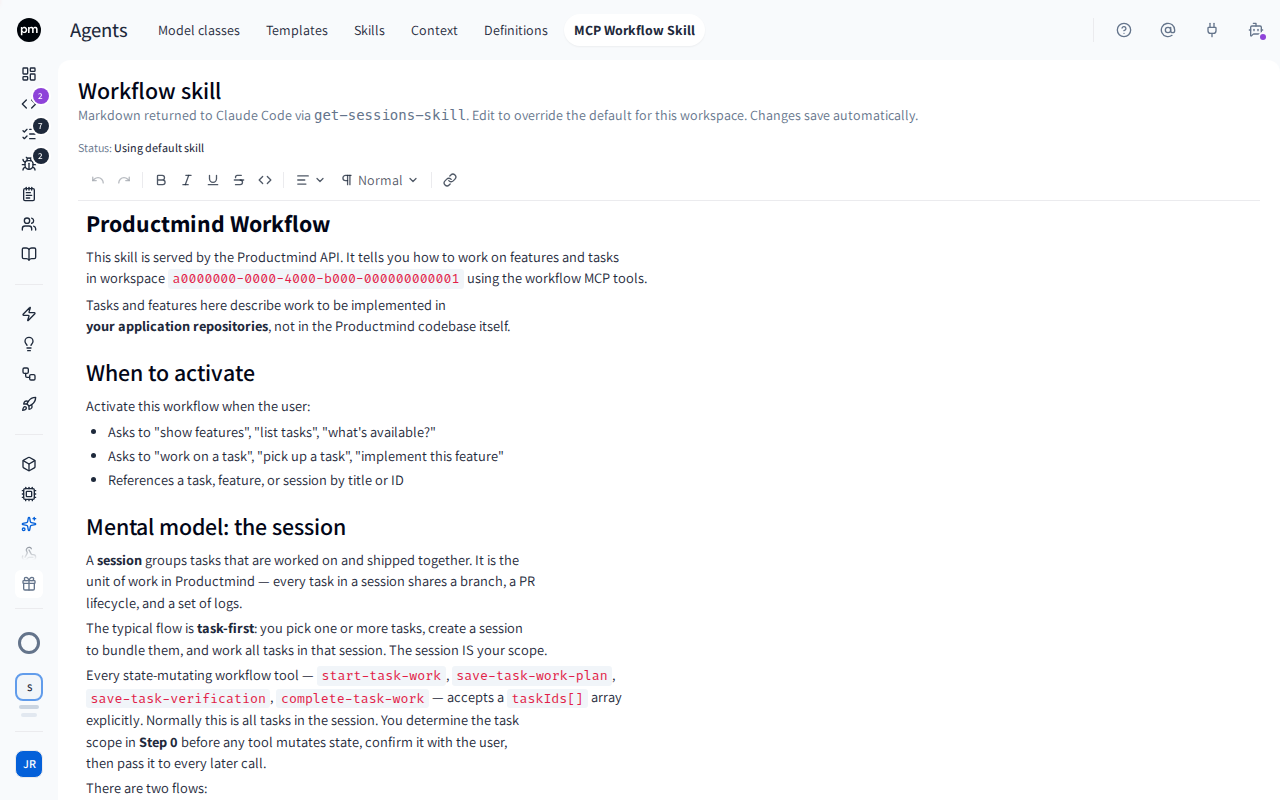
The tab shows the Workflow skill heading, its status, and the skill in an editor. The header shows the save status, and Restore default once you've customized it.
Editing the workflow skill
To edit the workflow skill
- In the sidebar, choose Agents, then MCP Workflow Skill.
- Edit the skill in the editor.
- Move out of the editor.
The skill saves, the header shows Saved, and the status changes to Custom skill. An assistant gets your version the next time it reads the skill.
A custom skill can include these placeholders, which Productmind fills in each time an assistant reads it:
| Placeholder | Becomes |
|---|---|
{{workspaceId}} | The workspace's ID |
{{git.productionBranch}} | The production branch from your Git workflow settings |
{{git.developmentBranch}} | The development branch from your Git workflow settings |
{{git.sessionBranchPrefix}} | The prefix of session branch names from your Git workflow settings |
{{repositories}} | A list of the repositories your workspace's sessions have worked on |
A placeholder Productmind doesn't know is left as it is.
To restore the default
- Choose Restore default.
- Choose Restore default again to confirm, or Keep custom to cancel.
Your version is discarded, and your workspace serves Productmind's default skill again. This can't be undone.
How the workflow skill behaves
A custom skill doesn't follow later changes. Productmind improves the default skill over time, and your workspace gets those improvements only while it uses the default. When you customize the skill, it helps to restore the default from time to time and apply your changes again.
Editing the default fixes its details in place. The editor shows the default with your workspace's details filled in. If you edit it, those details are saved as plain text and no longer update when, for example, your branches change. Use the placeholders above to keep them current.
Only external assistants read it. Productmind's own PM agent and coding sessions don't use the workflow skill. To shape them, use Skills, Context and Templates.
Permissions
| To | You need |
|---|---|
| See and edit the workflow skill | Agents access (under Administrative access on the Roles tab) |
The Owner, Admin, Power User and Developer roles have it. See Roles and permissions.